TABLE OF CONTENTS
- Build Plan Budgets
- Where to find budgets in Fieldclix
- How budgets fit the Build Plan lifecycle
- Who can work with budgets
- Budget Items
- Budget Templates
- Easy Budget mode (Adhoc Budget)
- Q&A
- Related articles
Build Plan Budgets
A Build Plan Budget is the financial plan for a Build Plan. It records planned revenue, planned labor hours, and planned expenses so you can compare the plan to committed costs and actual results on the Build Plan Budget tab, in WIP, and on P&L.
This article covers the concept, who can work with budgets, and how to set up Budget Items, Templates, and Project Scenario links. For step-by-step work on a budget card (create, edit lines, submit, delete), see the companion article Create and Edit a Build Plan Budget.
Where to find budgets in Fieldclix
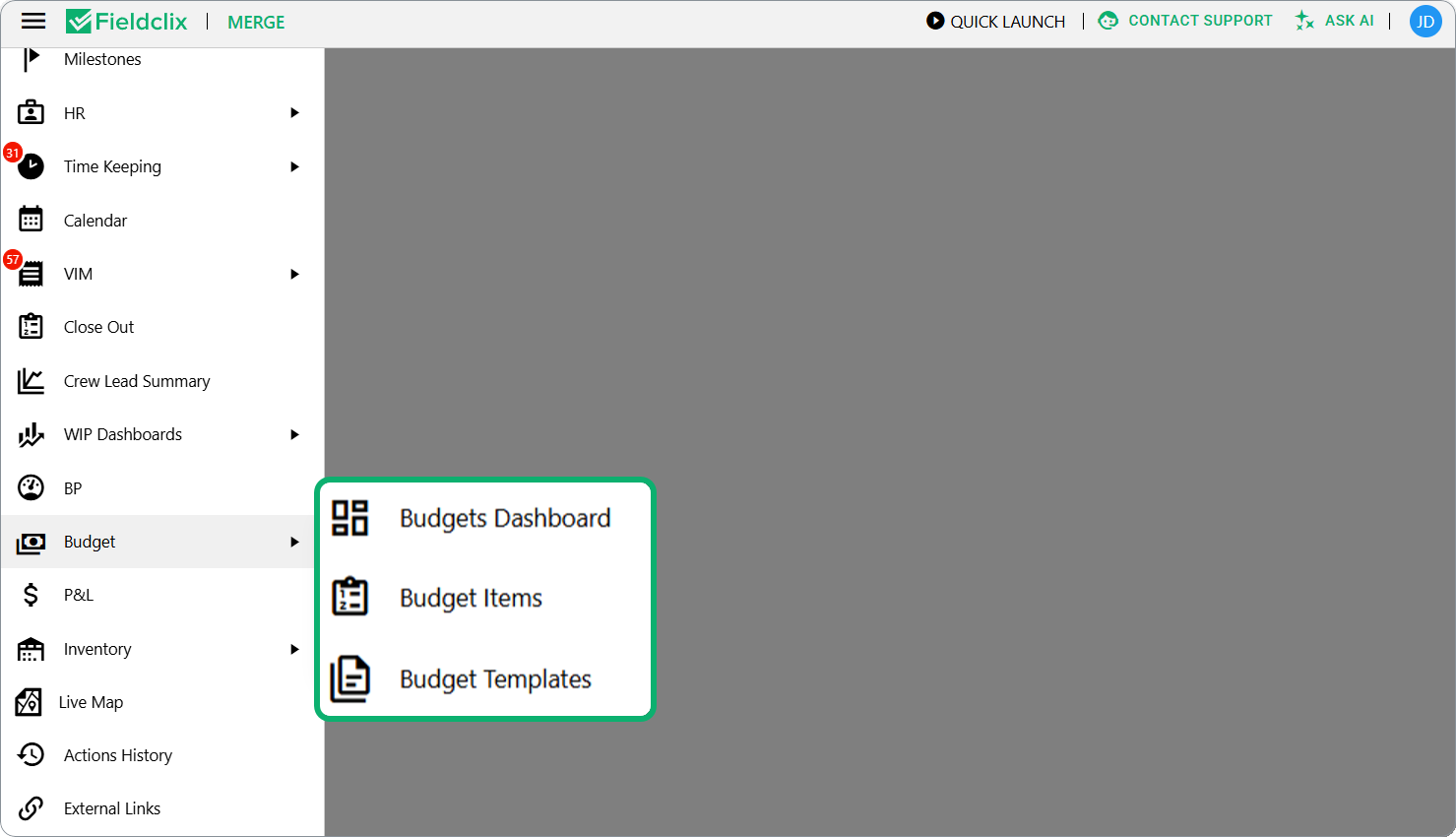
Open the main menu and go to Budget:
| Menu item | What it is for |
|---|---|
| Budgets Dashboard | Compare budgets across many Build Plans |
| Budget Items | Catalog of reusable budget line definitions |
| Budget Templates | Pre-filled cost structures for a Project |
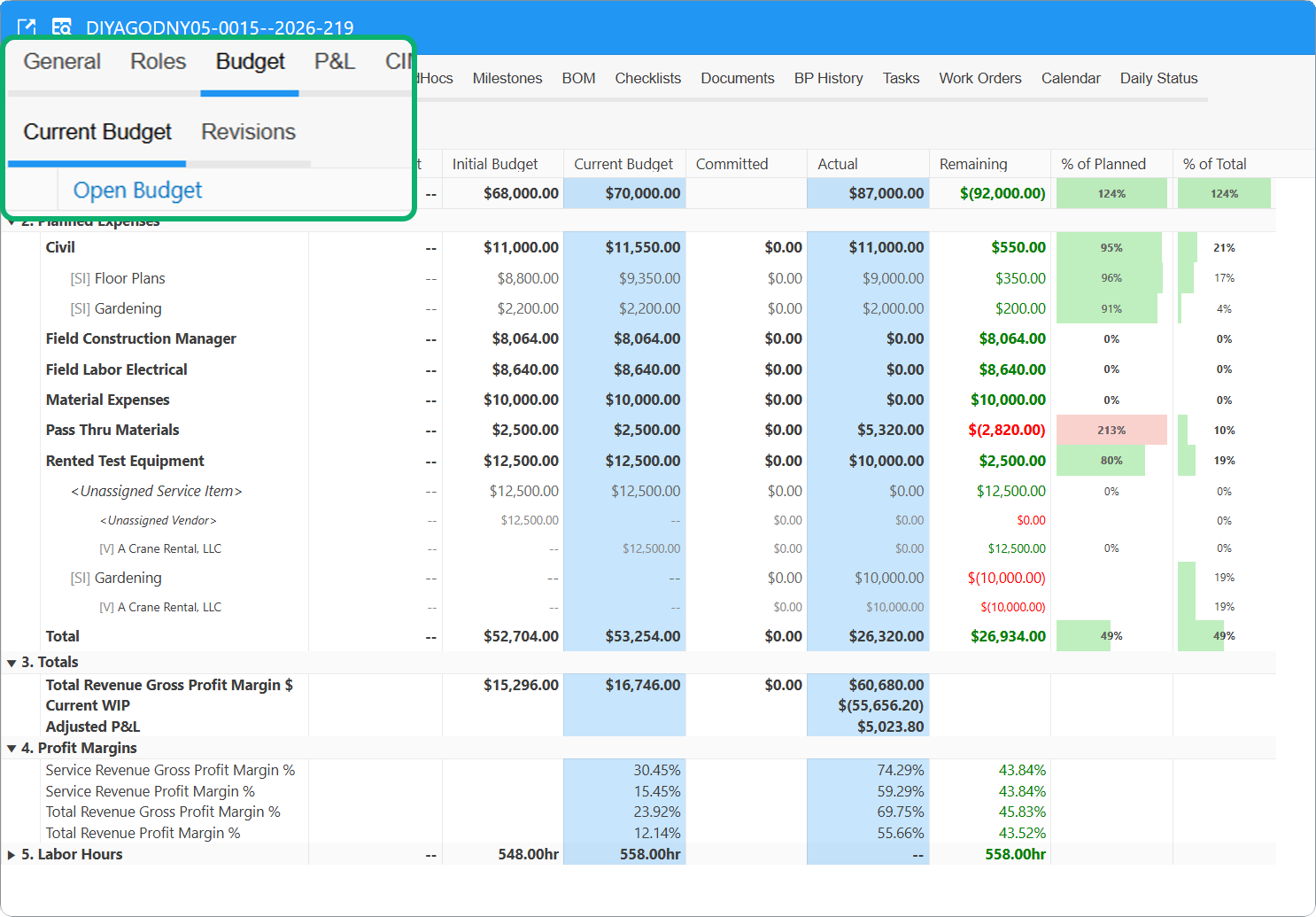
On a Build Plan, open the Budget tab:
| Sub-tab | What it shows |
|---|---|
| Current Budget | Planned vs committed vs actual grid |
| Revisions | All budget versions with status and summary metrics |
How budgets fit the Build Plan lifecycle
| Stage | What happens |
|---|---|
| Setup | Project Library Manager maintains Budget Items and Templates; links a template to a Project Scenario |
| Generate Build Plan | If the scenario has a template, Fieldclix can create the first Pending budget automatically |
| Edit and submit | Financial user fills in or adjusts the budget and sends it for approval |
| Approved | Budget becomes the current plan; amounts feed WIP, P&L, and the Current Budget grid |
| Revise | A new pending revision replaces the approved plan when costs or revenue change |
Budget revisions move through Pending → Approved → Obsolete. Details: Build Plan Budget Approval.
Who can work with budgets
Access depends on your employee roles:
| Area | Financial | Project Library Manager |
|---|---|---|
| Budget Templates | — | Full access (create, edit, delete templates and template lines) |
| Budget Items | — | Full access (create, edit, delete catalog items) |
| Build Plan Budgets | Full access | — |
Employees in the Project Library Managers group are typically also assigned to the Financial role so they can open financial dashboards and Build Plan budgets when needed.
Which Build Plans you can budget
Employees with the Financial role do not automatically see every Build Plan in the company. You can work with budgets only for Build Plans you have financial access to—the same scope as Status, WIP, P&L, and the Budgets Dashboard:
| Access pattern | Build Plans you can access |
|---|---|
| All Direct Cost BPs Financials role | All direct-cost Build Plans (optionally limited by Class filter) |
| Full Financial role | Direct-cost and overhead Build Plans (optionally limited by Class filter) |
| Build Plan Owner | Build Plans you own |
| Project Owner | Build Plans in your projects |
| Project Role with finance access | Build Plans where you hold that role |
Actions by role (overview)
| Object | Who maintains it |
|---|---|
| Budget Item catalog | Project Library Manager |
| Budget Template and Scenario link | Project Library Manager |
| Build Plan Budget (create, edit, submit, revise, delete pending) | Financial (with access to the Build Plan) |
| Approve from budget card (APPROVE) | Financial + Advanced Budget Manager |
| Approve via inbox job | Configured approver (often Project Owner) |
| Effective Date (manual change) | Accountant and Bookkeeper |
Configurable (your instance)
Employees with Financial and Advanced Budget Manager can APPROVE from the budget card: Fieldclix approves the budget directly and closes the linked inbox approval task.
Budget Items
A Budget Item is a reusable definition in Budget → Budget Items—for example Field Construction Manager, Materials, or Pass Thru Lifts.
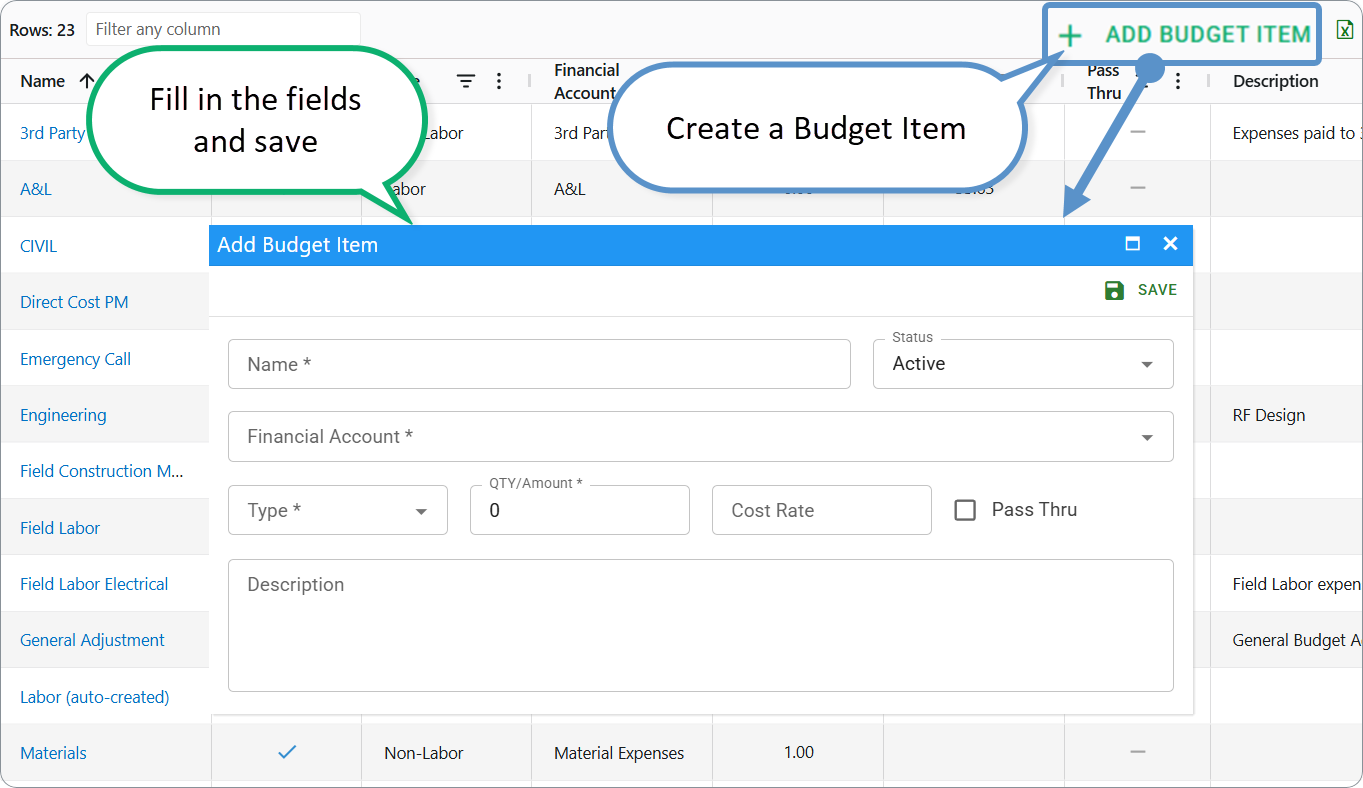
Create a Budget Item
- Open Budget → Budget Items.
- Create a new record.
- Fill in the fields and save.
| Field | Meaning |
|---|---|
| Name | Display name on budget lines |
| Type | Labor (hours × cost rate) or Non-Labor (flat amount) |
| Cost | Default hourly rate for Labor items |
| Financial Account | Account that receives expenses for this item |
| Pass Thru | Whether the expense can be passed through to the client |
| Description | Optional notes |
Labor — on a budget line you enter hours and cost rate; Total = hours × rate.
Non-Labor — you enter a quantity or amount on the line; there is no separate cost rate column.
Configurable (your instance)
Pass Thru drives pass-through COGS and Service Revenue in margin math. If pass-through tracking is disabled, the flag is hidden and treated as off. See Pass Through Setting.
Configurable (your instance)
Financial Account options come from your company's catalog. Pass-through accounts (for example Pass Thru Materials, Pass Thru Lifts/Cranes & Test Equipment) group expenses for reporting.Budget Templates
A Budget Template is a standard cost structure for a Project: default Budget Items, hours, amounts, accounts, and optional Service Item / Vendor.
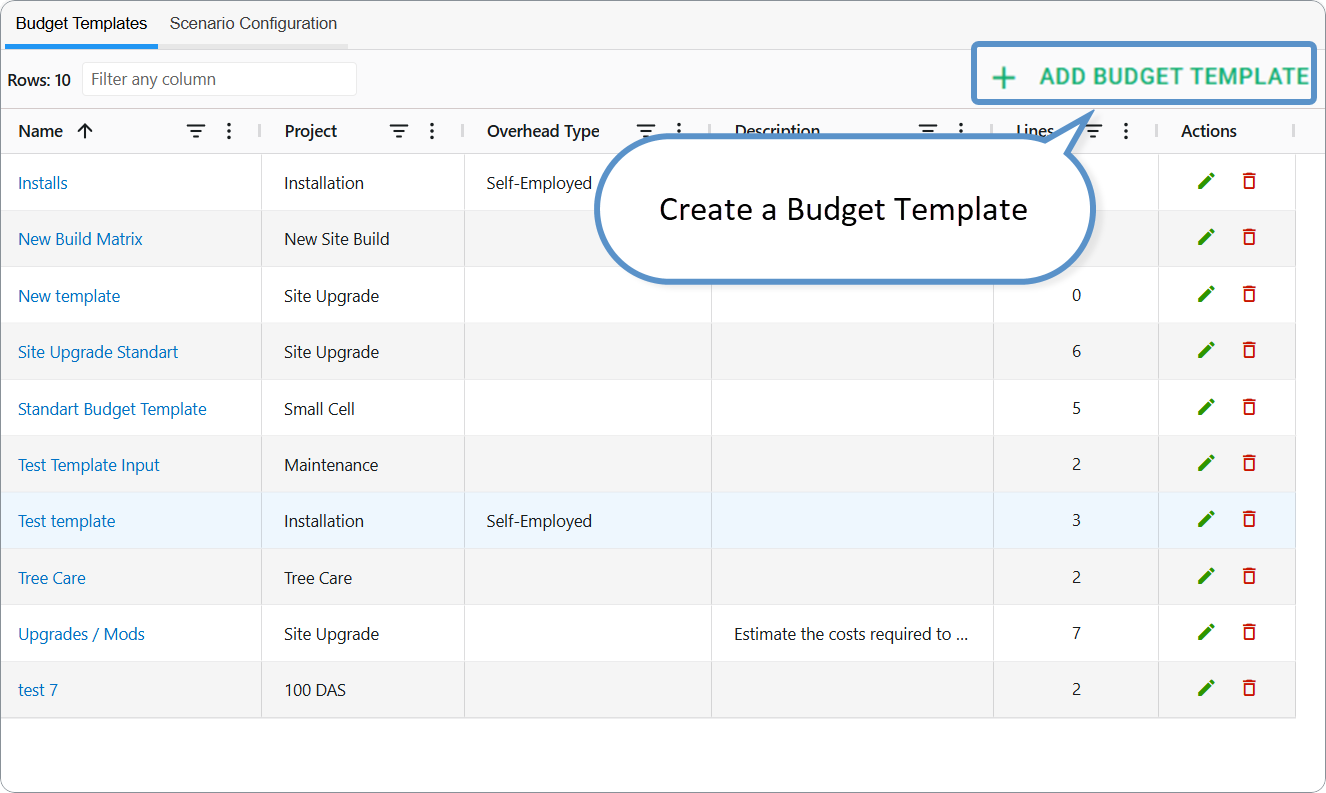
Create a Budget Template
- Open Budget → Budget Templates.
- Create a new record.
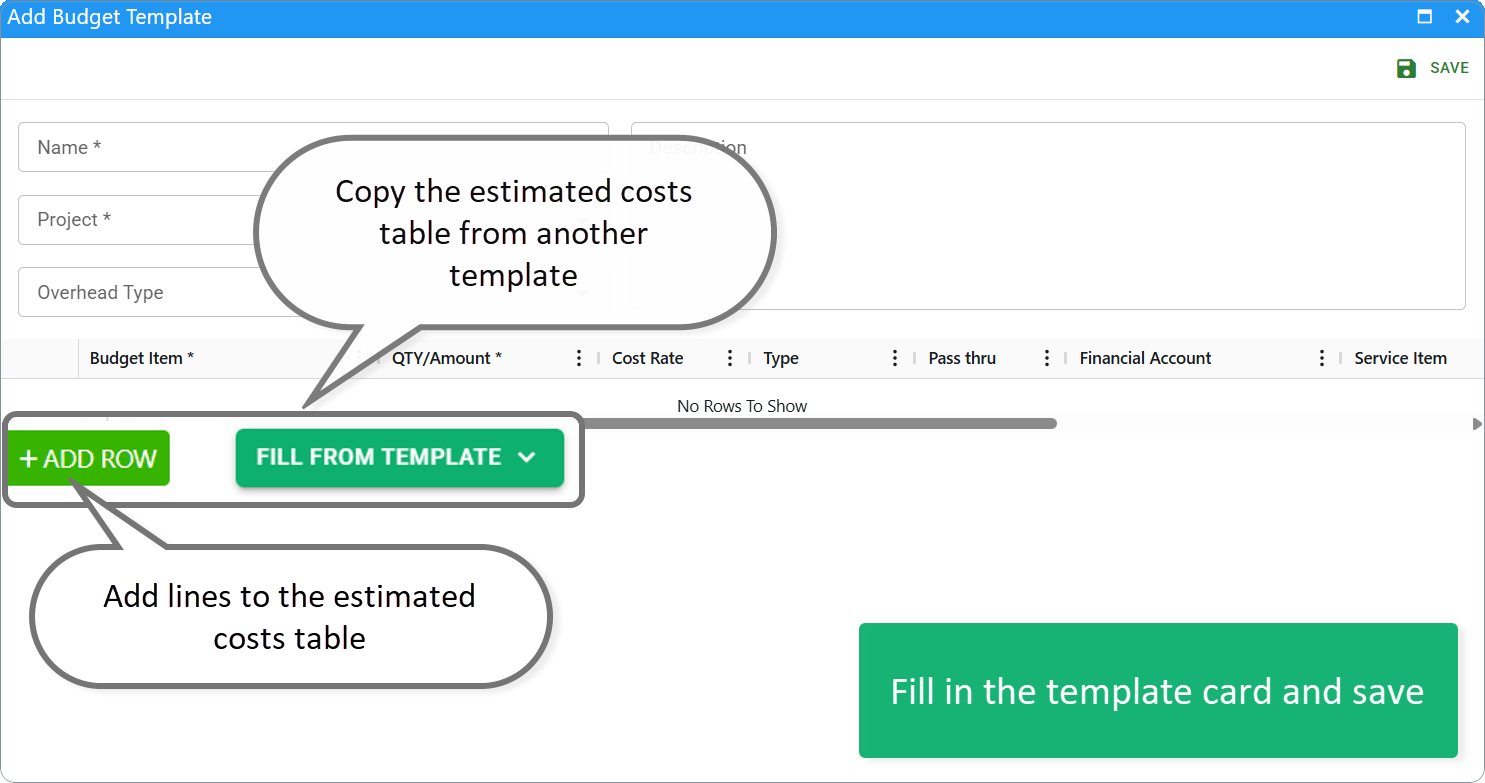
- Fill in the template card:
| Field | Meaning |
|---|---|
| Name | Template name |
| Project | Project this template belongs to |
| Overhead Type | Overhead category (percentage from Calculation Specification) |
| Comments | Notes for budget managers |
| Estimated costs table | Budget Items with default values |
- Add lines to the estimated costs table (same fields as on a live budget line where applicable).
- Save the template.
Configurable (your instance)
Overhead Type and the overhead percentage are defined in Calculation Specification, not on the template card itself.
Edit or delete a Template
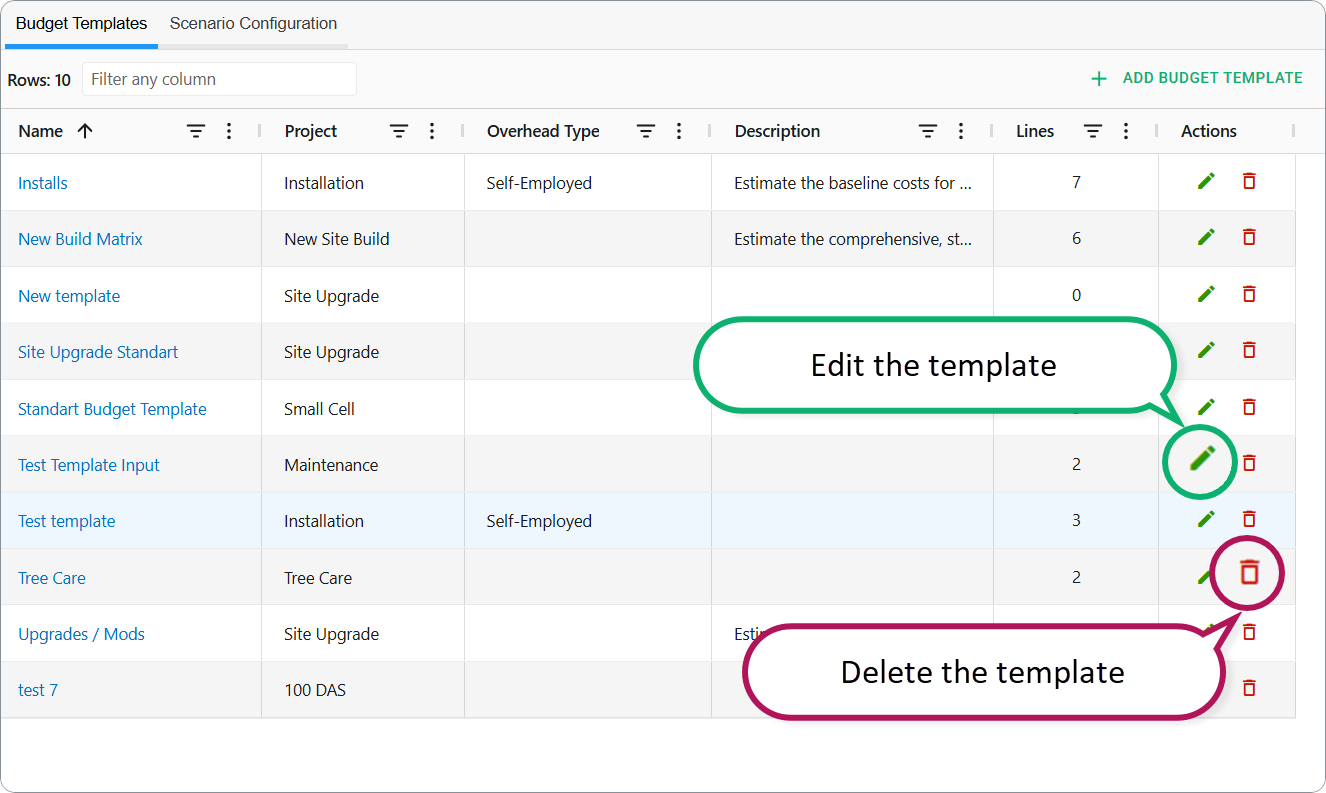
To edit a Budget Template, either double-click on the required row or click the pencil icon. Make changes to the template that opens, then save.
To delete a budget template:
- Unlink it from any associated scenario. Go to the Scenario Configuration tab and check the Budget Templates column. Read more below.
- Once you have unlinked the template, click the Trash icon on the dashboard for the relevant template row or open the Budget Template card and click Delete.
Link a template to a Project Scenario
To auto-create a budget when a Build Plan is generated:
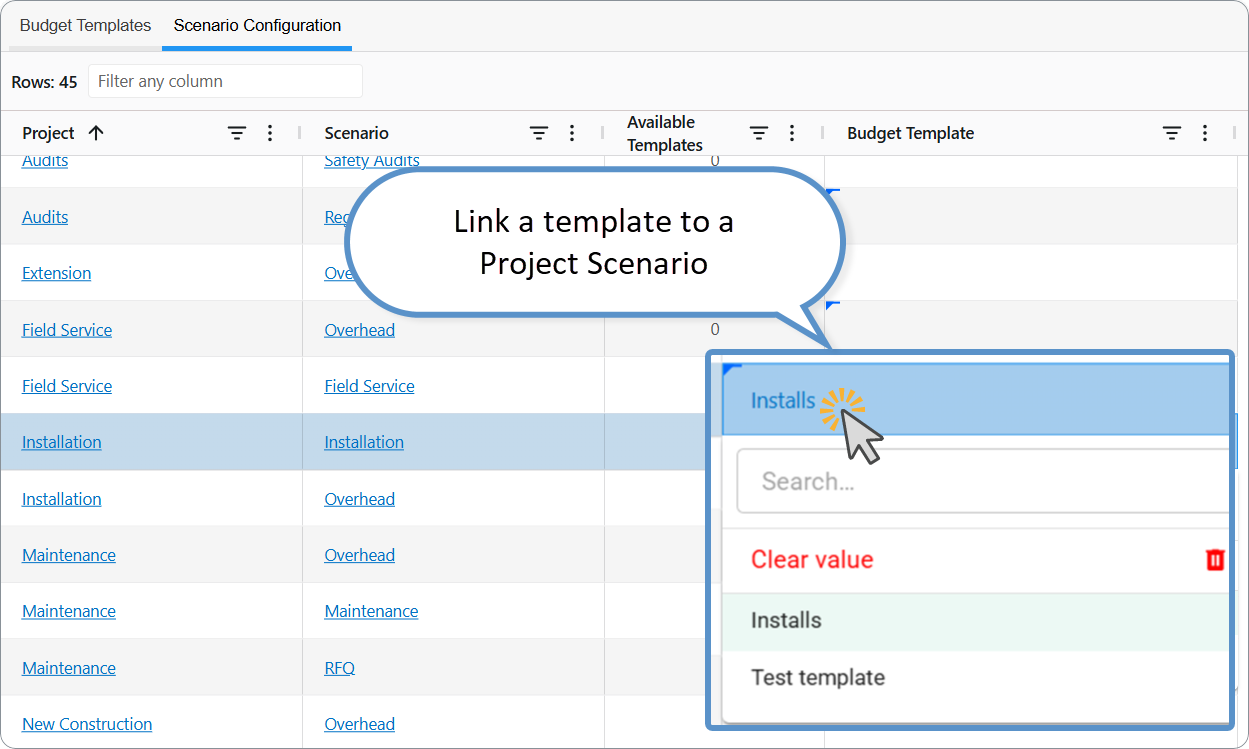
- Open the Budget Templates dashboard → Scenario Configuration tab.
- Locate the required Scenario row and click on the Budget Template column.
- Select the template. The list of templates is limited by the project's templates.
- To unlink the template from the Scenario, click on the Budget template in the relevant row and select Clear value from the drop-down menu.
When you generate a Build Plan from that scenario, Fieldclix creates the first Pending budget revision from the template.
If no template is linked, the Build Plan has no automatic budget—you add one manually on the Budget tab.
You can also apply a template later on an existing budget with FILL FROM TEMPLATE while editing lines (see Create and Edit a Build Plan Budget).
Easy Budget mode (Adhoc Budget)
Configurable (your instance)
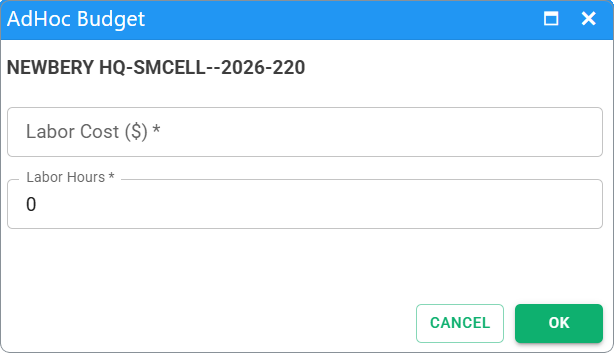
When UseEasyBudget is enabled, the Build Plan Budget tab labels the first section Labor Cost ($) instead of Planned Revenue, and the UI follows a simplified flow focused on labor planning. Full budgets (revenue, COGS, margins) are used when this setting is off.
Q&A
Q: What is the difference between a Budget Item and a budget line?
A: A Budget Item is a catalog entry reused in templates and budgets. A budget line is one row on a specific budget revision with hours, amounts, and optional Service Item or Vendor.
Q: What does Pass Thru mean on a Budget Item?
A: It marks costs that can be passed through to the client. Those amounts feed Pass Thru COGS and Service Revenue unless pass-through tracking is disabled.
Q: Why can't I edit Budget Templates with only the Financial role?
A: Template and Item maintenance is assigned to Project Library Manager. Financial is for budgets on Build Plans and financial dashboards.
Q: Why was no budget created when I generated a Build Plan?
A: The Project Scenario may have no Budget Template linked, or the scenario is inactive. Link a template on the Budget Templates dashboard → Scenario Configuration tab or create a budget manually.
Q: Can one Project have several Budget Templates?
A: Yes. Different scenarios can link to different templates for the same Project.
Q: Can an Advanced Budget Manager approve any budget?
A: They can use APPROVE on the Budget card when they have Financial access to that Build Plan. A Class filter limits which Build Plans they can act on. Approval bypasses the inbox job.
Related articles
Was this article helpful?
That’s Great!
Thank you for your feedback
Sorry! We couldn't be helpful
Thank you for your feedback
Feedback sent
We appreciate your effort and will try to fix the article