TABLE OF CONTENTS
Build Plan Budget Approval
Build Plan Budgets move through a simple approval workflow before they become the current financial plan for a Build Plan. This article explains who approves budgets, what happens at each step, and how to revise or remove a budget.
Who approves Budgets
Fieldclix uses your Approval Processes configuration to determine Budget approvers.
| Typical setup | Behavior |
|---|---|
| Project Owner | Default approver for the Build Plan's Project |
| Fixed approver | A specific employee always approves Budgets |
| Auto-approval | No human approver required for some users or roles |
Special cases:
- If the person who submits the budget is the configured approver, the budget may be approved automatically.
- Some employee roles are configured as approval not required—submission still runs the workflow, but the budget is approved immediately.
Configurable (your instance)
Approvers, escalation, and auto-approval rules are defined in Approval Processes for the Budget object type—not on the Budget card. Your implementation team sets these during rollout.
Budget statuses
| Status | Meaning |
|---|---|
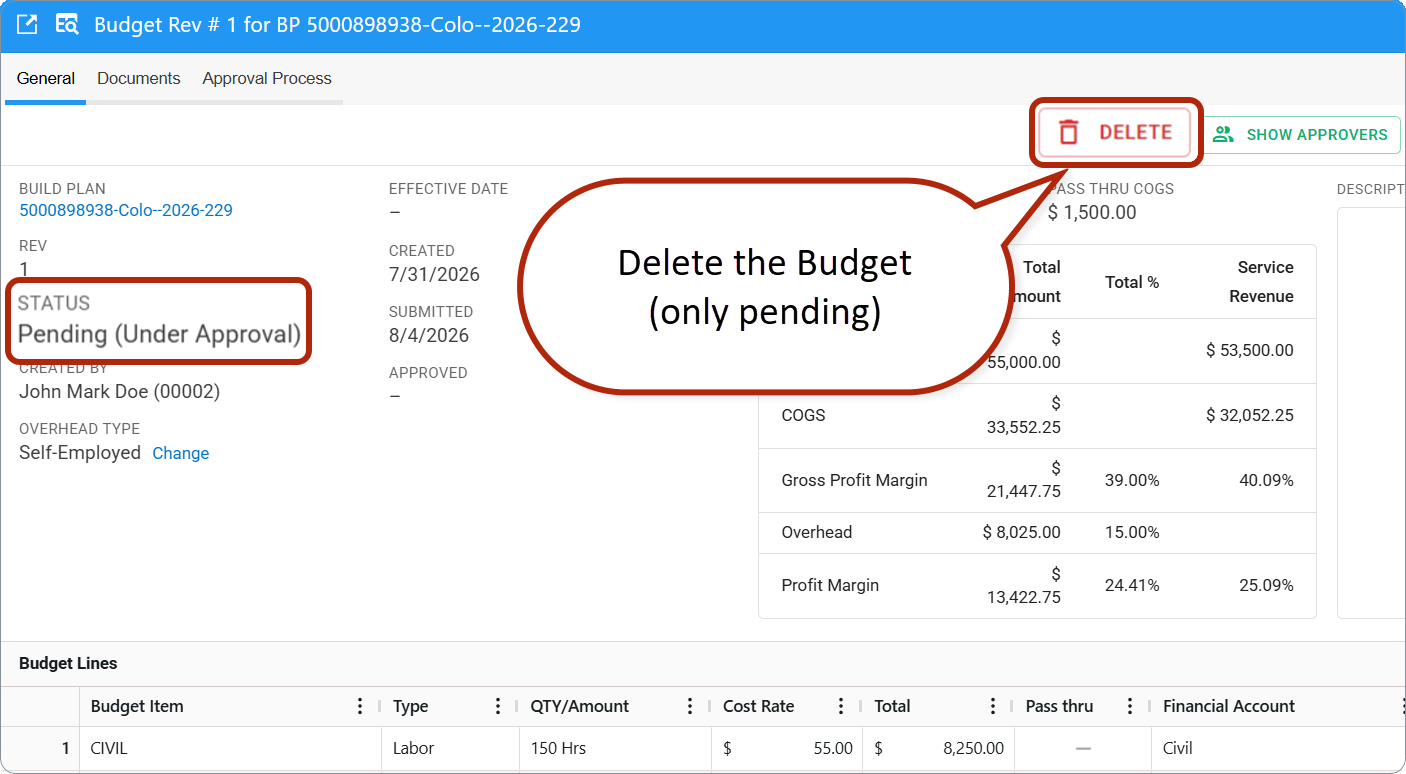
| Pending | Draft or submitted revision waiting for approval. Only one Pending Budget exists per Build Plan at a time. |
| Approved | Active financial plan. Values appear in Current Budget columns and in WIP / P&L. |
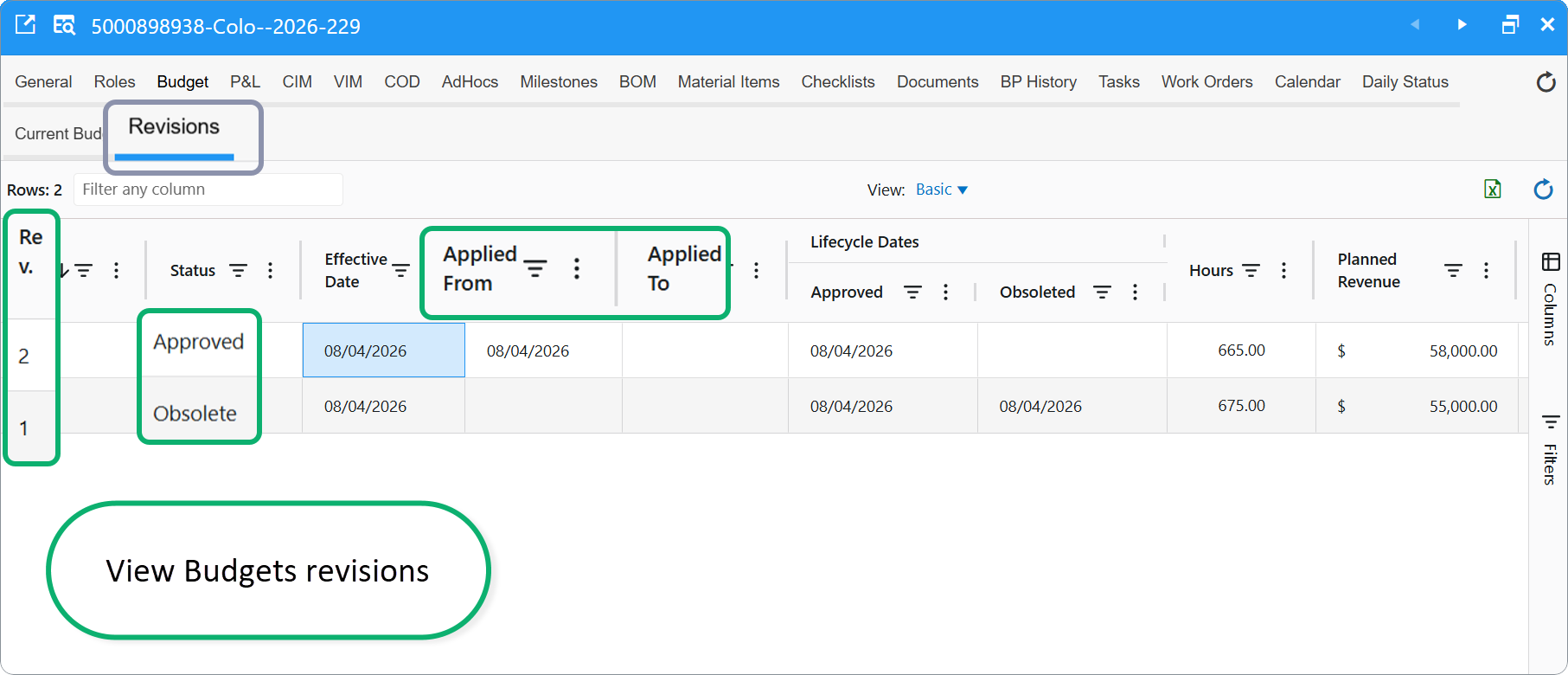
| Obsolete | Former approved revision replaced by a newer approved revision. History remains on the Revisions tab. |
On the Revisions sub-tab you also see dates such as Applied From and Applied To, which show when each approved revision was the active plan.
Approval process step by step
1. Create the budget
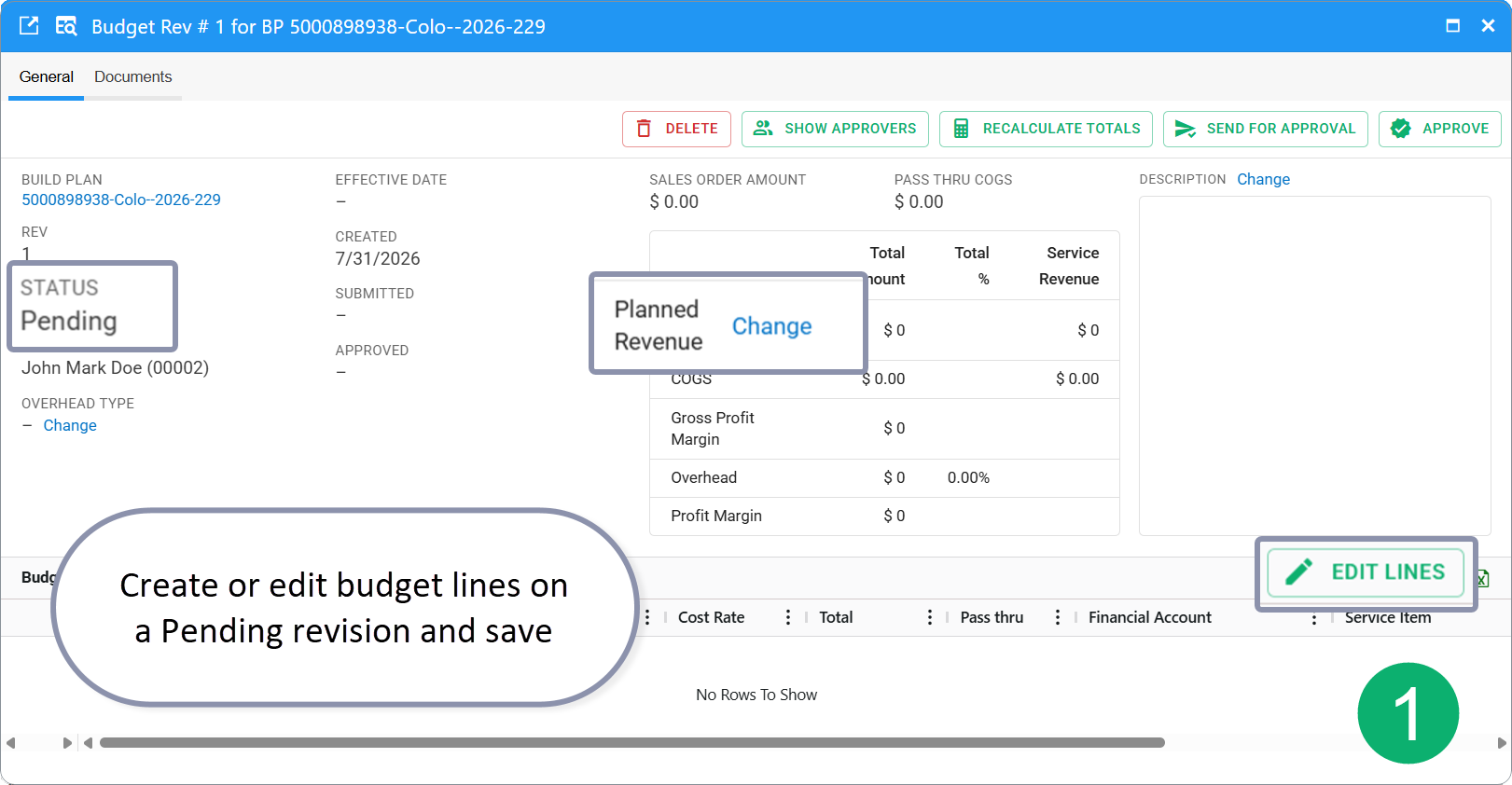
Create or edit budget lines on a Pending revision and save. The budget stays Pending until you submit it for approval.
2. Submit for approval
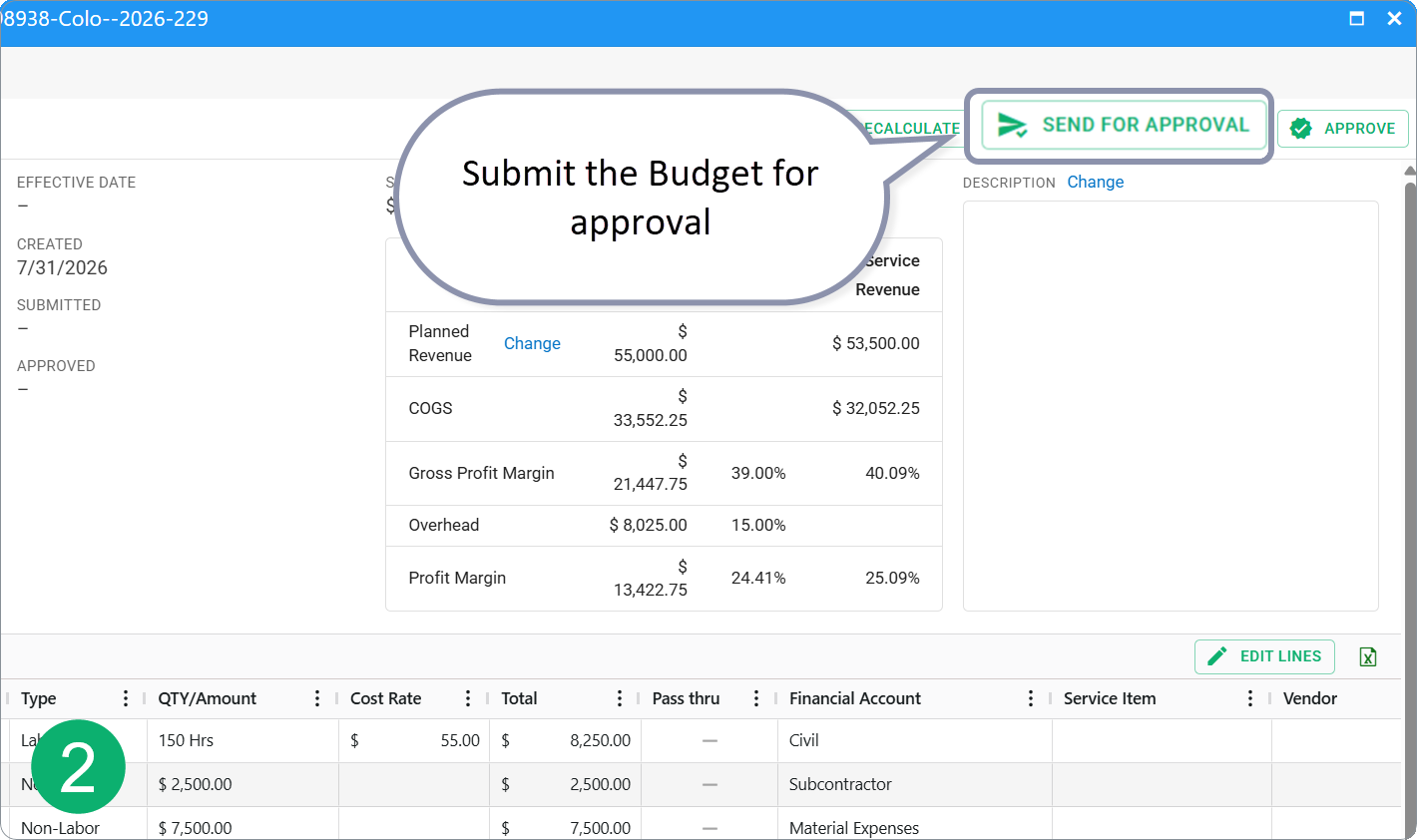
From the Budget card, submit the Budget for approval — click Send for Approval. Fieldclix creates an approval job for the approver. The job appears in the Inbox of each approver.
3. Approver review
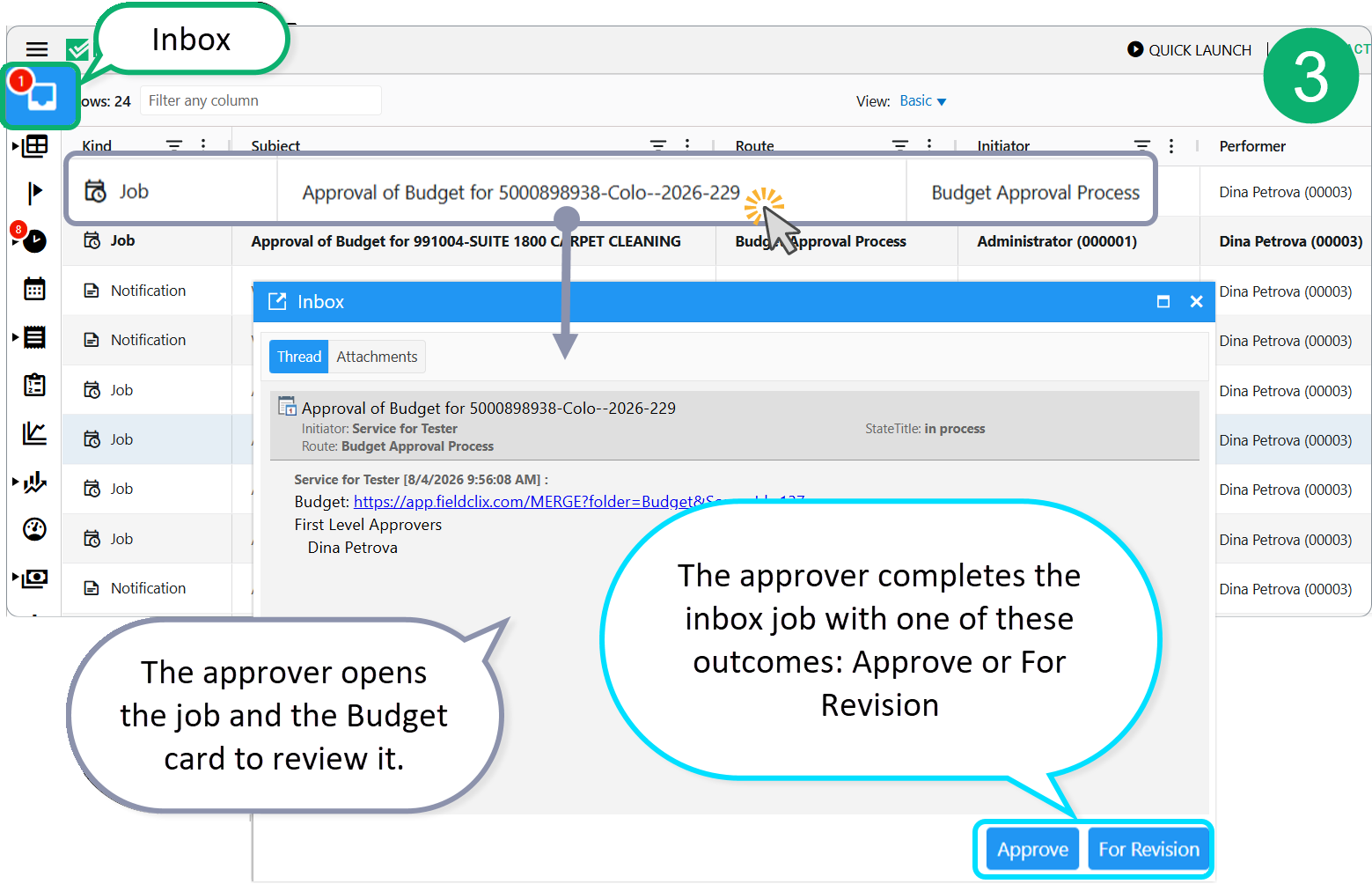
- The approver opens the job and the Budget card to review it.
- The approver completes the inbox job with one of these outcomes:
| Outcome | Result |
|---|---|
| Approve | Budget status → Approved. Amounts feed Current Budget, WIP, and P&L. Effective Date is set (see Build Plan Budgets). |
| For revision | Budget stays Pending. Comments are required. The submitter edits lines and resubmits. |
The submitter receives a notification when the job is completed.
4. After approval
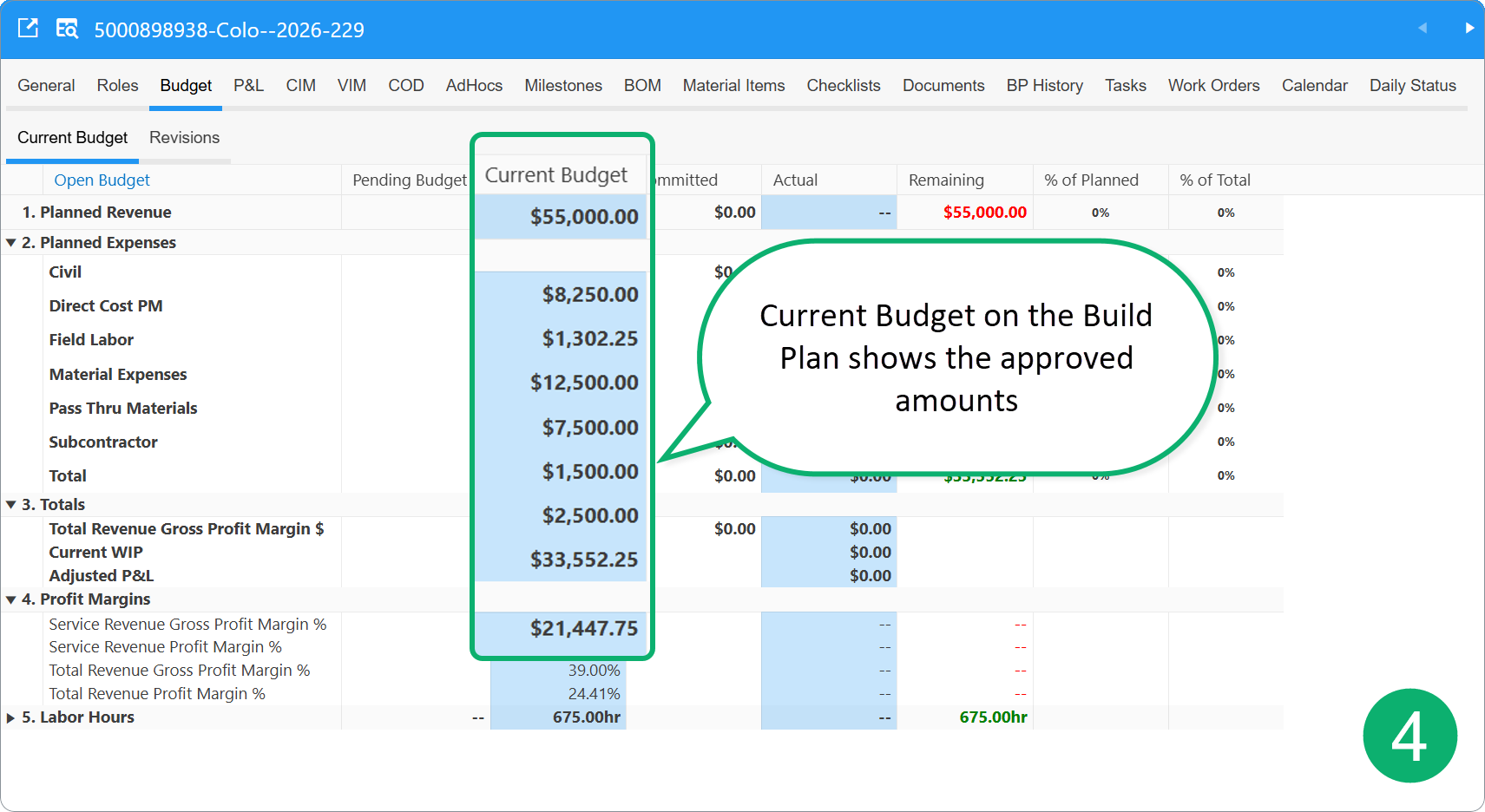
- Current Budget on the Build Plan shows the approved amounts.
- Revisions lists the approved revision with Approved date and financial summary (Planned Revenue, COGS, margins, hours).
- Status, WIP, and P&L dashboards use this revision until it is obsoleted by a later approval.
Bypass approval (Advanced Budget Manager)
Normally, after you submit a Budget for approval, the configured approver must complete the inbox approval job (Approve or For revision)
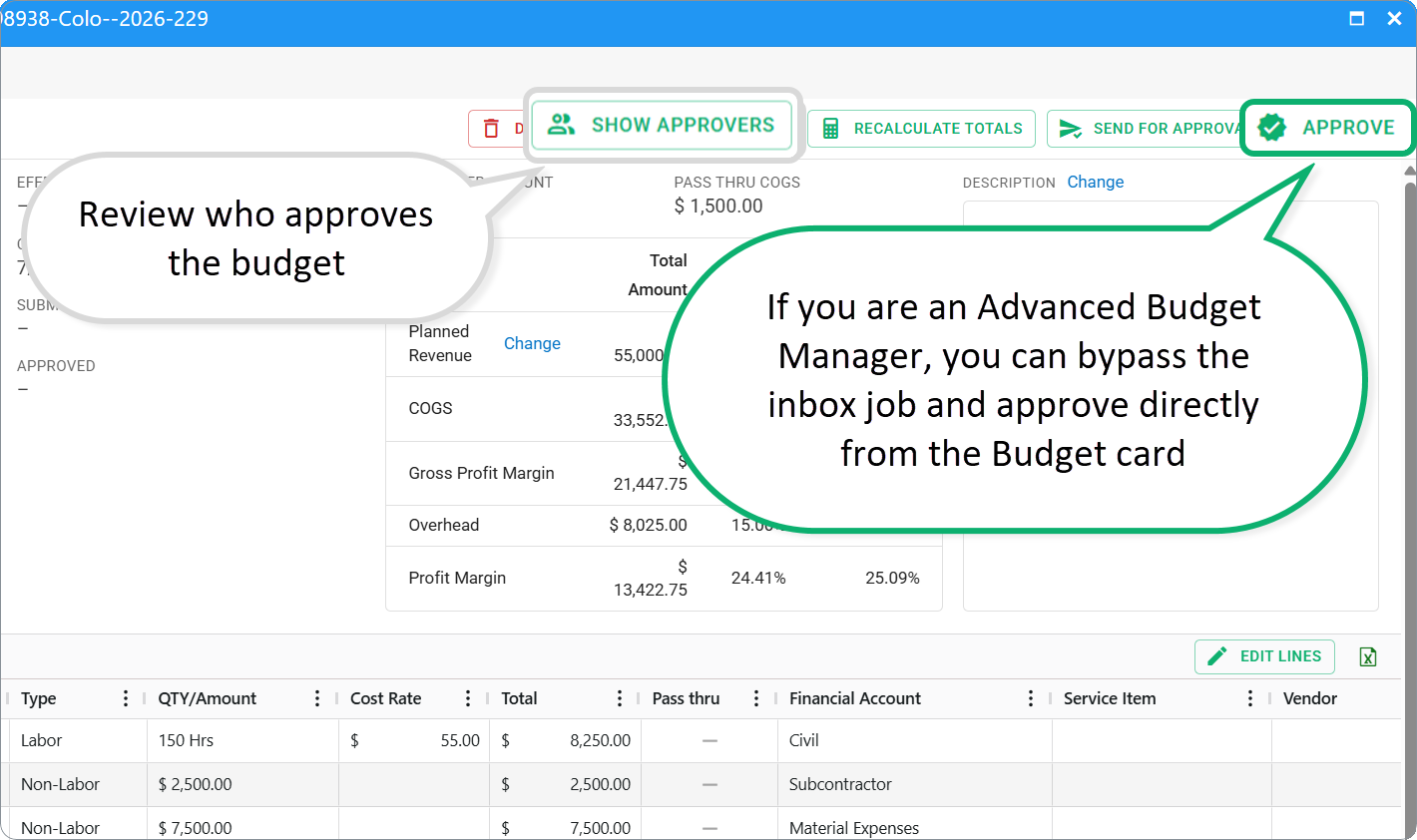
If you are an Advanced Budget Manager and also have the Financial role, you can bypass the inbox job and approve directly from the Budget card:
- Open the Pending Budget (submitted for approval or still pending).
- On the General tab, click APPROVE.
- Fieldclix moves the Budget to Approved, sets the Effective Date, and closes the linked approval task—the approver does not need to finish the inbox job.
| Requirement | Detail |
|---|---|
| Roles | Financial + Advanced Budget Manager |
| Build Plan access | You must have financial access to the Build Plan (same rules as creating or editing a Budget) |
| Status | Budget must be Pending |
Use SHOW APPROVERS on the Budget card if you want to see who would normally approve before you bypass the job.
Configurable (your instance)
Advanced Budget Manager is an employee role, not the same as Project Library Manager. It is often assigned to senior financial staff who need to approve budgets without waiting on the standard inbox route. See Employee Roles.
Delete a pending Budget
You can delete only a Pending revision.
- Open the pending Budget card.
- Click DELETE.
- Confirm.
Approved and obsolete revisions cannot be deleted—they remain for audit and WIP history.
Revise an approved Budget
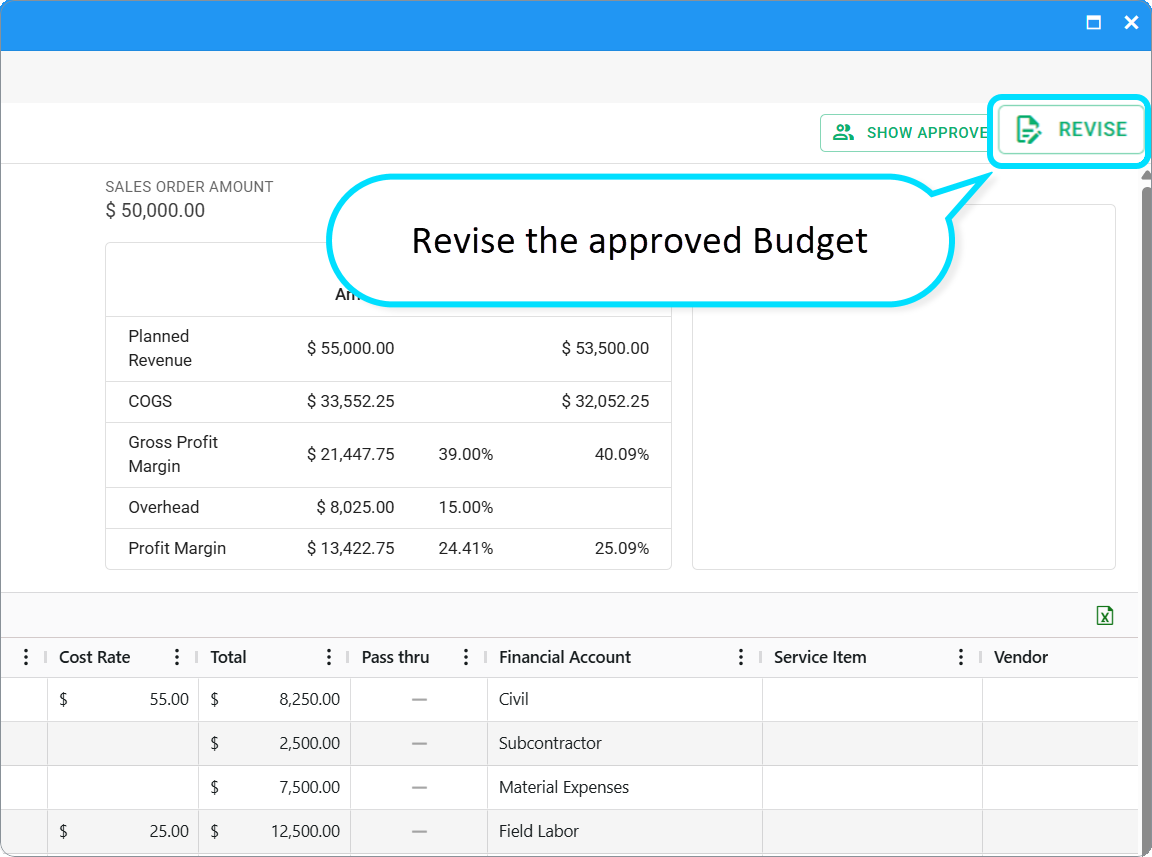
When costs or revenue change after approval, use Revise on the Approved Budget card.
- Open the approved Budget.
- Click Revise.
- Fieldclix creates a new Pending revision (next Rev number) with copied lines.
- Edit lines, Planned Revenue, Overhead Type, or description as needed.
- Submit the new revision for approval.
When the new revision is Approved:
- The new revision becomes the current plan.
- The previous approved revision moves to Obsolete.
- Applied To on the old revision and Applied From on the new one define the handoff for reporting.
Only one revision is Approved at a time per Build Plan.
Budget card tabs during approval
| Tab | Use during approval |
|---|---|
| General | Header, summary, budget lines, approval actions |
| Documents | Attach supporting files (quotes, estimates) |
| Approval Process | Approval route status and history |
Q&A
Q: Can I have two pending Budgets on one Build Plan?
A: No. Only one Pending revision exists at a time. Finish or delete it before starting another.
Q: What happens if approval is not required for my role?
A: You still submit the Budget. Fieldclix runs the workflow and approves it immediately without an inbox task.
Q: How do I bypass the inbox approval job?
A: If you have Financial and Advanced Budget Manager, open the pending Budget card and click APPROVE. Fieldclix approves the Budget and closes the linked approval task without requiring the approver to complete the inbox job. You still need financial access to that Build Plan.
Q: Does revising a Budget change actual costs already posted?
A: No. Revision changes planned amounts. Actual and Committed columns on the Budget tab still come from Invoices, Purchase Orders, Time Cards, and other live transactions.
Q: Who can change the Budget Effective Date after approval?
A: Typically users in Accountants and Bookkeepers. Effective Date affects WIP and adjusted financial reporting.
Q: Why is an old revision marked Obsolete?
A: A newer revision was approved. Obsolete revisions stay visible on Revisions for comparison and audit.
Related articles
Was this article helpful?
That’s Great!
Thank you for your feedback
Sorry! We couldn't be helpful
Thank you for your feedback
Feedback sent
We appreciate your effort and will try to fix the article