TABLE OF CONTENTS
- Labor Cost Rates Must be Updated in the Budget Item Card, Not in Individual Budgets
- Who Can Change Labor Cost Rates for Budget Items
- How to Update Labor Cost Rate on Budget Item Card
- Budget Templates Auto-Update to Reflect Budget Item Rate Changes
- Preexisting Budgets Do NOT Update to Reflect Budget Item Rate Changes
Labor Cost Rates Must be Updated in the Budget Item Card, Not in Individual Budgets
To maintain consistency and data integrity, it is not possible to directly edit the Cost Rate seen next to Labor type Budget Items in the Budget Lines. Instead, you can only edit the Cost Rate for the Budget Item on the Budget Item card itself.
Importantly, if you change the Cost Rate on a Budget Item card, this change affects all Budgets in which this Item may be added in the future, or any preexisting Budget if the user updates the selected Item therein. So you cannot change the Cost Rate in such a way as it will only affect a single Budget, the change is much more global.
Who Can Change Labor Cost Rates for Budget Items
Because changing Budget Item Cost Rate is so global, we restrict access to do this to users with the "Project Library Manager" Role.
For more info, see this article:
Budgets: concept, access, Budget Items, Templates, Scenario binding
How to Update Labor Cost Rate on Budget Item Card
If you have sufficient access, to edit Labor Budget Item cost rates, do the following:
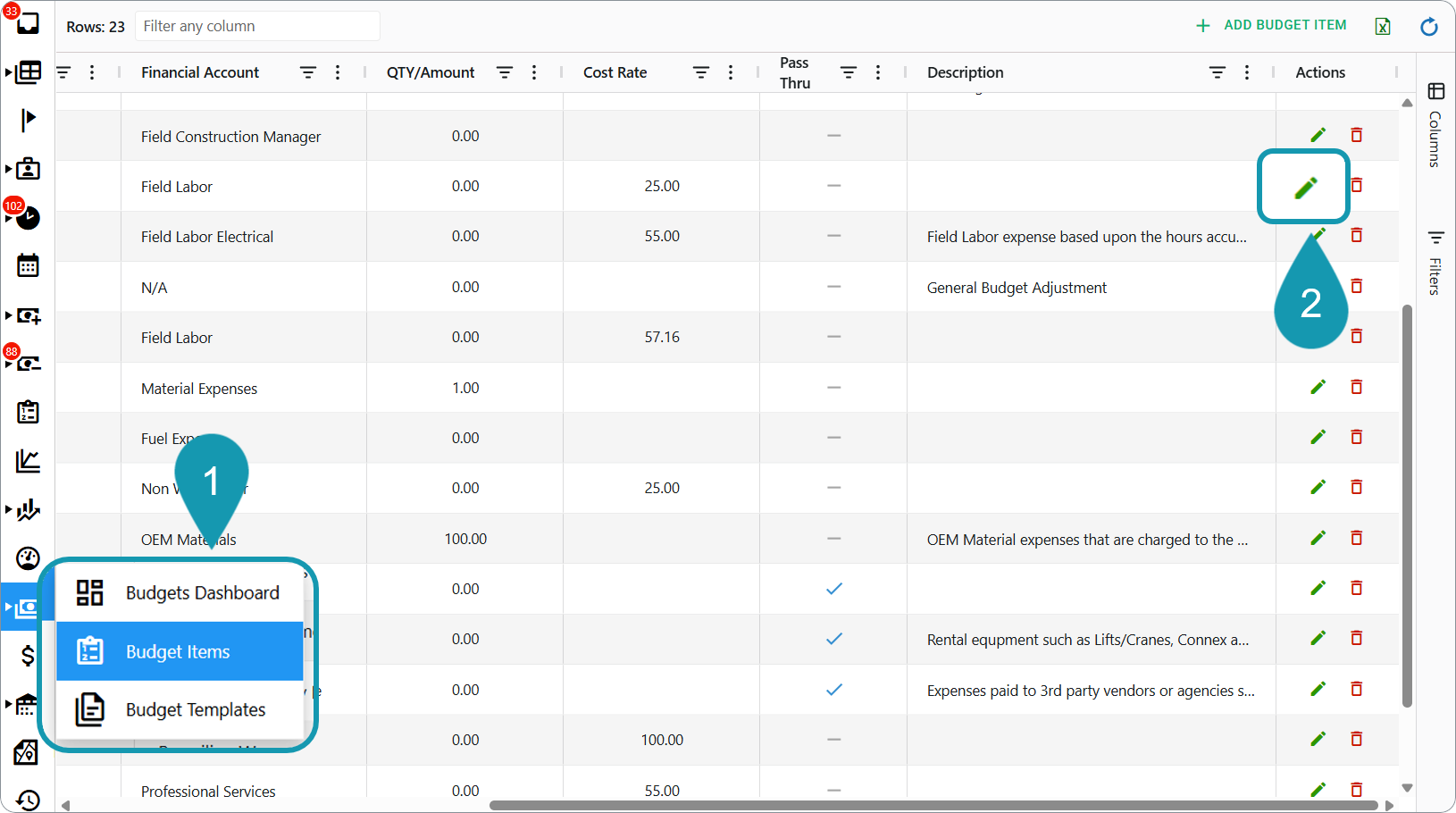
- Go to the Budget dashboards group > Budget Items dashboard
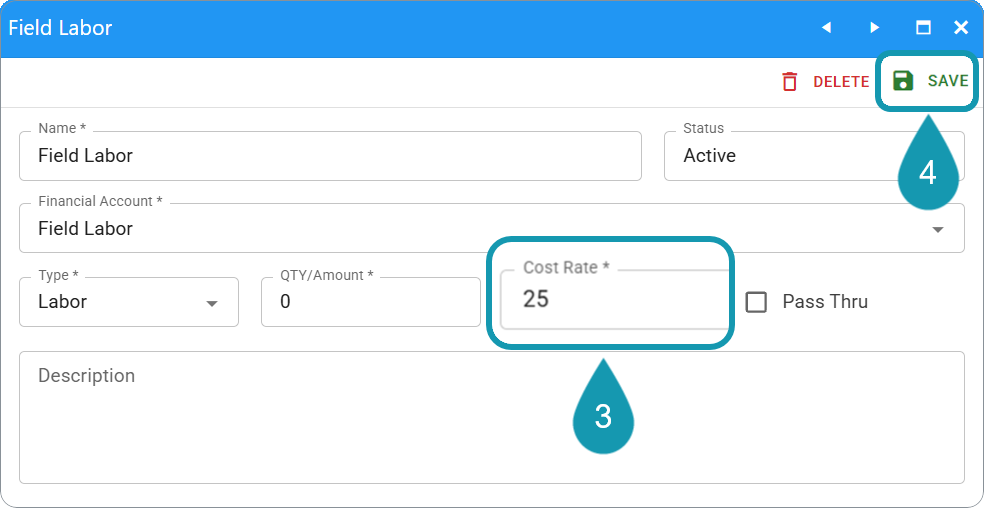
- Find the Item for which you want to change the rate and click the "Pencil" icon in the Actions column next to that row - The Budget Item card opens
- Change the Cost Rate cell to the new desired value
- Save
Budget Templates Auto-Update to Reflect Budget Item Rate Changes
In the old Project Build Plan Templates in the desktop, the cost rate was stored locally. When we moved budgets to the web, we removed this. Now, the cost rate is controlled entirely by the Budget Item. So if you change the Budget Item cost rate, the cost rate in the Budget Template updates as well.
Preexisting Budgets Do NOT Update to Reflect Budget Item Rate Changes
The cost rate is copied into a Budget from the Budget Template at the moment the Budget is created. After that point, the cost rate won't automatically update if the Budget Item is updated. And, indeed, it cannot be updated at all in an Approved Budget. To update the cost rate in an existing budget you must:
- Revise the Budget if it is in Approved state (not possible if it is in a closed Financial Period)
- Go the line you want to update
- Click to select the Budget Item for that line and re-select the Item
- When you re-select the Item, the rate in the Budget will update to reflect whatever the current rate is in the Item
Was this article helpful?
That’s Great!
Thank you for your feedback
Sorry! We couldn't be helpful
Thank you for your feedback
Feedback sent
We appreciate your effort and will try to fix the article