TABLE OF CONTENTS
- Create and Edit a Build Plan Budget
- Q&A
- Related articles
Create and Edit a Build Plan Budget
This article walks through the Budget workflow on a Build Plan: open the Budget card, enter lines and planned revenue, save, submit for approval, delete a pending revision, or revise an approved budget.
For setup (Budget Items, Templates, Scenario links) and access rights, see Build Plan Budgets (concept, Items, Templates, Scenario). For approver steps, see Build Plan Budget Approval.
Before you start
You need:
- Financial employee role and financial access to the Build Plan
- Pending revision to edit (or an Approved revision to Revise)
- Budget Items and Templates set up if you plan to use FILL FROM TEMPLATE
Open the Budget
From the Build Plan
- Open the Build Plan card or select it on a dashboard.
- Go to the Budget tab.
- Click Open Budget, or open a revision from the Revisions sub-tab.
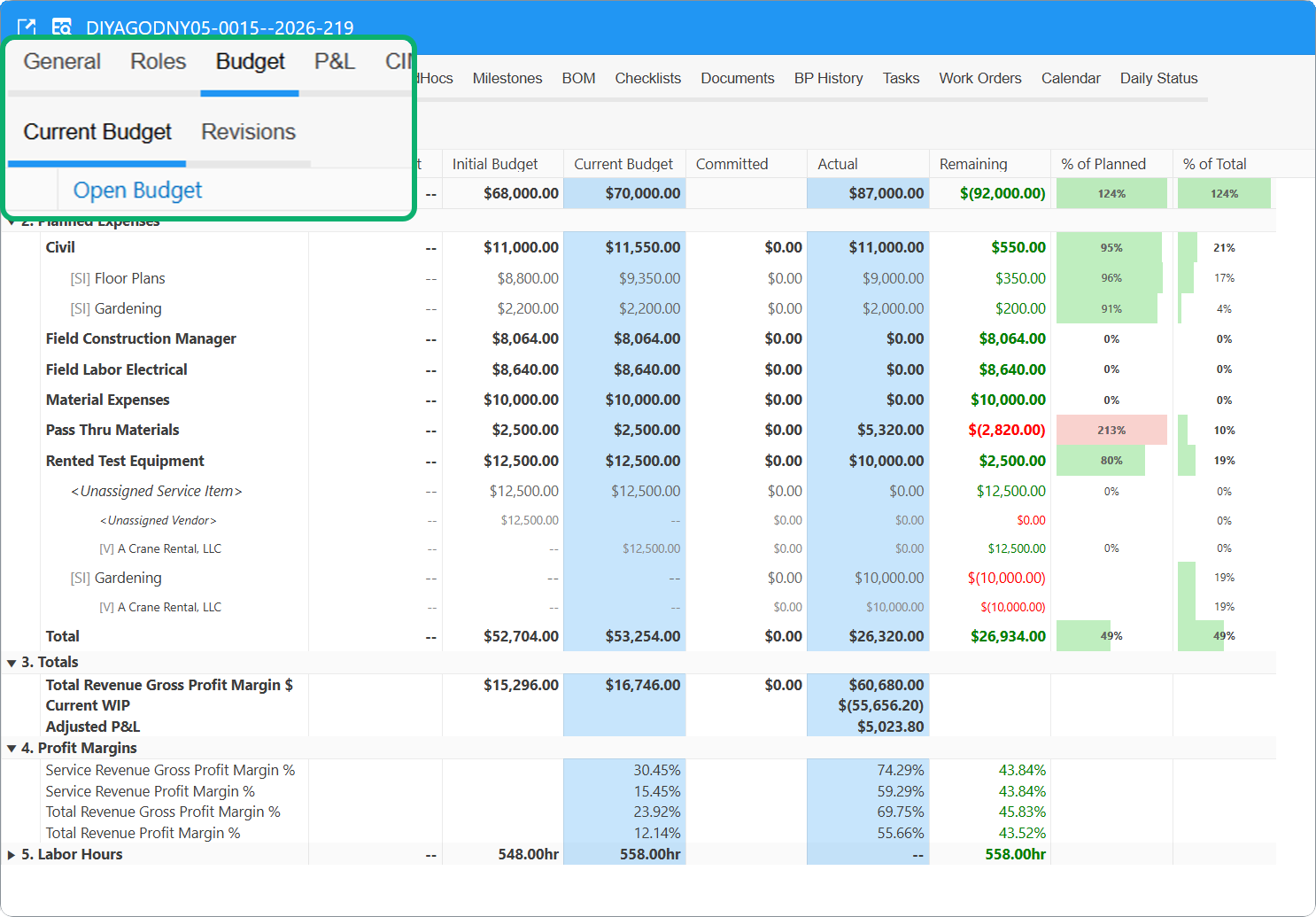
Create a Build Plan Budget
Automatic first Budget
When a Project Scenario links to a Budget Template and you generate a Build Plan from that scenario, Fieldclix may already create revision 1 in Pending status with lines from the template.
Manual first Budget
If no Budget exists:
- Open the Build Plan Budget tab.
- Click Create to create revision 1 in Pending status.
- Add lines and planned revenue (steps below).
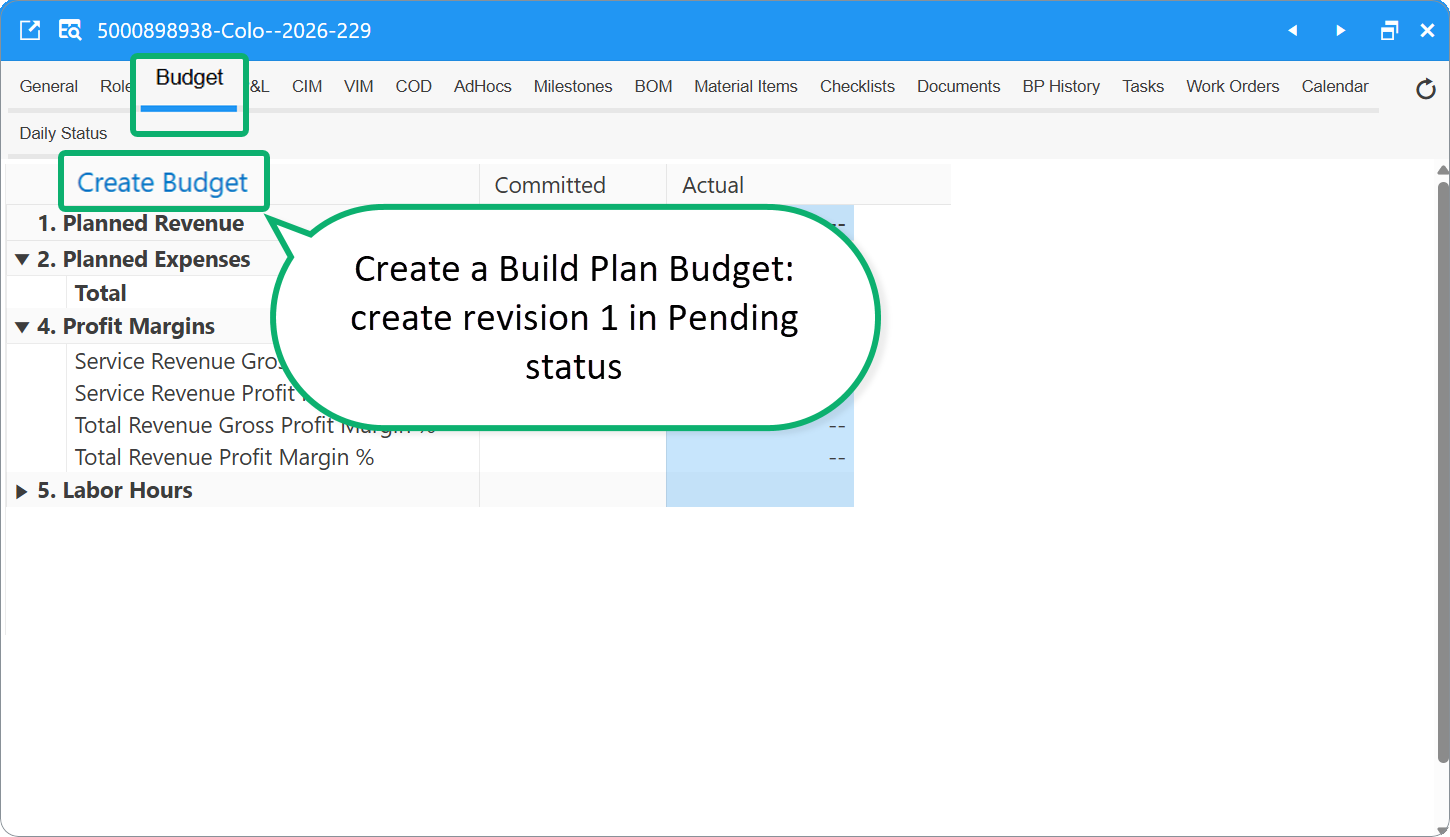
Budget card layout
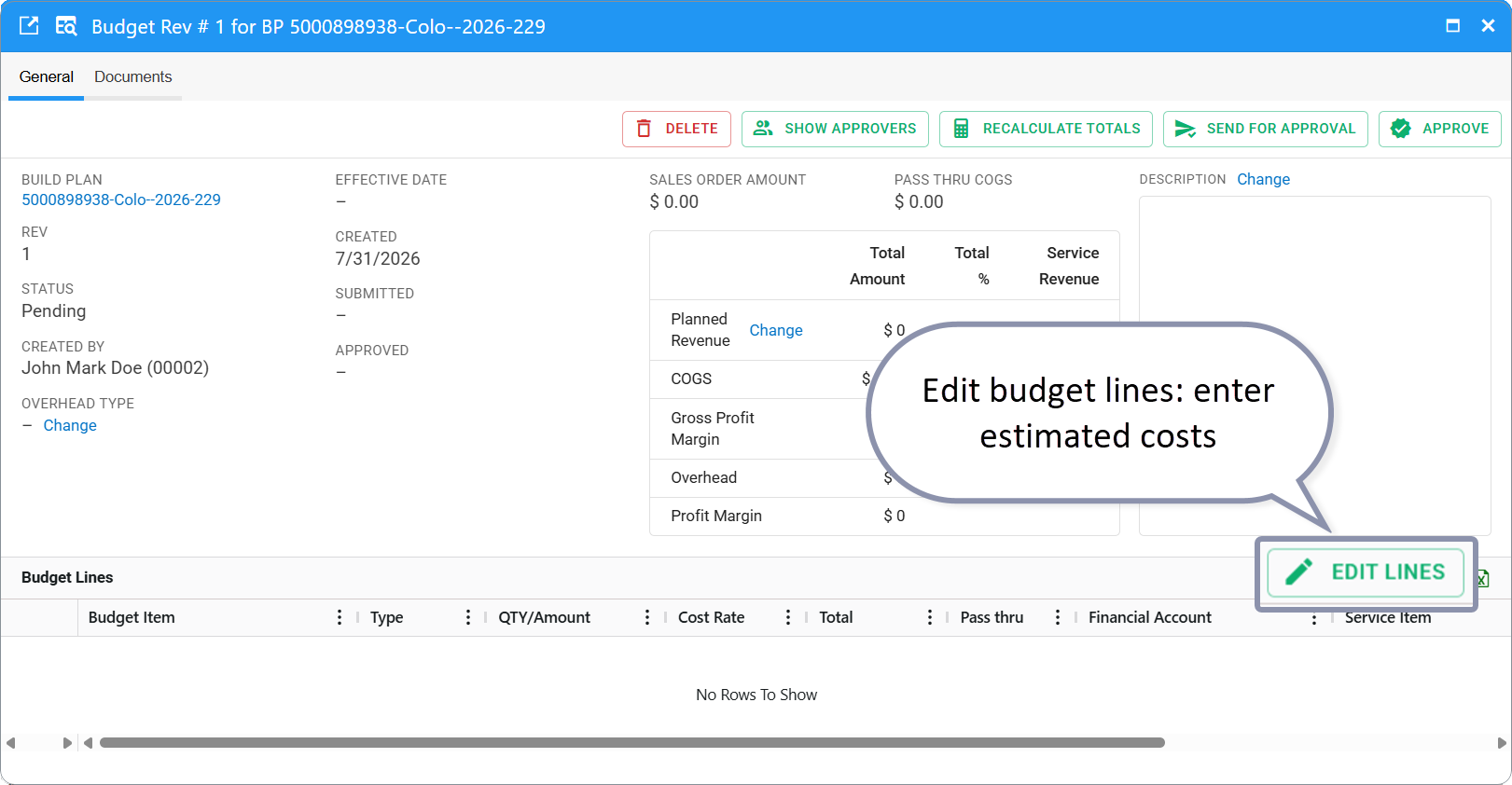
The Budget card has three tabs:
| Tab | Use |
|---|---|
| General | Header, financial summary, budget lines, main actions |
| Documents | Attach supporting files |
| Approval Process | Approval route status (when submitted) |
Header fields
The top left part of the budget contains the following general information:
| Field | Meaning |
|---|---|
| Build Plan | Linked Build Plan |
| Rev | Revision number |
| Status | Pending, Approved, or Obsolete |
| Overhead Type | Overhead category (Change while Pending) |
| Created / Submitted / Approved / Effective | Lifecycle dates |
| Description | Purpose of this revision (Change while Pending) |
Summary row
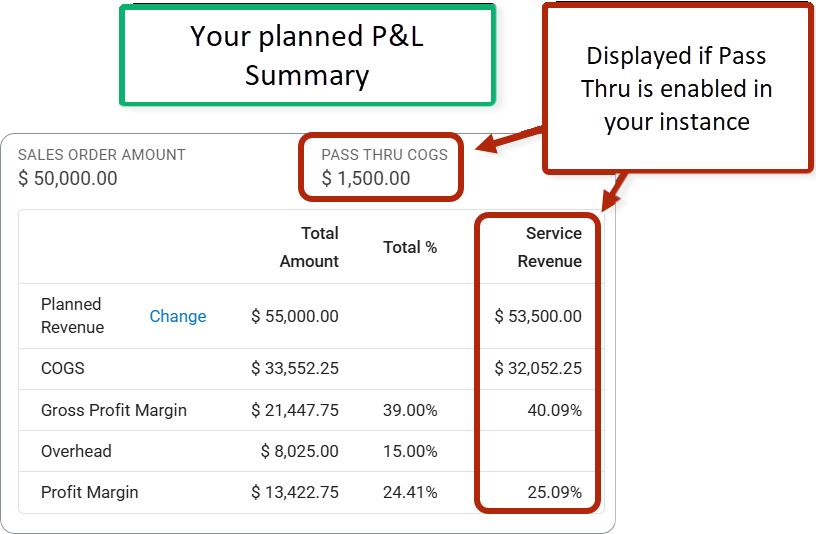
A planned P&L summary can be found in the middle part of the budget card. The Summary block shows:
| Metric | Meaning |
|---|---|
| Sales Order Amount | Total from linked Sales Orders (when used) |
| Planned Revenue | Revenue you plan to earn |
| COGS | Planned cost of goods sold (direct + pass-through) |
| Gross Profit Margin | Planned revenue minus direct COGS ($ and %) |
| Overhead | Overhead allowance from Overhead Type ($ and %) |
| Profit Margin | Gross profit minus overhead ($ and %) |
After line or revenue changes, click RECALCULATE TOTALS if the summary does not refresh.
Configurable (your instance)
When Disable Pass Through is on, margins use Total Revenue only; Service Revenue is not split out. See Pass Through Setting.
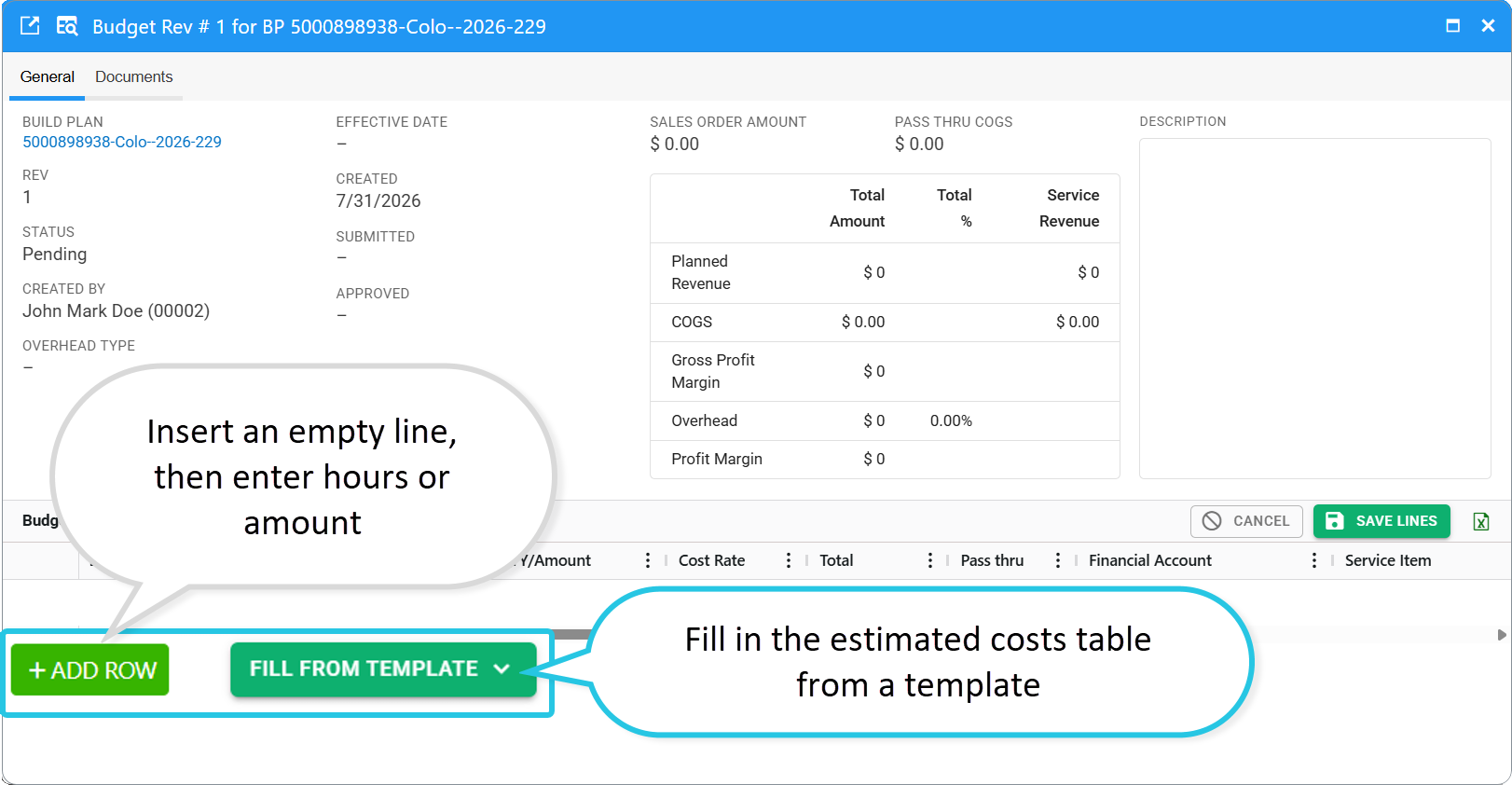
Fill in Estimated Costs Table
Line columns
The Estimated Costs table includes the following columns:
| Column | Meaning |
|---|---|
| Budget Item | From catalog or line name |
| Type | Labor or Non-Labor. |
| QTY/Amount | Hours (Labor) or dollar amount (Non-Labor). |
| Cost Rate | Hourly rate for Labor |
| Total | Calculated line total |
| Financial Account | Account for this line |
| Service Item | Optional reporting breakdown |
| Vendor | Optional reporting breakdown |
| Comments | Line notes |
Edit Budget Lines
Only Pending revisions can be edited.
- On the General tab, click EDIT LINES.
- Add, change, or remove rows.
- Click + ADD ROW to insert an empty line.
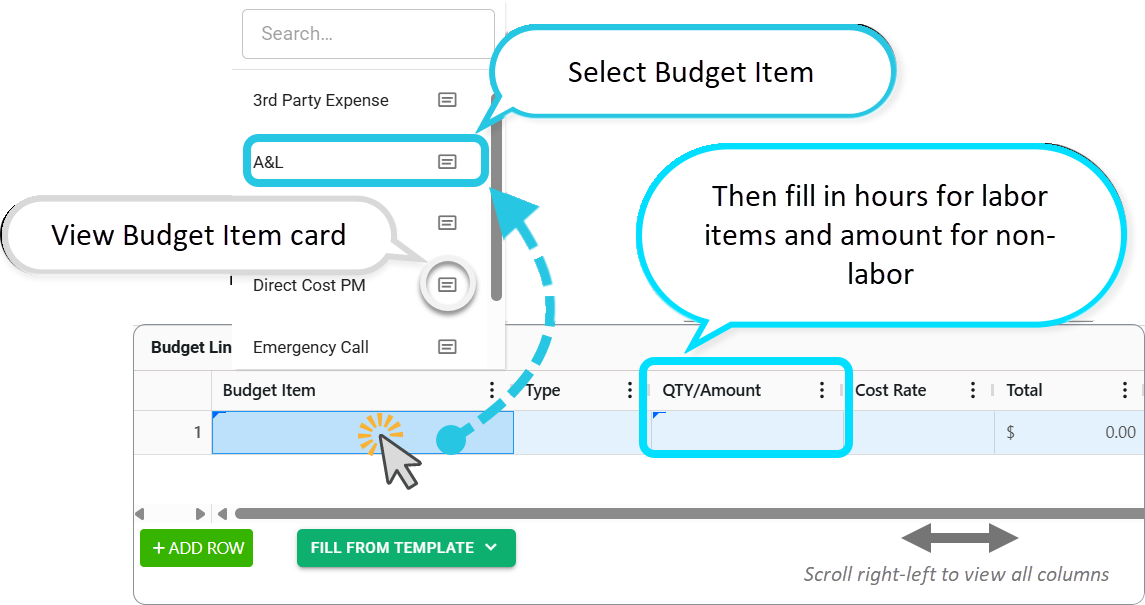
- Click Budget Item and select the required record from the drop-down list. To view the Budget item card, click the Open Card icon in the list.
- Or click FILL FROM TEMPLATE to add lines from a Budget Template.
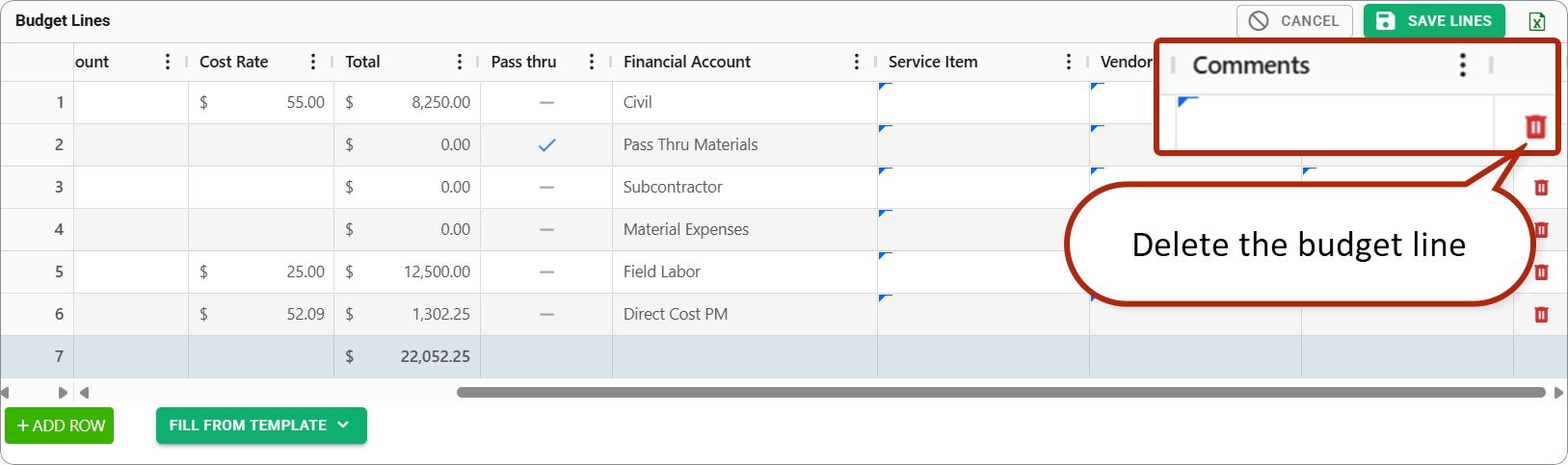
- Click the Trash icon to remove one line.
- Click + ADD ROW to insert an empty line.
3. In the QTY/Amount column enter Hours (Labor items) or dollar amount (Non-Labor items).
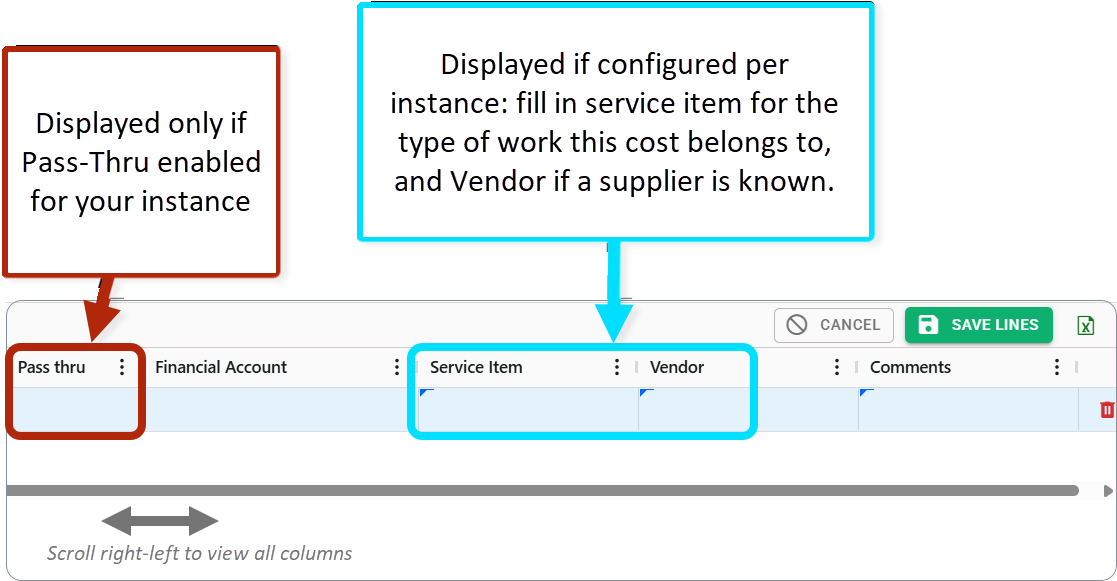
4. If enabled for your company, enter Service Item and Vendor — so the same budget item can reflect how it actually shows up in the field.
Different vendors can carry different service items on the same line type. For example, Materials from vendor Talley might map to Civil Work or Underground Work — depending on who you're buying from and what you're buying for.
Configurable (your instance)
Service Item enables [SI] sub-rows on the Build Plan Budget tab (for example Field Labor → [SI] Electrical). Unassigned costs show as <Unassigned Service Item>.
Configurable (your instance)
Vendor enables [V] sub-rows (for example [V] Talley under Material Expenses).
Configurable (your instance)
Use a pass-through Financial Account (for example Pass Thru Materials) when the cost should be client-reimbursable in budget and P&L.
Set planned revenue
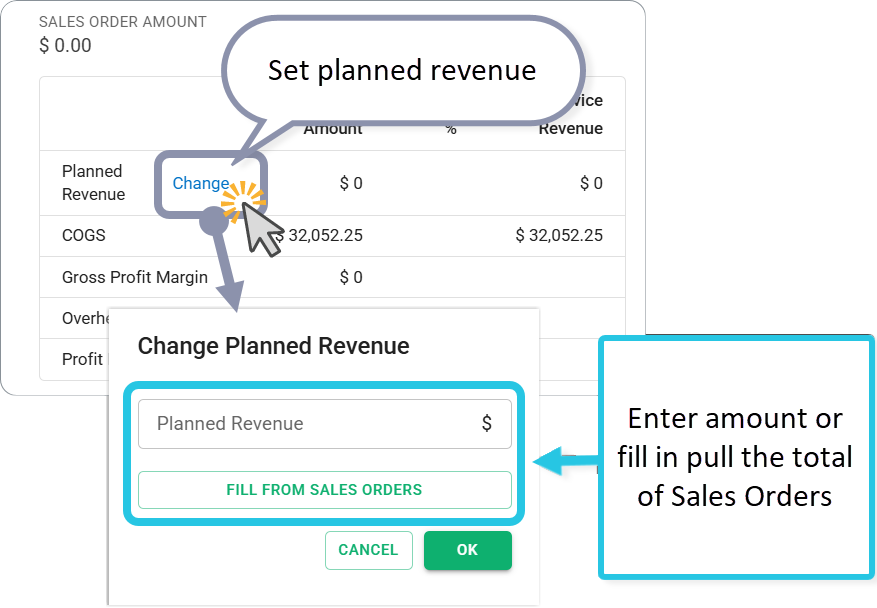
Planned Revenue is what you expect to bill on the Build Plan.
While the Budget is Pending:
- Click Change next to Planned Revenue on the summary, or
- Click FILL FROM SALES ORDERS to pull the total from linked Sales Orders.
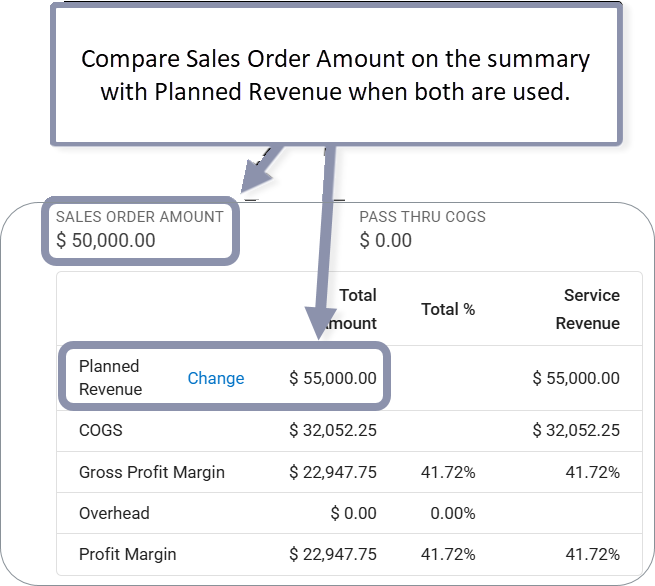
Compare Sales Order Amount on the summary with Planned Revenue when both are used.
Add Overhead expenses
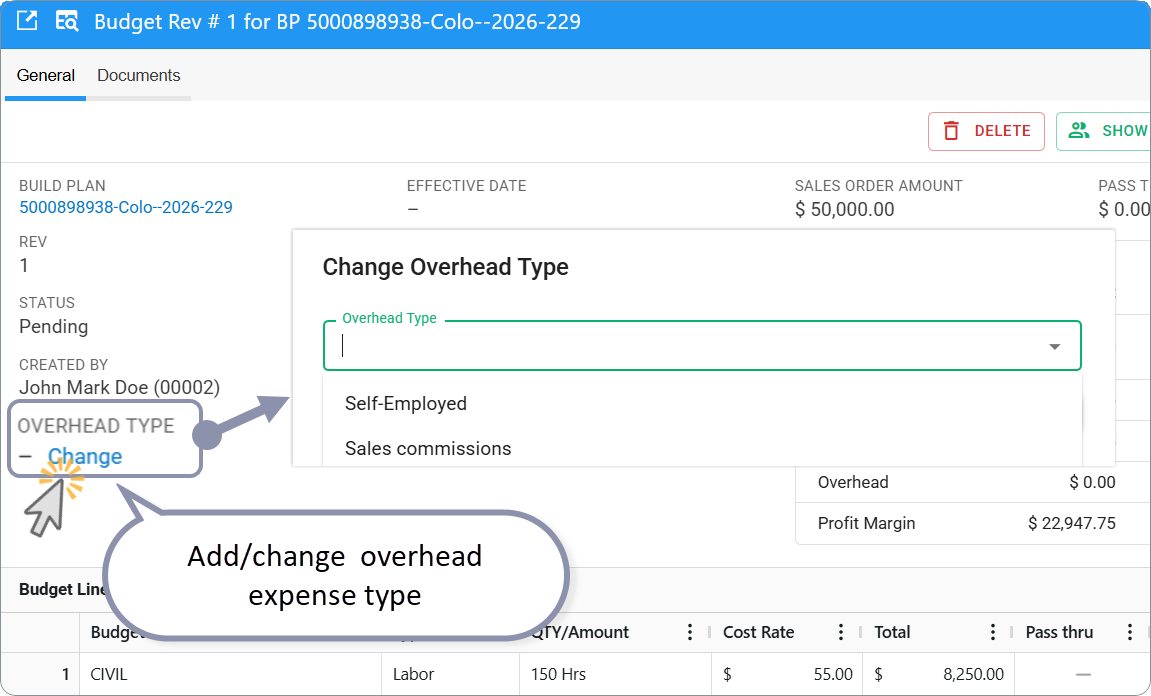
The Overhead Type determines what the percentage of overhead expenses will be deducted from the Gross Profit Margin. Select an overhead expense type by clicking Change. The list of types is limited by the OH Type calculation specification.
Add Budget Description, attach documents
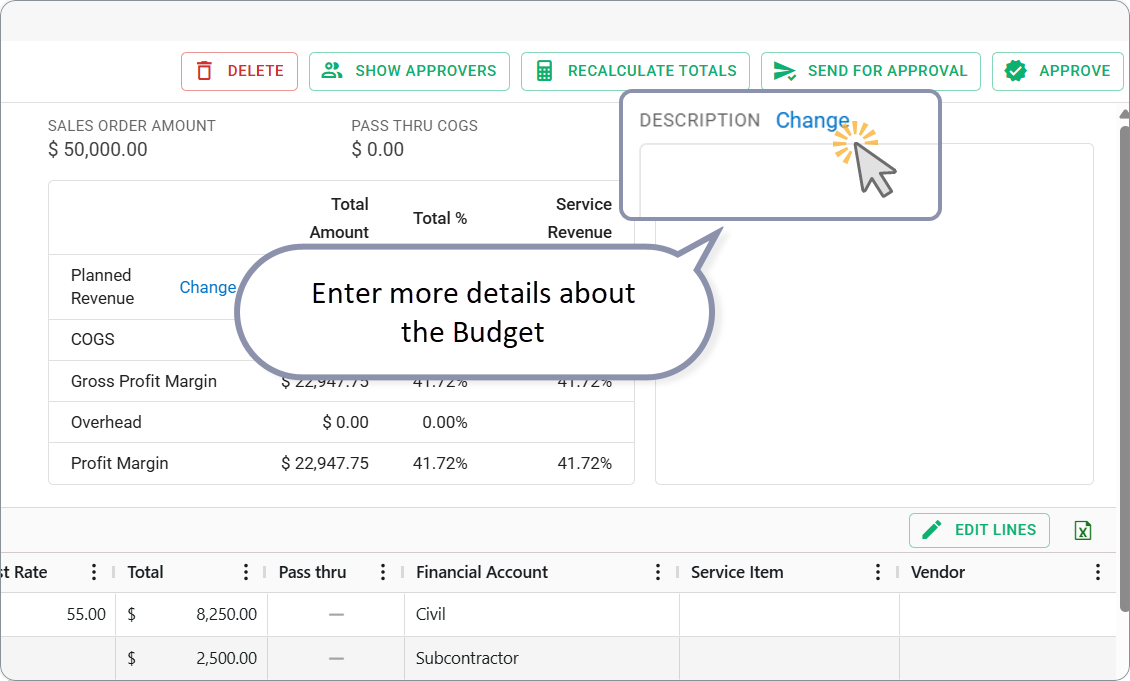
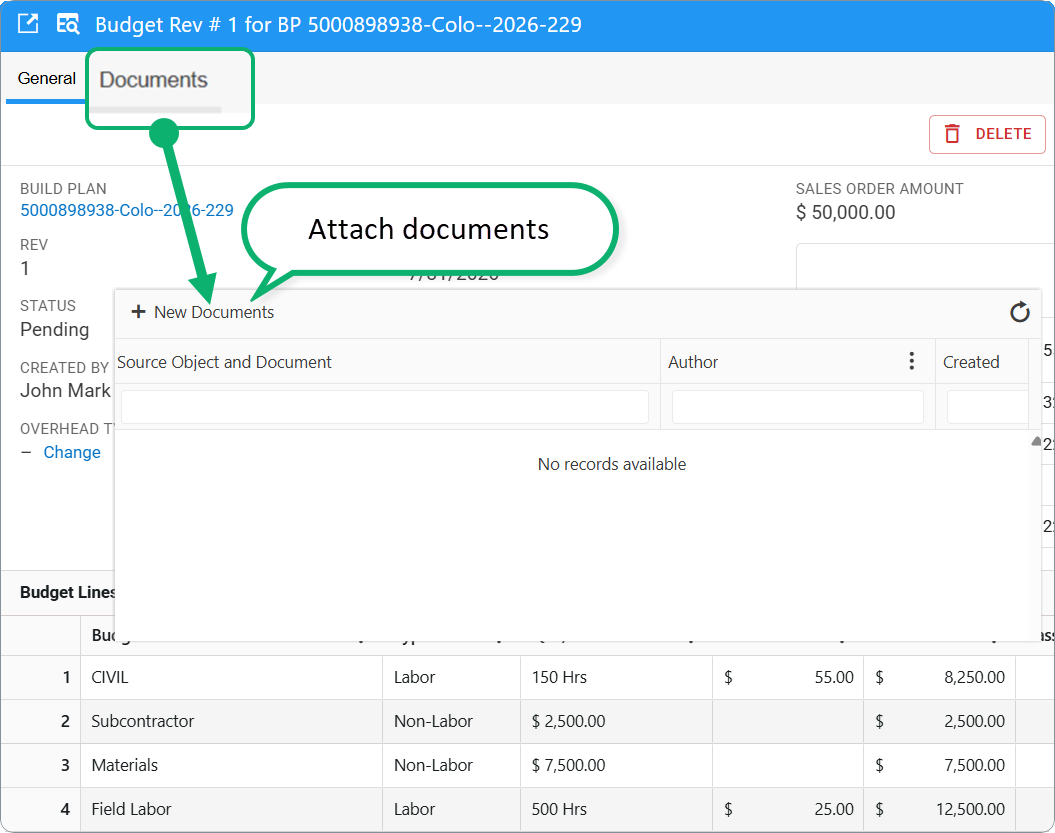
Enter more details about the Budget in the Description field.
Go to the Documents tab to attach a document.
Submit for approval
When the Budget is complete:
- Review the summary and lines.
- Click RECALCULATE TOTALS if needed.
- Submit the Budget for approval — click Send for approval.
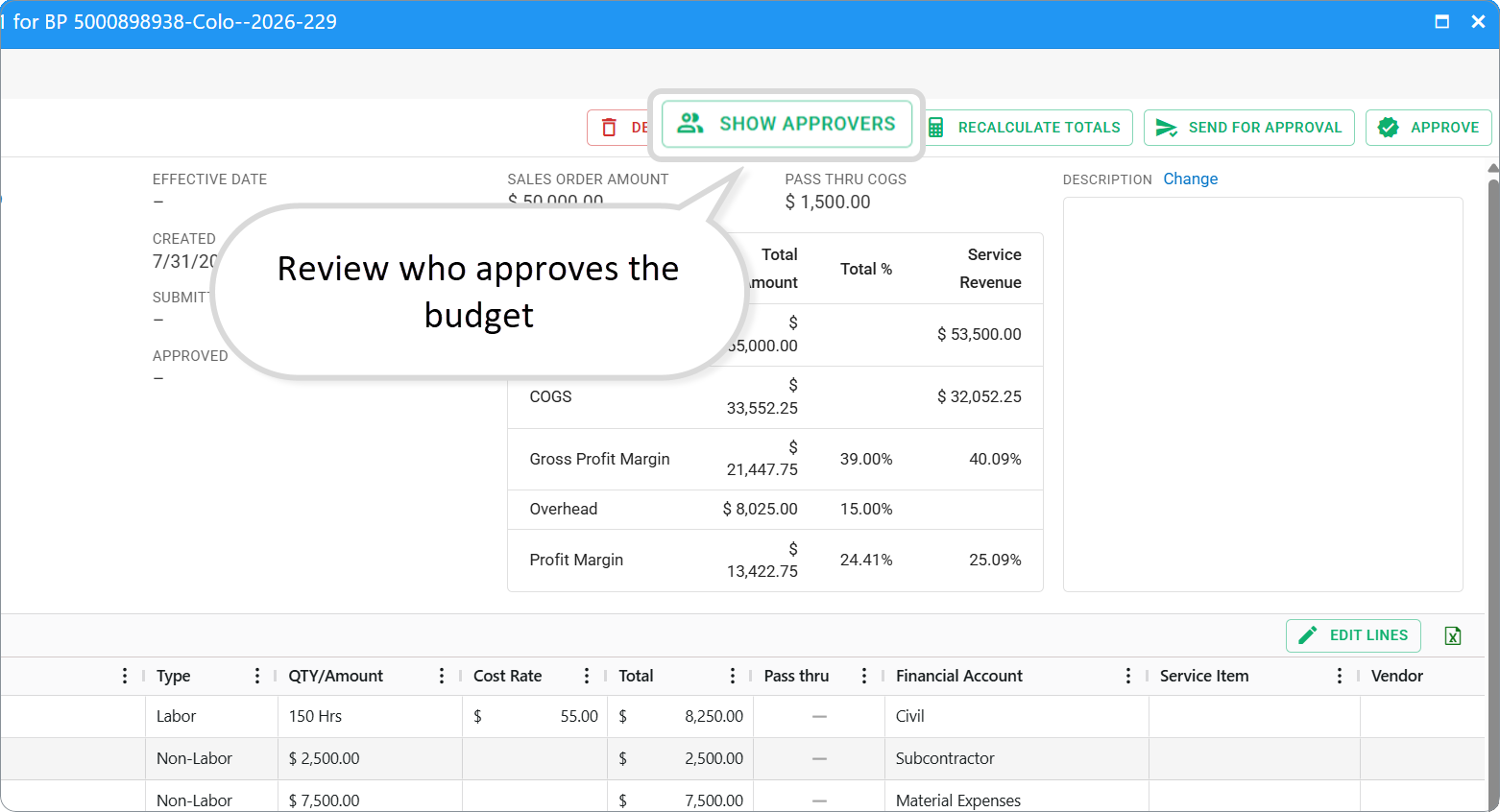
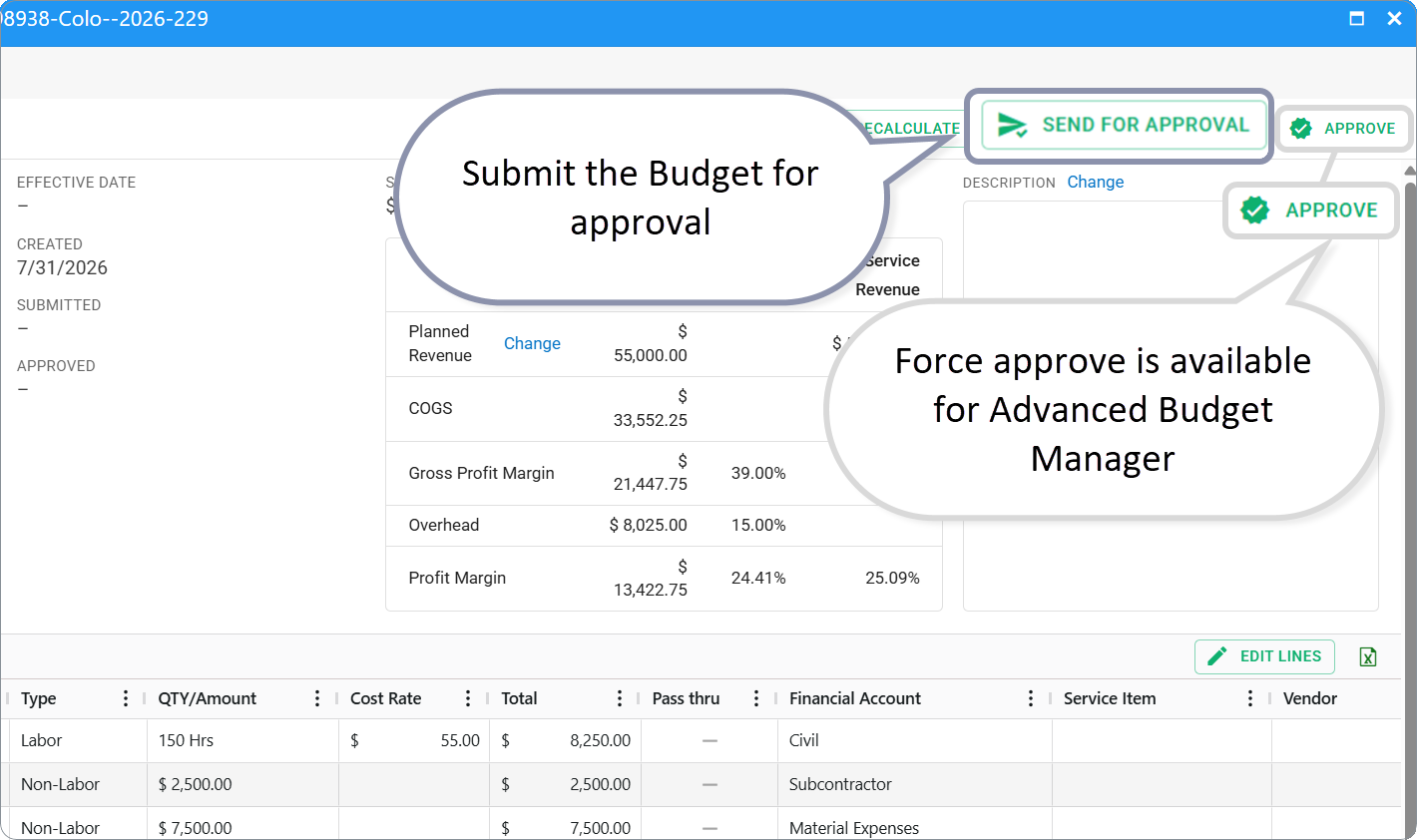
Fieldclix creates an inbox job for the configured approver.
| What happens next | Detail |
|---|---|
| Status stays Pending until approved | You can still edit if not yet submitted, or after For revision |
| Auto-approval | If rules allow (submitter is approver, or role has no approval required), Fieldclix approves immediately |
| Approver inbox | Approver completes the job—see Build Plan Budget Approval |
Configurable (your instance)
Financial + Advanced Budget Manager can click APPROVE on the card to approve without completing the inbox job.
Even when auto-approval applies, you still initiate the approval step.
Delete a pending budget
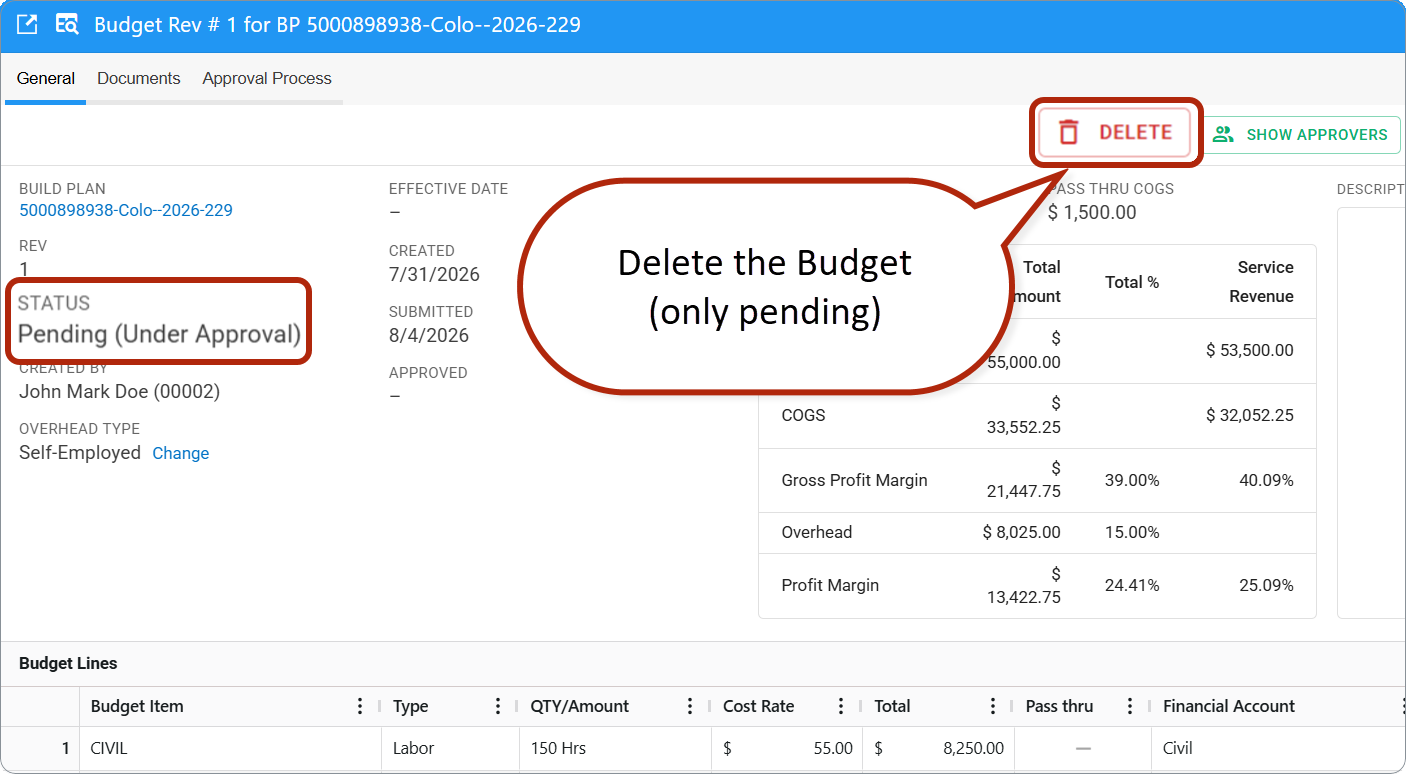
Remove a Budget only while it is Pending:
- Open the pending Budget card.
- Click DELETE.
- Confirm.
You cannot delete Approved or Obsolete revisions.
Revise an approved budget
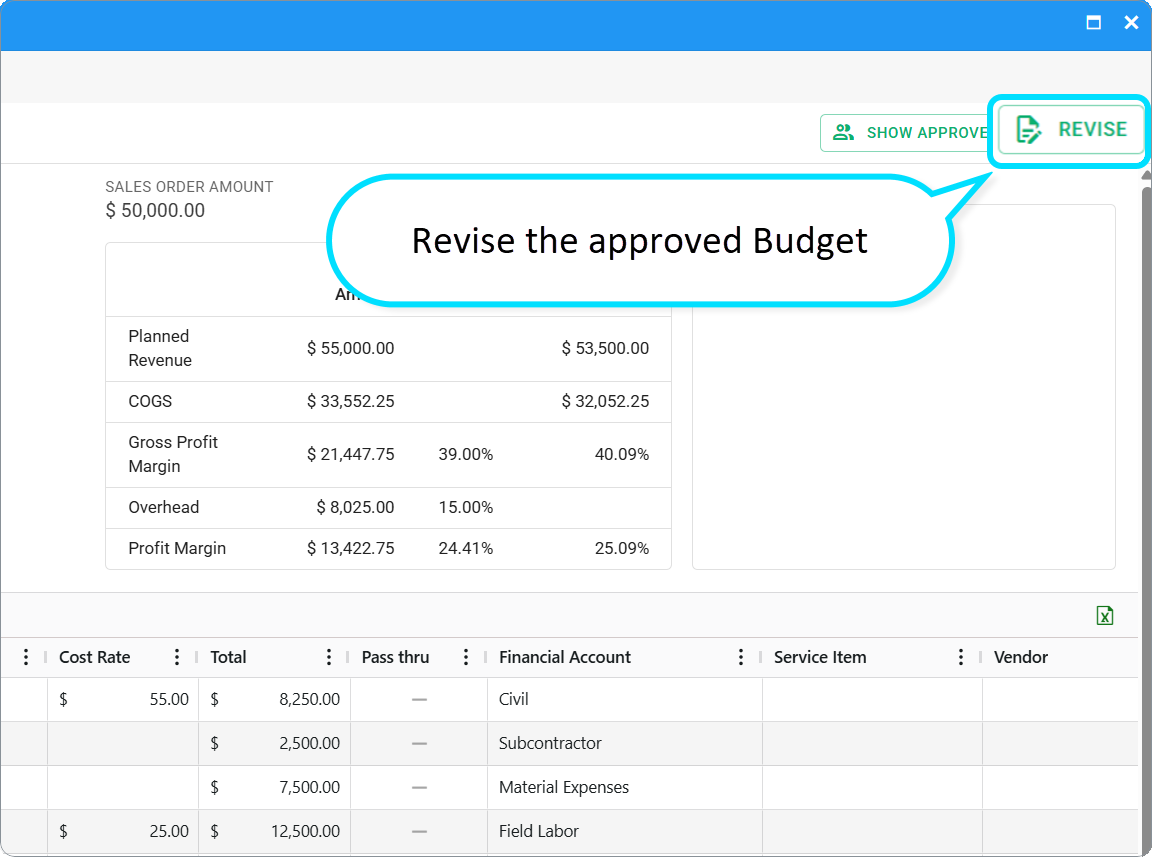
You cannot edit an Approved Budget in place.
- Open the Approved Budget card.
- Click Revise.
- Fieldclix creates a new Pending revision (next Rev number) with copied lines.
- Edit lines, revenue, Overhead Type, or description.
- Submit the new revision for approval.
When the new revision is Approved, the previous one becomes Obsolete.
Budget Effective Date
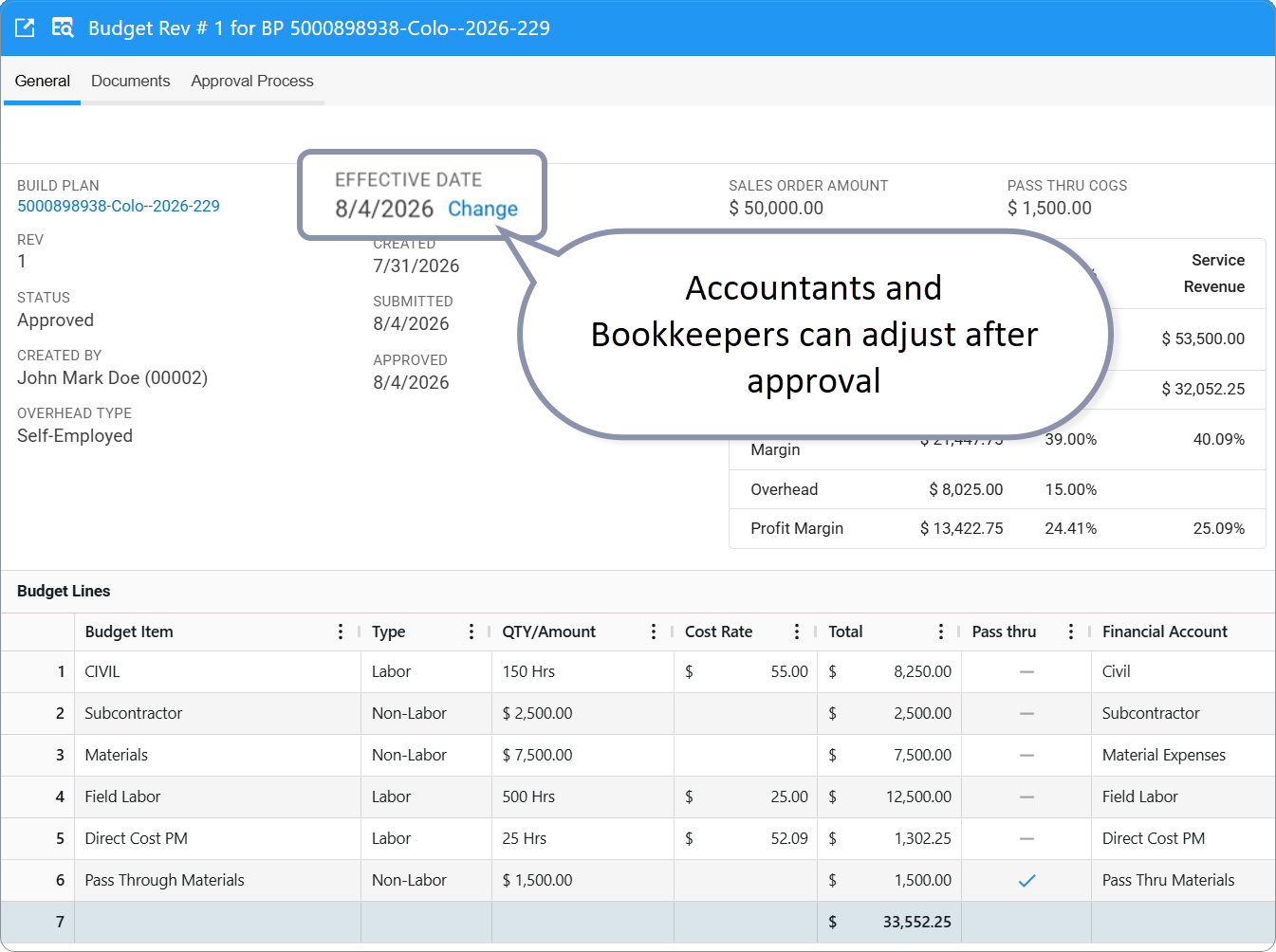
The Effective Date decides which approved revision applies for WIP and financial reporting on a given date.
| Situation | How it is set |
|---|---|
| Default | Approved date at approval |
| First revision on a started Build Plan | Often Build Plan Started date |
| Manual change | Accountants and Bookkeepers can adjust after approval |
Changing Effective Date affects WIP and adjusted P&L—not only the Budget card.
Q&A
Q: Why is my Budget empty after I open it?
A: No template was applied at generation and no lines were added. Use FILL FROM TEMPLATE, + ADD ROW, or ask your administrator to link a template to the Project Scenario.
Q: Can I edit an approved Budget?
A: No. Use Revise to create a new Pending revision.
Q: Can I delete an approved Budget?
A: No. Only Pending revisions can be deleted.
Q: Who can delete a pending Budget?
A: Users with Financial access to the Build Plan.
Q: What if I submit and need to change lines?
A: If the approver returns it For revision, edit and resubmit. If still Pending before anyone acts, your process may allow further edits—check with your administrator.
Q: When should I use Service Item on a line?
A: When you want expense breakdown below the financial account on the Build Plan Budget tab and in reports—for example Electrical and Concrete under Field Labor.
Related articles
Was this article helpful?
That’s Great!
Thank you for your feedback
Sorry! We couldn't be helpful
Thank you for your feedback
Feedback sent
We appreciate your effort and will try to fix the article