TABLE OF CONTENTS
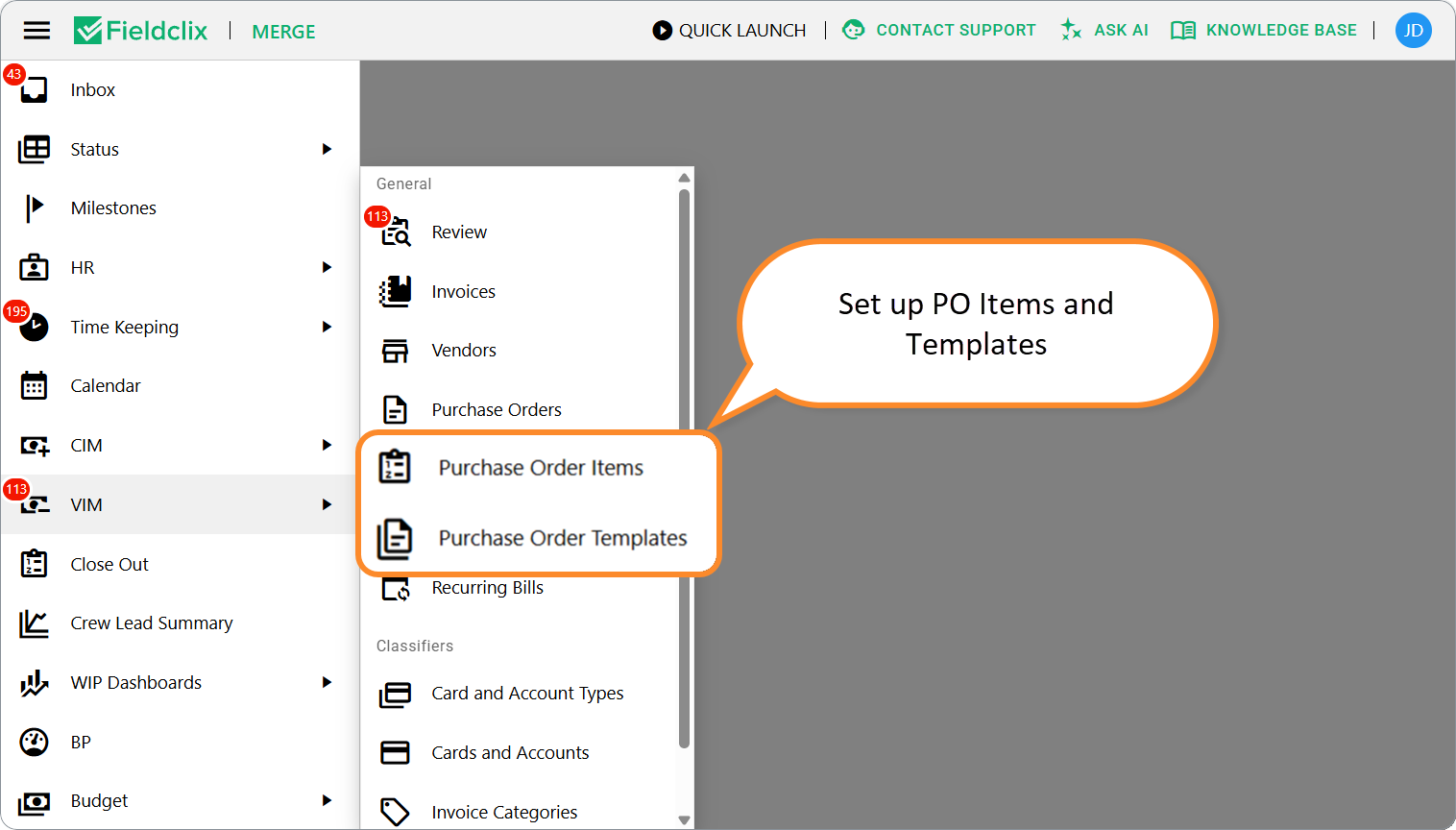
Before teams create Vendor Purchase Orders (VPOs) every day, set up two catalogs under VIM:
Catalog | Purpose |
|---|---|
Purchase Order Items | Reusable line defaults (name, amount, Financial Account, GL / Service Item) |
Purchase Order Templates | Named sets of lines you apply with Fill from template on a PO |
Who maintains them: Accountant and Bookkeeper or Project Library Manager. Users with Financial can usually open the lists to look up values.
Why set these up
Vendor POs charge Build Plans through Financial Accounts. Templates and items help purchasers pick the right accounts without memorizing the full chart — and keep job costing consistent when invoices later fill from the PO.
Purchase Order Items
Open VIM → Purchase Order Items.
Click NEW (or open an existing row → Edit).
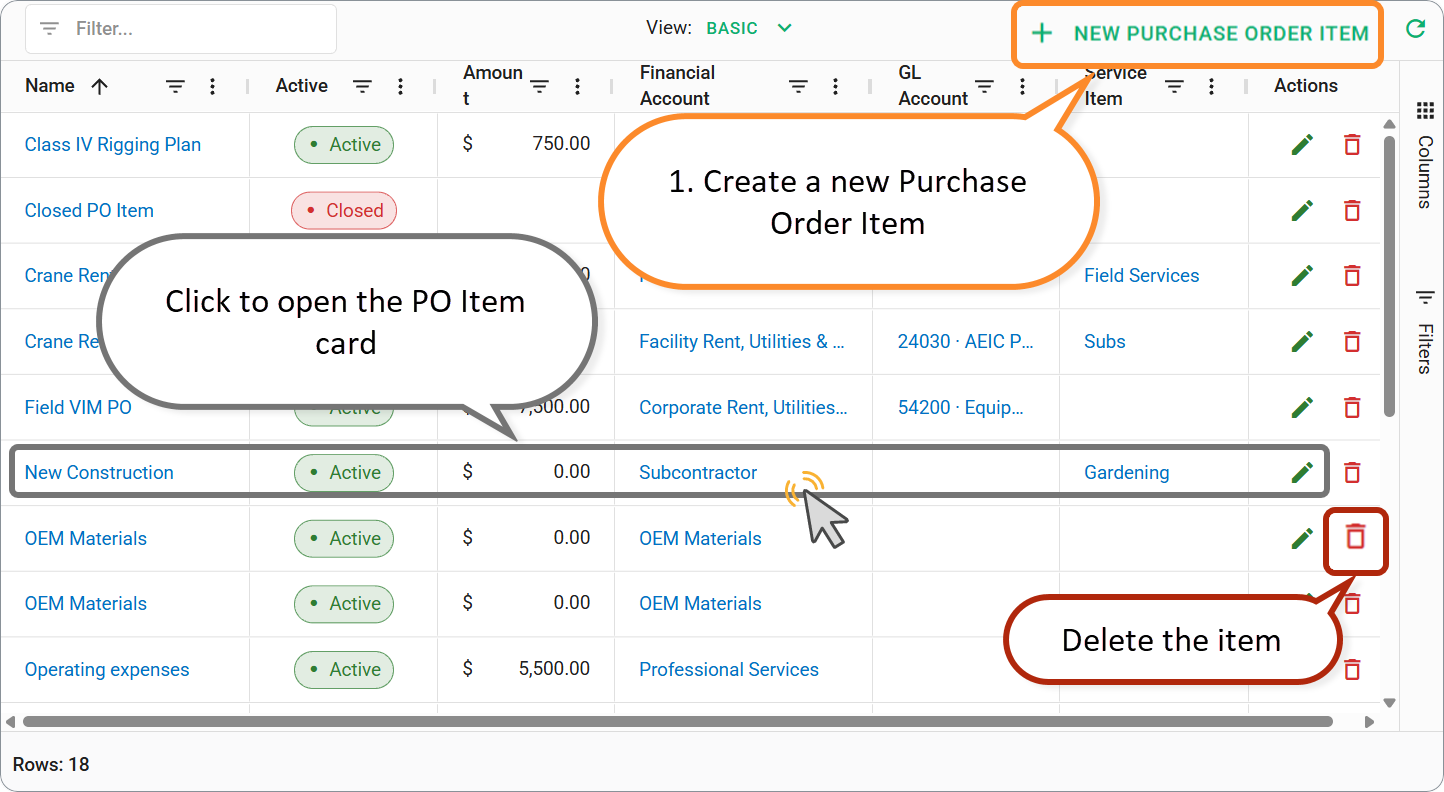
2. Fill:
Field | Notes |
|---|---|
Name | What purchasers see when they pick the item on a PO line |
Active | Inactive items stay out of day-to-day pick lists |
Amount | Optional default line amount |
Financial Account | Required — drives job costing / Financial Distribution |
GL Account / Service Item | Optional defaults for invoice allocation later |
Comments | Optional |
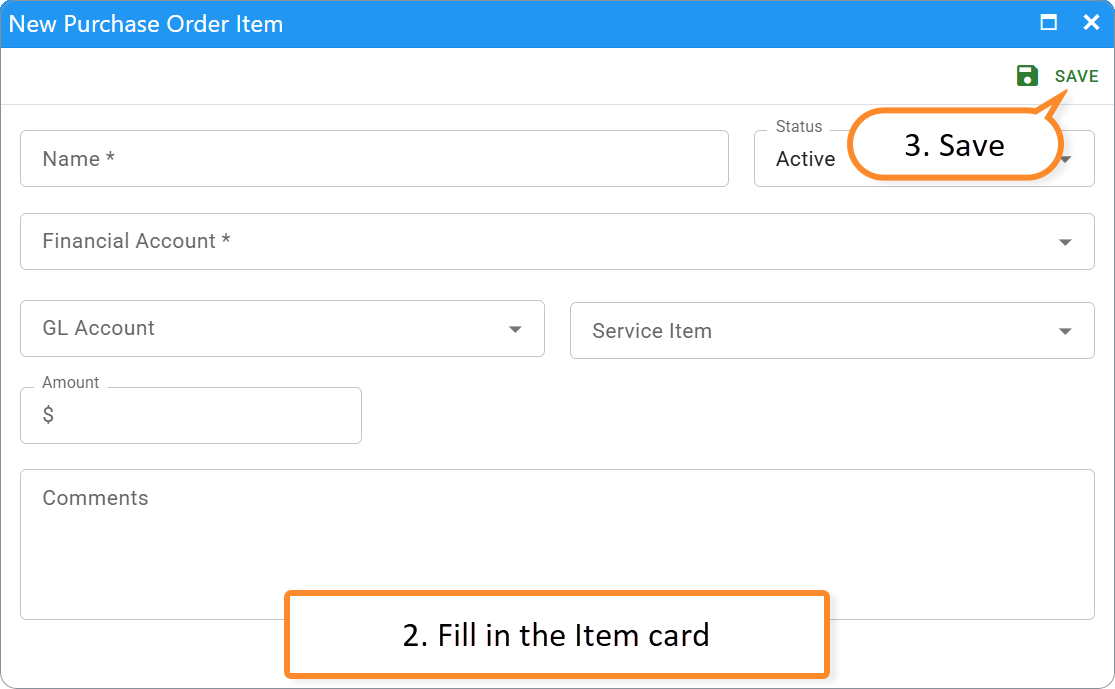
3. SAVE.
When someone chooses a Purchase Order Item on a PO line, Fieldclix can fill Financial Account, GL Account, and Service Item from that item. Amounts and descriptions can still be edited on the PO before approval.
Purchase Order Templates
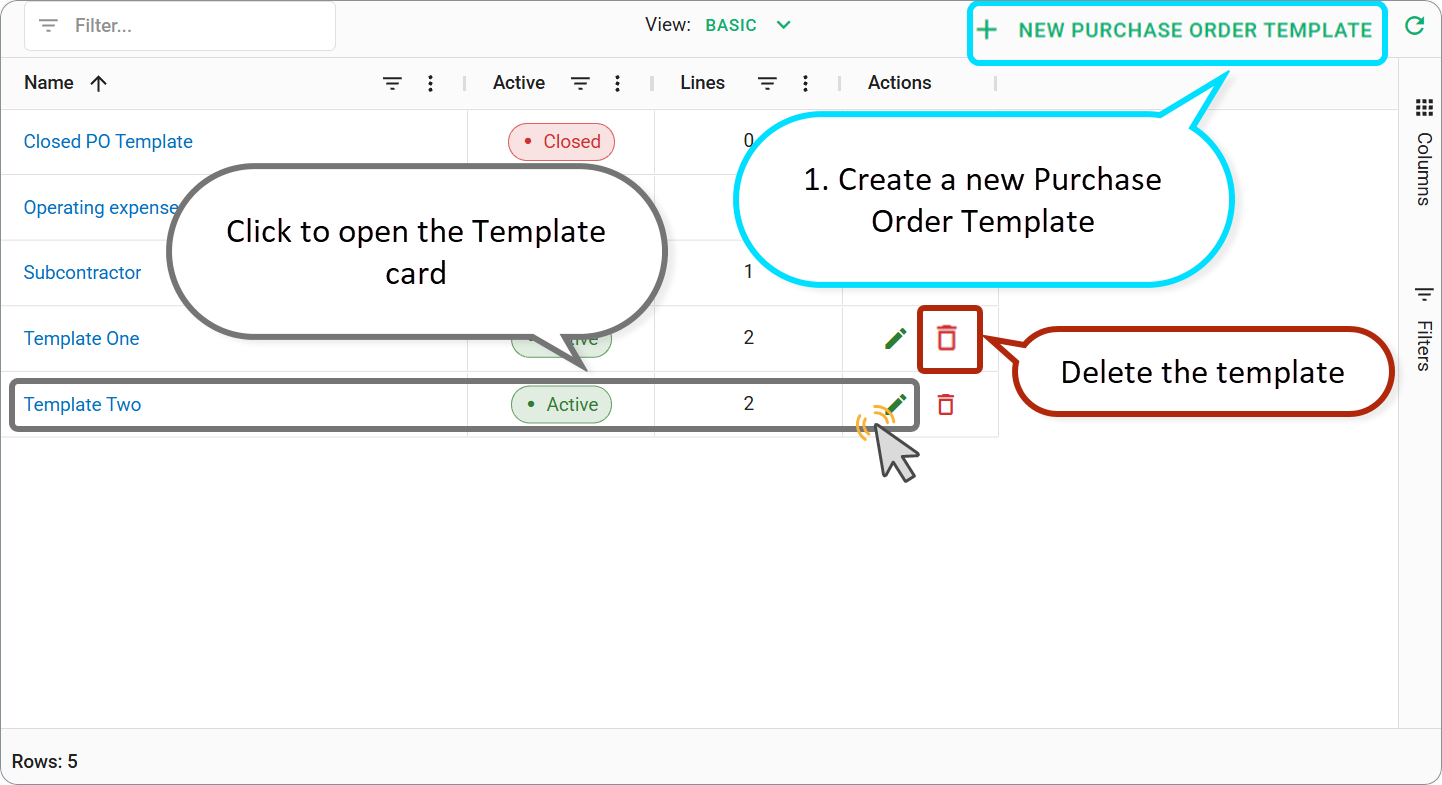
Open VIM → Purchase Order Templates.
Create a record (or edit an existing template).
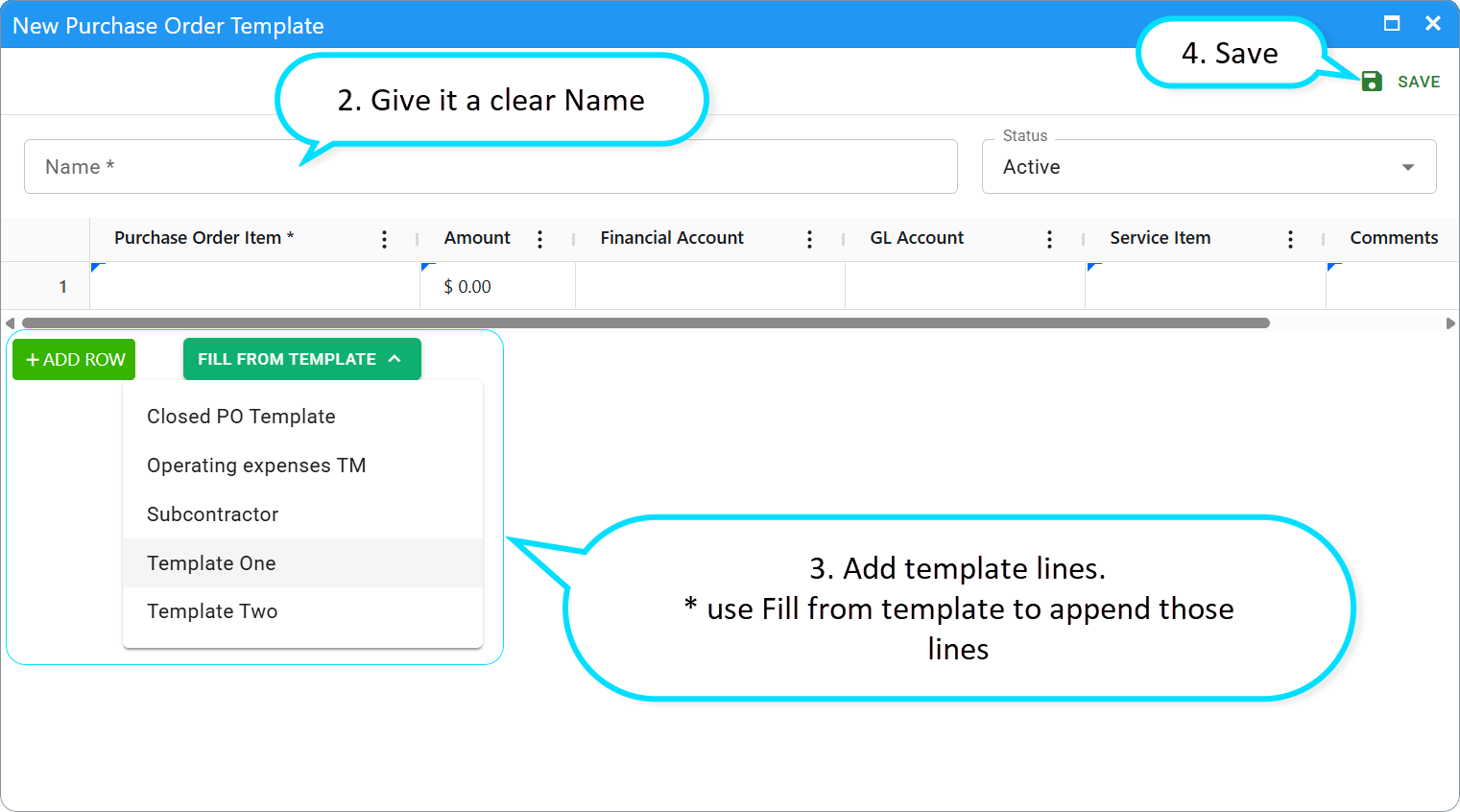
Give it a clear Name and set Active.
Add template lines in the grid: description, amount, Financial Account, and GL Account or Service Item as your company uses them. You can start a line from a Purchase Order Item so FA / GL / Service Item come from the catalog.
SAVE.
On a Vendor PO card, use Fill from template to append those lines. Edit totals and wording before you send for approval.
Tips for templates
Name templates so purchasers know when to use them (for example by work type or vendor pattern).
Prefer items + templates over ad-hoc accounts on every PO.
For a large first-time library, Fieldclix Support can help with a mass import — ask your implementation contact.
Related settings
Company settings can change GL defaults for Tax / Shipping / Handling and related PO email options.
FAQ
Q: Who can create or edit Items and Templates?
A: Accountant and Bookkeeper or Project Library Manager.
Q: Do I still assign a template to a Project / LOB?
A: On the web template card you maintain Name, Active, and lines. Purchasers pick any active template when filling a PO.
Q: Must every PO line come from an Item?
A: No. Items and templates are shortcuts. You can still add ad-hoc lines and set Financial Account by hand when needed.
Next in the set
→ Day-to-day create steps: Create a Vendor Purchase Order.
Was this article helpful?
That’s Great!
Thank you for your feedback
Sorry! We couldn't be helpful
Thank you for your feedback
Feedback sent
We appreciate your effort and will try to fix the article