TABLE OF CONTENTS
Access to Time Cards Reference
- All users can view the Time Cards reference (subject to reference access settings on your instance).
- Employees assigned to the Advanced TK Reviewer role can change a Time Card (within the permissions defined for your instance).
- Employees assigned to the Time Keeping Managers role are granted full access to Time Cards.
Overview
The Time Card Desktop card in Conterra is the reference record used to manage payroll allocation, non-wage lines, review metadata, and desktop-specific tools.
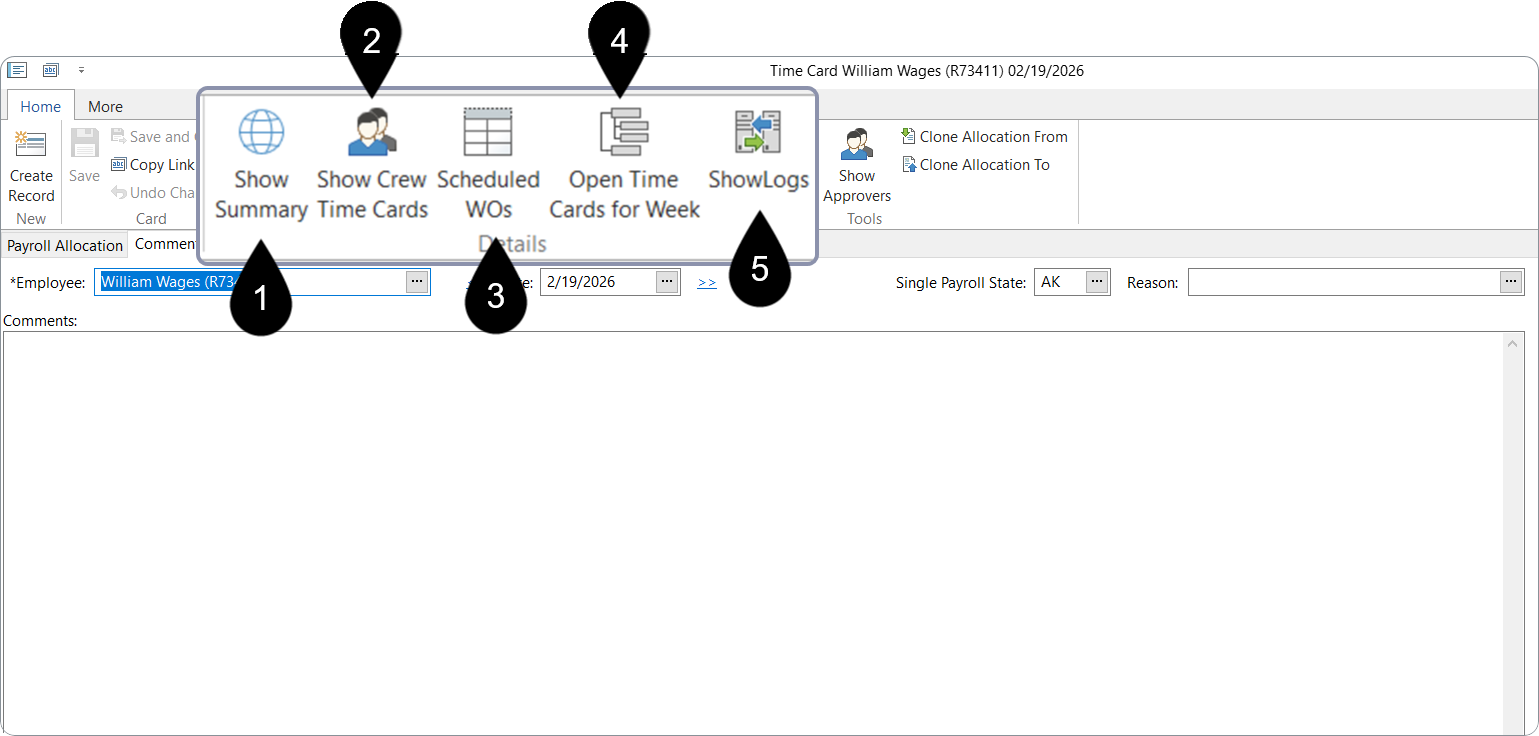
Visual review of the employee’s day — GPS timeline, map, adjustment interface, attestations, audit results, requests, and history — is available in the web Time Card, opened from desktop via Show Summary. For details on that functionality, see Time Card Web.
The desktop card has two tabs:
- Payroll Allocation (default)
- Comments
1. Payroll Allocation Tab — Basic Info
When a Time Card is created, the system fills in general information: Employee, Date, Payroll Period, and Employee Category.
Employee and Date are determined by automatic Time Card generation rules, or you specify them manually when creating a record.
Payroll Period is calculated from the Time Card date and the Payroll Period Type associated with the Employee. The system finds the matching record in the Payroll Periods reference.
Employee Category is taken from the Employee card and is not shown on the desktop Time Card. Open the Employee Category record to see rules and settings for that category.
Reviewer is calculated according to approval process rules. The rule may vary by client. A Reviewer can be a BP Owner, Supervisor, Head of Department, or a member of a BP Role determined for a specific combination of Region + Market + Project.
Review State is the Time Card review state. A TK Manager can correct the state — for example, roll back from Completed to Pending. Read about review flows in the Time Card Review article.
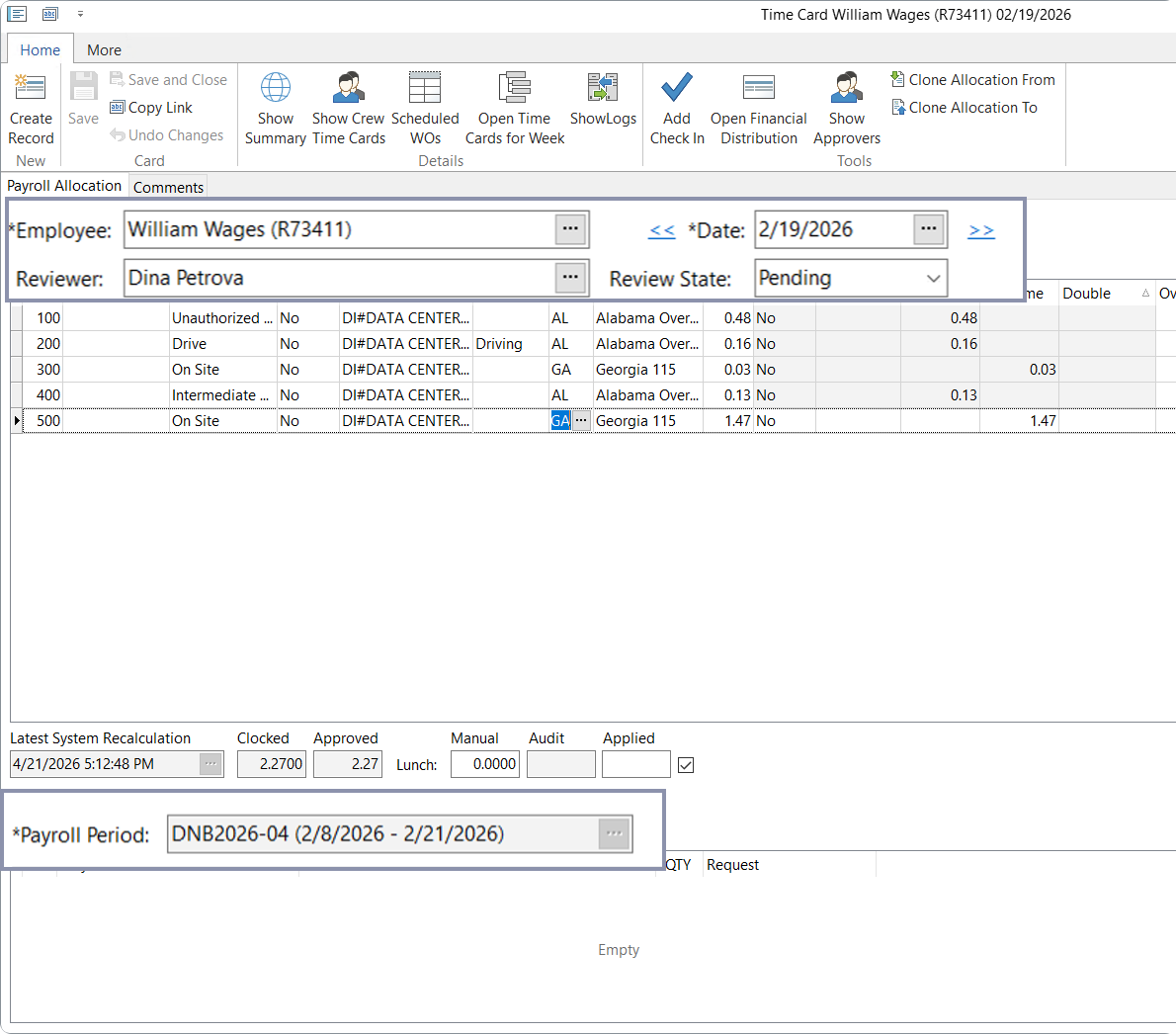
Other fields on the Payroll Allocation tab:
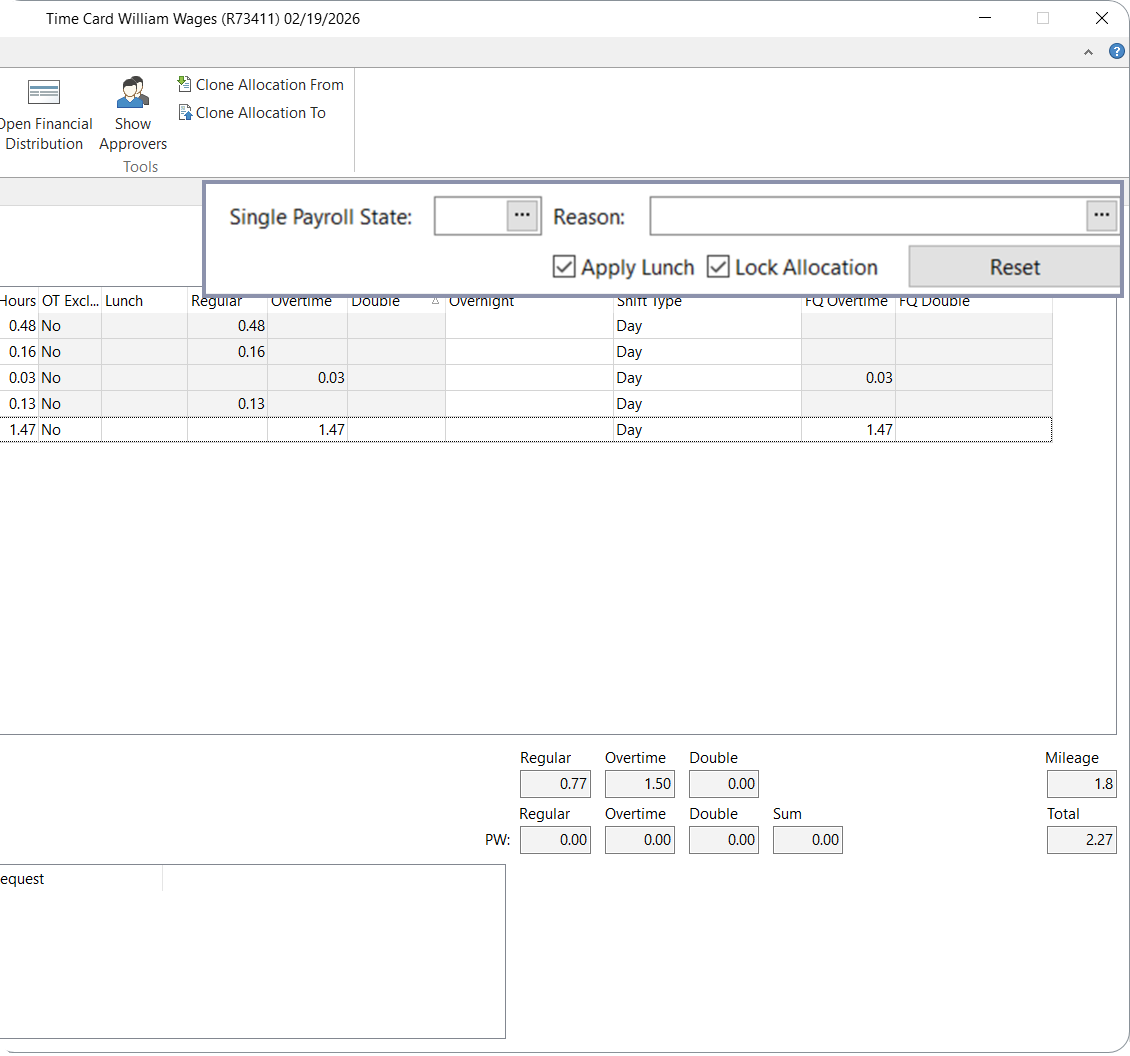
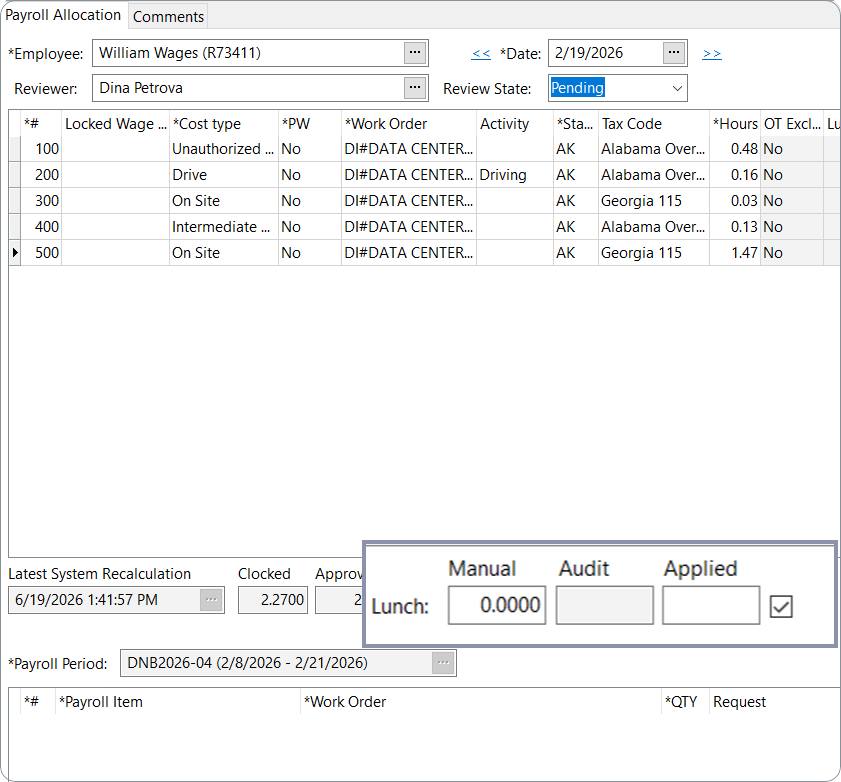
2. Payroll Allocation Tab — Wage Allocation Table
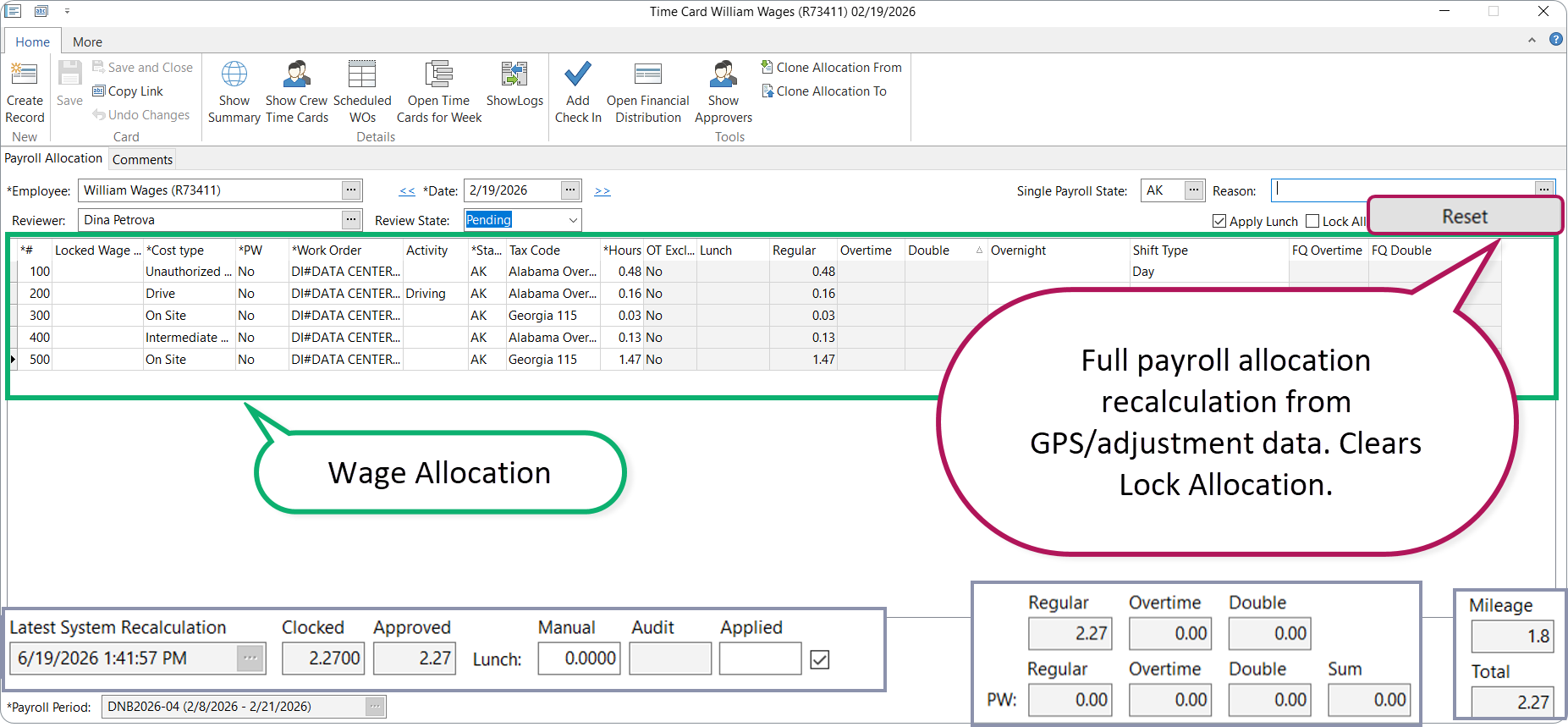
The wage allocation table is the main working area of the desktop Time Card. All data (Cost Types, Approved Hours, associated Work Orders) is populated from the applied TC Adjustment or from Time Entries (original GPS data). Rows are arranged in chronological order.
You can edit allocation directly in the desktop table: change Cost Type, PW, Work Order, Activity, State, Tax Code, hours, and other editable columns. After saving manual changes, the system sets Lock Allocation and recalculates wage hours.
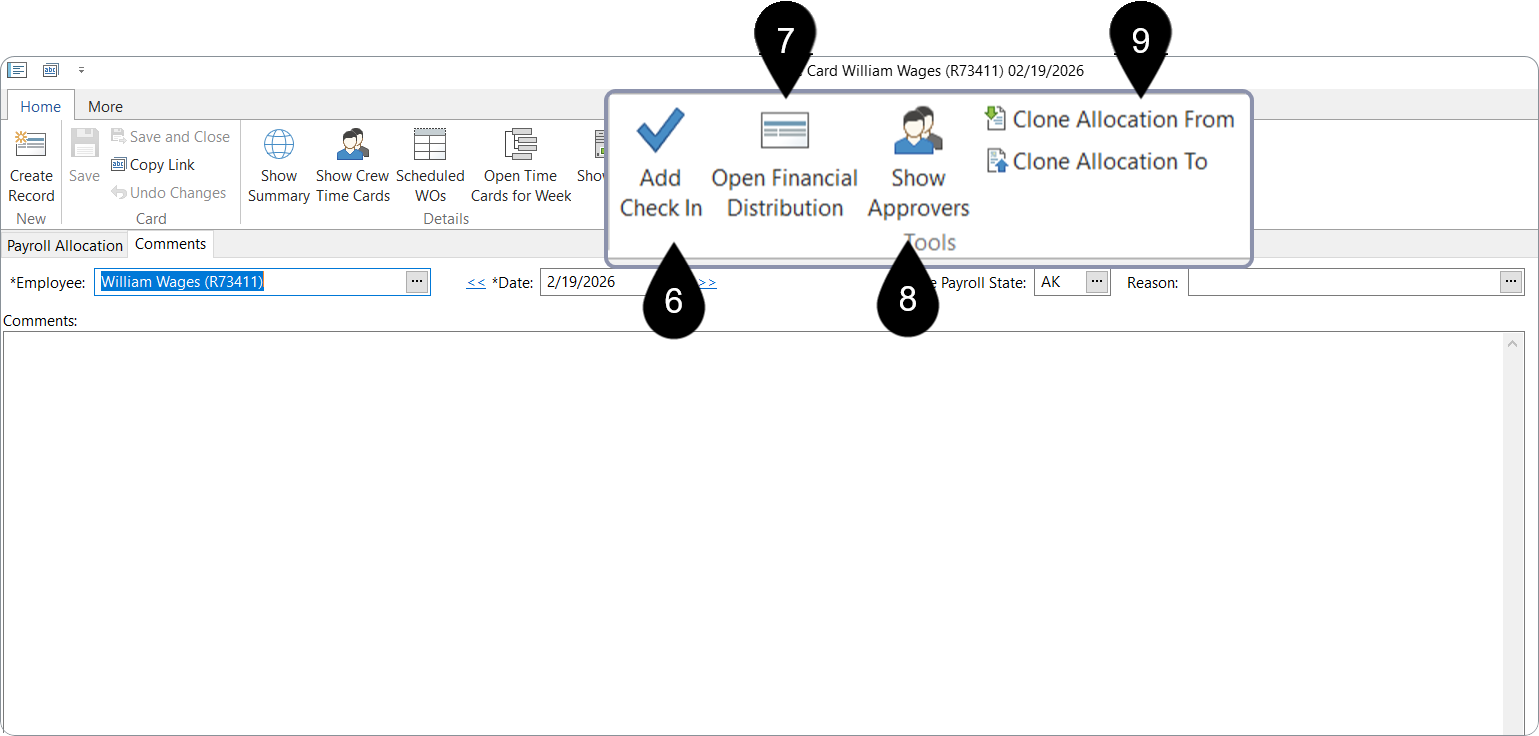
Reset (button on the Payroll Allocation tab) performs a full payroll allocation recalculation from Time Entries or the applied adjustment. Use it after Add Check In or when you need to undo manual allocation changes and restore system-calculated allocation. Reset clears Lock Allocation.
The bottom summary row shows:
- Latest system recalculation date
- Clocked, Approved, Manual Lunch, Audit Lunch, Applied Lunch hours
- Total Hours, Regular, Overtime, Double, PW hours
- Mileage total
For detailed rules on Cost Type priority, PW, State calculation, overtime/double hours, OT Exclude, lunch handling, Default WO, and manual editing — see the Allocation tab section in Time Card Web. The business logic is the same; only the UI differs between desktop and web.
Who can edit payroll allocation
| Role | Wage Allocation | Non-Wage Allocation |
| Time Keeping Manager | Yes | Yes |
| Advanced TK Reviewer | No* | Yes |
*Wage allocation editing on desktop follows the same role rules as on web.
Editing is allowed only before the Time Card is included in an approved payroll check synced to the payroll system, except during the Revising Synced Data step of payroll check closure.
Exception: Employee with Can edit Paid Payroll Data role can modify data within closed and paid payroll periods.
3. Payroll Allocation Tab — Non-Wage Table
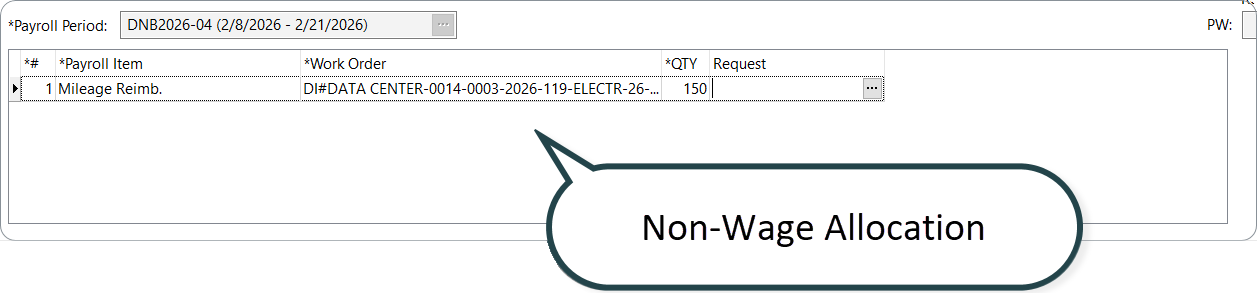
The non-wage table is calculated when a TK Administrator (TKA, TK Manager) completes a Miscellaneous request. All data (Payroll Item, Work Order, and QTY) is pulled from the TK request.
TKA can change this table: add lines, change Payroll Item, QTY, and so on.
The non-wage table is not synced to the payroll system. Data from this table is included in Time Card Financial Distribution.
The same priority of cost rates and financial accounts applies to non-wage lines. One difference: you can specify a financial account on the Payroll Item, and it takes precedence over accounts from Work Order Type, Employee, and other sources.
4. Comments Tab
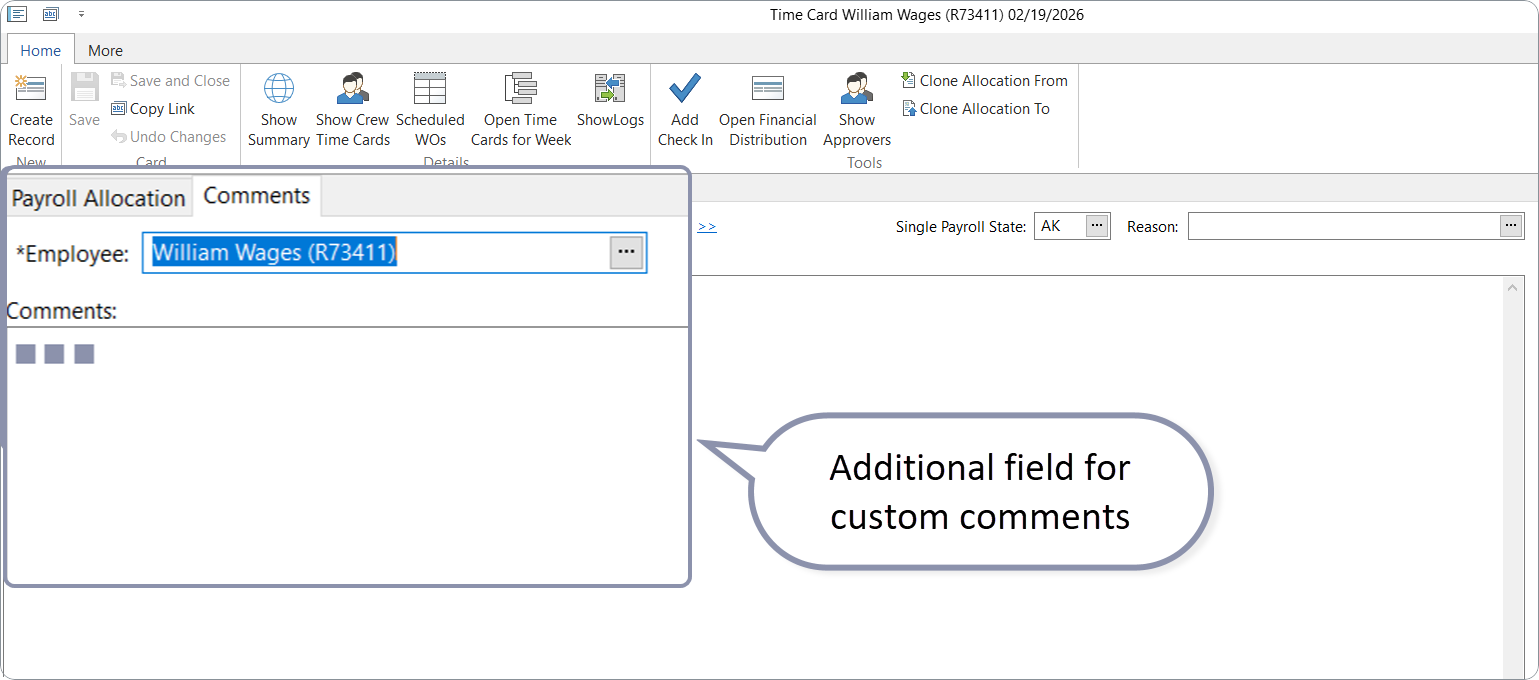
The Comments tab contains the Time Card comment field. Employee, Date, Reason, and Single Payroll State are also shown for navigation. Use << and >> to move between Time Cards.
5. Ribbon Actions
Details
Tools
6. Additional Actions
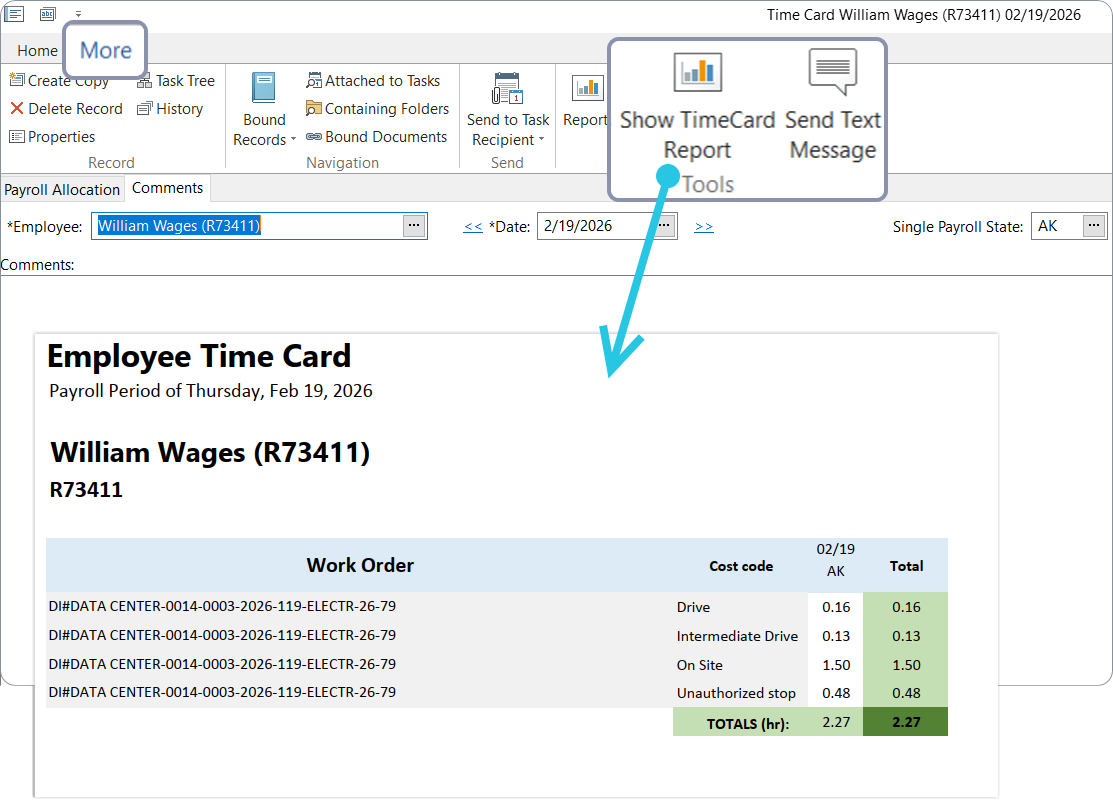
Go to the More tab on the ribbon to use advanced tools in the Time Card.
- Show TimeCard Report: Opens the Time Card report.
- Send Text Message: Sends a text message to the employee.
Related Articles
- Time Card Web — timeline, adjustment, allocation editing in web, review actions
- Time Card Review — review states and workflow
- TC Adjustment — creating and applying adjustments
- Clone Allocation — copying allocation between Time Cards
Tip: To open a reference record from a field, use the Ctrl+F4 hotkey.
Was this article helpful?
That’s Great!
Thank you for your feedback
Sorry! We couldn't be helpful
Thank you for your feedback
Feedback sent
We appreciate your effort and will try to fix the article