Browse Client Purchase Orders (CPO) across Build Plans:
- Sign in to the Fieldclix web portal.
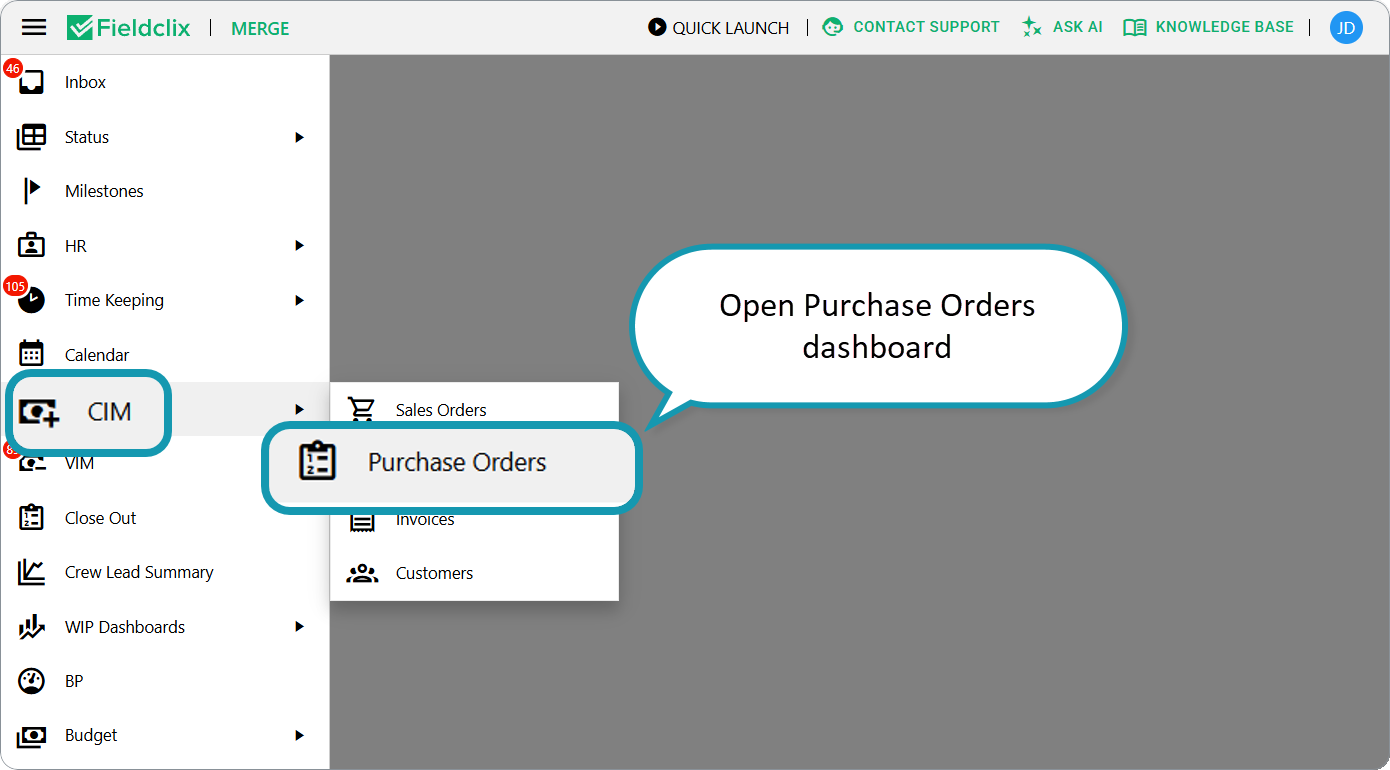
- Side menu → CIM → Purchase Orders.
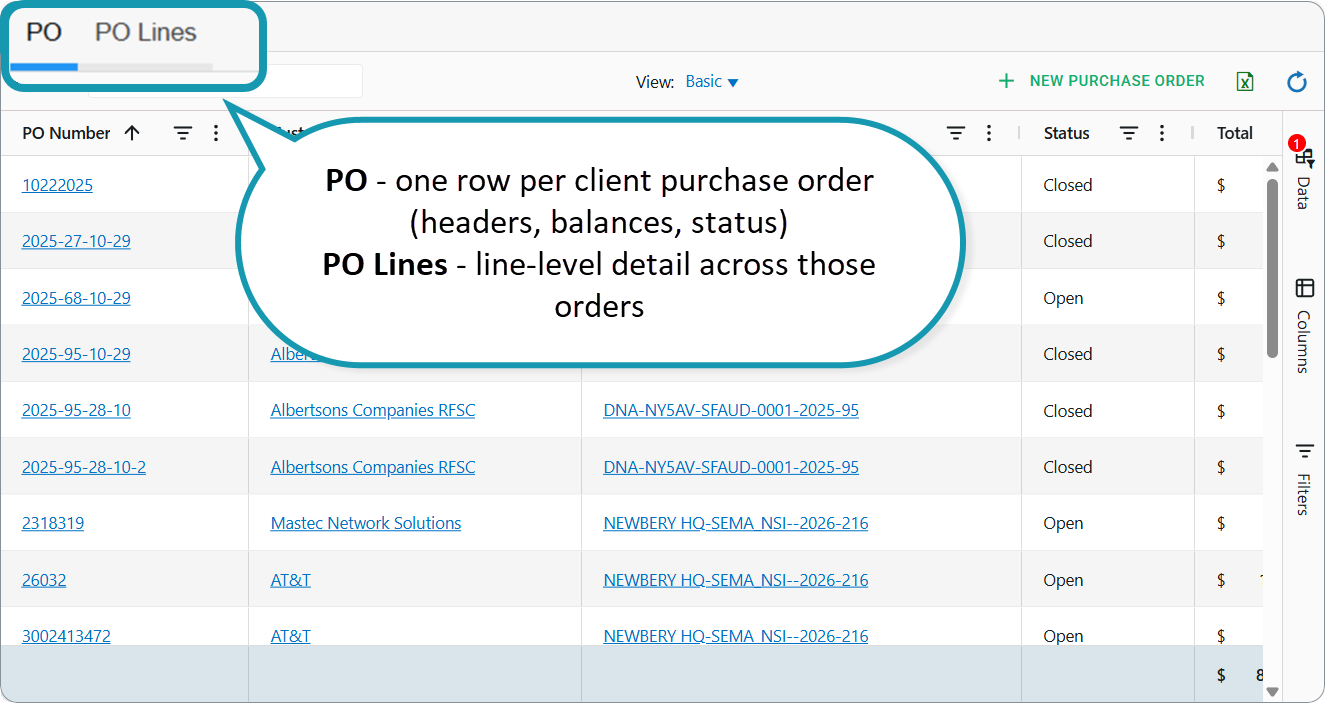
The dashboard has two tabs:
- PO — one row per client purchase order (headers, balances, status)
- PO Lines — line-level detail across those orders
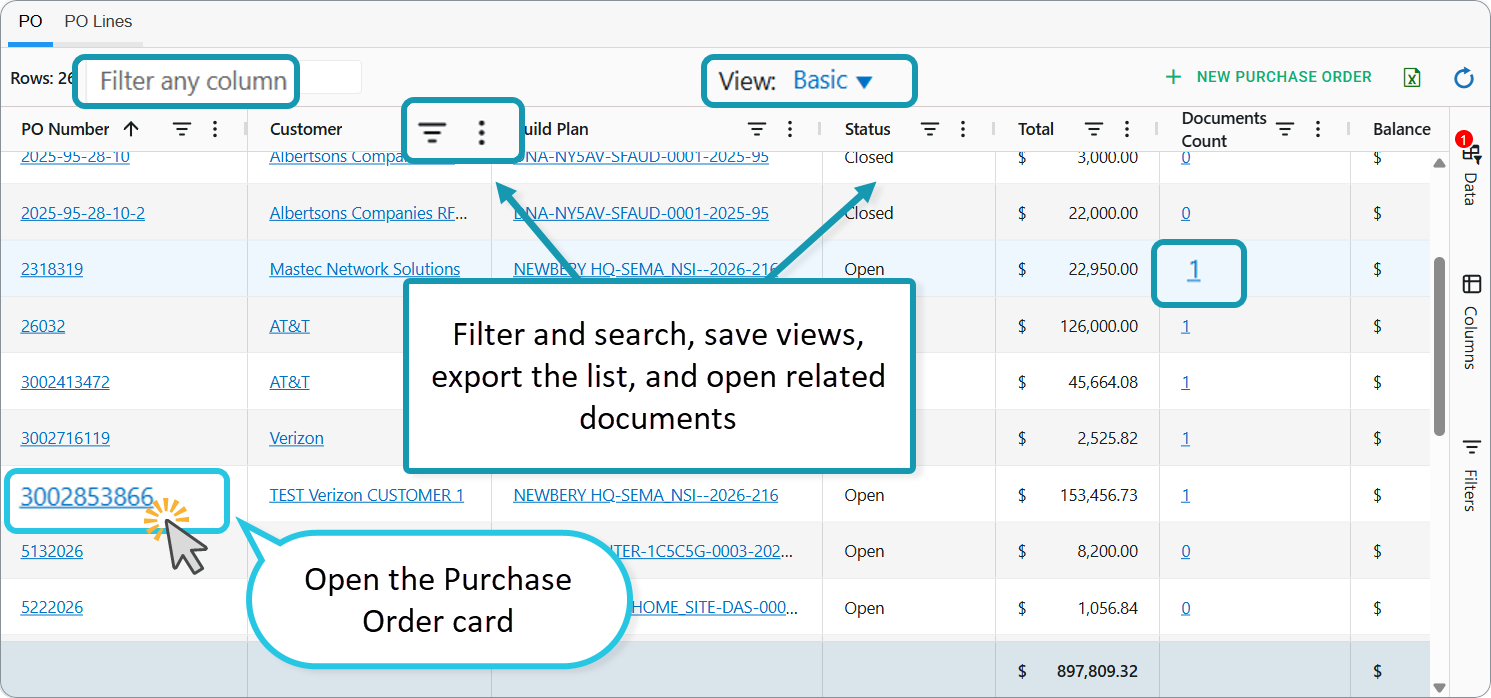
Use the dashboard to find CPOs quickly, filter and search, save views, export, and open related documents — without opening each Build Plan first.
Who can open it: employees with the Financial role (same as access to the CIM Purchase Orders reference).
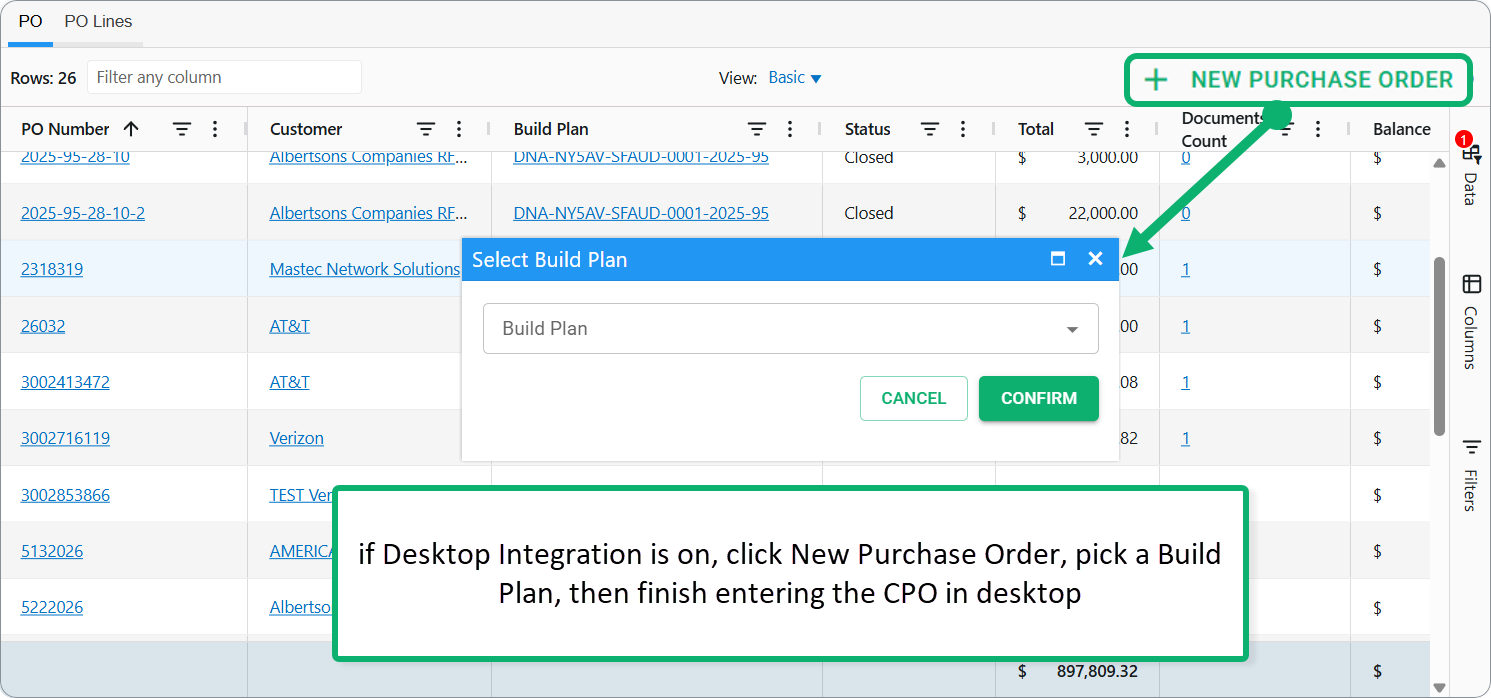
Create from the list: if Desktop Integration is on, click New Purchase Order, pick a Build Plan, then finish entering the CPO in desktop. You can still create a CPO from the Build Plan CIM tab (New Purchase Order), as described in the following articles:
- Enter Client Purchase Order (CPO) with QTY and Unit Cost
- Enter Client Purchase Order (CPO) with Total only
Also available: Desktop Quick Launch → CIM Purchase Orders; Build Plan → CIM tab for that job only.
Was this article helpful?
That’s Great!
Thank you for your feedback
Sorry! We couldn't be helpful
Thank you for your feedback
Feedback sent
We appreciate your effort and will try to fix the article