TABLE OF CONTENTS
The Material List reference is a library of all material that presented in your instance. Each Material contains all necessary information about the material: category, part number, unit of measurement, Vendor prices, COGS value, Marked Up Price and so on.
Access to Material Library
Employees assigned to the IC Administrator role have full access to all Material Library components, including:
- Material List
- Material Categories
- Unit of Measurement
- Unit of Measurement Transformation
Employees with the basic Build Plan Manager role for desktop users can access the Materials group of dashboards, which includes:
- BOM
- Materials
- Material Items
- Utilization
Add New Material
Tools and Equipment, like trucks and test gear, are handled by Asset Management and go in the Asset Library.
Consumable Materials, like wire, bolts and connectors are handled by Inventory Control and go in the Material Library.
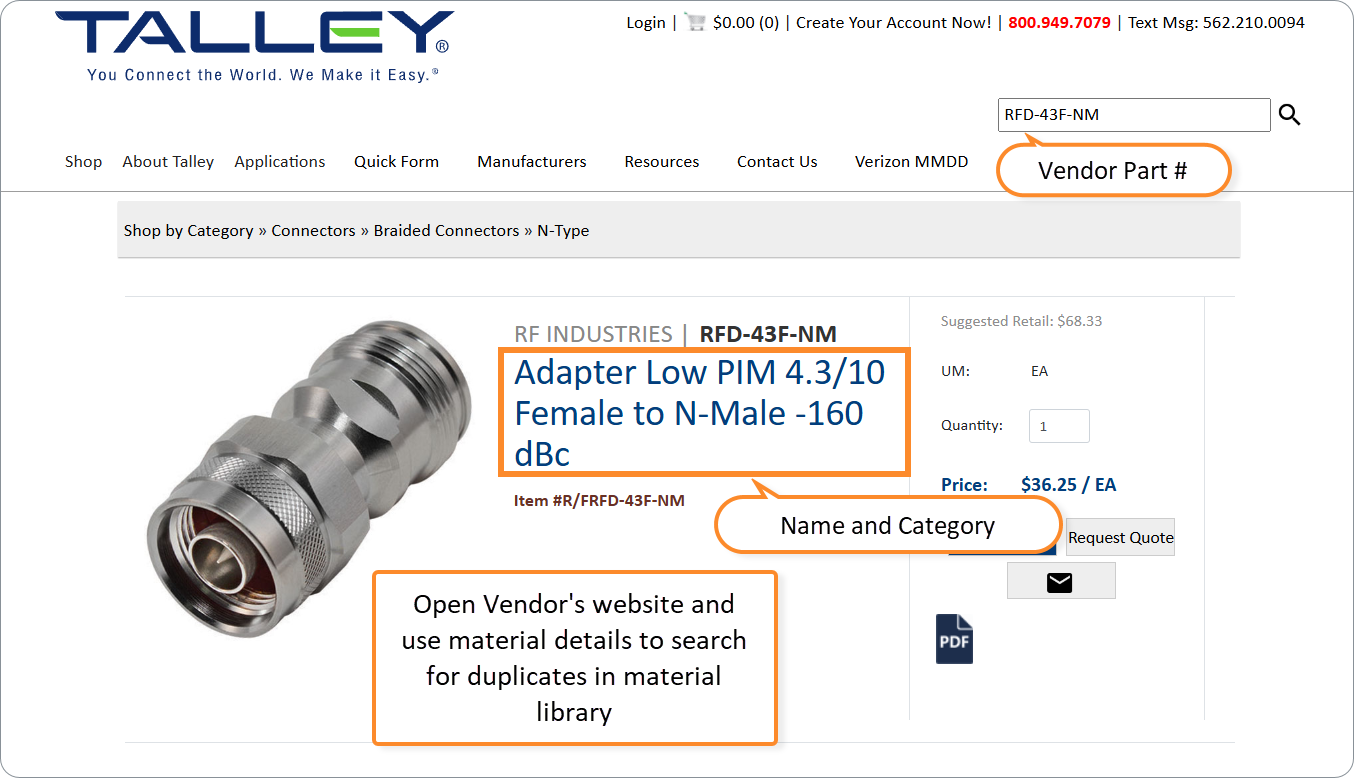
Today we have a new “N-Type” Connector which we have found on our Vendor's website with the Vendor Part#.
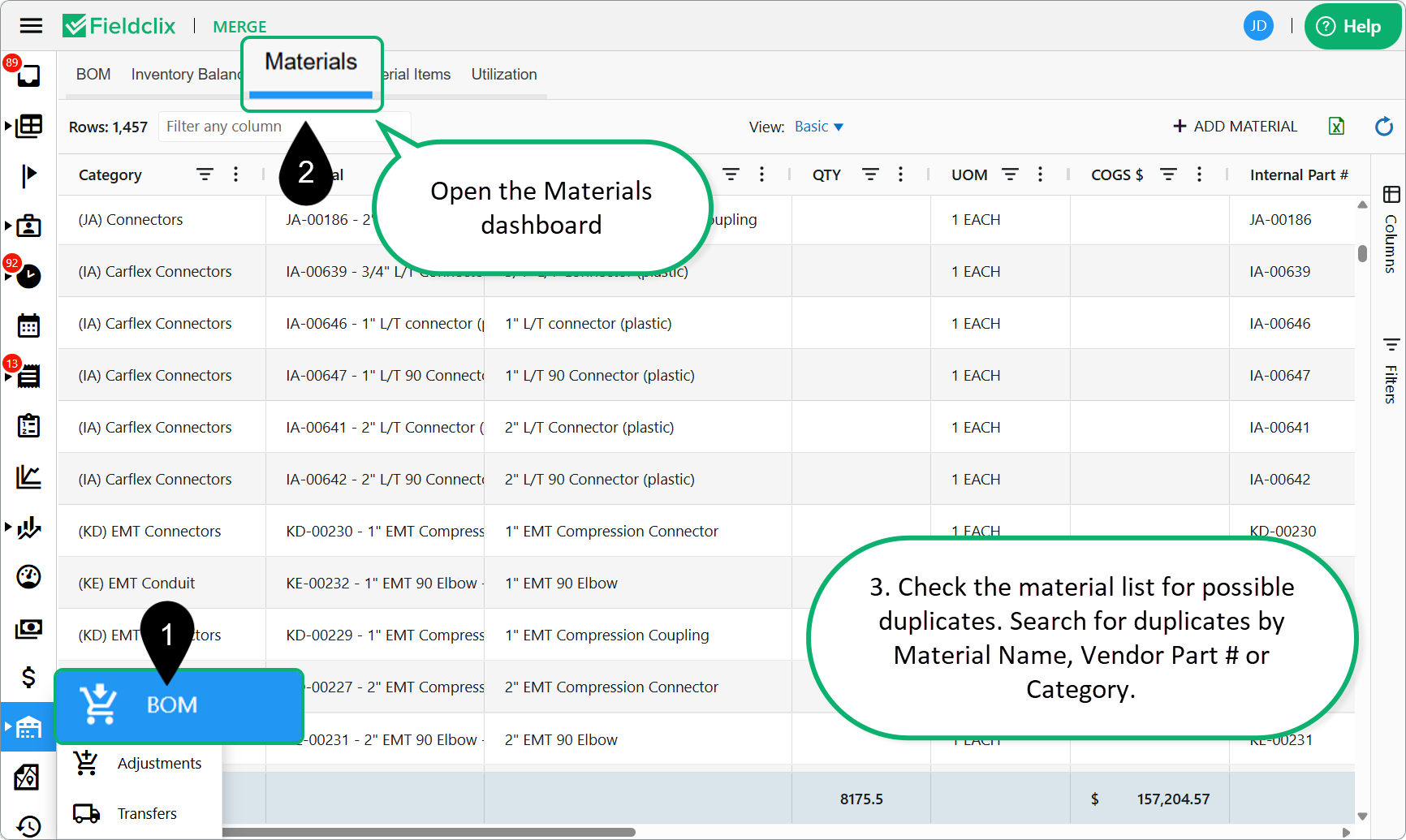
- At first, open the Materials dashboard in FCX Web Portal.
- Check the material list for possible duplicates. Search for duplicates by Material Name, Vendor Part # or Category.
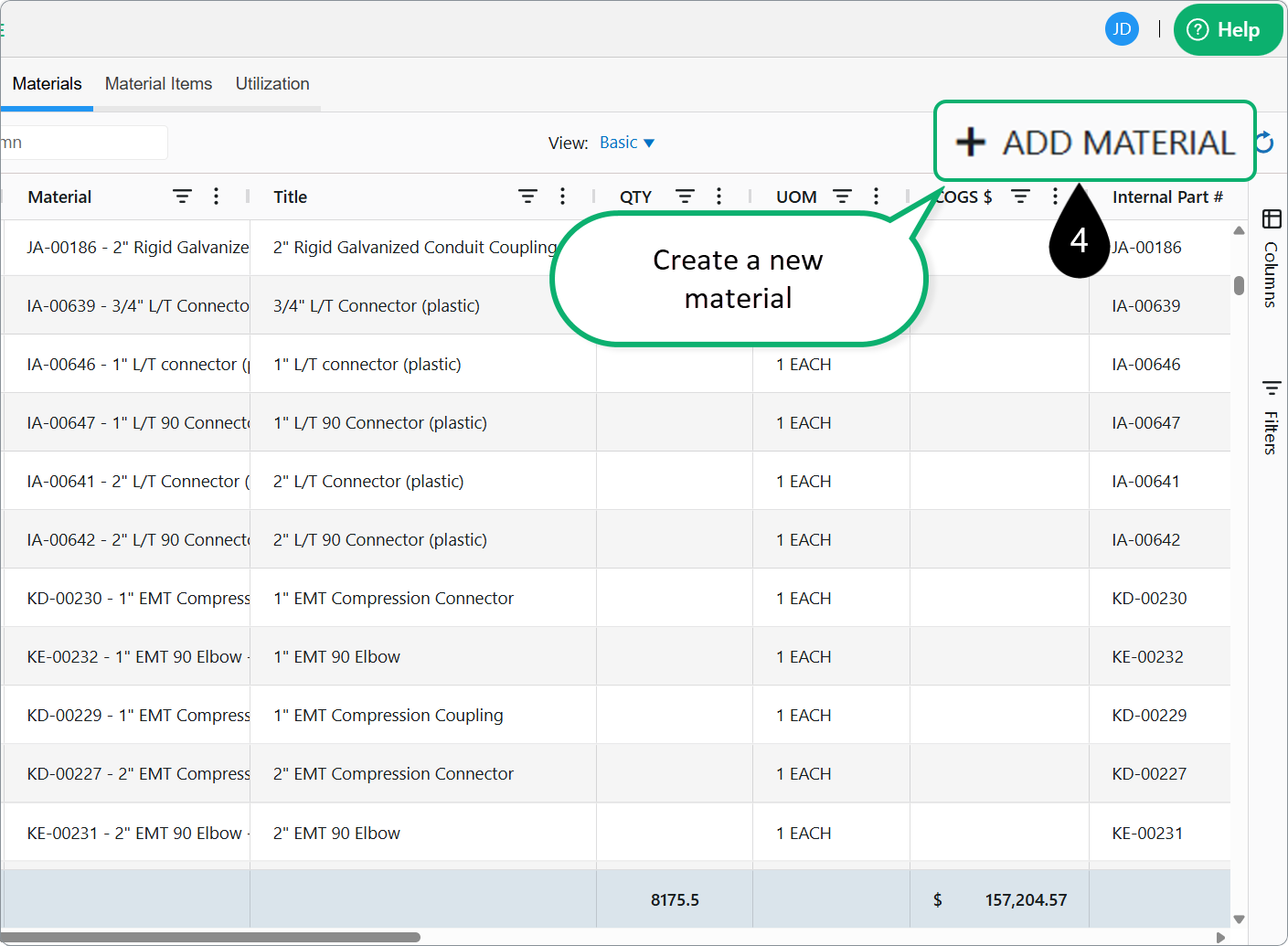
- Click + ADD NEW MATERIAL to add a new material.
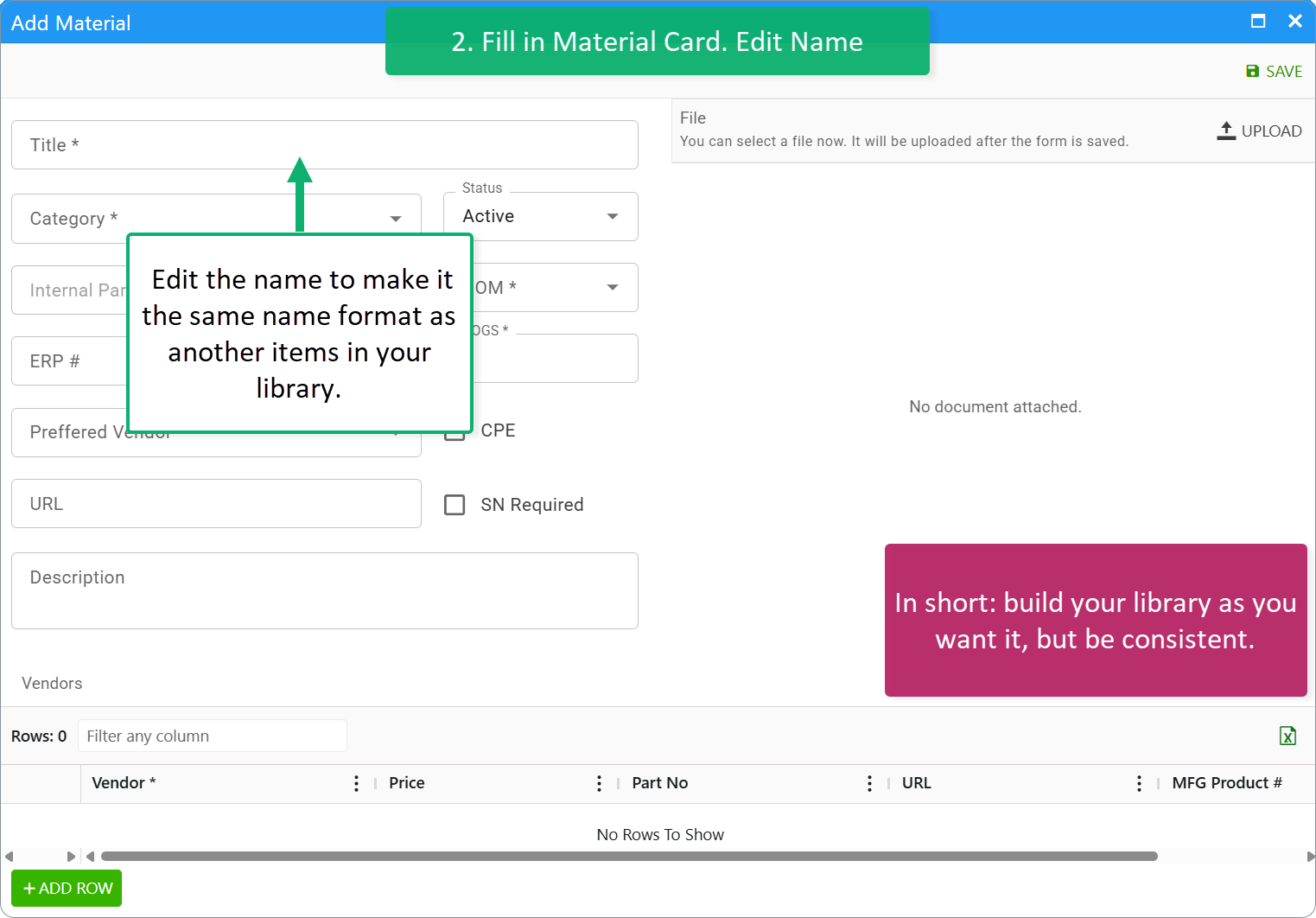
- Fill in Material card.
Fill in Material Card
Name describes the material name. We recommend using a consistent naming convention for materials.
Current Category — is used to group materials by their material properties. The selection is from Material Categories reference.
Internal Part No. — is filled automatically in numerical order.
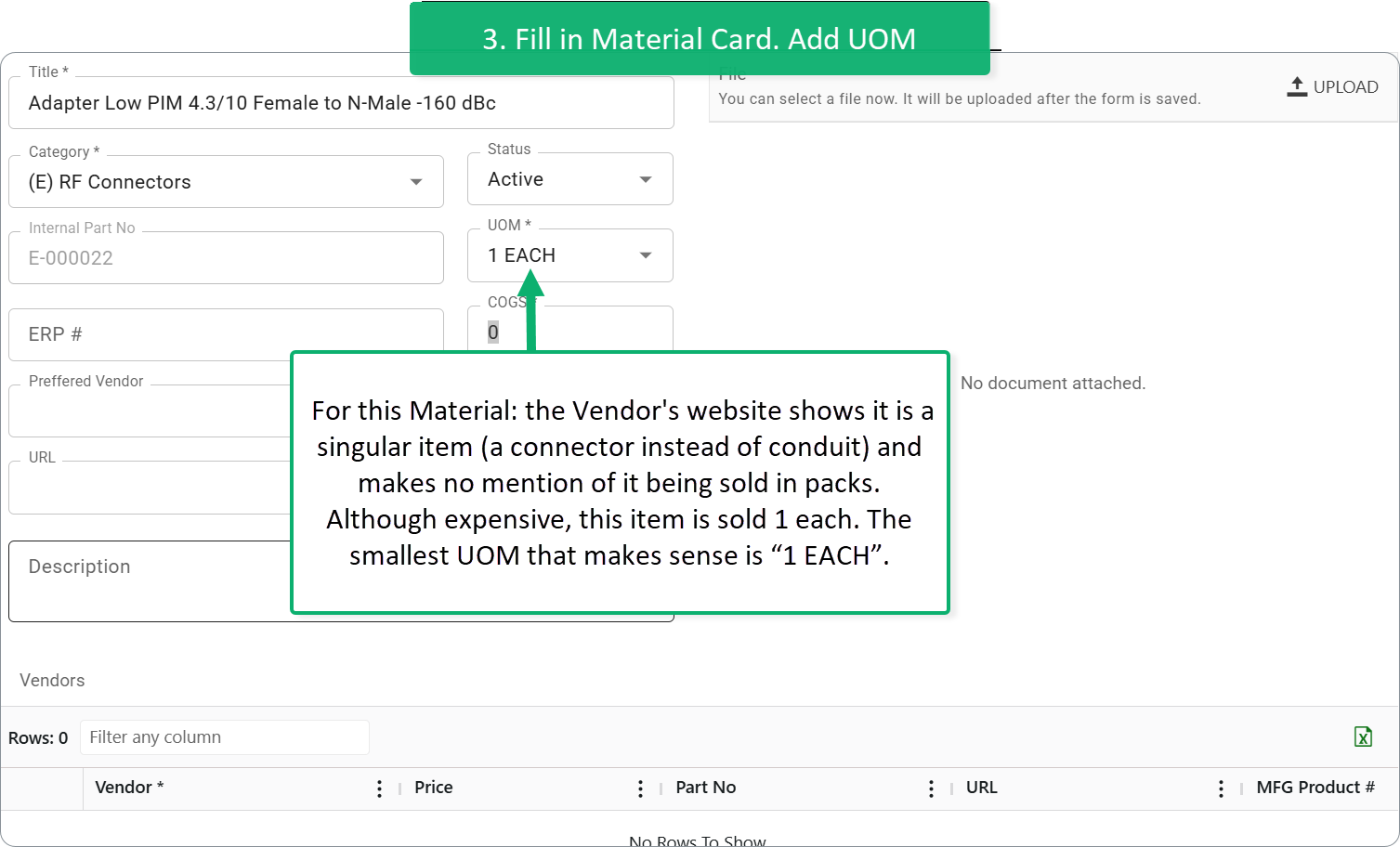
UOM — the material's unit of measurement.
UOM Rule of Thumb:
- Select the smallest unit possible, which still makes sense. For example, you usually buy ground wire by 100ft. But, what if you change vendors, or have a cash-flow issue and need to buy less? So do you go to “50ft”, “10ft”? What if you need 45 ft, or 15ft?
- To be safe, go with the smallest unit.
- How small? Well, you probably won't buy by the inch. That does not make sense. “1 FOOT” is the smallest unit which still makes sense.
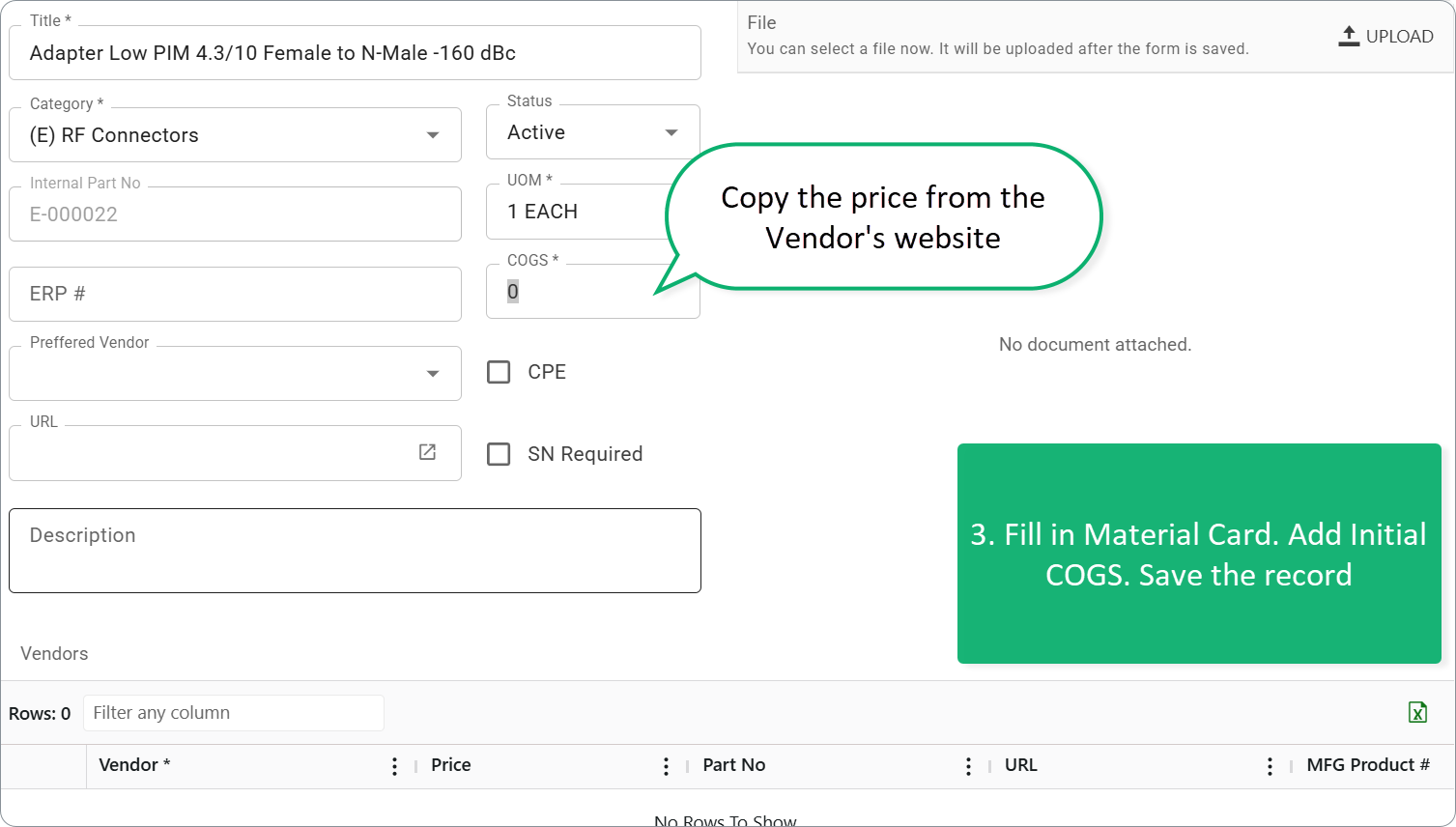
COGS ($) — material's cost of sales. COGS ($) — material's cost of sales. COGS are important for determining Material Cost per build. They also tell the PM team how much they can bill the client for Materials (where allowed).
The COGS can be:
- Added during material list import. For example, from other accounting system where you usually keep an inventory control.
- Or entered manually. You must set an Initial COGS when you add a new material. After that, the COGS will be updated as an average of all purchases of the material (plus a percent markup for tax and delivery, if enabled).
We recommend using the price from your primary Vendor's website for a Material's Initial COGS.
Read more about COGS calculation here.
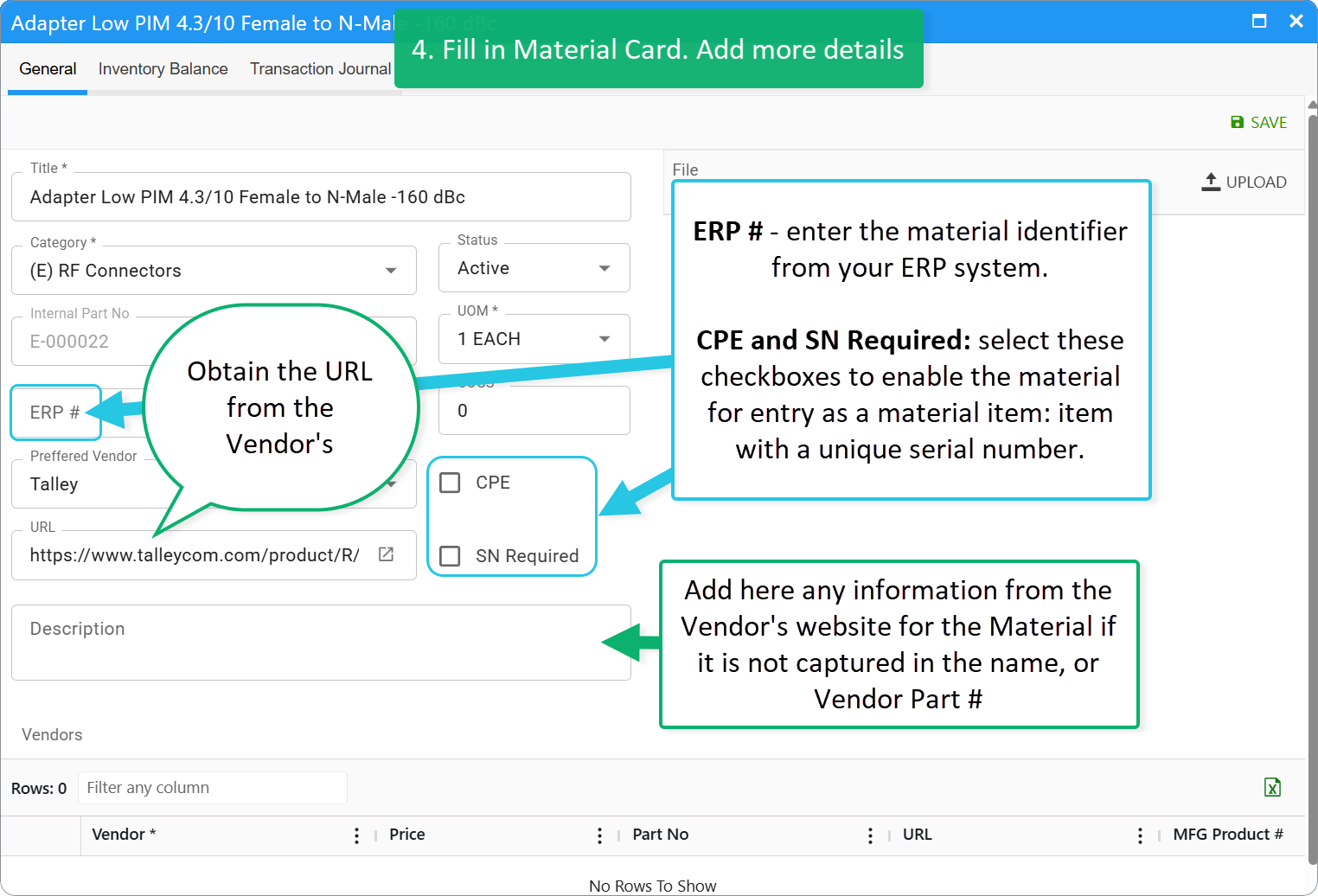
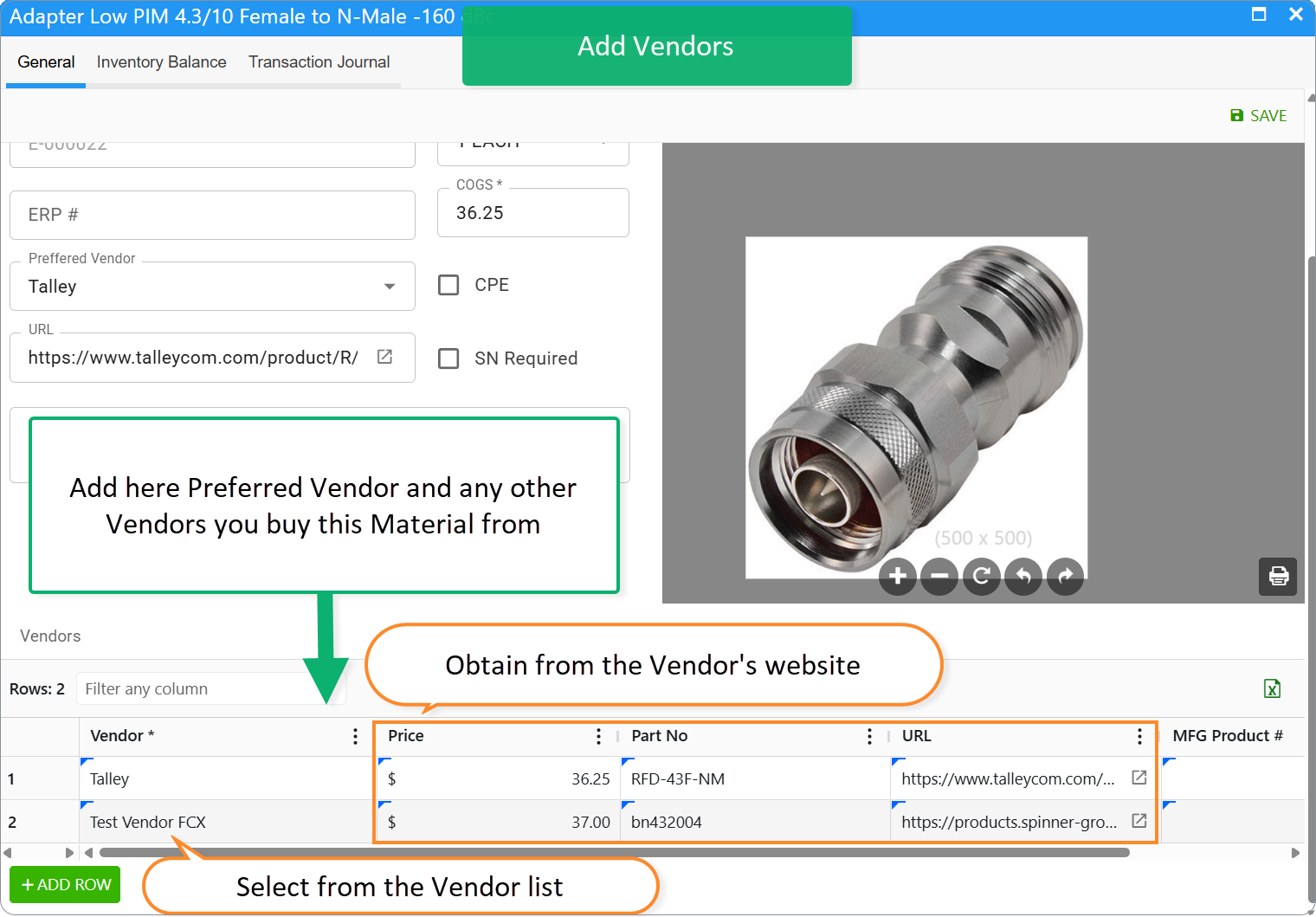
Preferred Vendor — select a preferred Vendor from the list of Vendors. This will be populated to a Material Purchase Request to the “PV” column. So if multiple Preferred Vendors are utilized in the MPR, you can select for which of them create a record in the Inventory Transactions Journal.
URL — the URL from the Vendor's website for the material.
Description — some additional material information.
ERP # — enter the material identifier from your ERP system.
CPE and SN Required: select these checkboxes to enable the material for entry as a material item: item with a unique serial number. Read more about MIs here.
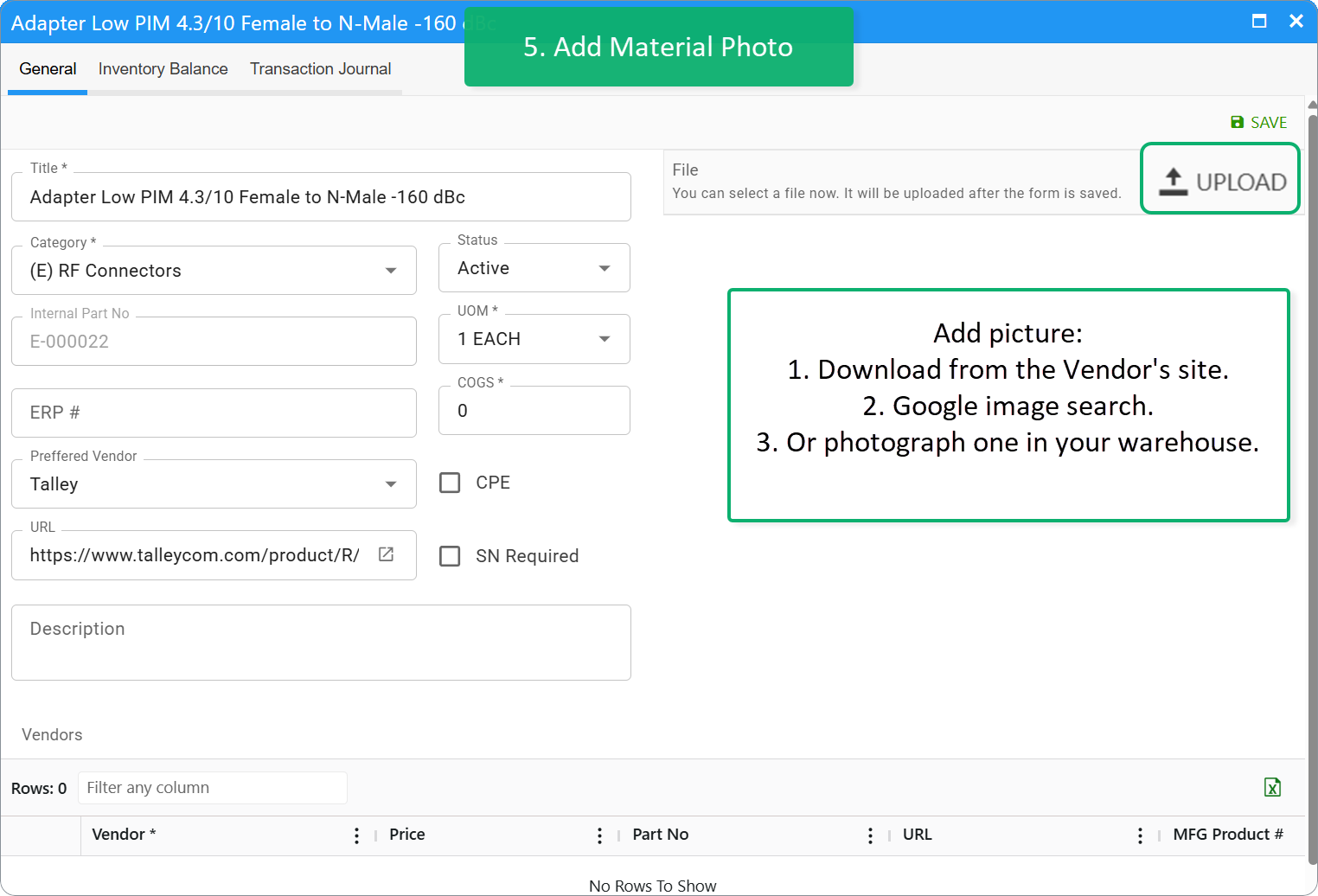
Add Material Picture
Use the Upload tool to add a material photo.
Vendor Prices
In the Vendor Prices table, we provide information about the purchase price of material from different Vendors and additional details about Material Vendor Part Number, Vendor URL Link and MFG Product number.
- Vendor Price is populated to Material Purchase Request and Inventory Transaction Journal.
- Vendor Part No is pulled into Inventory Transaction Journal.
Material Balance & Transaction Journals
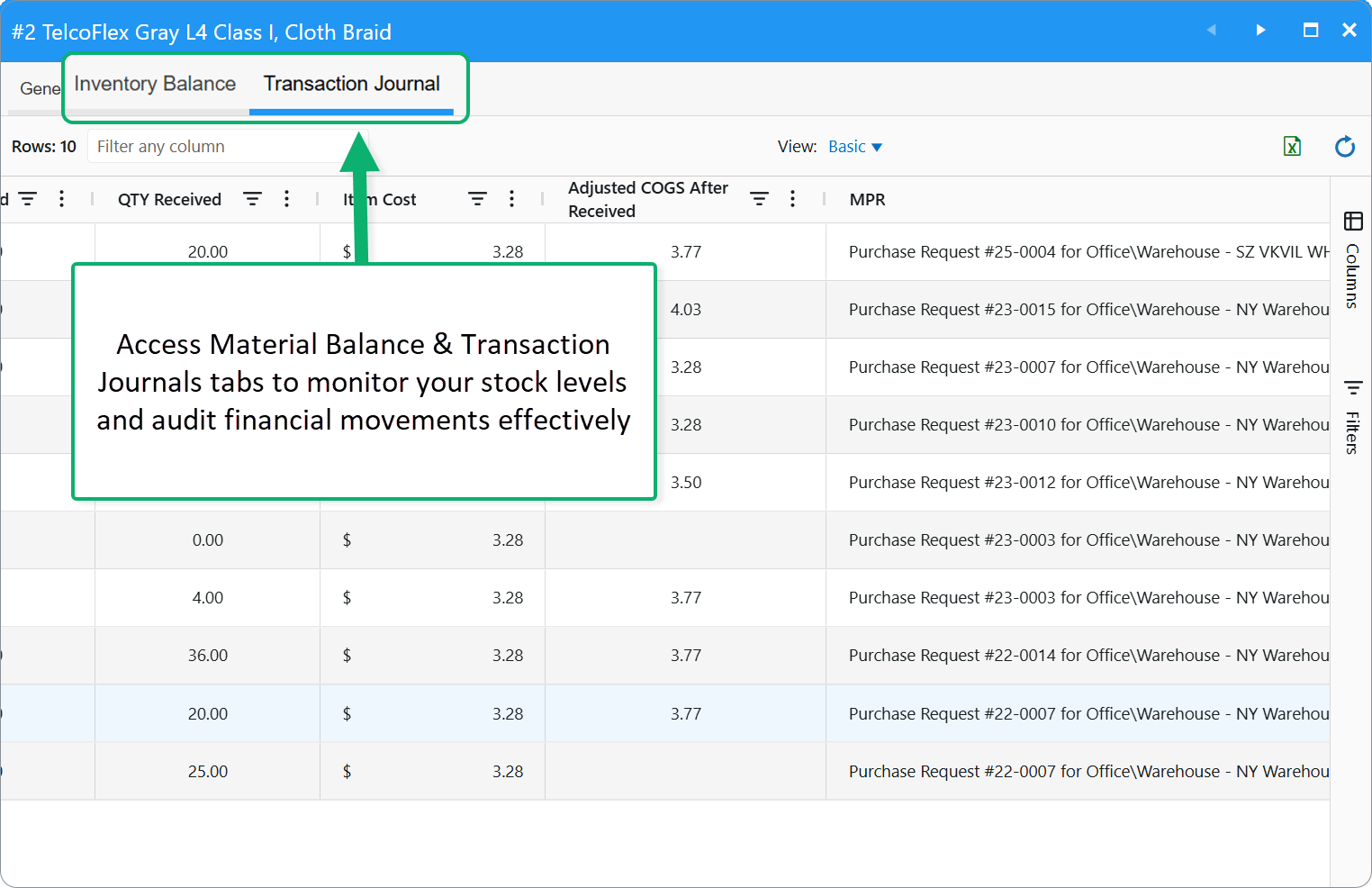
Use these two tabs to monitor your stock levels and audit financial movements effectively.
- Inventory Balance Tab
- Navigate here for a real-time snapshot of warehouse stock. You can track:
- Actual Quantity
- Ordered/Transferred QTY
- Total Balance
- Navigate here for a real-time snapshot of warehouse stock. You can track:
- Transaction Journal Tab
- Switch to this tab to monitor purchase requests and COGS Adjustments. Review how the Cost of Goods Sold is updated automatically as materials are received.
To access advanced actions for a specific material—such as Transform, Change UOM, or viewing Project Price Lists—open the Material desktop card. Read more about actions here.
Was this article helpful?
That’s Great!
Thank you for your feedback
Sorry! We couldn't be helpful
Thank you for your feedback
Feedback sent
We appreciate your effort and will try to fix the article