TABLE OF CONTENTS
- Account menu (top right)
- Dashboards home and Quick Launch
- What a “regular” office user usually does first
- Web cards vs Desktop cards
- Related reading
- Next in this series
After you sign in at https://app.fieldclix.com, you work mainly on the dashboards home and in web cards. What you see depends on your Employee Roles—not every user has the same menu.
Account menu (top right)
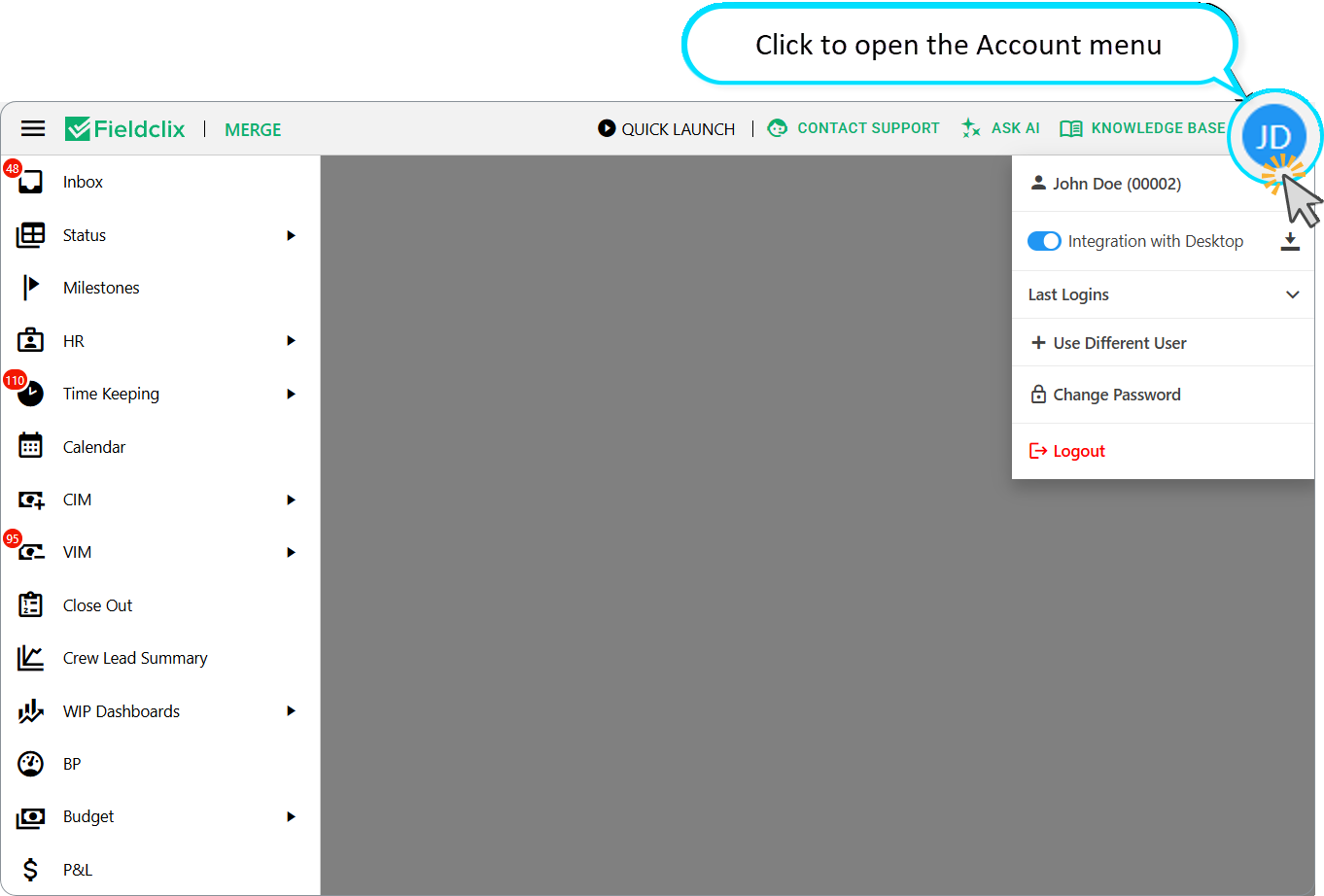
Click your initials (avatar) in the upper-right corner. Typical options:
| Option | What it does |
|---|---|
| Your name | Opens your user Profile |
| Integration with Desktop | Appears only if you are a Desktop user. Toggle ON to open desktop records and show QUICK LAUNCH. The download button next to the switch opens the Desktop connector / installer folder. |
| Last Logins | Switch to another recent company/user identity (if you have more than one) |
| Use Different User | Return to the sign-in screen to pick another login |
| Change Password | Update your password |
| Logout | Sign out of FCX Web |
Details on enabling the switch and troubleshooting: Troubleshooting: Enabling Desktop Integration in FCX Web Portal.
Dashboards home and Quick Launch
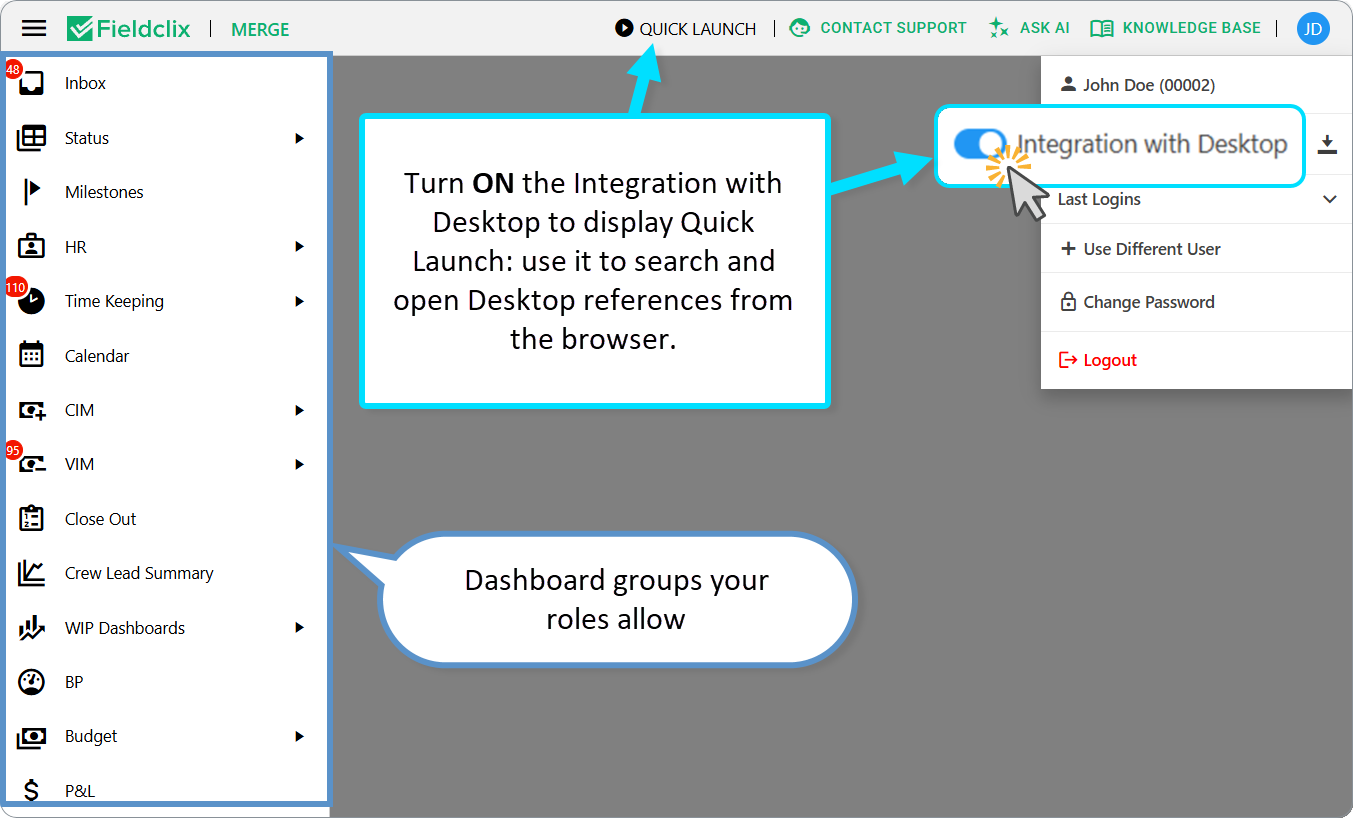
The main navigation lists dashboard groups your roles allow.
When Integration with Desktop is ON, a QUICK LAUNCH control appears in the top app bar near your profile—use it to search and open Desktop references from the browser.
| Group (examples) | Typical users |
|---|---|
| Status / Build Plans | Broad access for many office users connected to projects |
| HR (Employees, Certificates, Job Titles, …) | HR Managers |
| Time Keeping / Payroll Periods / Time Cards | Managers, TK / payroll office roles |
| Calendar / Work Orders / Sites | Project and field managers |
| CIM (Sales Orders, Client POs, Invoices) | Financial / AR |
| VIM (Review, invoices, Vendor POs) | Financial / AP |
| WIP Dashboards, P&L, Budgets | Financial analysis roles |
| Inventory (BOM, Adjustments, Transfers) | Project / warehouse roles |
| Inbox | Users who receive Conterra tasks in Web |
If a group is missing, you likely do not have the required Employee Role. Ask HR or your administrator—do not expect every dashboard to appear for every user.
If you have no dashboards, the portal may show that none are available for your account. Contact your administrator to assign roles.
What a “regular” office user usually does first
- Open the account menu → confirm your name and change password if a temporary one was issued.
- Scan the menu for dashboards related to your job (Build Plans, Time Cards, HR, CIM, VIM, Inventory, P&L, …).
- Open one familiar dashboard and learn filters / open a card.
- Only then decide whether you need Desktop integration or the mobile app.
Web cards vs Desktop cards
Many everyday records open as web cards inside the browser. Some records still open only in FCX Desktop. If a link does nothing or QUICK LAUNCH is missing, you may need Desktop integration—see the next article in this series.
Related reading
Next in this series
Was this article helpful?
That’s Great!
Thank you for your feedback
Sorry! We couldn't be helpful
Thank you for your feedback
Feedback sent
We appreciate your effort and will try to fix the article