TABLE OF CONTENTS
You do not need both Desktop and Mobile on day one. Use this decision guide, then follow the install articles only if they apply to you.
FCX Desktop (Conterra)
When you need Desktop
Turn on Integration with Desktop and/or install the Desktop client if you:
- Must open desktop-only records from Web (examples commonly cited: Invoices, Scenarios, Projects, or reference data via QUICK LAUNCH)
- See that QUICK LAUNCH is missing and your admin says you are a Desktop user
- Work with configuration or references that your team still maintains in Desktop
- Need VPN access because your company requires it for Desktop
- Are a system administrator who maintains Settings, approvals, or Desktop references
You usually do not need Desktop if you only use Web dashboards and web cards that open in the browser, and never click a desktop link.
How Desktop works with the browser
- Install the Conterra / Fieldclix Desktop client (Windows).
- Install URLProcessor (Desktop Connector) so Web links can open Desktop cards.
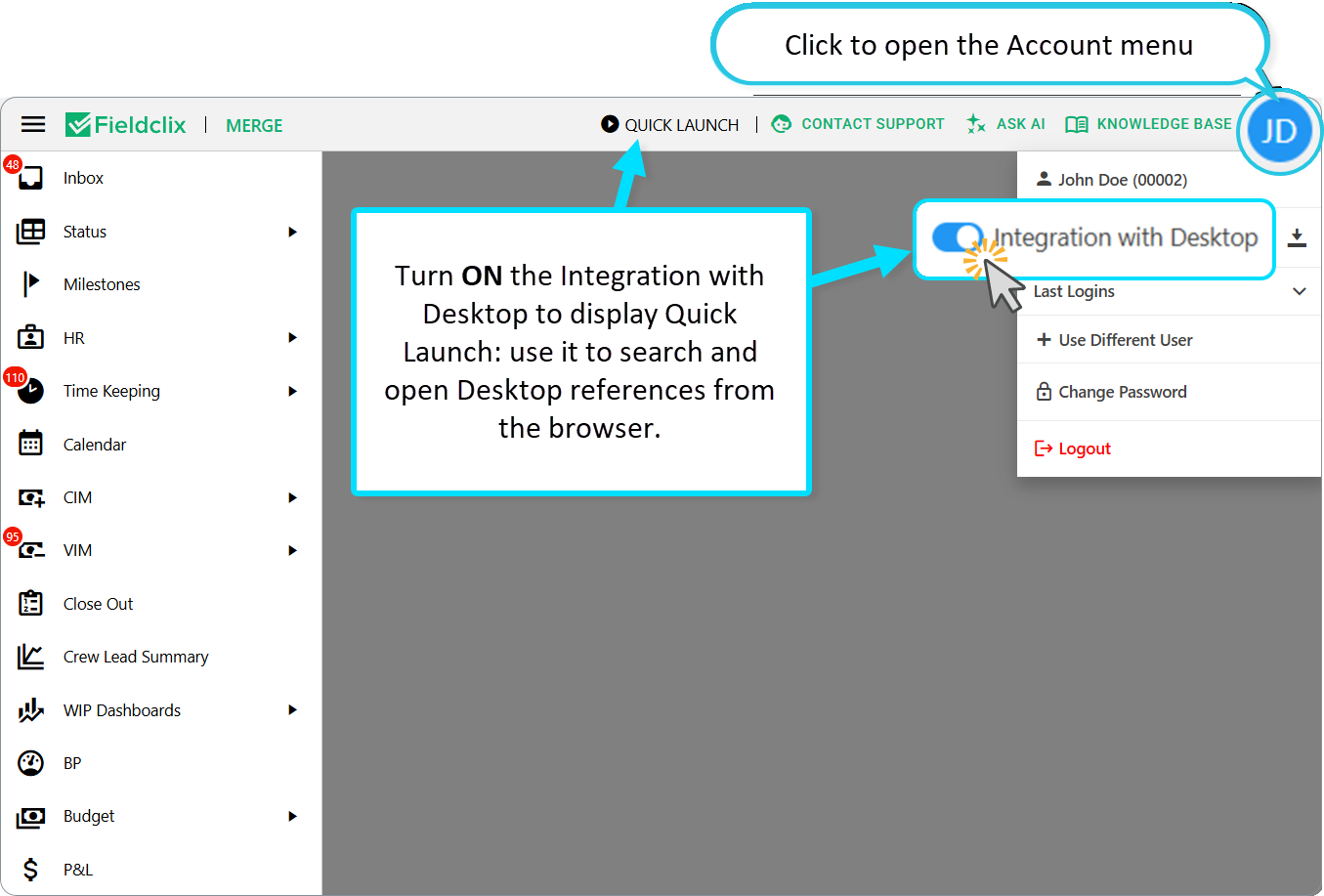
- In FCX Web → avatar (initials) → turn Integration with Desktop ON.
- Confirm QUICK LAUNCH appears in the top app bar near your profile.
- Open a desktop link once so the Desktop session can authenticate (System Manager may ask for password).
Install & setup (existing articles)
| Task | Article |
|---|---|
| Full Desktop install, Company Code, System Manager, URLProcessor | Fieldclix Desktop Install & Setup |
| Enable integration and open a Desktop card from Web | Access Fieldclix Desktop via Integration with your Browser |
| QUICK LAUNCH missing / links do not open | Troubleshooting: Enabling Desktop Integration |
| VPN required by your company | Fieldclix VPN Install |
Note: Integration with Desktop appears in the account menu only for users marked as Desktop users. If you never see the switch, ask your administrator.
Fieldclix Mobile
When you need the mobile app
Install Fieldclix Mobile if your job includes any of:
- Clock In / Clock Out and daily time keeping in the field
- Working from a Dispatch / Work Order schedule on a phone
- Photo checklists capture on site
- COD purchases
- Warehouse materials / packages / areas on a device
- My Assets — check-in/out or transfers on a phone
- Submitting Time Off, Per Diem, or Time Adjustment requests from the phone
You usually do not need Mobile on day one if you only do office work in FCX Web (HR, P&L, AR/AP review, payroll office, admin settings).
Important: choose the correct app
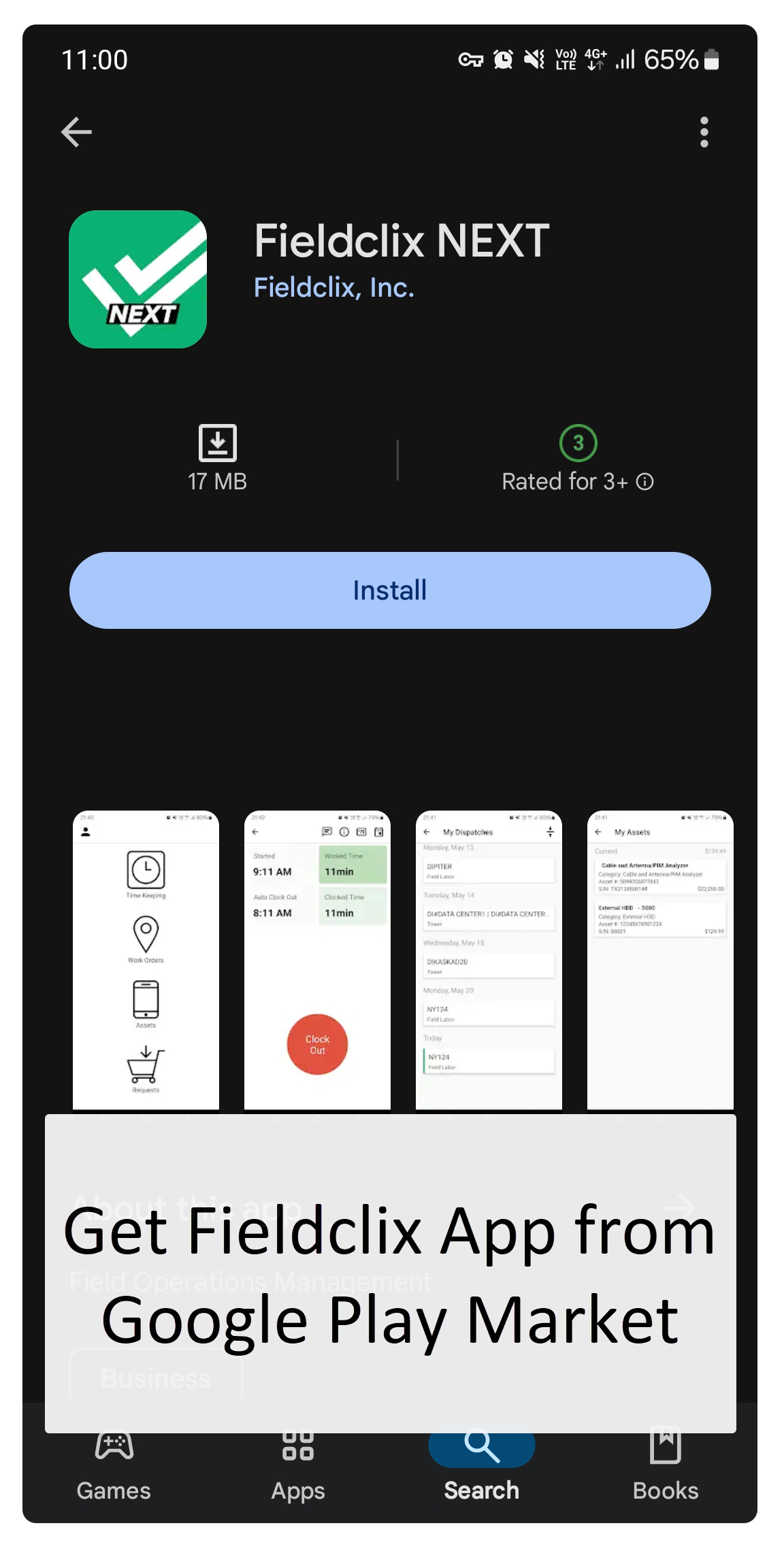
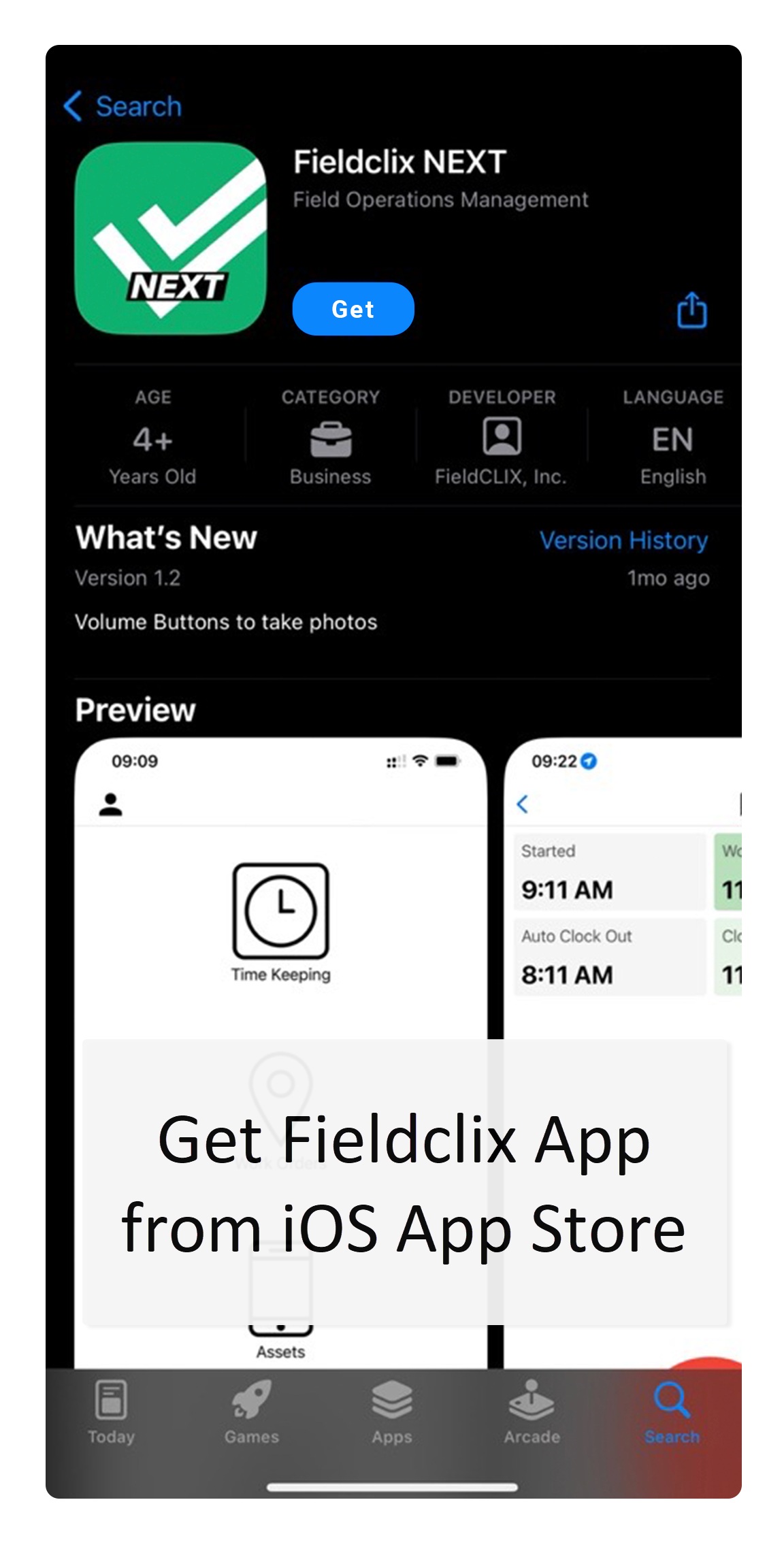
Search for Fieldclix Next. There may be an older app named only “Fieldclix”—it will not work with your Next credentials.
| Platform | Article |
|---|---|
| iOS | Setup Fieldclix Next Mobile App in iOS |
| Android | Setup Fieldclix Next Mobile App in Android |
Credentials: same Company Code, Login, and Password as Web.
Location / GPS permissions are required for Time Keeping auto-allocation—see the setup articles for privacy notes.
After install — useful mobile guides
- Clock In/Out
- FCX Next App - Account Settings
- More under Find guides for your role (Field & Mobile, Warehouse, Asset Management)
Next in this series
Was this article helpful?
That’s Great!
Thank you for your feedback
Sorry! We couldn't be helpful
Thank you for your feedback
Feedback sent
We appreciate your effort and will try to fix the article