TABLE OF CONTENTS
Vendor invoices are processed on the invoice card. The two web lists help you find the right bills and open them.
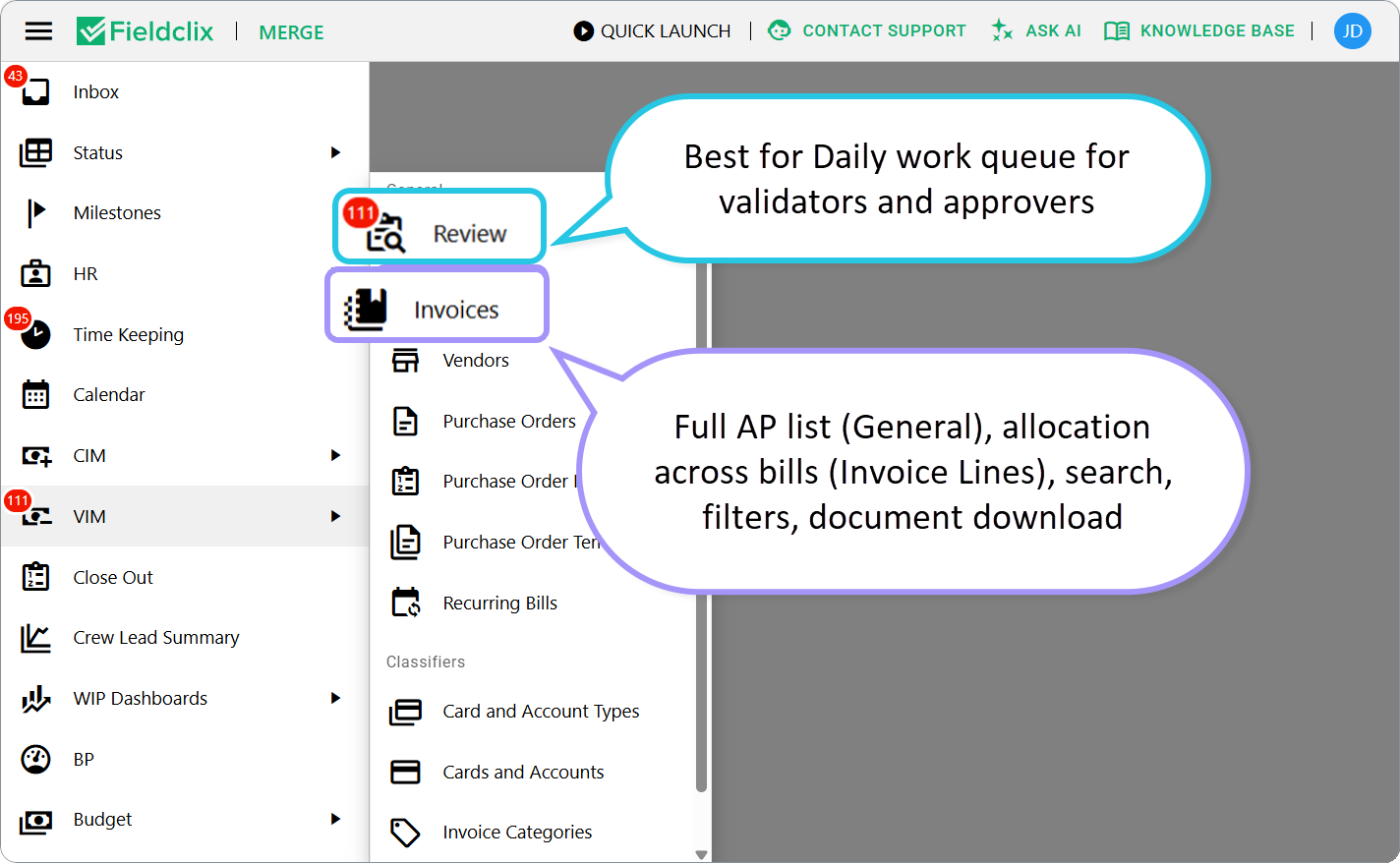
- VIM → Review — best for Daily work queue for validators and approvers
- VIM → Invoices — Full AP list (General), allocation across bills (Invoice Lines), search, filters, document download
Both need the Financial role (or your company’s equivalent menu access). Creating invoices also needs VIM Validator.
Process steps on the card: Process Vendor Invoices.
VIM → Review
Use Review when you ask: “What needs my attention?”
What you see
A grid of invoices in the review set.
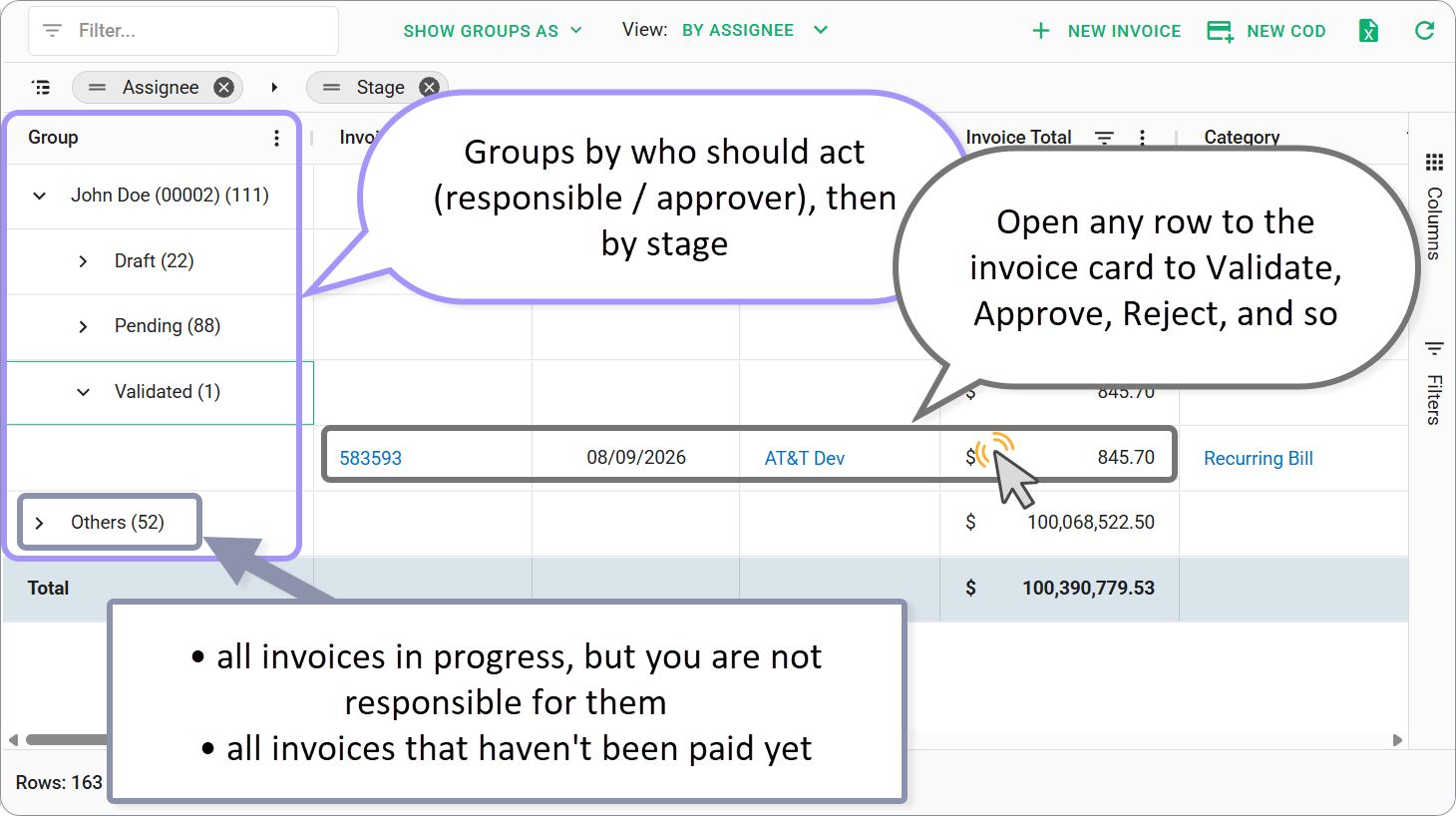
Predefined view By Assignee — groups by who should act (responsible / approver), then by stage.
Open any row to the invoice card to Validate, Approve, Reject, and so on.
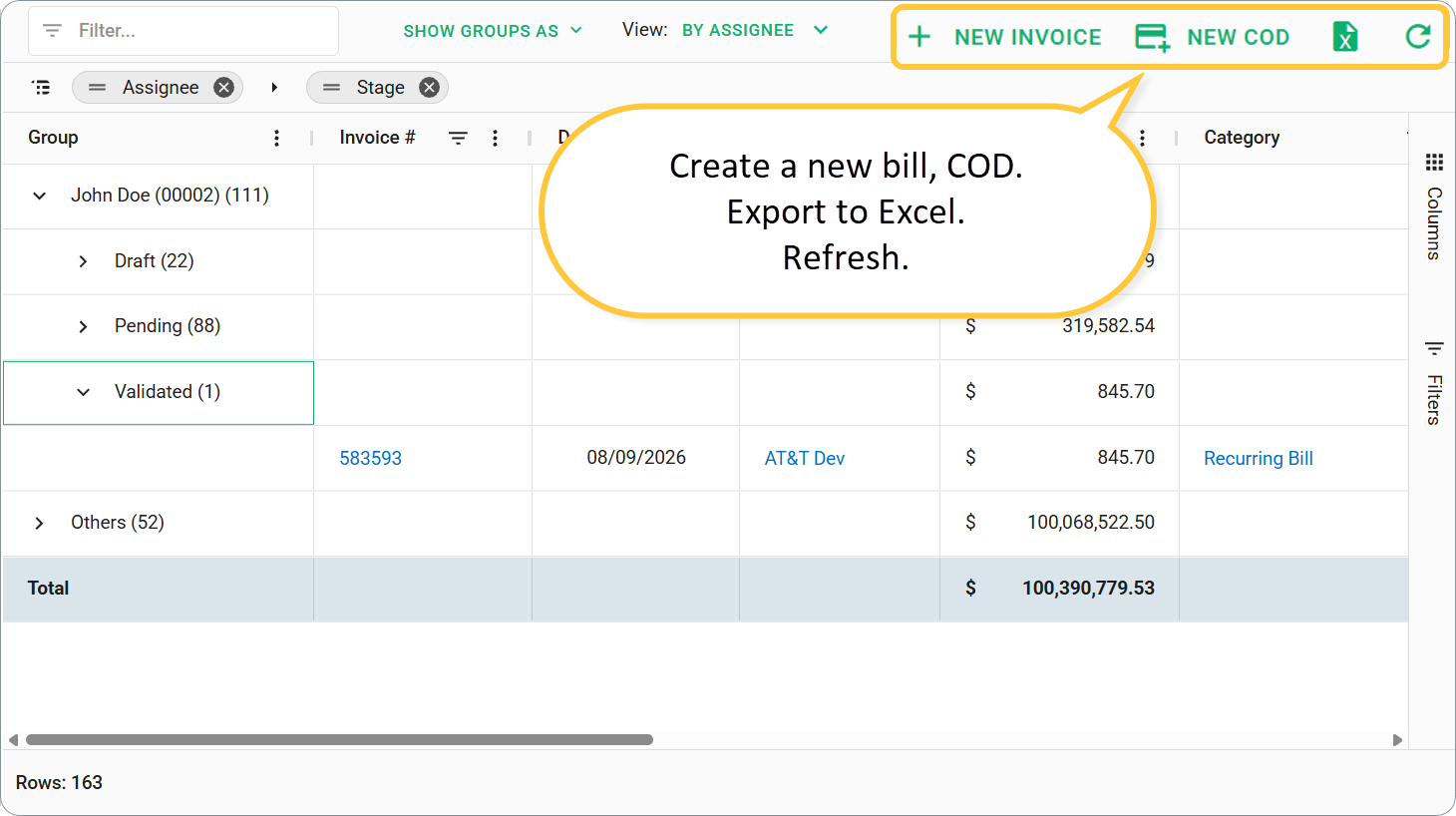
Toolbar
Button | What it does |
|---|---|
NEW INVOICE | Create a manual Vendor Invoice (Draft) |
NEW COD | Create a COD invoice |
Export / Reload | Spreadsheet export and refresh |
Review focuses on the work queue. Prefer Invoices when you need stage/date filters across the whole library or mass document download.
Who uses Review
Role | How they use it |
|---|---|
VIM Validator | Pending bills to validate or reject; Validated bills to send for approval |
Approver | Under Approval bills assigned to them |
Advanced VIM Approver / Override | Same queue when they need to edit lines or Force Approve |
VIM → Invoices
Use Invoices when you ask: “Find this bill” or “Show everything in this stage.”
The page has two tabs: General and Invoice Lines.
General tab
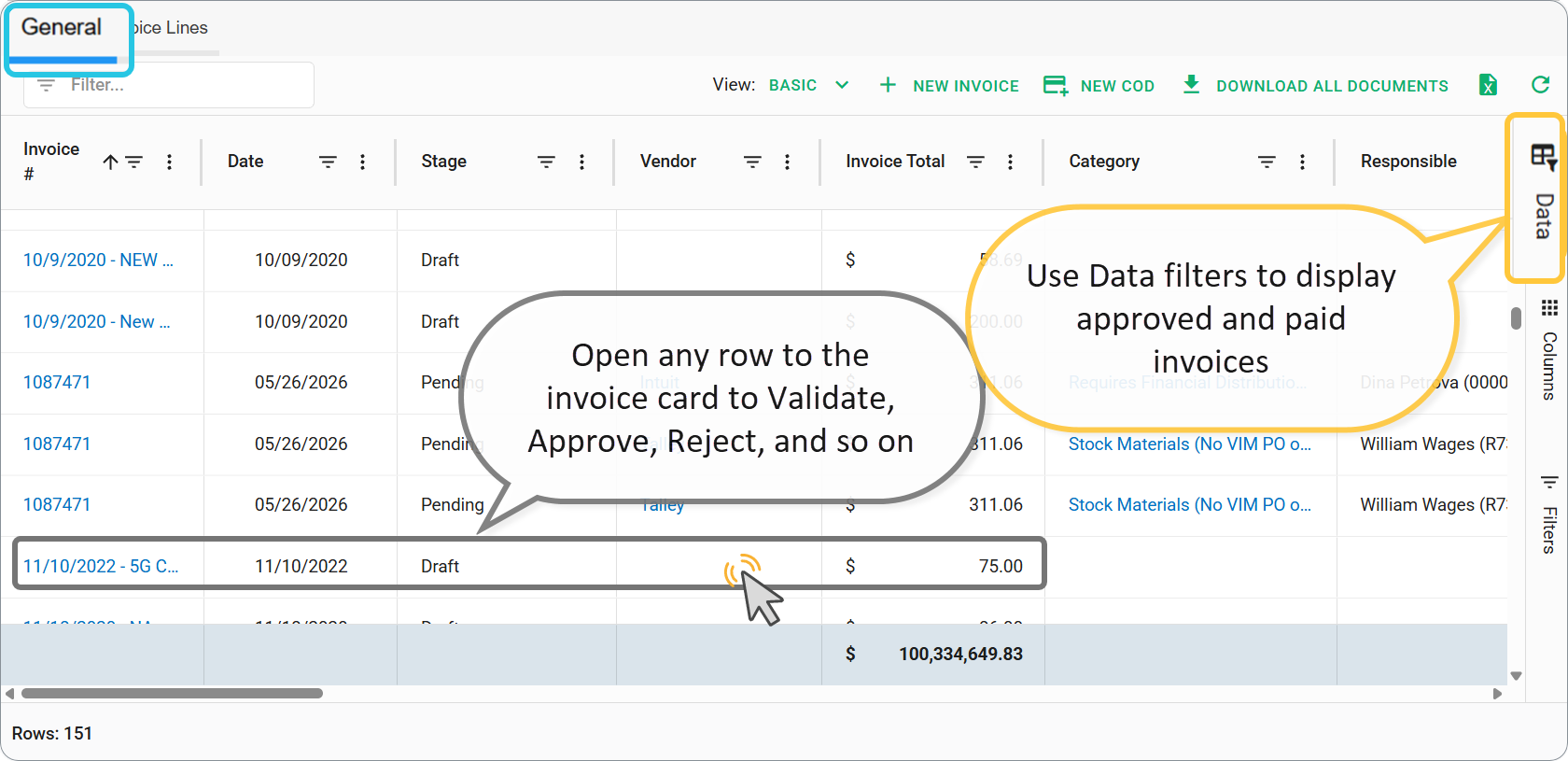
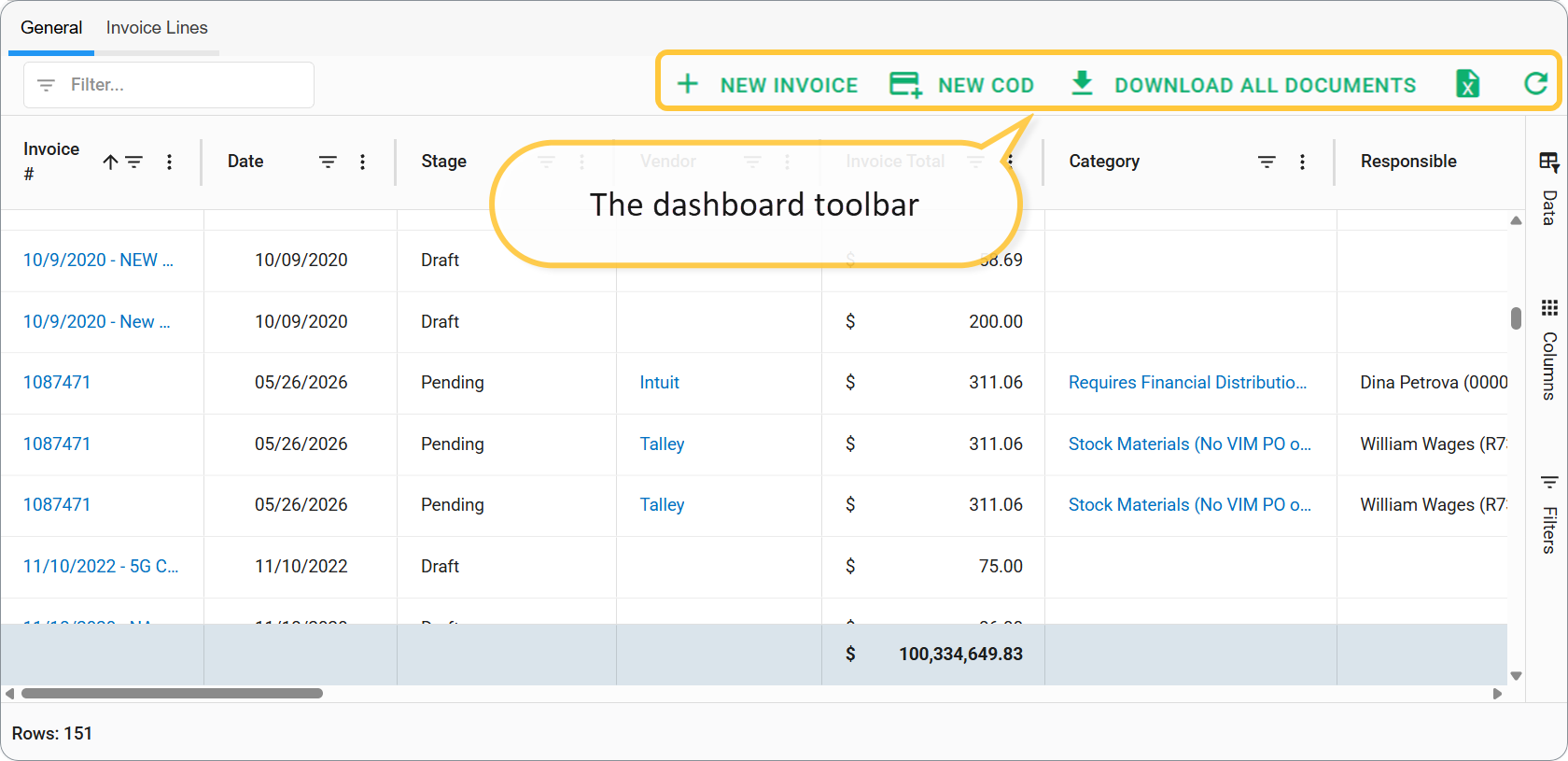
Full invoice list with columns such as Invoice #, Date, Stage, Vendor, Total.
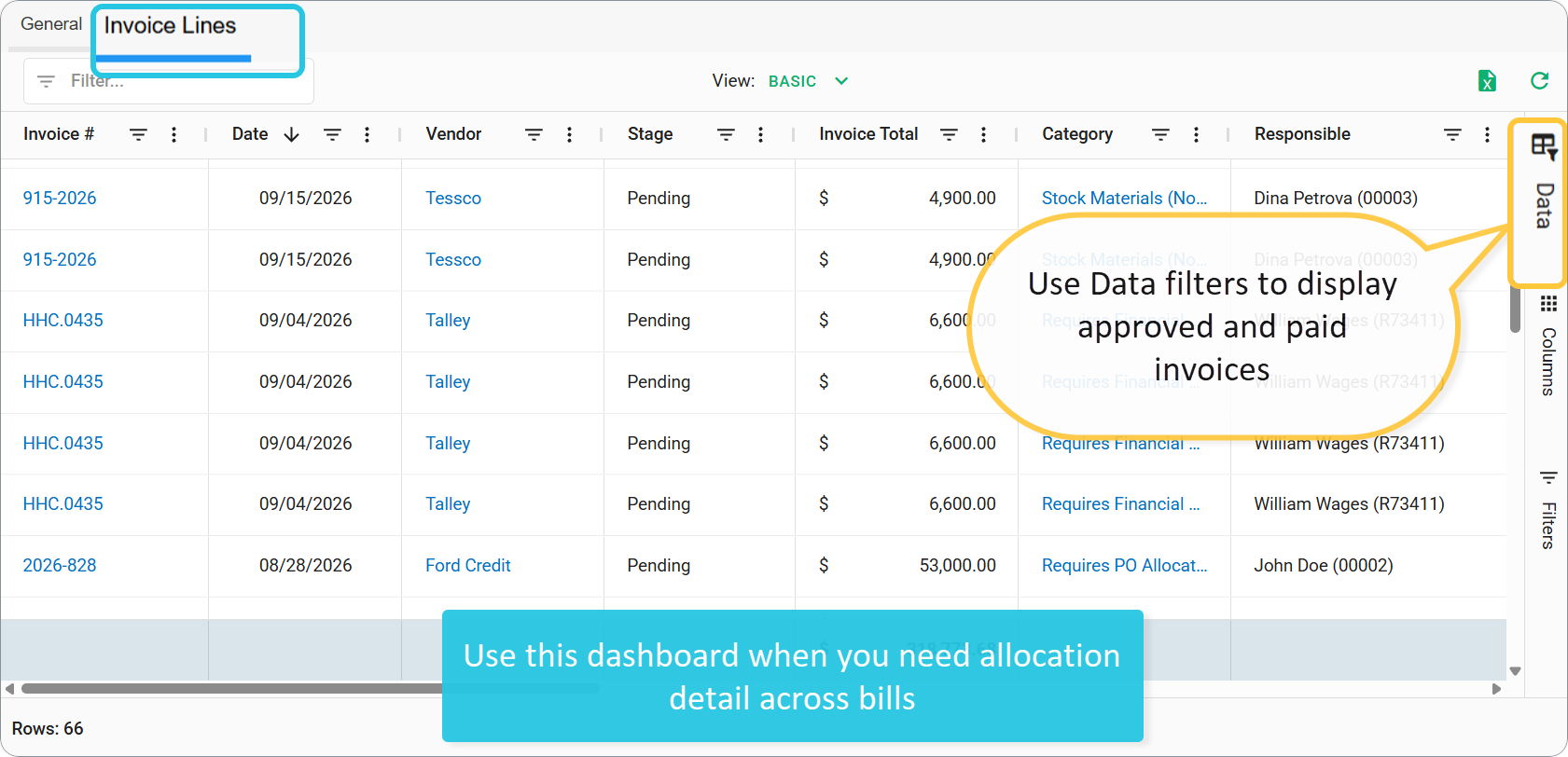
The default list doesn't show invoices that have been approved, partially paid or paid. Use the data grid filters to see more.
COD Info column group when you need Build Plan / Requester / Purchase Category for COD bills.
Filters (for example by Stage and Date) so AP can slice the library.
Toolbar (General)
Button | What it does |
|---|---|
NEW INVOICE | Manual create |
NEW COD | COD create |
DOWNLOAD ALL DOCUMENTS | Download documents for the current selection / filtered set |
Export / Reload | Spreadsheet export and refresh |
Open a row → invoice card → same process buttons as from Review. On the card in Edit (Draft/Pending) you can also Fill from Document after a saved attachment — details in Process Vendor Invoices.
Invoice Lines tab
Use this when you need allocation detail across bills — not the entry grid on a single card.
One row per invoice line (Build Plan, amount, FA, GL / Service Item, Class, Notes, PO / PO Line when used).
Filters by Stage and Date.
Export / Reload.
Open a row to the invoice card for that bill (navigation uses unique invoices, even when several lines belong to one bill).
Who uses Invoices
Role | How they use it |
|---|---|
VIM Validator | Search by vendor/number; create; process |
Accountant and Bookkeeper | Find Approved / Paid / Cancelled; Pay and Void from the card; Open Financial Distribution when shown |
Financial users | Browse and report; Invoice Lines for cross-bill allocation review |
Related classifiers (same VIM menu)
Under VIM → Classifiers (when your role allows):
Invoice Categories — Configure Invoice Categories
Purchase Categories, Card and Account Types, Cards and Accounts — COD setup
Vendors — vendor master
FAQ
Q: Why don’t I see Review or Invoices?
A: You need the Financial role (or another role your admin grants for those menu items).
Q: Why is NEW INVOICE missing or create fails?
A: Creating invoices requires VIM Validator, not Financial alone.
Q: Where do I approve?
A: Open the invoice from Review (By Assignee) or Invoices, then use Approve on the card.
Q: What is Invoice Lines vs the lines on the card?
A: The card Invoice Lines table is where you enter allocation for one bill. The dashboard Invoice Lines tab lists lines across many bills for review and export.
Was this article helpful?
That’s Great!
Thank you for your feedback
Sorry! We couldn't be helpful
Thank you for your feedback
Feedback sent
We appreciate your effort and will try to fix the article