TABLE OF CONTENTS
- Who can open it
- Panel Functions
- Top toolbar (compact layout only)
- How to show all three panels (when you only see the grid)
- Map legend
- Day vs week layout of calendar and map
- Drag-and-drop from the grid to the calendar
- Optional: date range for the grid list
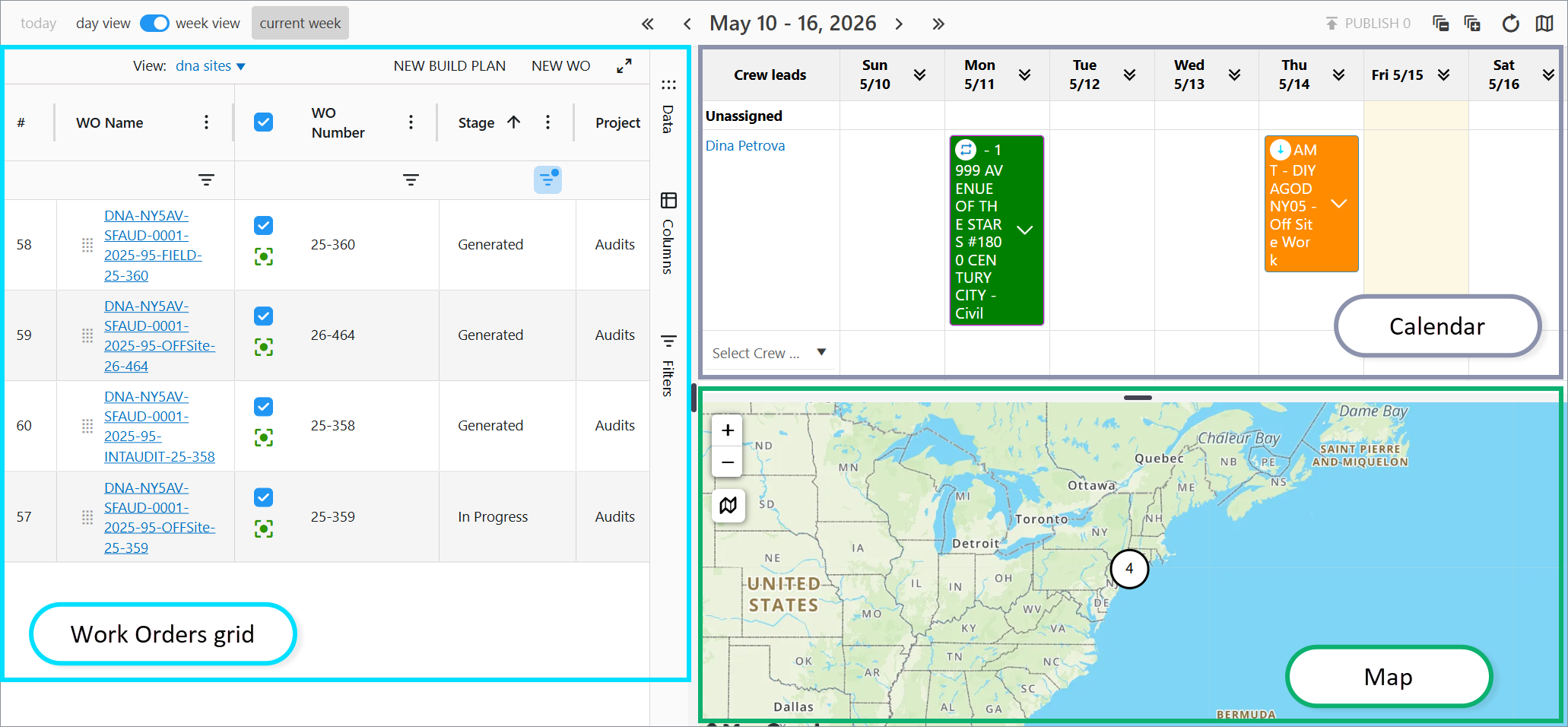
The Work Orders dashboard in the FCX web portal combines three tools on one page: the Work Orders grid (AG Grid), the Dispatch Calendar (day or week), and a Map. Use it to plan crew leads, assign dispatches, and see work sites on the map without switching tabs.
Who can open it
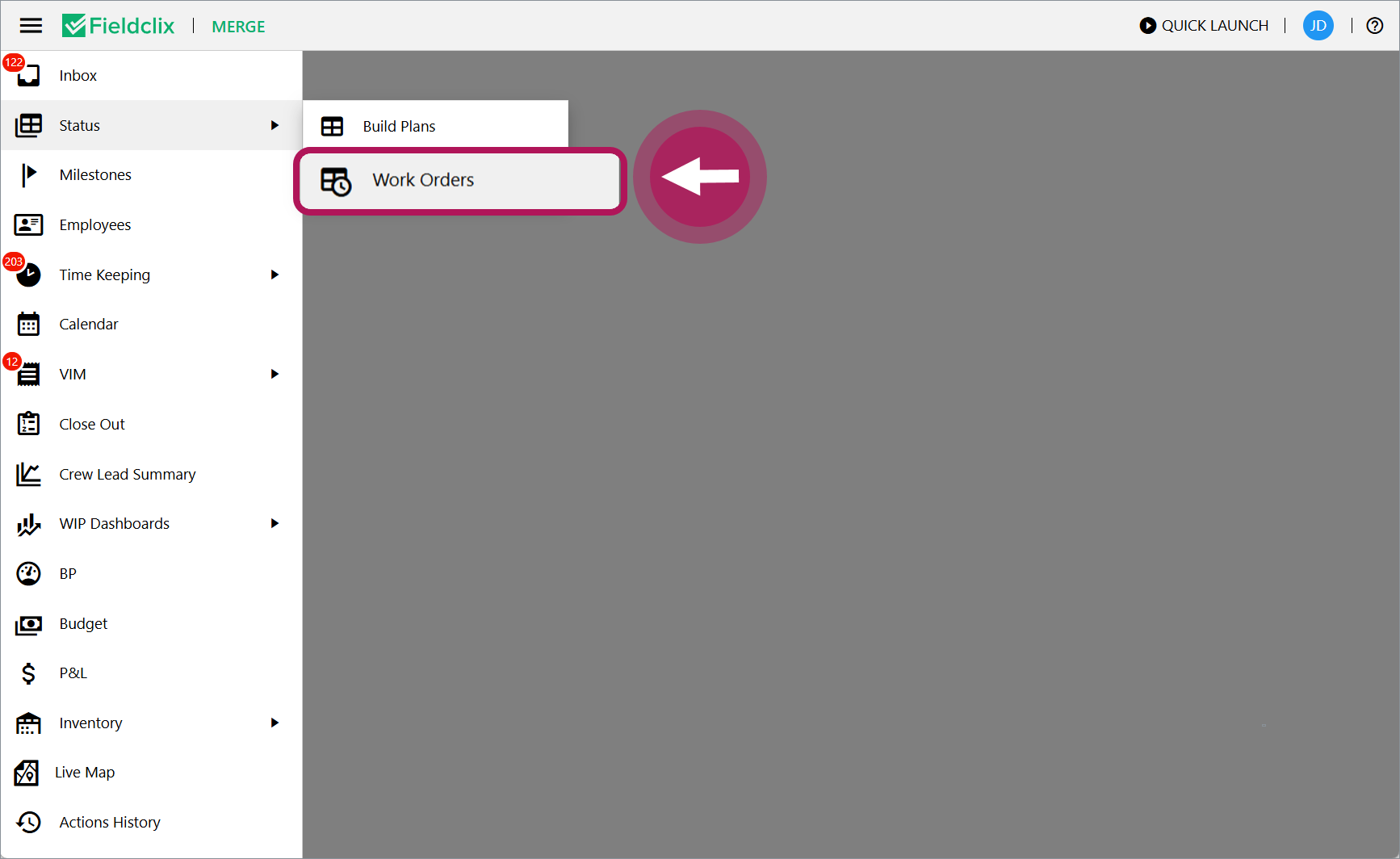
From the main navigation, open Work Orders (under Status in the standard menu). Access is limited to BP Manager and Advanced Field roles.
Panel Functions
Work Orders Grid (Left Panel)
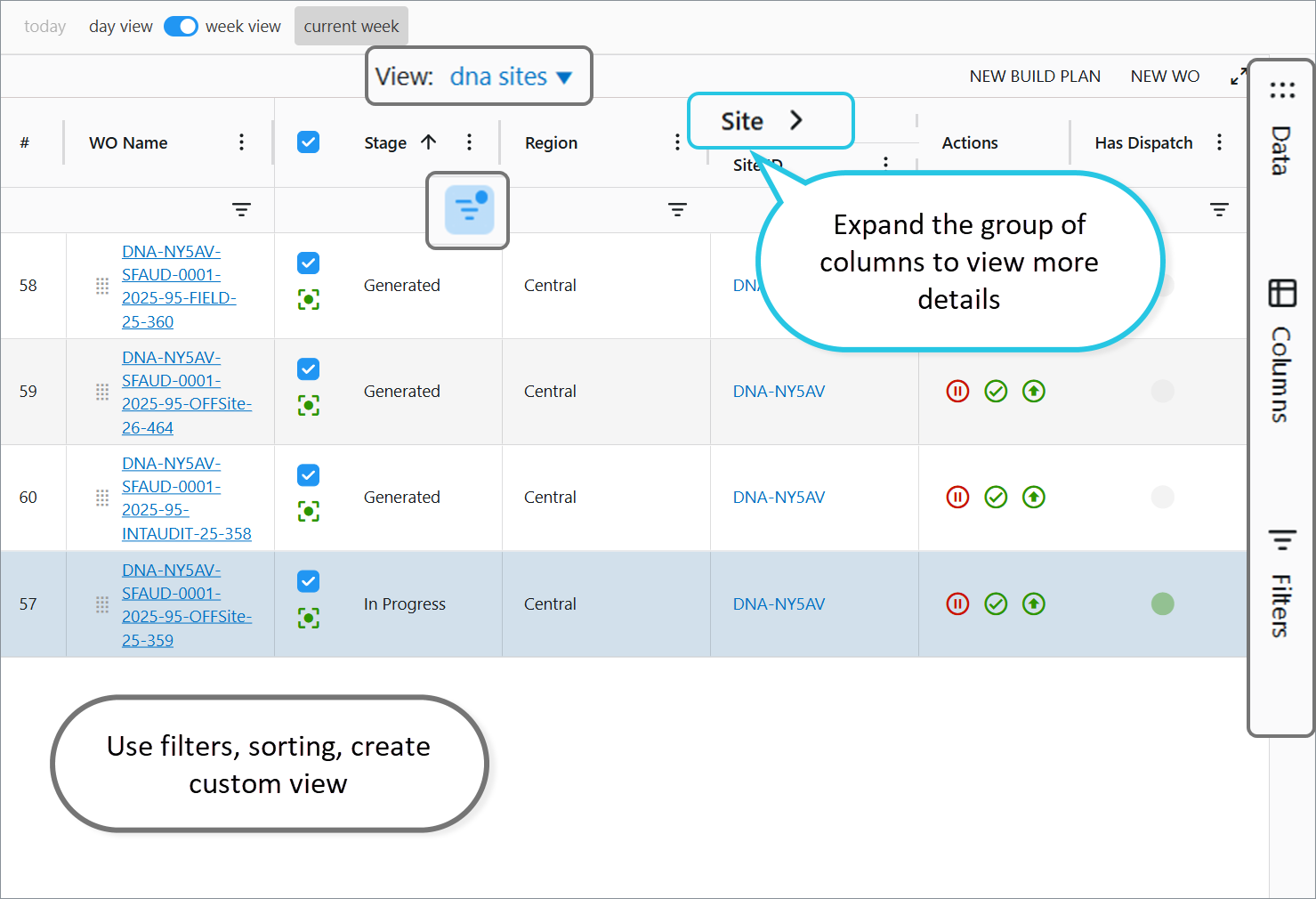
- Displays the full Work Order list with filtering, column tools, and saved views.
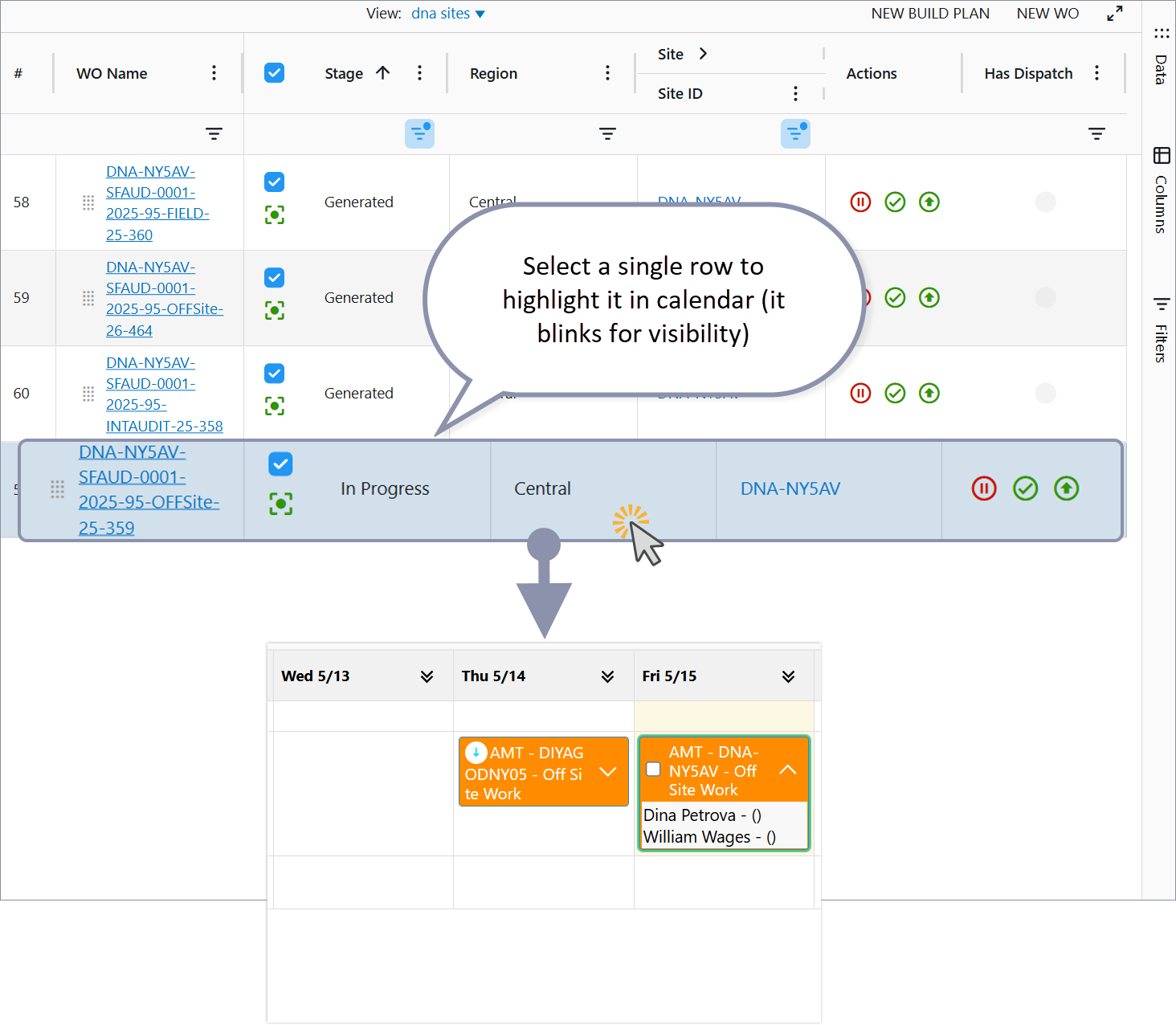
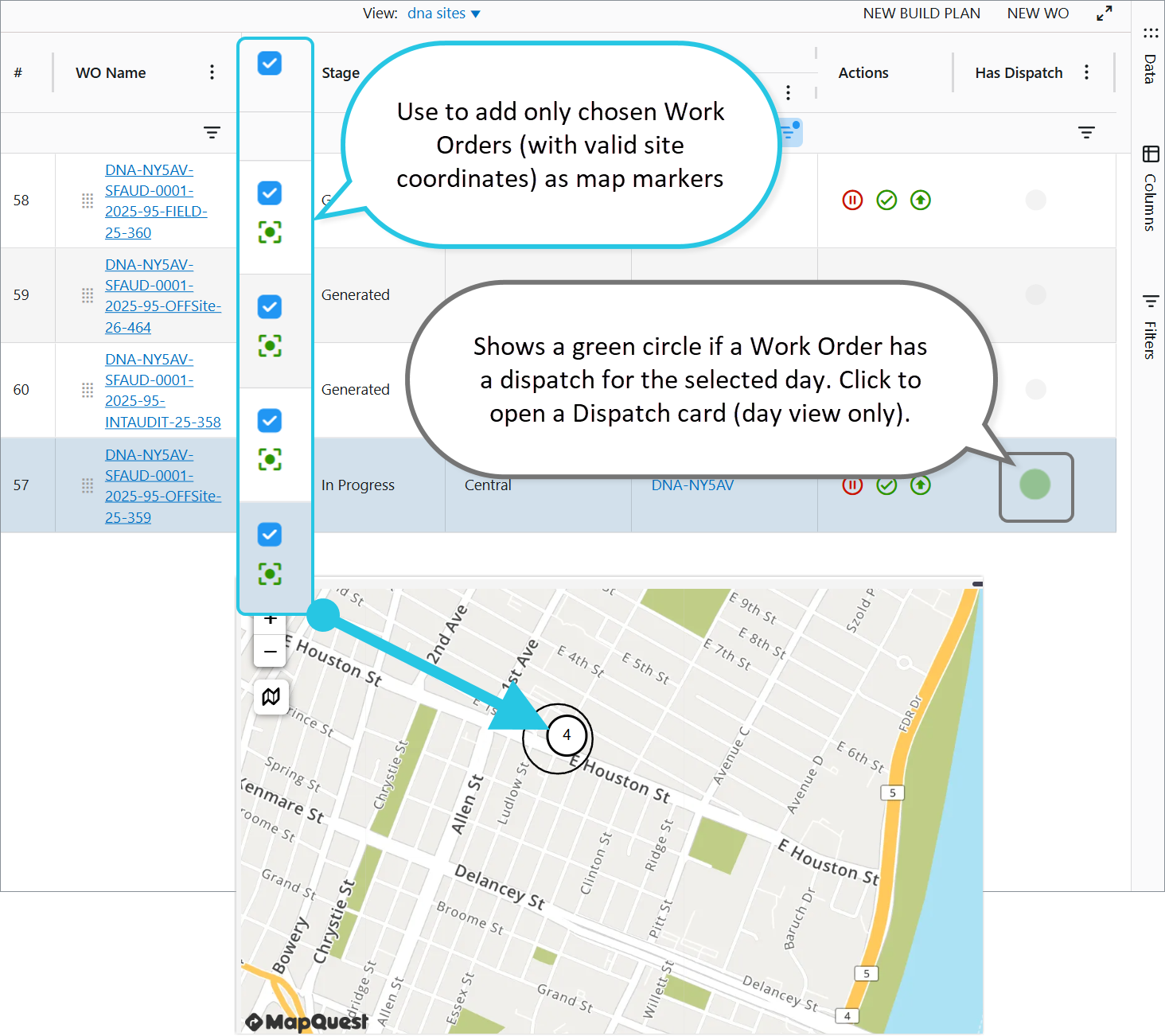
- Select a row in the grid to highlight that Work Order’s dispatch on the week calendar (the dispatch bar pulses). If the Work Order is included on the map (checked in the selection column and has Site coordinates), its map marker is also emphasized with a subtle animation.
- In compact layout, use the Include on map checkbox (# column, blue) to add only chosen Work Orders (with valid site coordinates) as map markers.
- Click the Focus icon to show the selected Work Order on the map.
- Has Dispatch column shows a green circle if a Work Order has a dispatch for the selected day. Click to open a Dispatch card (day view only).
Calendar (Center Panel)
This uses scheduler modes only—not the full standalone Calendar (with month, resources, or map tabs).
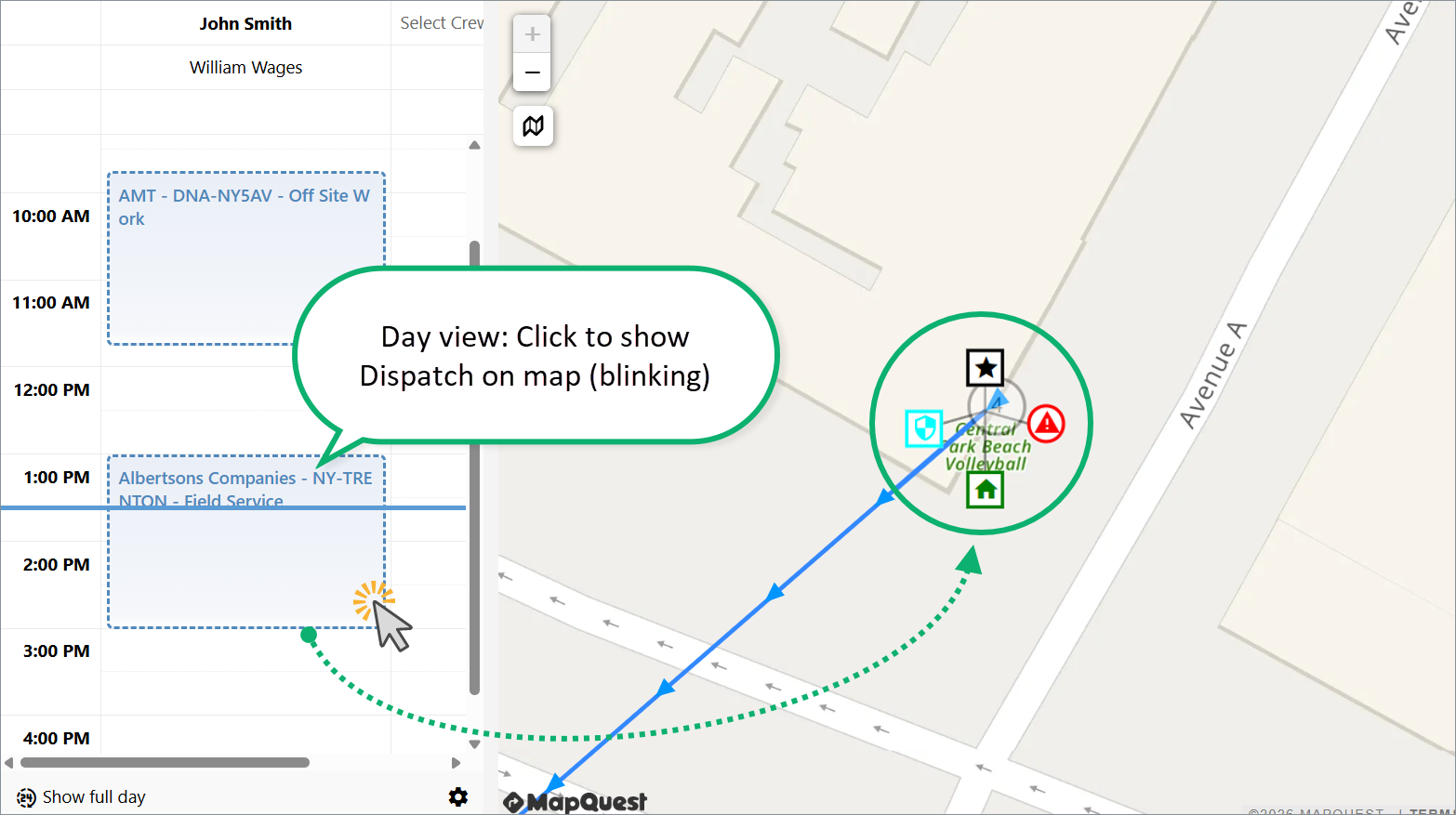
- Day view: Detailed scheduling for the selected date. See the separate article on day view functionality.
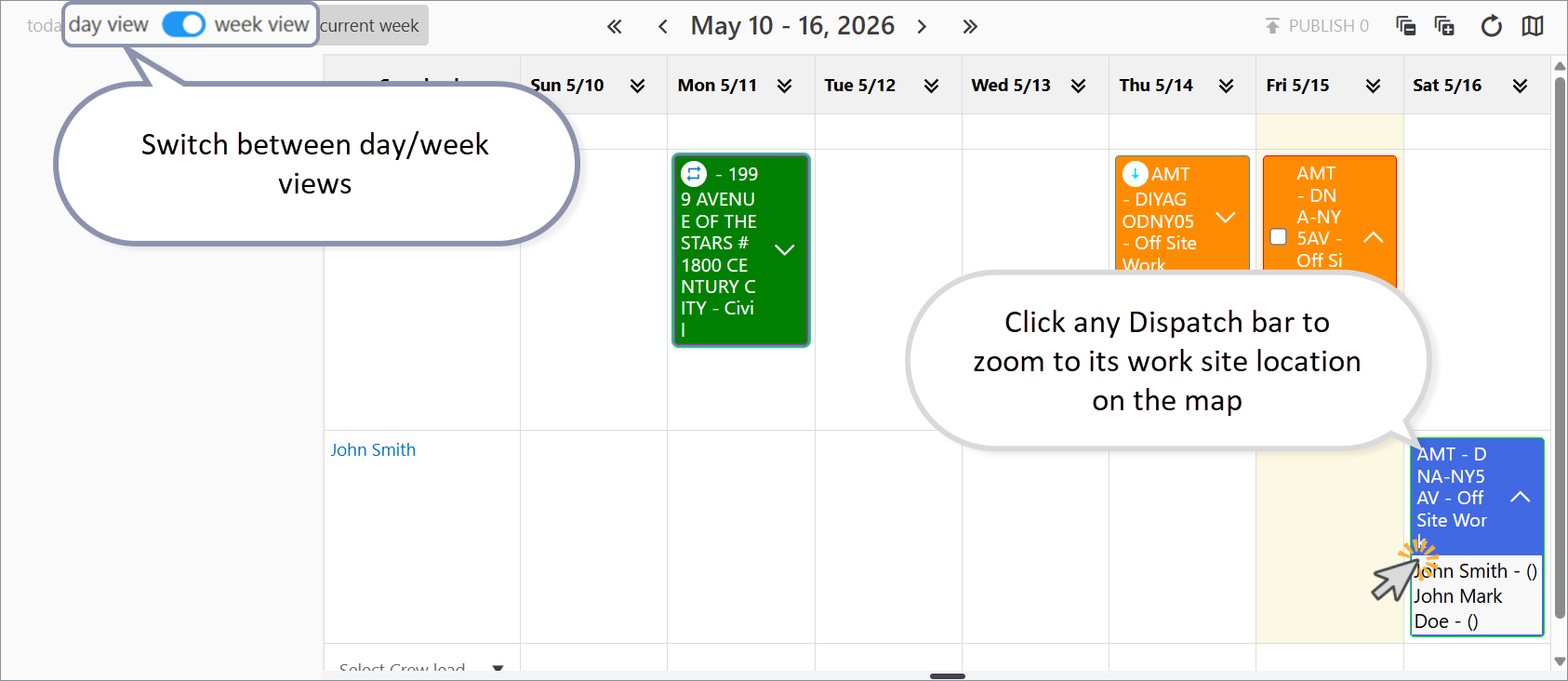
- Week view: Seven-day dispatch overview (defaults to current week).
- Includes all dispatches scheduled for the week — not only dispatches for Work Orders visible in the filtered Work Orders grid. For example, if you filter the grid to a single Work Order, the calendar still shows dispatches for all scheduled Work Orders that week.
- Top toolbar: Publish, Expand all, Collapse all.
- Click any Dispatch bar to zoom to its work site location on the map.
Map (right or below the calendar)
Shows markers for Sites tied to the Work Orders you’ve included on the map and that have valid coordinates.
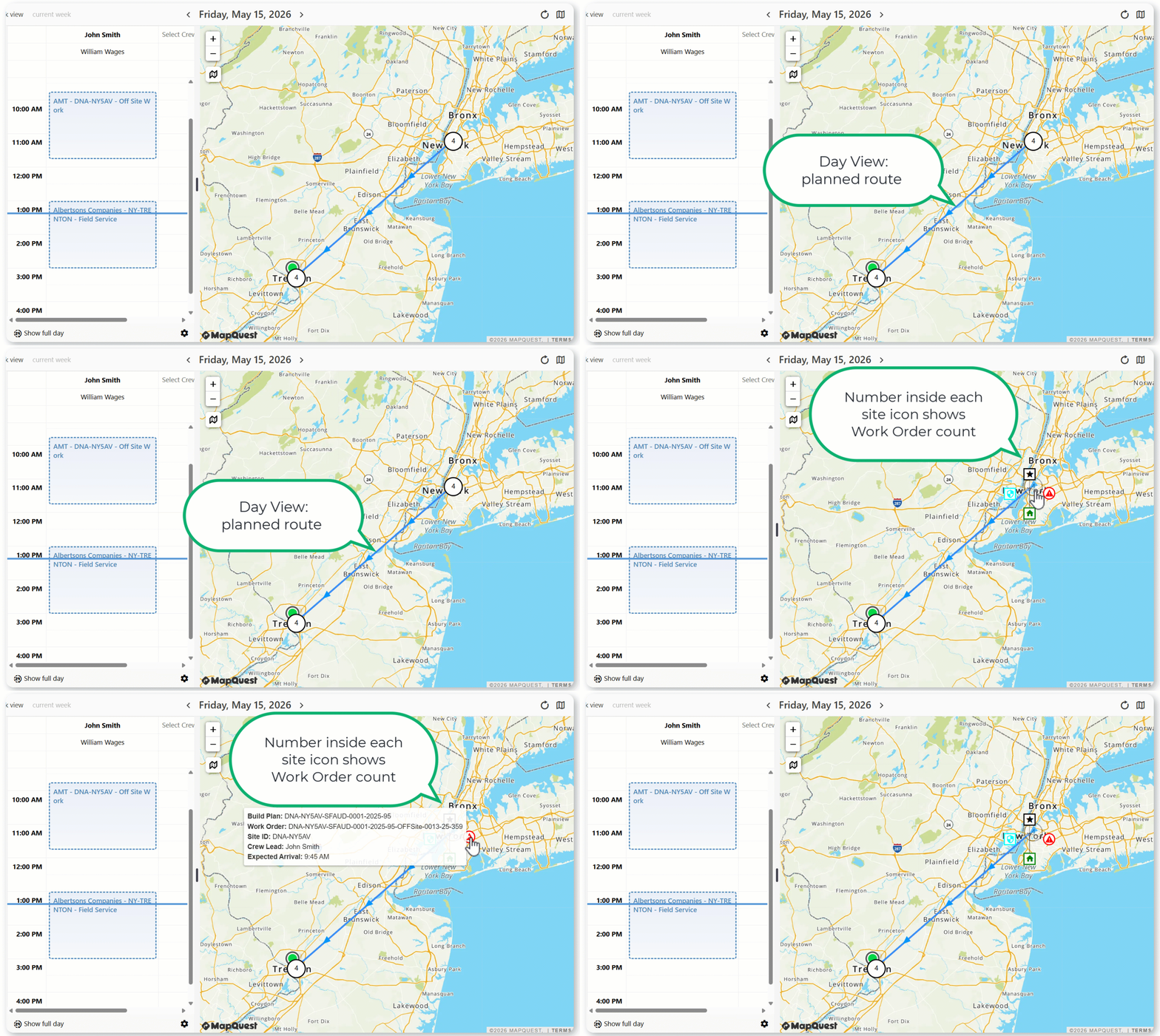
- Tooltips displays Build Plan, Work Order, Site, Crew Lead, and expected arrival when available.
- An optional planned route connects stops for the same crew lead on a given day, when enough scheduled arrival data exists.
- A live route layer can show the selected crew lead’s movement for the chosen date.
- The number inside each site icon indicates how many Work Orders were created for that Site.
Top toolbar (compact layout only)
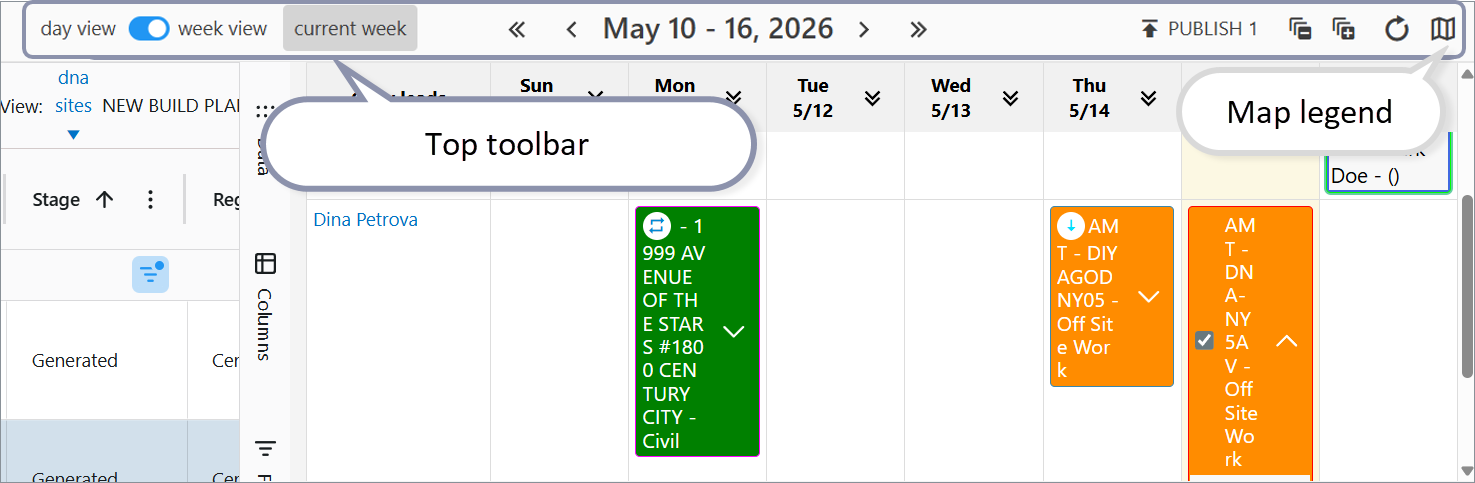
When all three panels are visible, a toolbar appears above the split layout:
| Control | Purpose |
|---|---|
| Today | Jump to the current day (day view). |
| Day view / Week view | Toggle between single-day and weekly scheduling. |
| Current week | Jump to the week containing today (week view). |
| Arrows around the title | Move backward or forward by day or week. |
| Publish (week only) | Publish selected dispatches (shows count). |
| Expand all / Collapse all (week only) | Open or close dispatch detail blocks. |
| Refresh | Reload the grid and the calendar. |
| Map legend | Hover the map outline icon on the right to open the legend popover (see below). |
How to show all three panels (when you only see the grid)
The dashboard has two layout modes:
- Compact — Grid + calendar + map (three-panel scheduler layout).
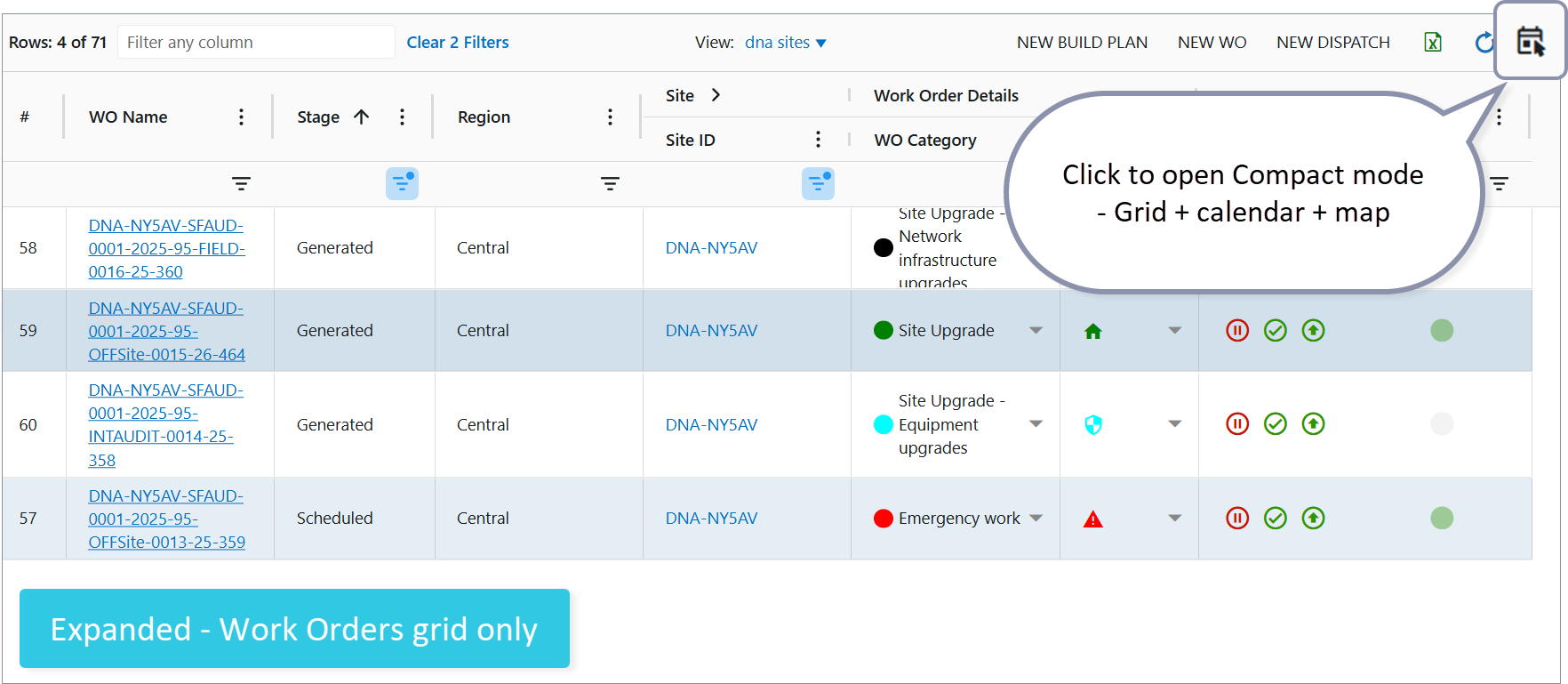
- Expanded — Work Orders grid only; the calendar and map are collapsed so you can focus on the spreadsheet.
If you only see the AG Grid, you are in Expanded layout.
Switching back to Compact layout:
- Look at the bottom status bar of the Work Orders grid.
- On the right side, click the layout toggle (flat icon button).
- In expanded (grid-only) mode it shows a calendar-style icon.
- Click once.
- The layout switches to Compact: the split reopens (grid on the left, calendar and map on the right), and the scheduler toolbar reappears.
Your choice of Compact vs Expanded is remembered per user for the next visit.
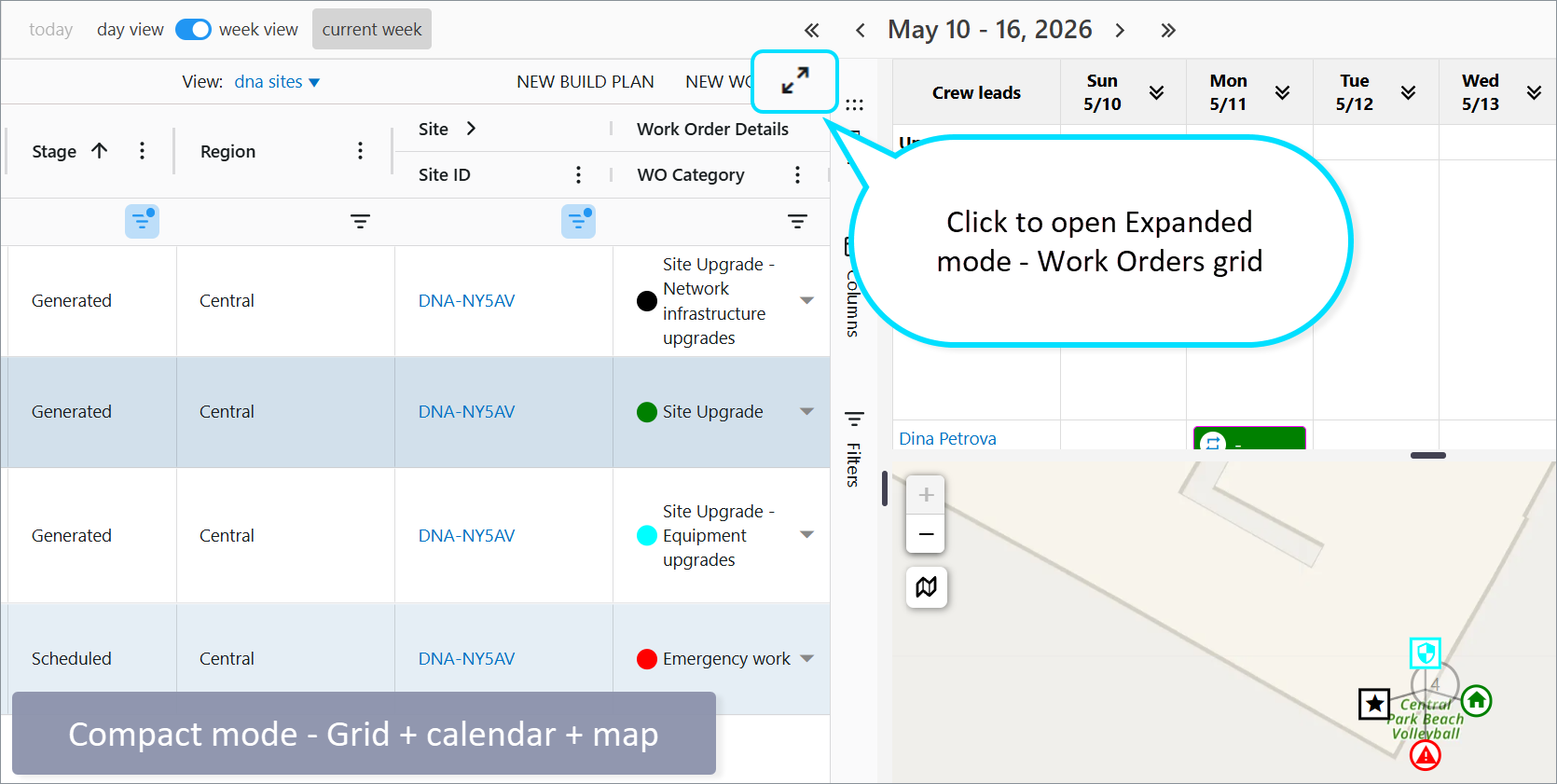
Tip: In compact mode, scheduler-specific columns (for example bulk “on map” selection and certain dispatch affordances) are visible. In expanded mode they are hidden to match a “data only” workflow.
Map Legend availability
The map legend control lives on the top scheduler toolbar, which is hidden in Expanded (grid‑only) mode.
To access the legend, switch to Compact layout first.
Map legend
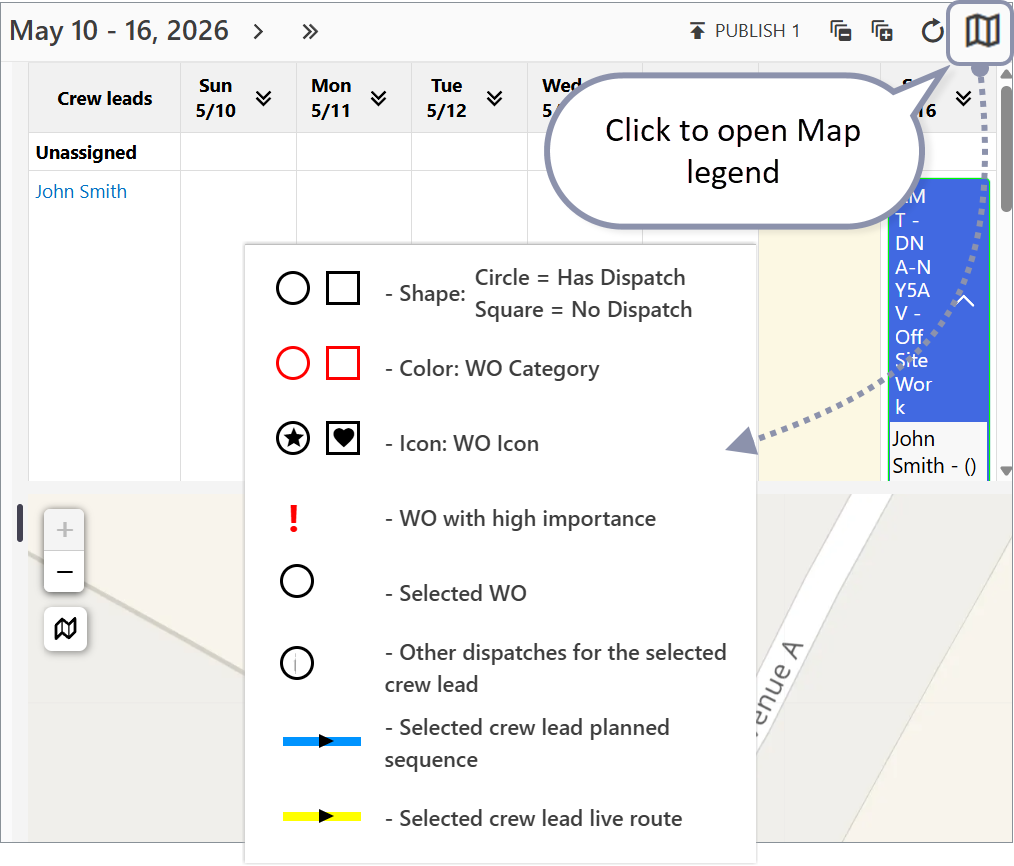
Open the legend from the top toolbar (compact layout): hover the map outline icon on the right.
| Legend item | Meaning |
|---|---|
| Shape | Circle = work order has a dispatch (assigned). Square = no dispatch for that work order in the current calendar context. |
| Color | Border color reflects the Work Order category color when configured. The legend uses red as an example. |
| Icon | Optional icon inside the marker reflects the Work Order icon set on the WO. |
| “!” | High importance work order. |
| Highlighted / animated marker | Currently selected work order (matches the selected grid row). |
| Person + WO icon | Other stops for the same crew lead as the one tied to your current selection. |
| Blue arrow line (sample) | Planned sequence for the selected crew lead (polyline ordered by scheduled arrivals when the app can build it). |
| Non-blue arrow line (sample) | Live route for the selected crew lead (track layer for the chosen date). |
On the map but not in the legend panel: If a dispatch exists but is unassigned, the marker stays circular with a dashed border (distinct from a solid circle with dispatch).
Day vs week layout of calendar and map
- Day view: calendar and map are side by side (horizontal split).
- Week view: calendar is above the map (vertical split).
Switch Day / Week from the top toolbar when the three-panel layout is active.
Alternatively, click the V icon on the required day to open that day in Day view.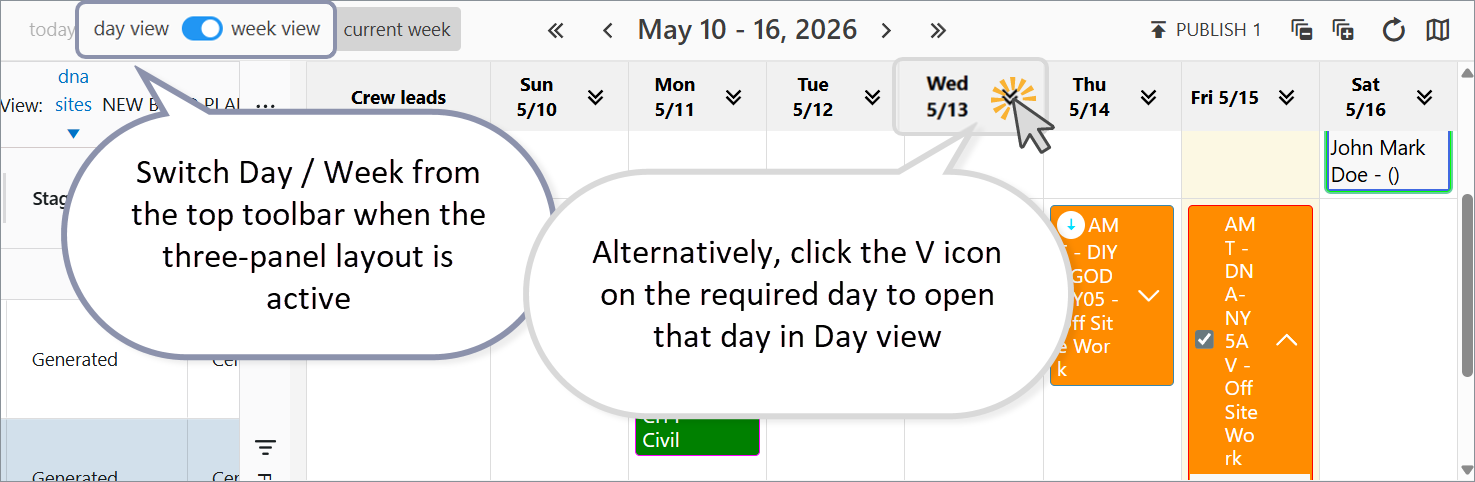
Drag-and-drop from the grid to the calendar
In compact mode, drag a Work Order (from the draggable name cell) onto a crew lead / slot in the calendar:
- The action may create a new dispatch or move an existing one (including to another day in week view).
- Drops may be ignored when a region rule applies and the target does not accept the work order’s region.
Watch the video to learn more about drag‑and‑drop.
Optional: date range for the grid list
Use the grid sidebar tool panels and the Data panel to set a start/end date range for loading work orders. That filters the list; the calendar still follows the toolbar date for scheduling.
Related articles
- Work Orders Management — general Work Orders dashboard and list behavior.
- Dispatch Calendar Functionality — dispatch colors, publish behavior, and calendar concepts.
- Calendar Day view — day view features, dispatch crew management.
Was this article helpful?
That’s Great!
Thank you for your feedback
Sorry! We couldn't be helpful
Thank you for your feedback
Feedback sent
We appreciate your effort and will try to fix the article