TABLE OF CONTENTS
Lunch Settings Overview
Lunch compliance rules define company-wide or employee-category-specific lunch policies. Settings moved from TK Configuration to Employee Categories dashboard (Admin-only access).
Access & Configuration
Global Lunch Settings
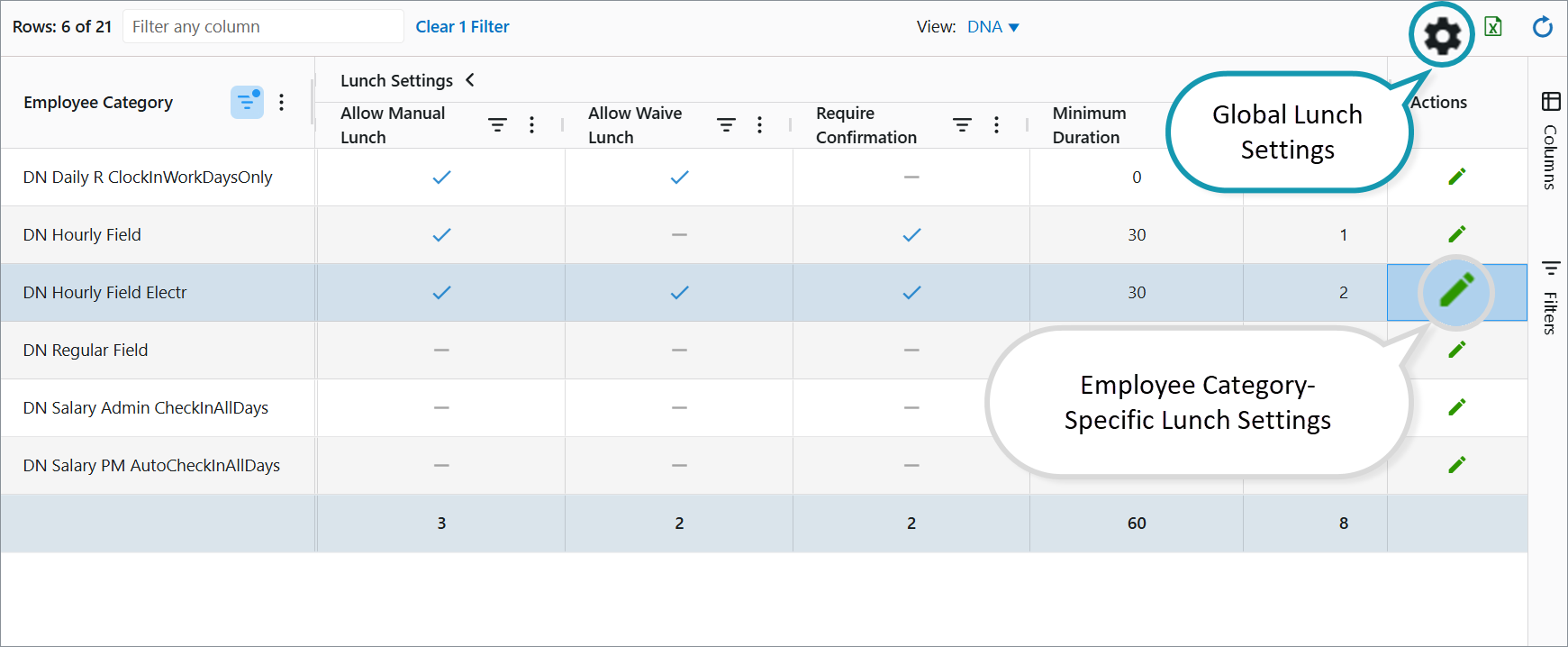
Lunch settings can be applied globally across the entire instance or configured specifically for individual employee categories.
To set global lunch settings:
- Go to the Employee Categories dashboard.
- Click the Gear icon in the top-right corner.
- In the window that opens, configure the lunch settings (details below).
Employee Category-Specific Lunch Settings
To configure lunch rules for a specific employee category:
- In the Employee Categories dashboard, click the Edit icon on the row of the desired category.
- In the window that opens, adjust the lunch settings as needed.
Lunch Settings
Auto-Deducted Lunch
To enable automatic lunch deduction:
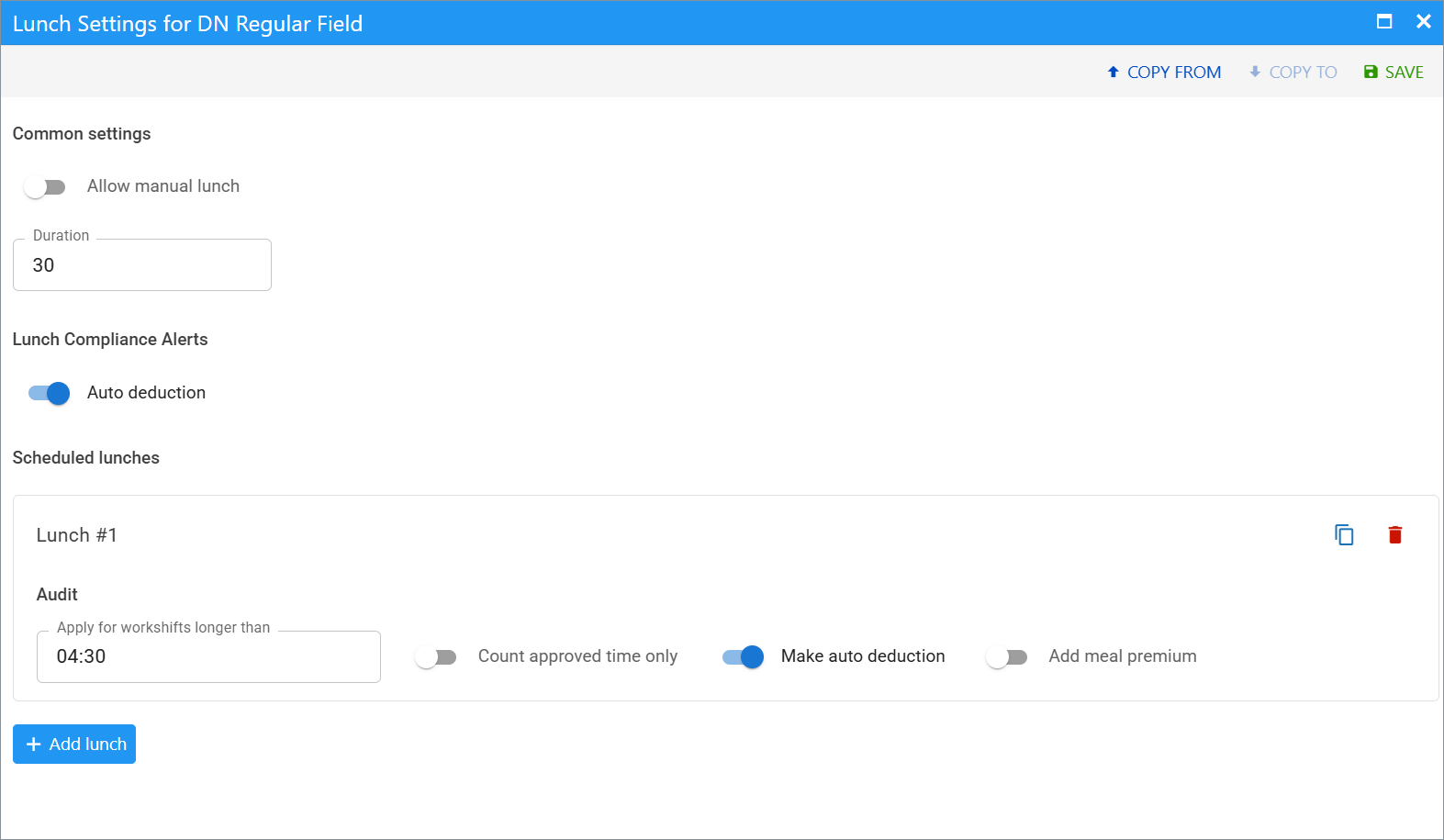
- In the Common Settings section, turn OFF the “Allow manual lunch” toggle. (All manual lunch options will then be hidden.)
- Duration: Set deduction time (minutes).
- Turn ON the “Auto deduction” switch.
Scheduled Lunches (Auto-Deduction Rules)
In the Scheduled Lunches section, click + Add Lunch to create auto-deduction rules. Example: deduct 30 minutes after 4 hours worked.
- Apply for workshifts longer than (hh:mm) – The rule applies only to shifts exceeding this duration.
- Count approved time only (optional) – If enabled, the deduction is based only on approved hours (not clocked hours).
Approved vs. Clocked Hours: Approved hours may be lower than clocked hours due to audits (e.g., time spent in unauthorized locations is zeroed out).
- Turn ON “Make auto deduction” to automatically subtract the specified duration from clocked or approved time.
- If turned OFF, no automatic deduction occurs; the system only creates an audit notification. A Time Card Reviewer or TK Manager can then deduct time manually via the Time Card Adjustment interface.
Manual Lunch
To allow employees to record lunch manually:
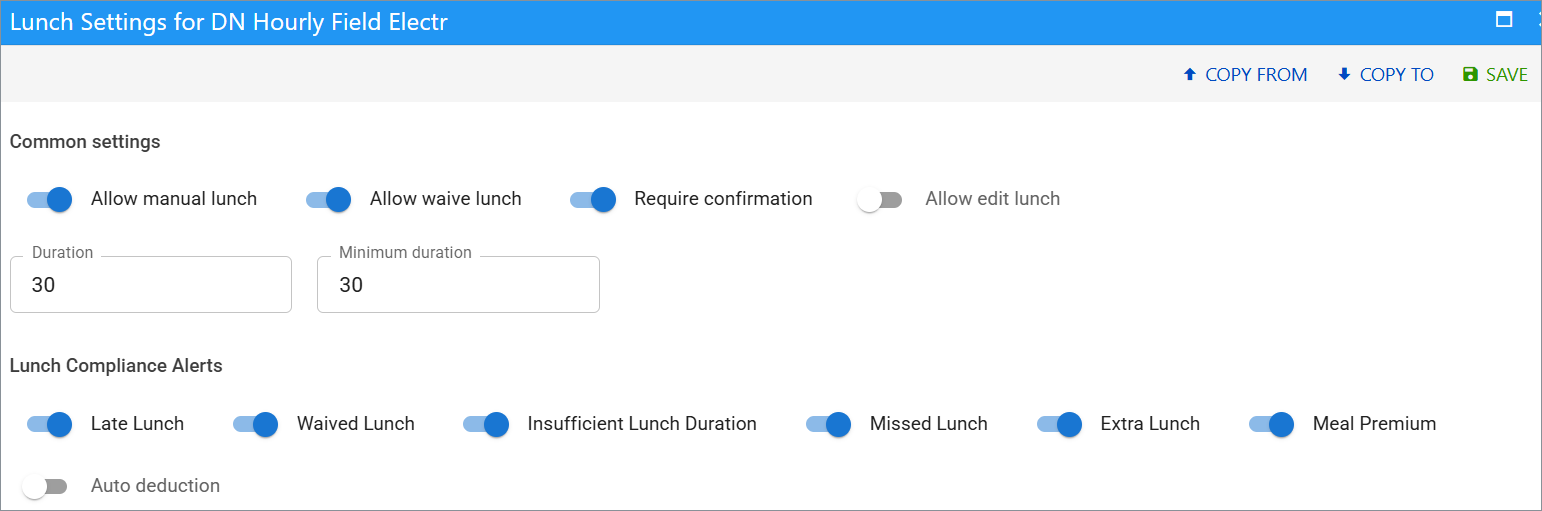
- Turn ON the “Allow manual lunch” toggle.
Common Settings for Manual Lunch
- Allow waive lunch – Employees can skip lunch (comments required). Waived lunches appear on the GPS timeline with a flag and 0 hours duration. There is no limit on how many times an employee may waive lunch.
- Require confirmation – Employees must manually end their lunch break.
- Allow edit lunch - Employees can edit lunches in the mobile app: change duration, edit the start time, delete lunch, etc.
- Duration (in minutes) - default lunch length prefilled in the mobile app.
- Do not fill in, if minimum duration is specified.
- Minimum duration (in minutes) – Minimum lunch length employees can select in the mobile app (max 100 minutes). Leave blank if there is no minimum.
Lunch Compliance Alerts
Enable these alerts to flag manual lunches that do not meet category requirements. When triggered, the system creates audit results.
- Late Lunch – Lunch taken later than scheduled. It creates the same audit result as meal premium, but without adding meal premium hours.
- Waived Lunch – Any shift with a waived lunch.
- Insufficient Lunch duration – Lunch shorter than the configured lunch duration.
- Missed Lunch – No lunch recorded when one was scheduled.
- Extra Lunch – More lunches recorded than scheduled.
- Meal Premium – Audits meal compliance.
Schedule Lunches (for Manual Lunch)
In the Scheduled Lunches section, click + Add Lunch to define expected lunch times, default duration, notifications, etc.
- Duration (in minutes) in the Common settings section – Default duration pre-filled in the mobile app. Employees may take a shorter lunch if allowed by the minimum duration setting.
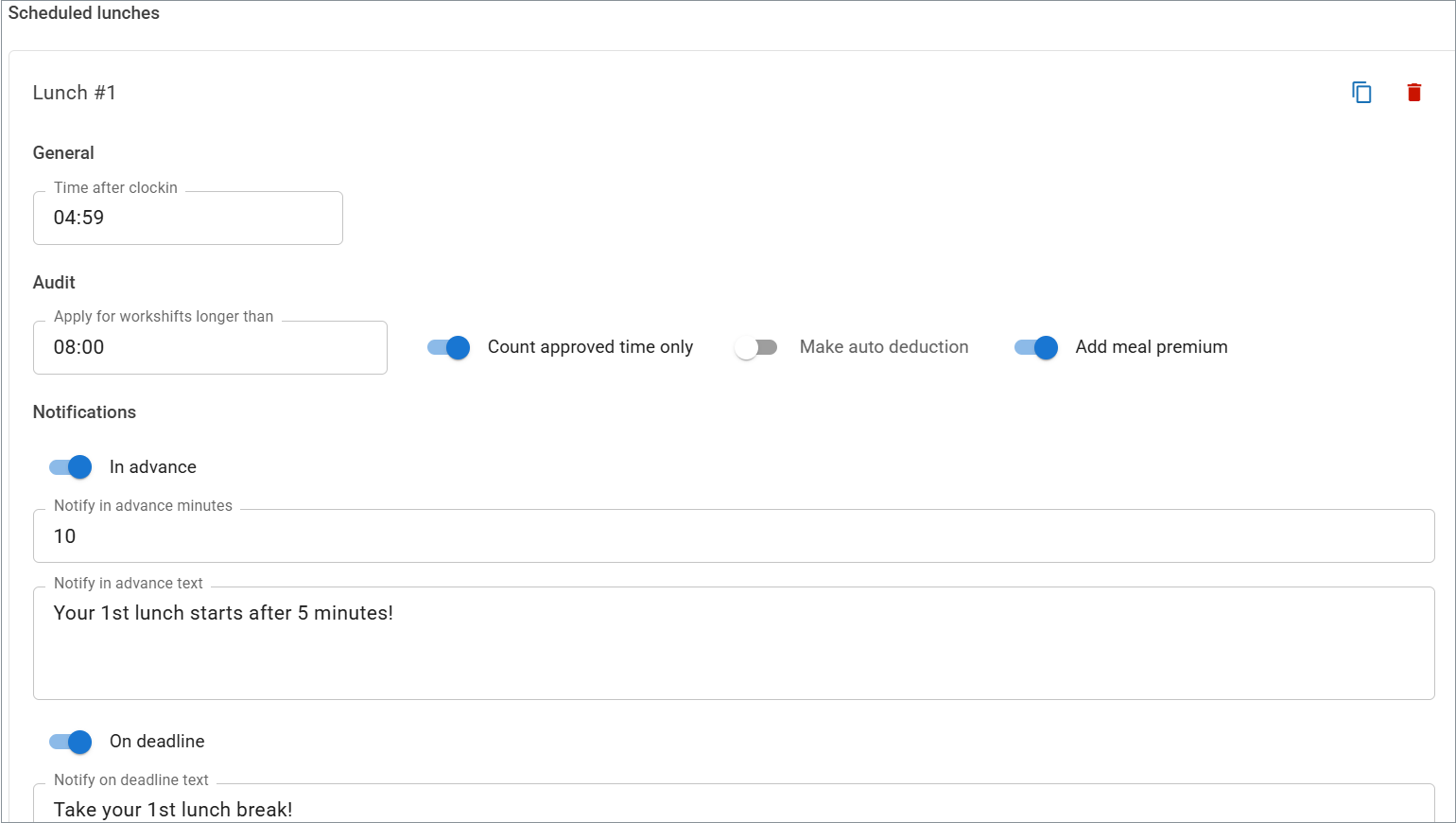
- Time after clock-in (hh:mm) – When the lunch break should start.
Meal Premium Audit Settings
- Apply for workshifts longer than (hh:mm) – Only shifts exceeding this length are audited for meal compliance.
- Count approved time only (optional) – Uses approved hours instead of clocked hours for the duration check.
- Add meal premium – Automatically adds premium hours when compliance rules are violated.
Lunch Notifications
Customize mobile app push notifications for lunch compliance:
| Setting | Description |
|---|---|
| In Advance | Toggle ON + set: Minutes before: Time prior to scheduled lunch. Text: Custom notification message. |
| On Deadline | Toggle ON + set: Text: Custom deadline notification. |
Was this article helpful?
That’s Great!
Thank you for your feedback
Sorry! We couldn't be helpful
Thank you for your feedback
Feedback sent
We appreciate your effort and will try to fix the article