TABLE OF CONTENTS
- What Are Locations?
- Accessing Locations
- Creating a New Location
- Closing or Deleting a Location
- Show Locations on Map
What Are Locations?
Locations represent specific places, such as Office/Warehouse, Remote Hotel, Employee Home, or Material Supplier. They track time spent by employees for timekeeping or manage material stocks for inventory purposes.
Location types define their purpose. For example:
- Office/Warehouse locations support both timekeeping and inventory.
- Types also assign a cost type to recorded hours (e.g., time at Office/Warehouse logs as "office/warehouse" cost).
Location types are predefined in the Location Types reference and:
- Set a default radius.
- Optionally define a map abbreviation and pin color.
Accessing Locations
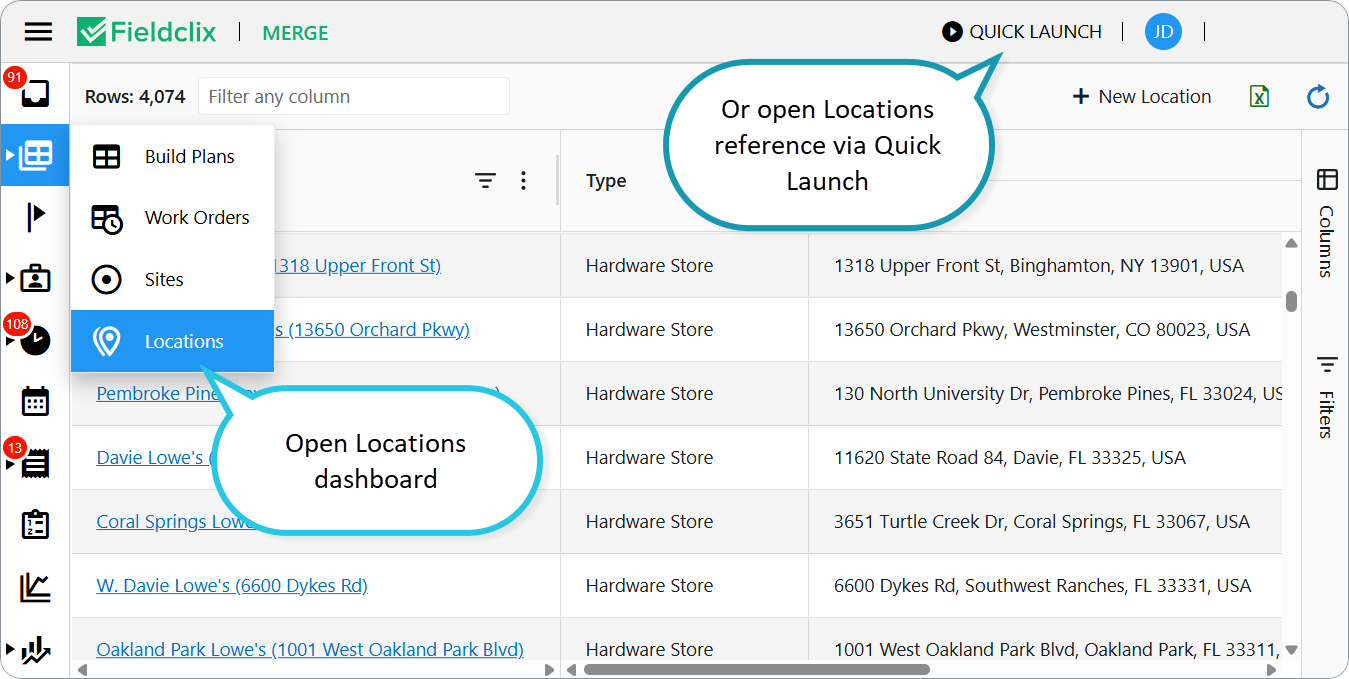
Open the locations list from:
- Locations dashboard (in the Status group of dashboards).
- Locations reference (via Quick Launch).
Creating a New Location
Use one of these methods:
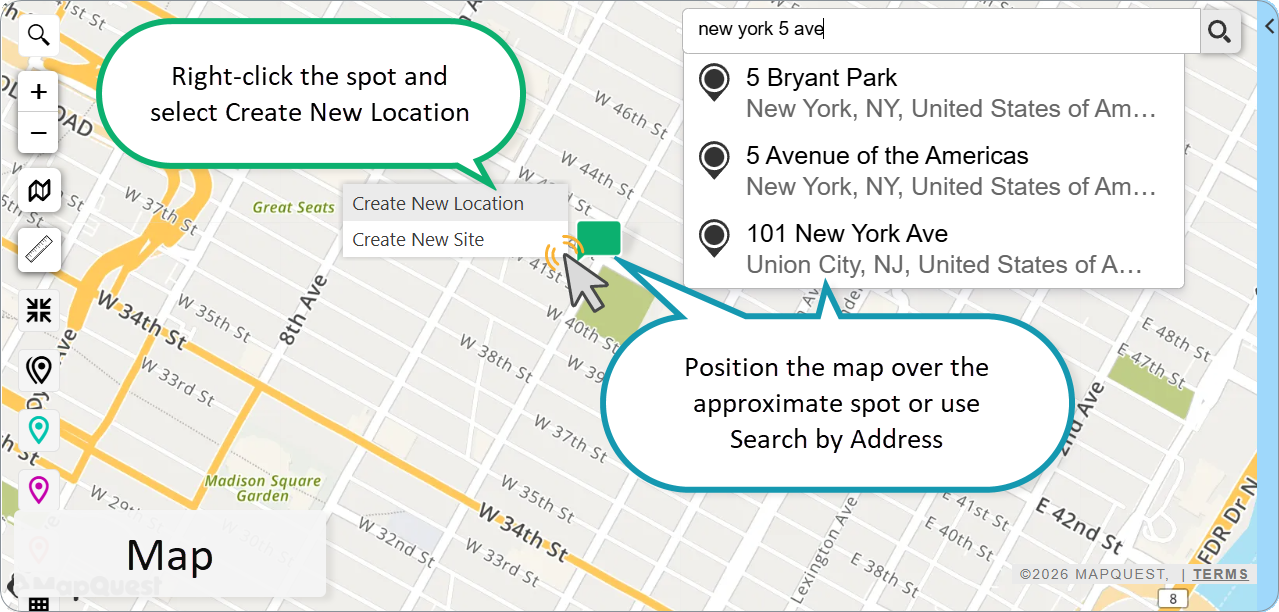
- From a Map (Live Map or Time Card Map):
- Position the map over the approximate spot or use Search by Address.
- Type an address or latitude/longitude coordinates—suggestions appear dynamically.
- Avoid pressing Enter unless no results show.
- Click a suggestion to set the address.
- Right-click the spot and select Create New Location.
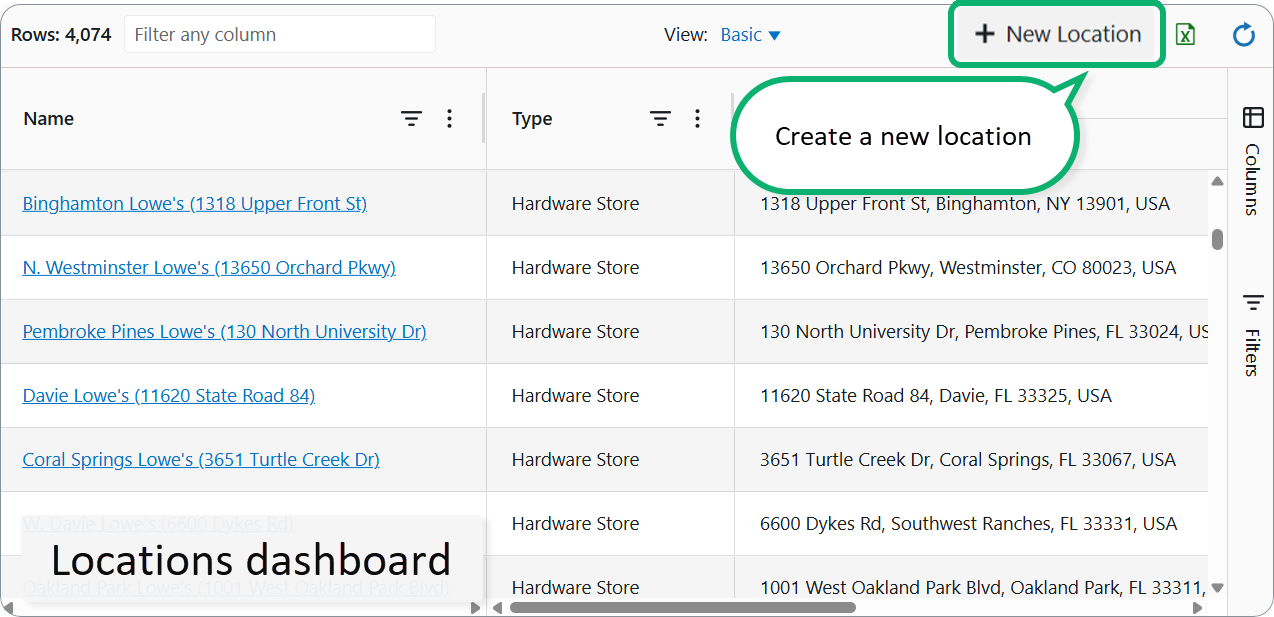
- From Locations Dashboard:
- Click + New Location.
- Using Location Import tool. Contact FCX Support.
Completing the Location Card
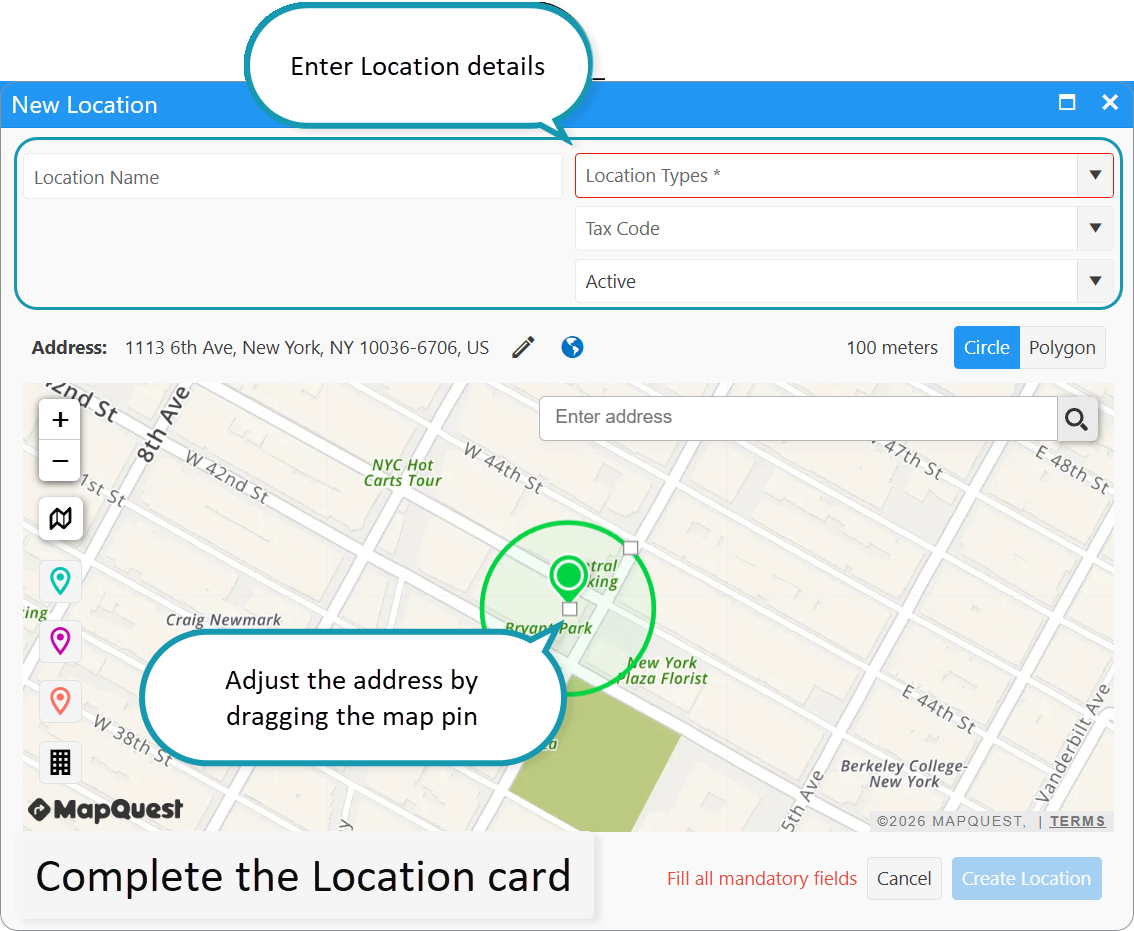
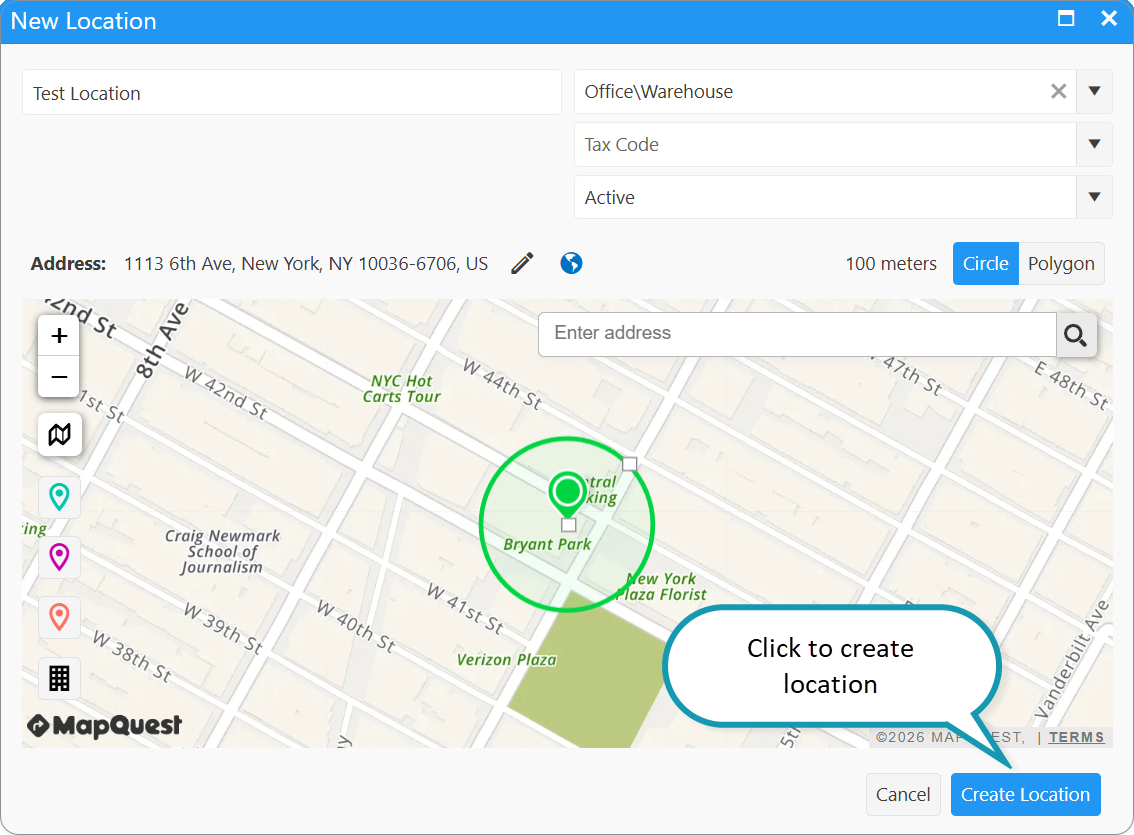
- Enter Location Name.
- Select Type.
- Optionally, select Tax Code (e.g., for local tax jurisdictions). Hours logged here assign to that tax code, used for:
- Payroll tax withholding (state/local income tax, unemployment tax).
- Billing and cost allocation (direct labor vs. overhead).
- Adjust the address by dragging the map pin (updates GPS coordinates automatically).
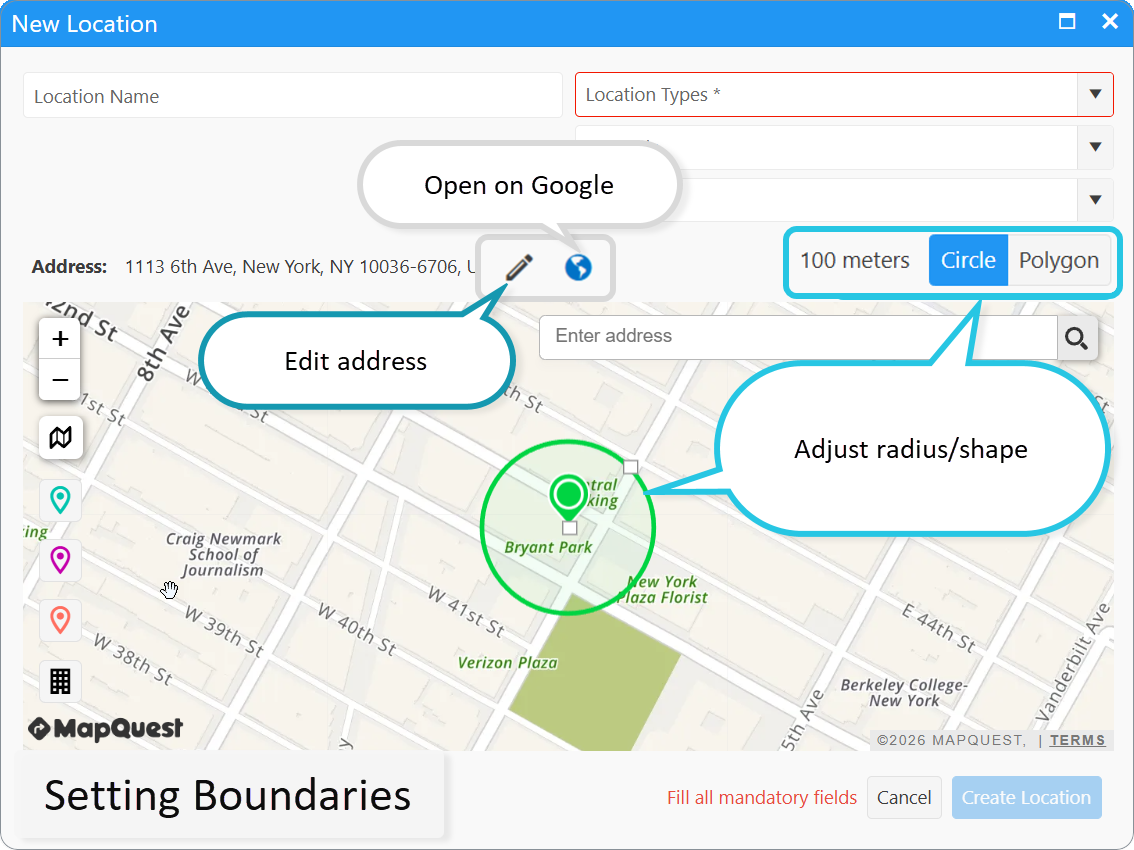
Setting Boundaries
Boundaries process employee geodata by checking if stop points fall inside the defined area. Supported shapes: circles or polygons.
- Default: 100-meter circle (based on type).
- Adjust radius/shape using map tools.
- Data (radius, coordinates) saves to the Address card. To edit the address, click on the Pencil icon.
- Set radius to zero to exclude from timekeeping (shrink circle to minimum).
Click Create Location.
Closing or Deleting a Location
To close: Open the location card and change status from Active to Closed.
To delete: Open the Locations reference in the desktop client.
- Select the location.
- Click Delete on the top ribbon or right-click and select Delete from the context menu.
Show Locations on Map
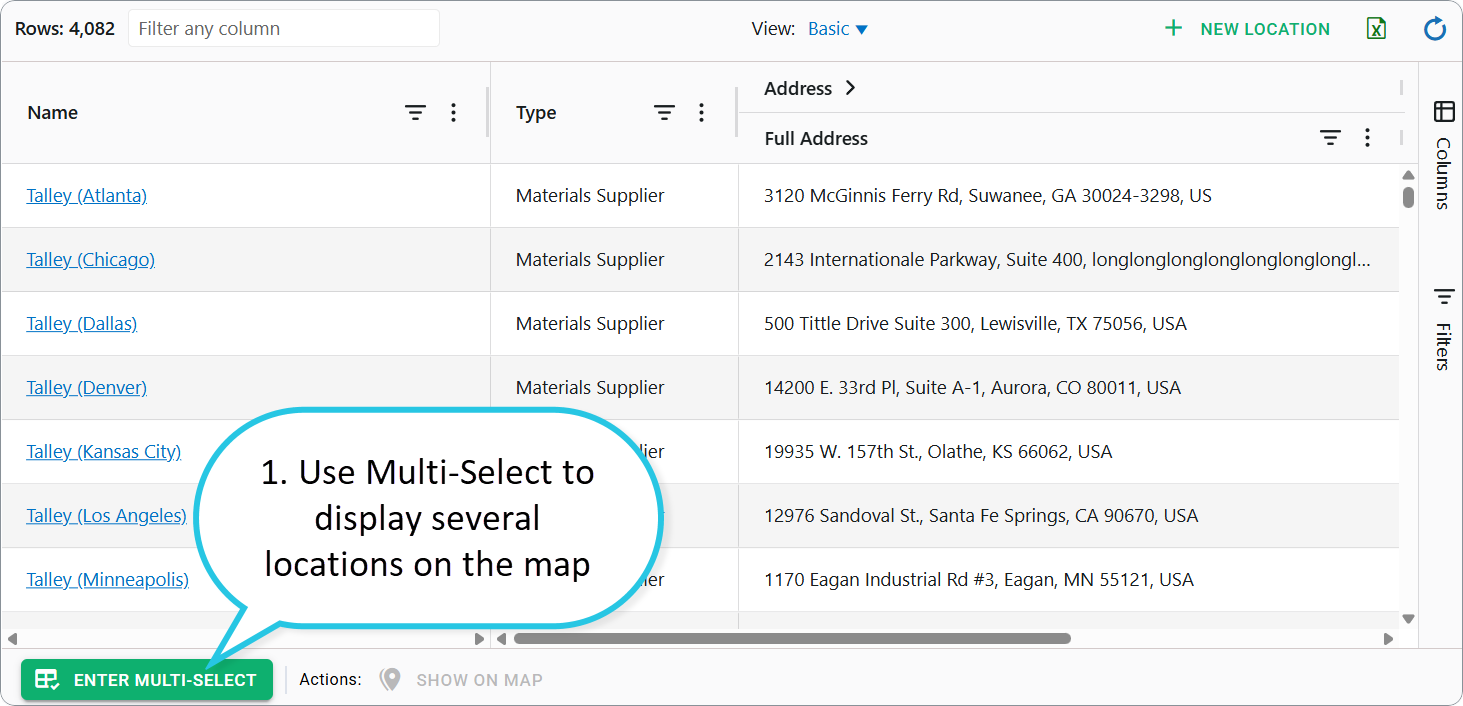
Use the multi-select option to display multiple locations on the map, for example when you want to compare geographic positions.
- At the bottom of the dashboard, click Multi-Select.
- Select the locations you want to display.
- Click Show on Map.
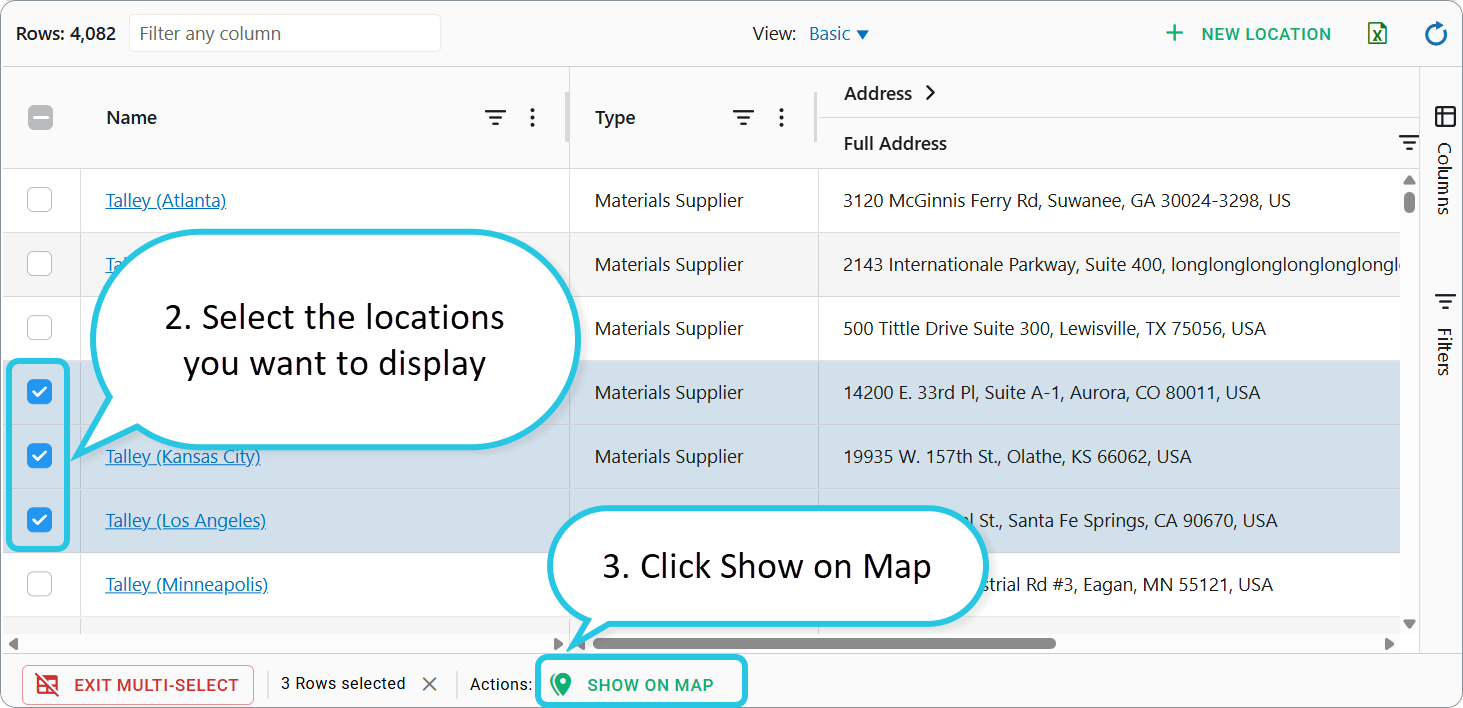
You can then use standard map tools such as Show Nearby Sites, Show Places of Interest, and Search. Click the Location icon to open a location card.
To return to the Locations list, close the map. To exit selection mode, click Exit Multi-Select.
Was this article helpful?
That’s Great!
Thank you for your feedback
Sorry! We couldn't be helpful
Thank you for your feedback
Feedback sent
We appreciate your effort and will try to fix the article