TABLE OF CONTENTS
- What is a COD Purchase?
- How to create COD
- How to create a COD
- Who can create, edit, and delete COD on the web
- What Fieldclix fills for you
- Where to find COD invoices
- Life cycle and approval
- Sync and payment
- FAQ
What is a COD Purchase?
Small job expenses are easy to lose: a company card swipe in the field, or a receipt an employee needs reimbursed. In Fieldclix we call these COD (cash-on-delivery style) purchases.
A COD captures the receipt against a Build Plan as soon as the purchase happens. Fieldclix stores it as a Vendor Invoice marked as COD, so AP can validate, approve, and sync it like other vendor bills.
Typical flow:
Someone creates a COD (mobile or web) with Build Plan, category, amount, card, and description.
Fieldclix creates a Vendor Invoice in Draft and fills vendor, date, and allocation from your COD setup.
The invoice moves through the usual VIM stages (submit, validate, approve).
After approval, it can sync to your accounting system (for example as a credit card charge or check), depending on the card type.
Validated COD amounts can hit the Build Plan budget like other vendor invoice costs.
For how to set up categories, cards, and sync behavior, see Configure COD module.
How to create COD
There are two ways of how to create a COD request:
1. Create a COD request in the mobile app.
To get access to Requests module, you should be assigned to the "Allow COD requests" Employee role.
Read about how to send a COD request through the app here.
2. Create a COD Purchase record in the corresponding reference — "COD Purchase Approvals".
How to create a COD
You can create a COD in two ways.
1) Mobile app
Employees need the role Mobile. Allow COD Requests.
They open Purchases / Requests, create a request (purchase date can be within the last 30 days), attach a receipt when the purchase category requires it, then save and submit.
Step-by-step: Submit Receipt / COD Request in App.
Which Build Plans appear in the list: What Determines the BPs a User Can Select for a COD in the App?.
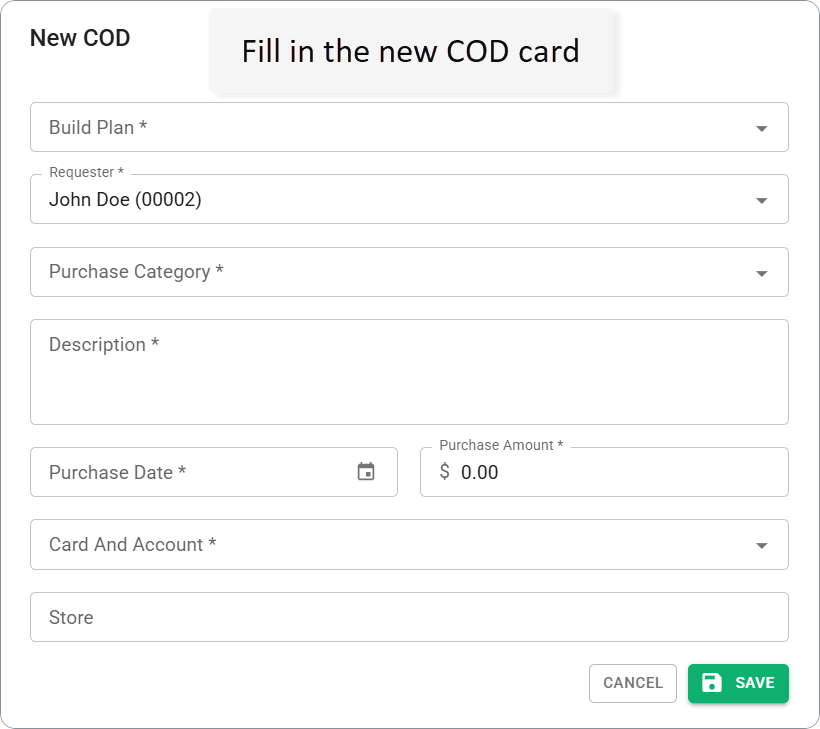
2) Web — NEW COD (office)
Office users create COD from the web without the mobile app.
- Open VIM → Invoices (or VIM → Review).
- Click NEW COD on the toolbar.
- Fill the dialog and click SAVE:
- Build Plan
- Requester (pre-filled with the current user)
- Purchase Category
- Description
- Purchase Date (not older than 30 days)
- Purchase Amount
- Card And Account
- Store (optional)
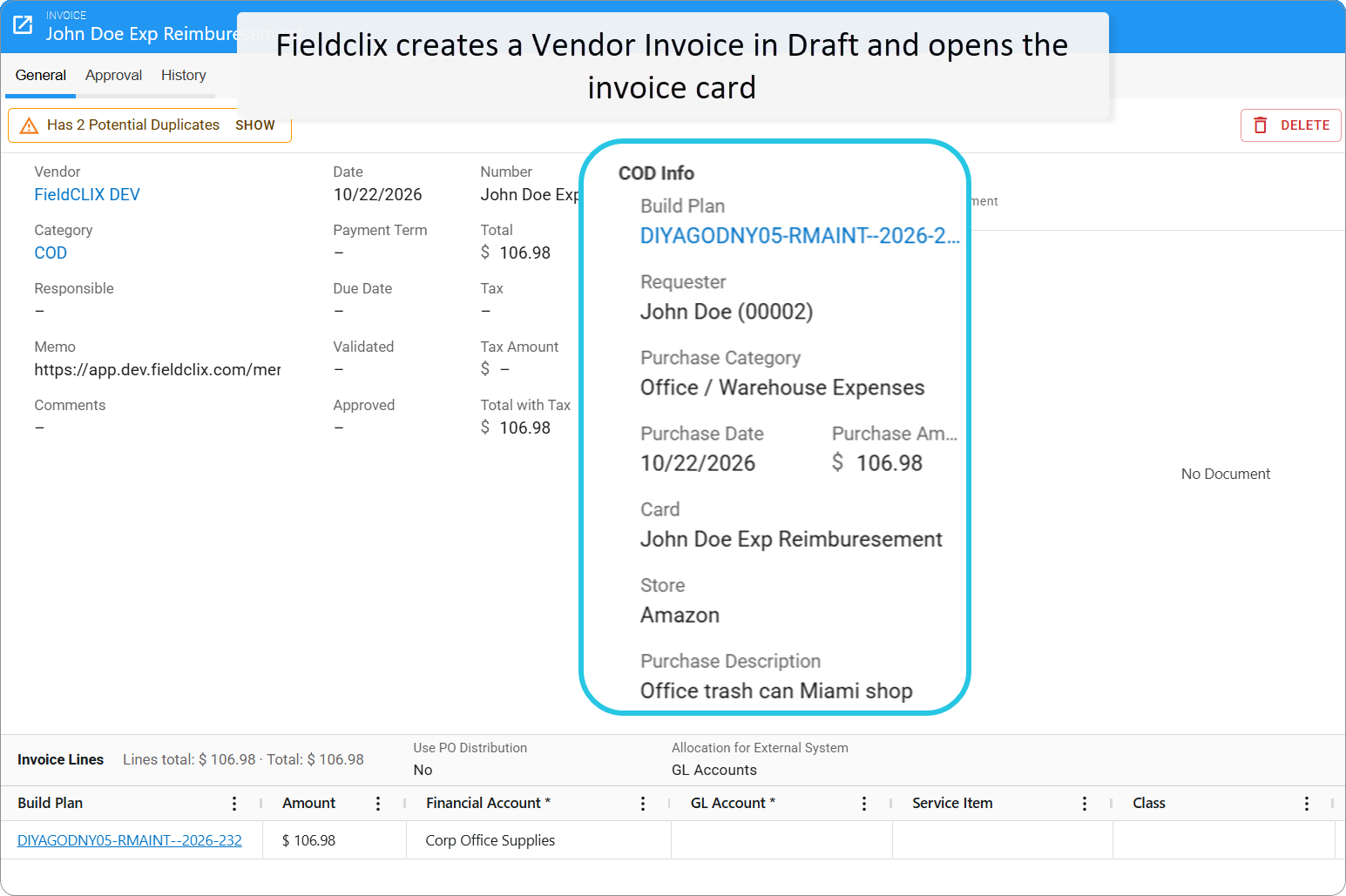
- Fieldclix creates a Vendor Invoice in Draft and opens the invoice card.
Who can create, edit, and delete COD on the web
COD on the web is a Vendor Invoice. Access follows VIM invoice rules, with a few COD-specific points.
To open VIM → Invoices or Review, you typically need the Financial role (or another role your company uses for those dashboards).
Action | Who | When |
|---|---|---|
Create (NEW COD) | VIM Validator | Anytime (from Invoices or Review). |
Edit | The person who created the invoice | While the invoice is Draft. |
Edit | VIM Validator | Draft or Pending. |
Edit | Advanced VIM Approver | Under Approval (same as other invoices). |
Edit | Accountant and Bookkeeper | Approved, Partially Paid, or Paid (same as other invoices). |
Delete | The Requester on the COD | While the invoice is Draft. |
Delete | VIM Validator | Draft, Pending, Rejected, or Cancelled. |
Notes:
Field employees with only Mobile. Allow COD Requests create and manage COD in the app, not as office validators on the web.
Submit from Draft: the creator or a VIM Validator.
Validation, send for approval, and approve follow the normal VIM invoice process (VIM Invoice Approval Process).
What Fieldclix fills for you
When a COD invoice is created:
From your entry | What happens on the invoice |
|---|---|
Card And Account → Issuer | Becomes the invoice Vendor (you can change the vendor later while validating). |
Purchase Date | Becomes the invoice Date. |
Purchase Amount | Becomes the invoice total / line amount. |
Purchase Category defaults | Financial account, GL account, service item, and (when set) invoice category drive the first allocation line. |
Store and Description | Kept in COD Info / notes on the invoice. |
The invoice also gets a Sync Type from the card’s Card and Account Type (Bill, Credit Card Charge, or Check). That controls how the invoice syncs to accounting after approval.
Where to find COD invoices
Place | What you see |
|---|---|
VIM → Invoices | Same invoice list as other bills. Use the COD Info column group (Build Plan, Requester, Purchase Category, and related fields). |
Invoice card | A COD Info section: Build Plan, Requester, Purchase Category, Purchase Date, Purchase Amount, Card, Store, Purchase Description. |
VIM → Review | COD invoices appear with other invoices for validation and approval. You can also start NEW COD from Review. |
Mobile Purchases | The employee’s COD list, filtered by invoice stage. |
Life cycle and approval
COD uses the Vendor Invoice life cycle. Common stages you will see:
Draft — created; can still be edited (and submitted).
Pending — waiting for validation.
Validated — ready for approval (when your process requires it).
Under Approval — with approvers.
Approved / Partially Paid / Paid
Rejected / Cancelled
Work the COD like any other vendor bill: submit from Draft, then validate and approve in VIM Review or on the invoice card.
Details on invoice stages and approval: Invoice Life Cycle and VIM Invoice Approval Process.
Sync and payment
After approval, COD invoices can sync to your accounting system.
Credit Card Charge — typical company-card purchases; after sync, Fieldclix can treat the invoice as paid.
Check — reimbursements or field-check style payments.
Bill — sync as a regular vendor bill when that fits your process.
Sync type is set on the Card and Account Type. More on mapping: Field Mapping QuickBooks (credit card charge / COD section).
FAQ
Q: Do I still “transform” a COD into a Vendor Invoice?
A: No for new CODs. Creating a COD already creates a Vendor Invoice. You submit and approve that invoice.
Q: Why is the Vendor the card issuer, not the store?
A: COD uses the Issuer on the Card and Account (often the employee-as-vendor or the card issuer in QuickBooks). You can change the vendor on the invoice during validation if needed. Store is only a note about where the purchase happened.
Q: Why can’t I pick a purchase date from two months ago?
A: New CODs allow a purchase date within the last 30 days.
Q: Do COD costs hit the Build Plan budget?
A: Yes — through the vendor invoice allocation / validation path, the same way other VIM invoices affect budgets when your company uses that.
Q: Who can create COD on the web?
A: VIM Validator (with access to VIM Invoices / Review). Field employees create COD in the mobile app with Mobile. Allow COD Requests. See Who can create, edit, and delete COD on the web above.
Was this article helpful?
That’s Great!
Thank you for your feedback
Sorry! We couldn't be helpful
Thank you for your feedback
Feedback sent
We appreciate your effort and will try to fix the article