If you are unable to open records—such as Sales Orders, Invoices, or Budgets—via hyperlinks, or if the Quick Launch menu is missing from your FCX Web Portal, your Desktop Integration is likely disabled.
Follow these steps to restore functionality:
Step 1: Enable Desktop Integration
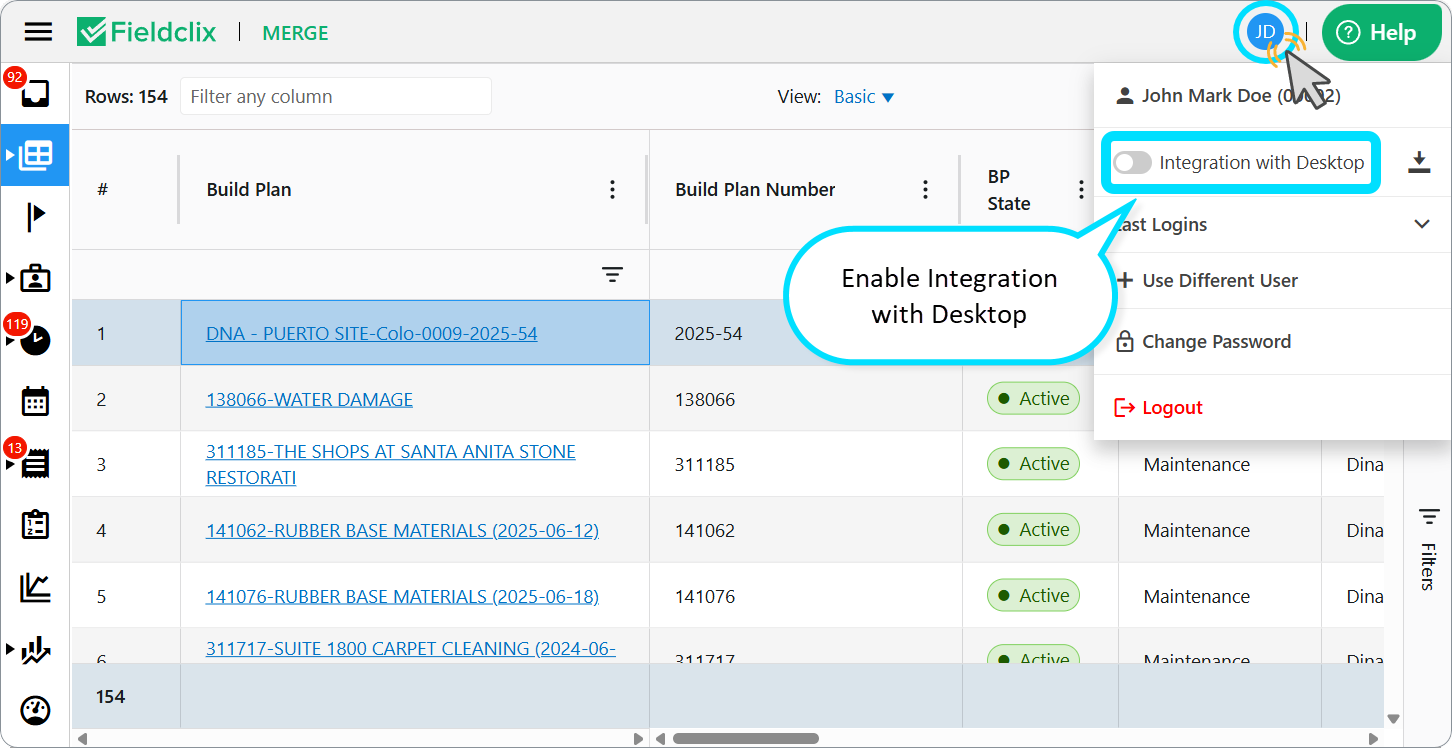
To allow the web portal to communicate with your desktop application, you must manually toggle the integration setting.
- Navigate to the top right corner of the portal and click the Account Settings icon.
- Locate the Integration with Desktop option.
- Toggle the switch to ON.
Once enabled, your Quick Launch menu should appear, and record hyperlinks will become active.
Step 2: Verify the FCX URL Processor
If you have enabled the setting but still cannot open desktop records from the web, the issue may be local to your computer.
The FCX URL Processor is a required component that bridges the gap between your browser and the desktop software. If it is missing, the hyperlinks will not trigger the desktop application.
- Note: For detailed installation instructions, please refer to our dedicated guide on Installing the FCX URL Processor.
Was this article helpful?
That’s Great!
Thank you for your feedback
Sorry! We couldn't be helpful
Thank you for your feedback
Feedback sent
We appreciate your effort and will try to fix the article