TABLE OF CONTENTS
- Pay Rate Schedules
- Creating a Pay Rate Schedule
- Applying a Schedule
- Viewing Rates in a Payroll Period
- Understanding External Payroll Items
- Standard Mapping for External Items
- How Cost Rates are Calculated Using External Items
- Calculating Labor Costs (Burden) based on Adjusted Cost Rates
- Deducting Fringe
- When the Average Rate is Used
Pay Rate Schedules
Pay Rate Schedules are the main place to store and manage compensation rates. They can be applied to a Build Plan or directly to an Employee.
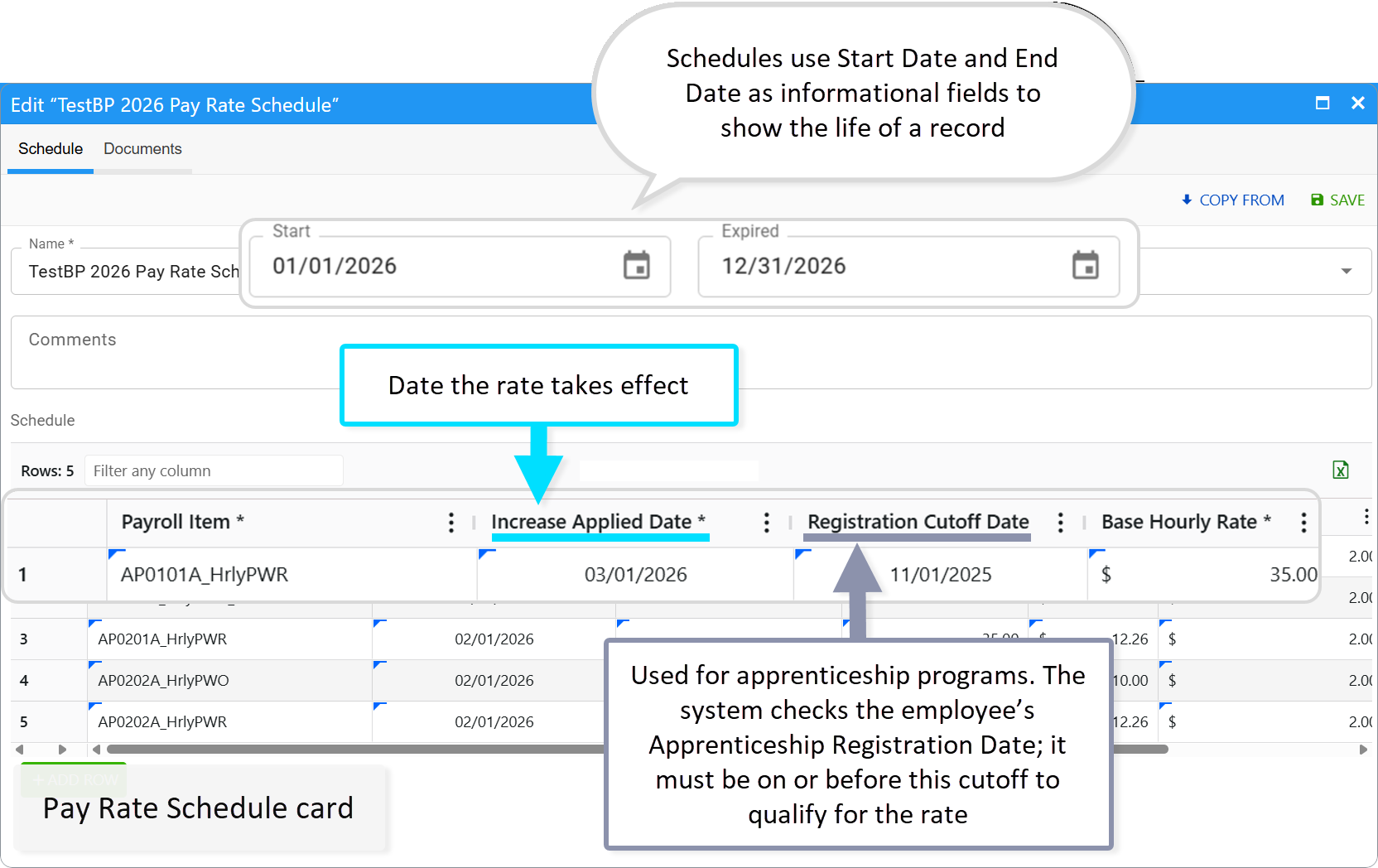
Schedules use Start Date and End Date to show the life of a record. The actual logic is driven by fields on each payroll item:
Required:
- Increase Applied Date: Date the rate takes effect; defaults to the Start Date.
- Base Hourly Rate (BHR): The core hourly pay.
Optional:
- Registration Cutoff Date: Used for apprenticeship programs. The system checks the employee’s Apprenticeship Registration Date; it must be on or before this cutoff to qualify for the rate.
- Fringe Benefits: Non-wage compensation.
- Training Contributions: Training fund amounts.
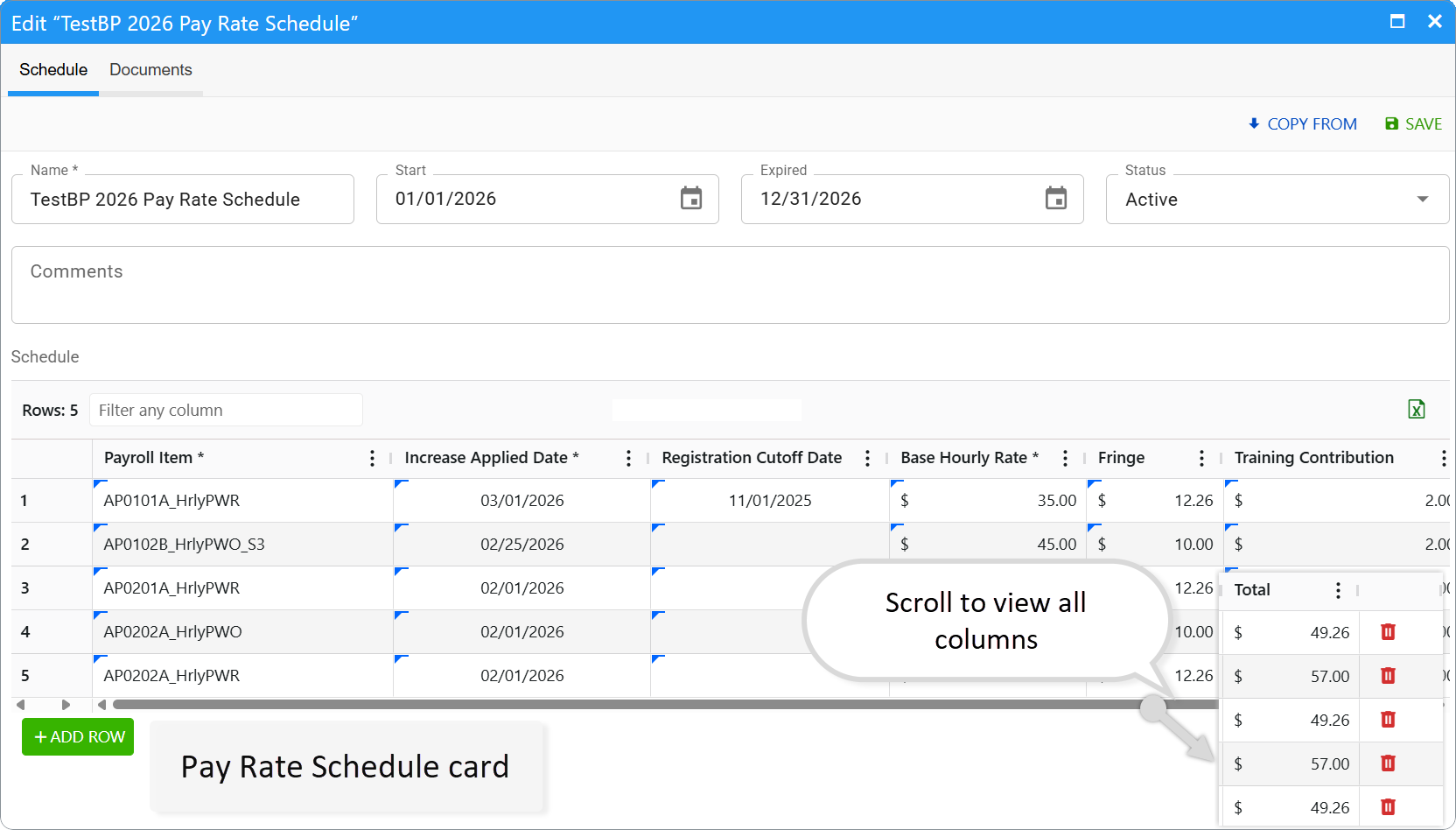
The Total Calculation
The system automatically calculates the total rate using the following formula:
Total = BHR + Fringe + Training Contribution
Managing Employee Trade Level Classification
In the Pay Rate management tool, an employee's trade level classification can be managed through Classifiers. A classifier designates a specific term of employment (e.g., "Apprentice Level 1").
How Mapping Works:
Direct Mapping: Each employee classifier maps to a specific Payroll Item.
Schedule Rows: A row is added to the Pay Rate Schedule for that specific payroll item with a different rate.
Automatic Updates: Changing a classifier indicates that a term of employment has increased. The new classifier matches a different payroll item, which automatically pulls a higher pay rate from the schedule.
Example: Apprentice to a Journeyman.
Creating a Pay Rate Schedule
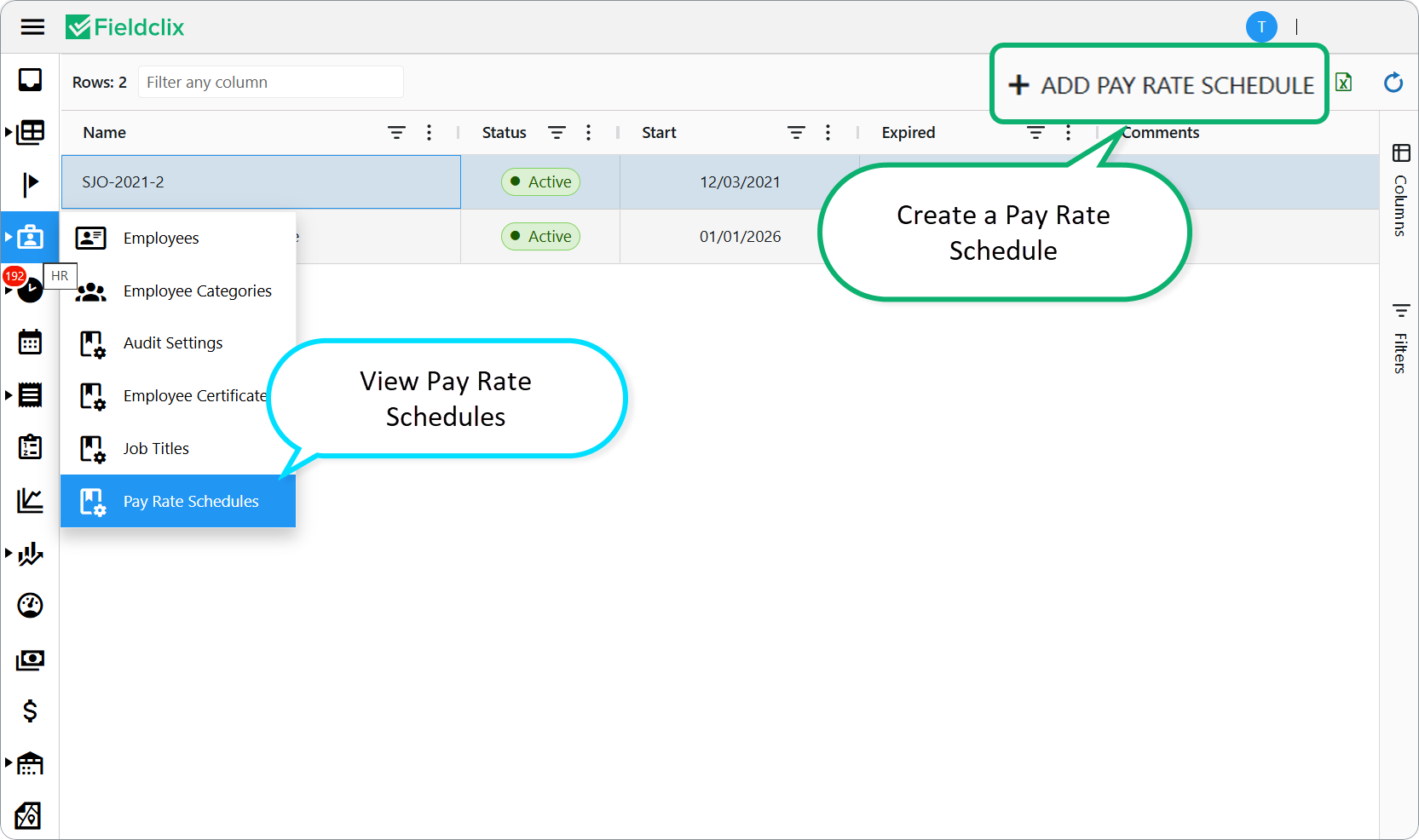
- Open Pay Rate Schedule in the HR group.
- Click the + ADD PAY RATE SCHEDULE button.
- Complete required fields and click Save.
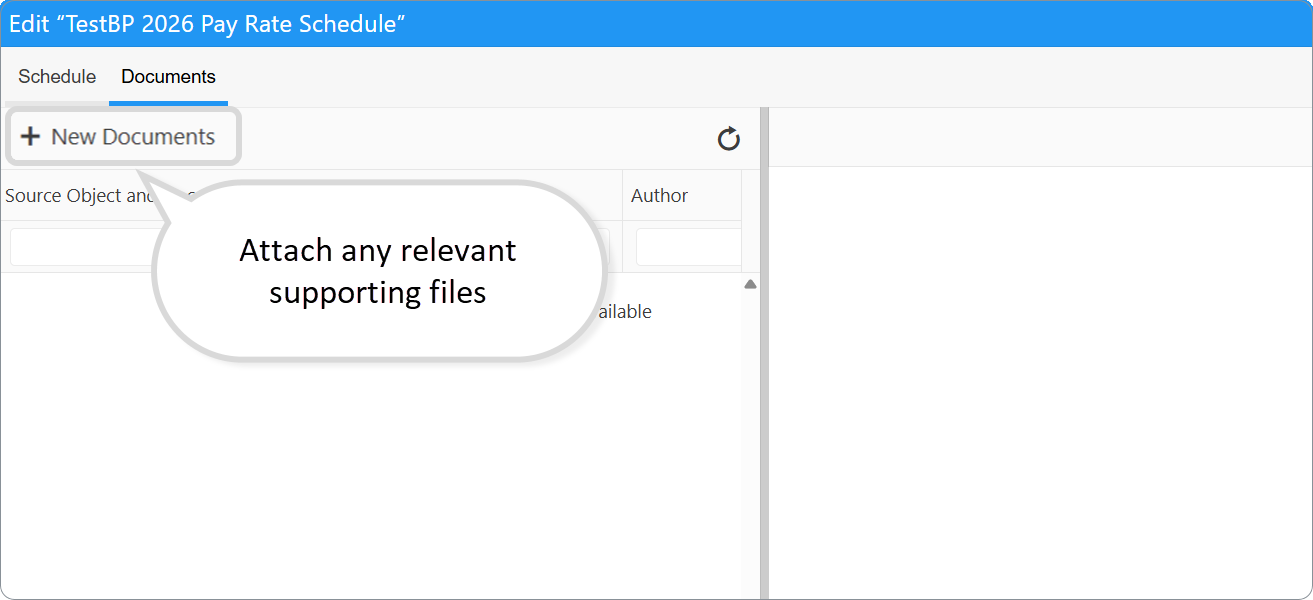
- Use the Documents tab to attach any relevant supporting files.
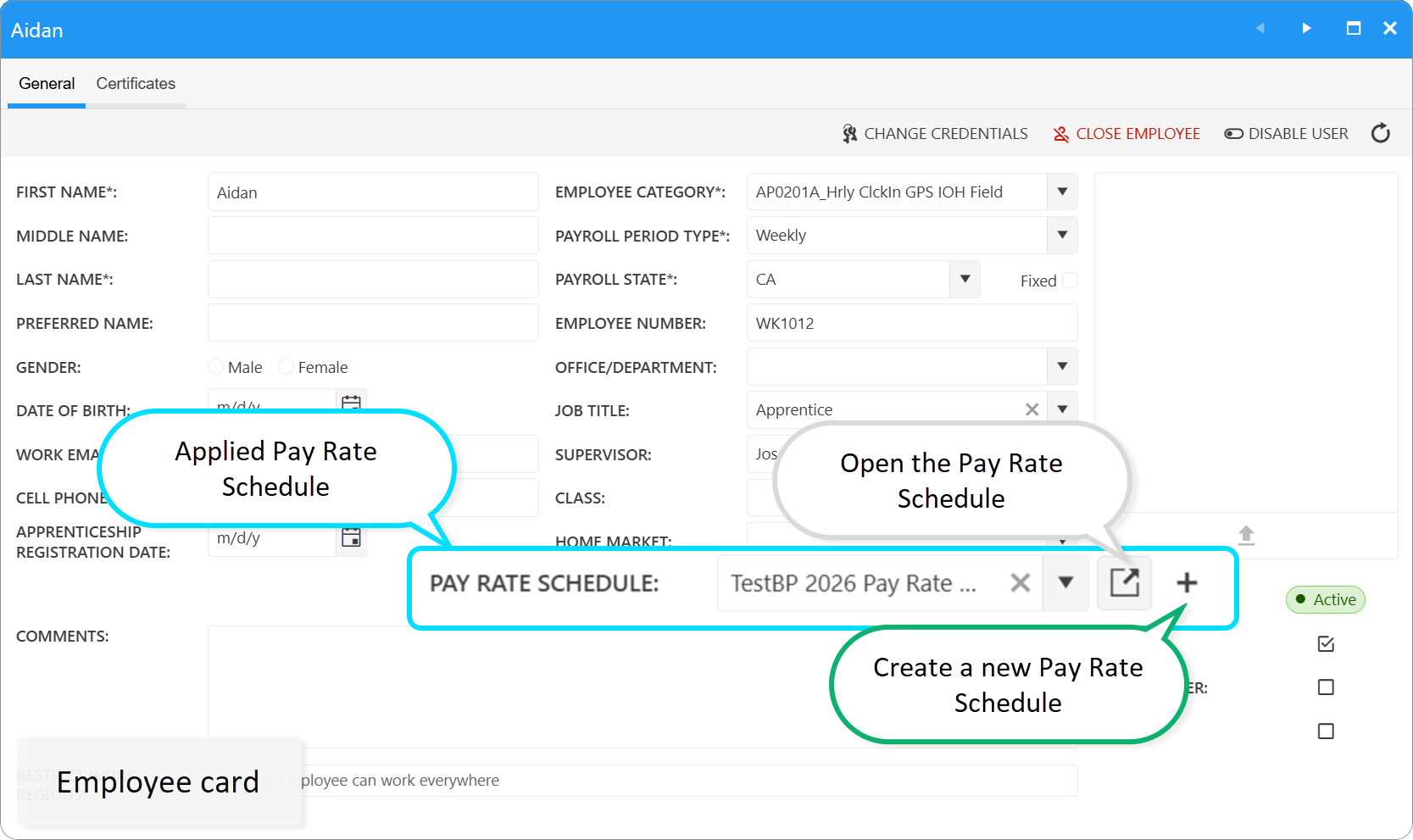
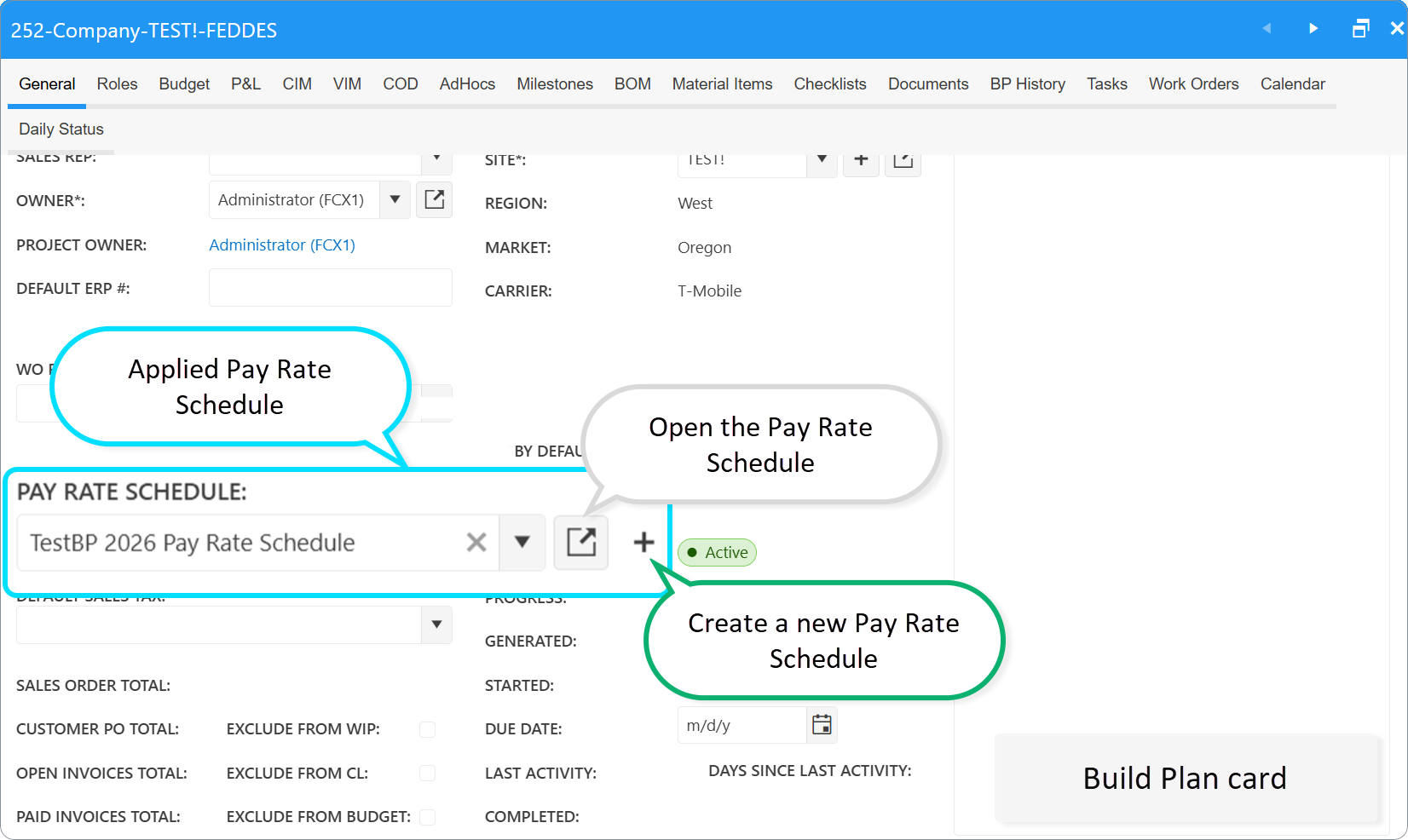
- Tip: You can also click the + icon next to the Pay Rate Schedule field on an Employee or Build Plan card to create one on the fly.
Edit Pay Rate Schedule
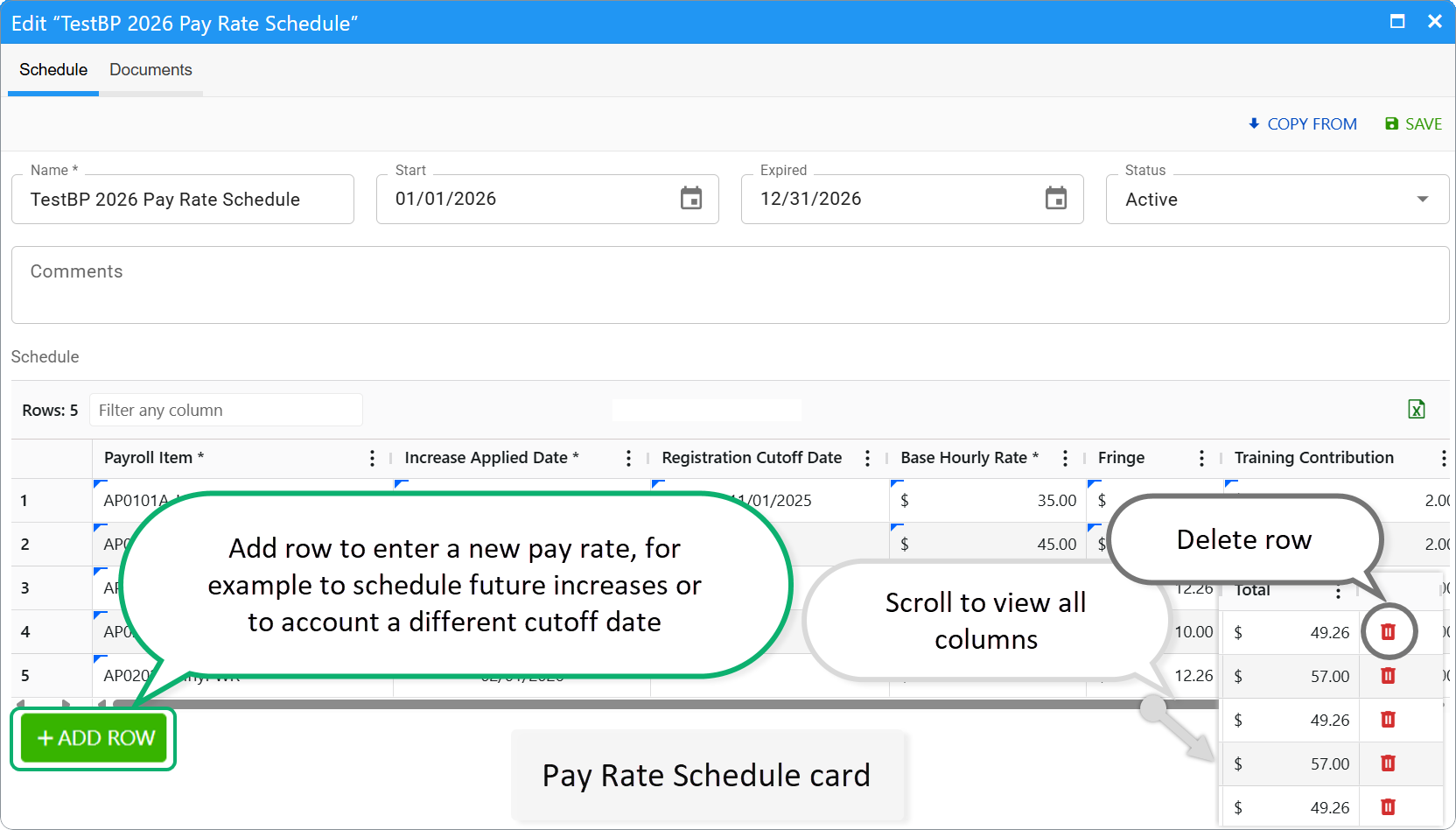
Manage your pay rate tiers directly within the schedule card using these simple controls:
- Add Row: Click Add Row to enter a new pay rate. For example, schedule future increases (by setting a new Increase Applied Date) or to account for a different Registration Cutoff.
- Delete Row: To delete an entry, find the Trash icon on the right and click to delete.
Applying a Schedule
To assign a schedule:
- Open the desired Employee or Build Plan record.
- Locate the Pay Rate Schedule field.
- Select a schedule from the dropdown and save.
Priority Rules
When more than one schedule could apply, the system uses:
- Employee-Specific Schedule: Highest priority. If a schedule is assigned directly to an employee card, it overrides all other settings.
- Build Plan Schedule: Secondary priority. Used when no employee-specific schedule is set.
How a Rate Is Found
Every row in your Payroll Period Allocation represents a specific combination of labor data. To determine the correct pay rate for a single entry, the system scans your schedules for an exact match based on the following criteria:
- Employee
- Internal Payroll Item (e.g., Hourly Regular, Overtime)
- Build Plan
- Time Card Date (compared to Increase Applied Date
Pay Rate Calculation Logic
The system follows this logic to find a rate:
Step 1: Direct Employee Match. Check the employee’s schedule for a matching payroll item.
Step 2: Build Plan Fallback. If none is found, use the Build Plan schedule.
Step 3: Status Check (Registration Date)
The system checks for an Apprenticeship Registration Date.
- No Date: Employee is a regular worker (e.g., Journeyman). The system selects the rate where Cutoff is empty.
- Purpose: Applies the "base rate" for non-specialized programs.
- Date Exists: Proceed to apprenticeship-specific validation.
Step 4: Cutoff Filtering (Period Matching)
The system filters the Pay Rates Schedule based on the registration date.
- Select rows where Cutoff is empty OR Cutoff > Registration Date.
- Purpose: Prevents using rates that expired before the apprentice joined.
Step 5: Sorting & Selection (Priority)
If multiple rows match, the system applies a dual-sort to pick the most relevant:
- Increase Applied Date (Descending): Most recent effective date first.
- Cutoff Date (Ascending): Earliest upcoming cutoff if dates are identical.
Logic Made Simple
- Regular Employees (Journeyman): If you are not an apprentice, you receive the standard rate from the directory (no cutoff dates).
- Apprentices: 1. The system checks your official apprenticeship start date.
2. It filters out old rules that expired before you started.
3. It selects the most recent applicable rate and applies it to your Time Cards.
Example
| Row # | Payroll Item | Increase Applied Date | Registration Cutoff | Pay Rate |
| Row 1 | Journeyman | 01/01/2026 | $45.00 | |
| Row 2 | Apprentice (S1) | 01/01/2025 | 08/01/2025 | $20.00 |
| Row 3 | Apprentice (S2) | 07/01/2025 | 12/01/2025 | $25.00 |
- Journeyman: No registration date → Matches Empty Cutoff → $45.00.
- Apprentice (Reg: 06/01/2025): 06/01 is before 08/01 and 12/01 → Eligible for both → Sorts by Applied Date to select the current rate.
When no Pay Rate Schedule row matches
Structured pay depends on a matching row in the Pay Rate Schedule (employee schedule first, then Build Plan schedule).
If hours are on a Payroll Item with Basic Hourly mapped, but no schedule row matches for that date and Payroll Item:
- Fieldclix checks the No Pay Rate field on that Payroll Item.
- If No Pay Rate points to another Payroll Item, hours move to that item instead — without applying BHR / Fringe / Training from the schedule.
- If No Pay Rate is empty, hours stay on the original item; fix the schedule or mapping so a rate can be found.
Set No Pay Rate on each structured / prevailing Payroll Item where you want a safe fallback.
Example: Apprentice (S1) has Basic Hourly and Fringe specified. It also has REG - Regular as No Pay Rate.
If the system cannot find a pay rate for hours under Apprentice (S1), it assigns those hours to the REG - Regular payroll item.
Viewing Rates in a Payroll Period
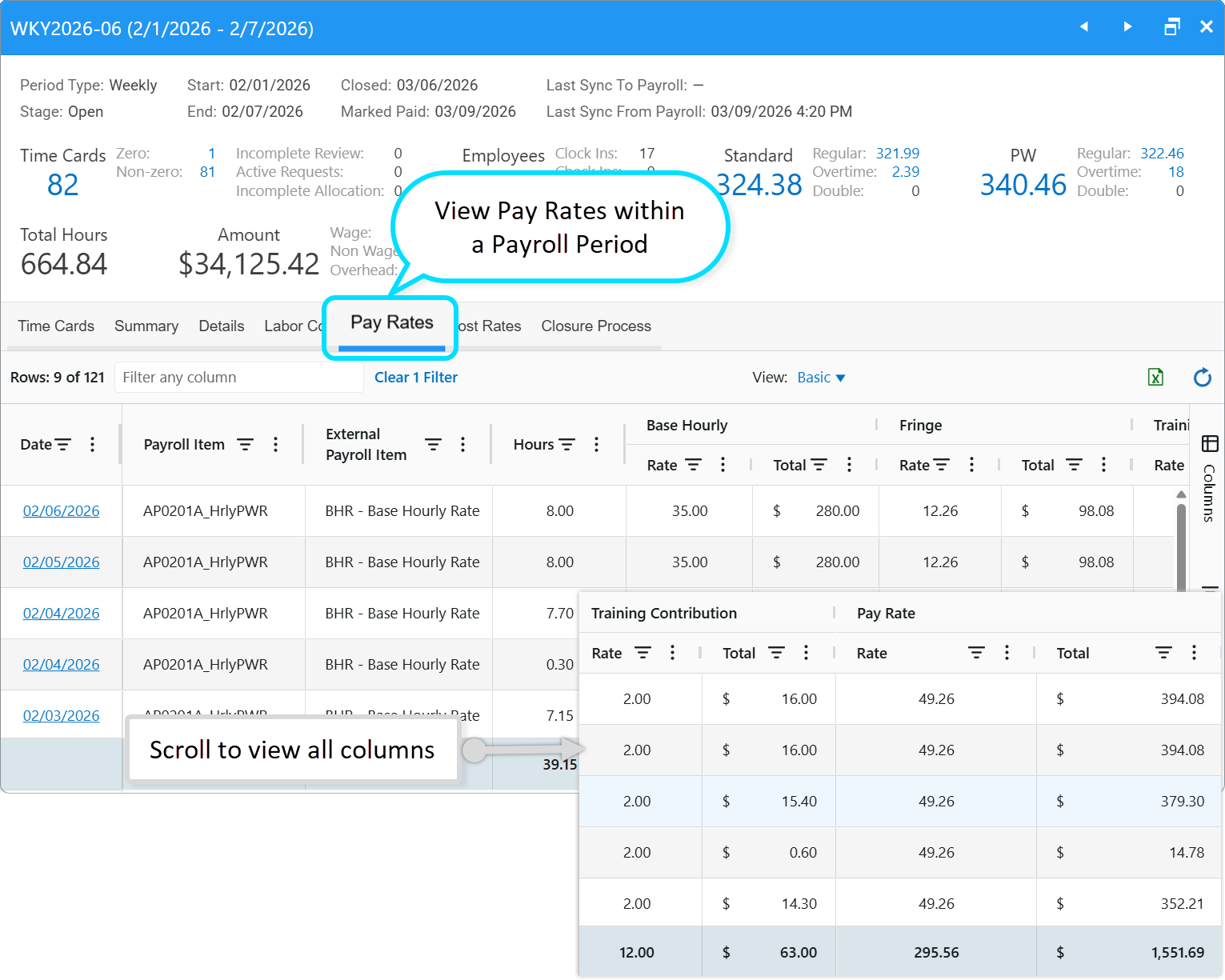
To see how rates were applied:
- Open the relevant Payroll Period.
- Go to the Pay Rates tab.
- Review how Time Card hours map to payroll items, external payroll items, and rate components (BHR, Fringe, Training, and Total).
Understanding External Payroll Items
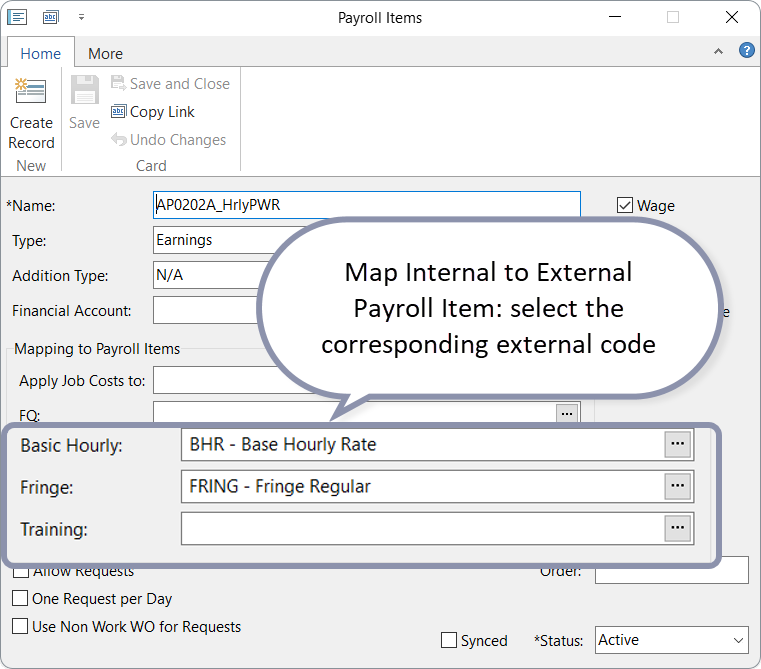
External Payroll Items let you group multiple internal items under a single external code (such as BHR, Fringe, Training) for your payroll system.
Mapping Internal to External
To set up this mapping, you must define the relationship on each Payroll Item record:
- For Base Rates: Open the Internal Payroll Item and select the corresponding external code in the Basic Hourly field.
- For Benefits: Fill in the Fringe and Training Contribution fields with their respective external identifiers.
Mapping Example
Several shift variants for Apprentice Shift 1 can all map to the same external BHR and Fringe codes. This consolidates hours for the payroll provider while preserving internal detail.
| Internal Payroll Item | External: Basic Hourly (BHR) | External: Fringe |
| Apprentice Shift 1 | BHR - Base Hourly Rate | FRING - Fringe Regular |
| Apprentice Shift 2 | BHR - Base Hourly Rate | FRING - Fringe Regular |
| Journeyman | BHR - Base Hourly Rate | FRING - Fringe Regular |
| Apprentice Shift 1 OT | BHRO - OT Base Hourly Rate | FRNGO - Fringe Overtime |
| Apprentice Shift 2 OT | BHRO - OT Base Hourly Rate | FRNGO - Fringe Overtime |
| Journeyman OT | BHRO - OT Base Hourly Rate | FRNGO - Fringe Overtime |
| Apprentice Shift 1 DT | BHRD - DT Base Hourly Rate | FRNGD - Fringe Double-Time |
| Apprentice Shift 2 DT | BHRD - DT Base Hourly Rate | FRNGD - Fringe Double-Time |
| Journeyman DT | BHRD - DT Base Hourly Rate | FRNGD - Fringe Double-Time |
Standard Mapping for External Items
In most standard configurations, the following Addition Types are applied to your primary external categories:
- Base Hourly Rate (BHR): Typically set to N/A.
- Fringe: Typically set to Ignore.
- Training contribution: set to Ignore.
Note: Even when syncing with an external system, the values for BHR, Fringe, and Training Contribution are bypassed. The system always relies on your internal Time Card hours and Pay Rate Schedule to calculate these amounts.
For a deeper dive into how these configurations affect cost rates calculation, please refer to our dedicated article on Payroll Item Configuration.
How Cost Rates are Calculated Using External Items
In this workflow, cost rates are determined by syncing Time Card hours to a payroll system and then syncing the resulting paycheck data back into the system. These rates are then adjusted based on the Addition Type assigned to each payroll item.
Example Table 1: Pay rates per payroll period for employee Aidan
# | Pay Rate Schedule | Payroll Item | External Payroll Item | Hours | Base Hourly | Fringe | Training Contribution | Pay Rate | ||||
| Rate | Total | Rate | Total | Rate | Total | Rate | Total | |||||
| 1 | TestBP 2026 Pay Rate Schedule | AP0201A_HrlyPWR | BHR - Base Hourly Rate | 8 | 35 | 280 | 12.26 | 98.08 | 2 | 16 | 49.26 | 394.08 |
| 2...5 | TestBP 2026 Pay Rate Schedule | AP0201A_HrlyPWR | BHR - Base Hourly Rate | |||||||||
| Total for AP0201A_HrlyPWR and BHR | 31.5 | 210 | 1102.5 | 73.56 | 386.19 | 12 | 63 | 295.56 | 1551.69 | |||
| 6 | REG - Regular | 7.65 | 0 | 0 | ||||||||
| Total | 39.15 | 210 | 1102.5 | 73.56 | 386.19 | 12 | 63 | 295.56 | 1551.69 | |||
Step 1: Syncing Time Card hours to payroll (Table 1)
When hours are synced, the system looks for matches between internal and external payroll items.
- Matched Items: Rows 1–5 map the internal item Apprentice Shift 1 to the external BHR - Base Hourly Rate.
- Total BHR Hours: 31.5
- Unmatched Items: Row 6 (marked as REG - Regular) has no external mapping. These hours sync under their internal names.
- Total Regular Hours: 7.65
- Total Combined Hours: 39.15
Step 2: Pulling paycheck data back (Table 2)
Once the paycheck is processed, the system retrieves the actual amounts paid.
Internal Calculation Priority
Instead of using the external paycheck amounts for BHR, Fringe, and Training Contribution, the system recalculates these components using your internal Pay Rate Schedule and Time Card hours.
Amount = Pay Rate * Time Card Hours
Example for BHR:
BHR amount = $35 * 31.5 = $1,102.5
Table 2: Paycheck Data for Aidan - Cost Rates tab of the Payroll Period
| # | Payroll Item | Type | Applied Addition Type | Hours | Qty | Amount | Rate | Avg. Rate | Adj. Rate | Last Rate |
| 1 | BHR - Base Hourly Rate | Earnings | N/A | 31.5 | 1102.5 | 35 | 46.2 | 41.37 | ||
| 2 | REG - Regular | Earnings | N/A | 7.65 | 229.5 | 30 | 40.22 | 35.82 | ||
| 3 | CA - California SITW/ CASDI-E - CA SDI | Taxes | Ignore | 98.11 | ||||||
| 4 | FITW - Federal Income Tax | Taxes | Ignore | 254.55 | ||||||
| 5 | MED - Medicare | Taxes | Proportional - Company Contribution | 23.22 | ||||||
| 6 | MED-R - Medicare - Employer | Taxes | Proportional - Company Contribution | 23.22 | ||||||
| 7 | SS - OASDI | Taxes | Fixed - Each Payroll Period | 99.3 | ||||||
| 8 | SS-R - OASDI - Employer | Taxes | Proportional - Company Contribution | 99.3 | ||||||
| 9 | 4ROTH - Roth 401k | Deductions | Ignore | 96.1 | ||||||
| 10 | FRING - Fringe Regular | Earnings | Ignore | 386.19 | ||||||
| 11 | Other Earnings Cost of Dental/Cost of Life/Cost of Vision | Earnings | Ignore | 13.23 | ||||||
| 12 | ERMED - ER Cost of Medical | Earnings | Ignore | 122.52 | ||||||
Total | 39.15 | 2547.74 | 65 | 86.42 | 77.19 | 51.84 | ||||
Handling Variances
Because the system prioritizes internal rates, there can be a difference between the external synced total and the internal calculated total. To see this difference, review the Original Amount column on the Cost Rates dashboard.
- Positive delta: If the synced paycheck amount is higher than the internal calculated amount, the difference is automatically written off to Payroll Period Overhead Expenses.
- Negative delta: If the synced amount is lower than the internal calculated amount, the system cannot allocate this shortfall in Financial Distribution. In this case, the recalculation fails with an error, and designated administrators are notified so they can resolve the issue.
Step 3: Determining Applied Addition Types
The Applied Addition Type column determines how a line item impacts the final Adjusted Rate. While the Addition Type usually matches the setting on the payroll item, the system applies exceptions. Read more in the article.
Step 4: Calculating the Adjusted Rate
Adjusted Rates are only calculated for lines with recorded hours. The system factors in Proportional and Fixed increases to find the true cost of labor.
1. Proportional Increase
This is the ratio of proportional company contributions to the total gross wages paid.
- Proportional Total: $145.74 (Medicare + Medicare Employer + OASDI Employer)
- Gross Wages: $1,332.00 ($1,102.50 + $229.50)
Proportional Increase = ($145.74 / $1,332.00) * 35 = $3.83
2. Fixed Increase
This is the total amount of fixed allowances divided by the total hours worked across all items.
- Fixed Total: $99.30 (SS - OASDI)
- Total Hours: 39.15
Fixed Increase = $99.30 / 39.15 = $2.54
3. Final Adjusted Rate Calculation
The final cost to the company for a BHR hour is the sum of the base rate and all applicable increases:
Adjusted Rate = Base Rate + Proportional Increase + Fixed Increase
$35.00 + $3.83 + $2.54 = $41.37
Adjusted Rate for BHR = $41.37
Logic for Fringe and Training Components
For Fringe and Training:
- External Fringe and Training items are set to Ignore.
- The system uses internal schedule rates instead of paycheck values.
To calculate the fringe amount, the system takes the BHR hours and multiplies them by the fringe pay rate defined in the internal Pay Rate Schedule. This total is then recorded against the fringe payroll item for accurate job costing.
Fringe Amount = BHR Hours * Fringe Pay Rate
Example:
- BHR Hours: 31.5
- Fringe Pay Rate: $12.26
31.5 * 12.26 = $386.19
Total Fringe Amount: $386.19
Calculating Labor Costs (Burden) based on Adjusted Cost Rates
The final step in the process is calculating the Labor Cost (often referred to as the "fully burdened" cost).
Labor Cost combines:
- Adjusted Cost Rate: base rate + increases.
- Internal Fringe and Training rates.
The Labor Cost Formula
The system determines the final Labor Cost by finding the internal payroll item mapping and summing the adjusted rate with any retrieved internal contributions:
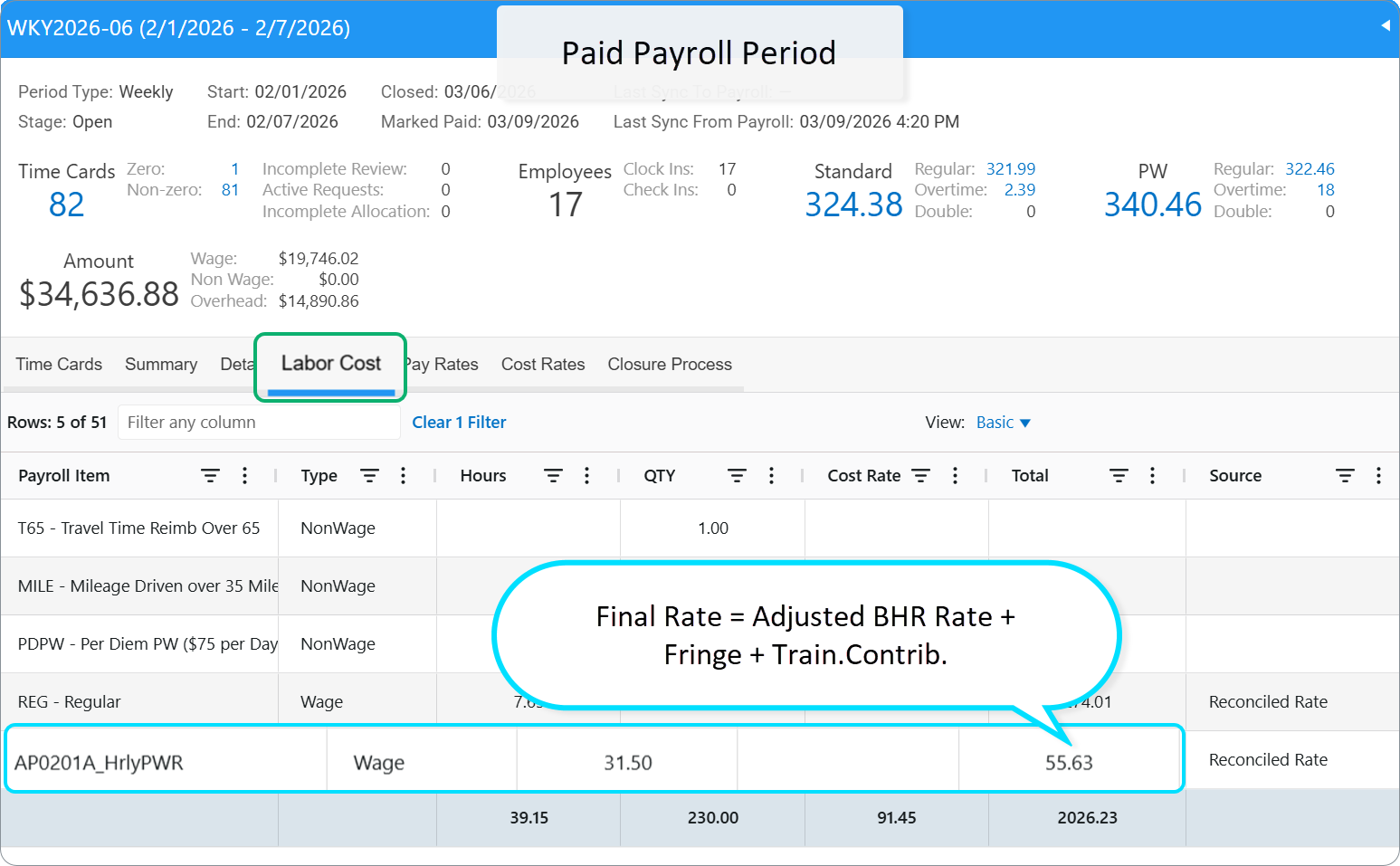
Labor Cost = Adjusted Cost Rate + Fringe Rate + Training Contribution Rate
3. Calculation Example
| Component | Value | Source |
| Adjusted Cost Rate | $41.37 | Internal Pay Rate Schedule: BHR rate + increases |
| Fringe Pay Rate | $12.26 | Internal Pay Rate Schedule |
| Training Contribution | $2 | Internal Pay Rate Schedule |
| Total Labor Cost per hour | $55.63 |
This is the fully burdened hourly cost for that employee and any payroll items that match the BHR category.
Deducting Fringe
The Deduct Fringe setting allows the system to offset specific employer contributions against the total Fringe amount. This ensures that company-paid benefits (like health benefits contributions) are deducted from the employee's fringe pool rather than added on top.
Configuration
Enable the Deduct Fringe toggle within the Payroll Item settings for items in the Employer Contribution group, such as:
- ERMED - ER Cost of Medical
- HSAER: HSA Employer Contribution
The Calculation Logic
When active, the total Fringe amount decreases by the sum of these specified contributions.
Example:
- Original Fringe Amount: $386.19
- Employer Contributions: ERMED = $122.52
- Fringe After Deduction: $386.19 - $122.52 = $263.67
Adjusting Labor Costs
To calculate the final hourly burden, the system applies a Fringe Deduction Coefficient to the original pay rate.
1. Find the Coefficient:
Fringe After Deduction / Original Fringe amount = $263.67 / $386.19 ≈ 0.6827
2. Calculate Adjusted Fringe Rate:
Original Rate ($12.26) * 0.6827 = $8.37
3. Final Labor Cost Per Hour:
Adjusted Cost Rate ($41.37) + Adjusted Fringe ($8.37) + Training ($2.00) = $51.74
When the Average Rate is Used
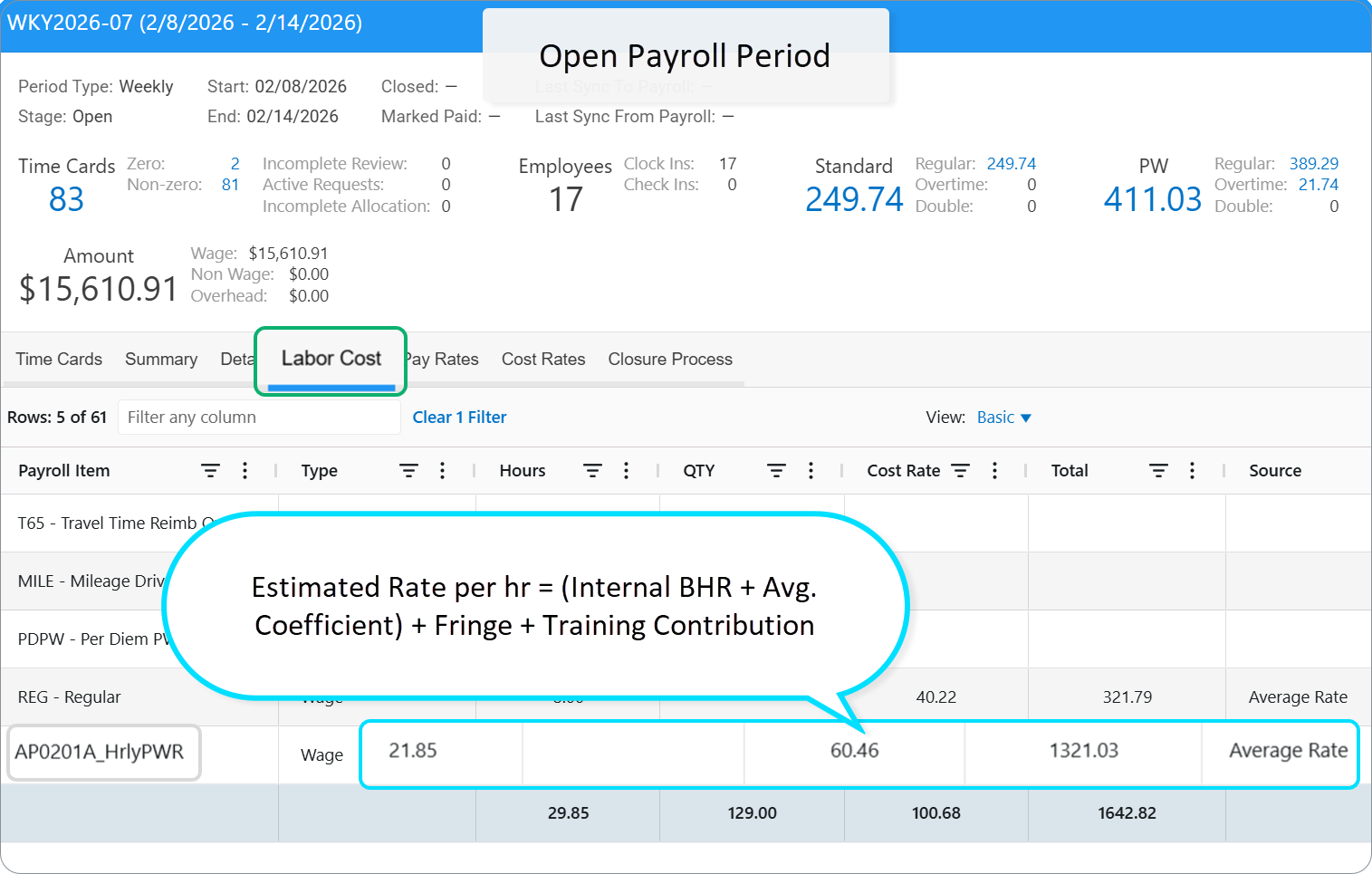
The Average Rate acts as a real-time estimate for your labor costs before a payroll cycle is finalized.
Because your actual employer taxes and fixed increases are only known after the check is processed, the system uses the 6-month average coefficient as a placeholder to ensure your project reports show a realistic burden.
How it works:
- Detects Open Period: The system identifies that the Time Card date has no synced paycheck data.
- Applies Average Coefficient: It retrieves the 6-month sum of proportional and fixed increases for that employee.
- Calculates Estimate:

Transition to Actuals
Once you close the payroll period and sync the data, the system automatically replaces the Average Rate with the Actual Adjusted Cost Rate. This ensures your mid-month tracking is meaningful while your historical reports remain 100% accurate.
Was this article helpful?
That’s Great!
Thank you for your feedback
Sorry! We couldn't be helpful
Thank you for your feedback
Feedback sent
We appreciate your effort and will try to fix the article