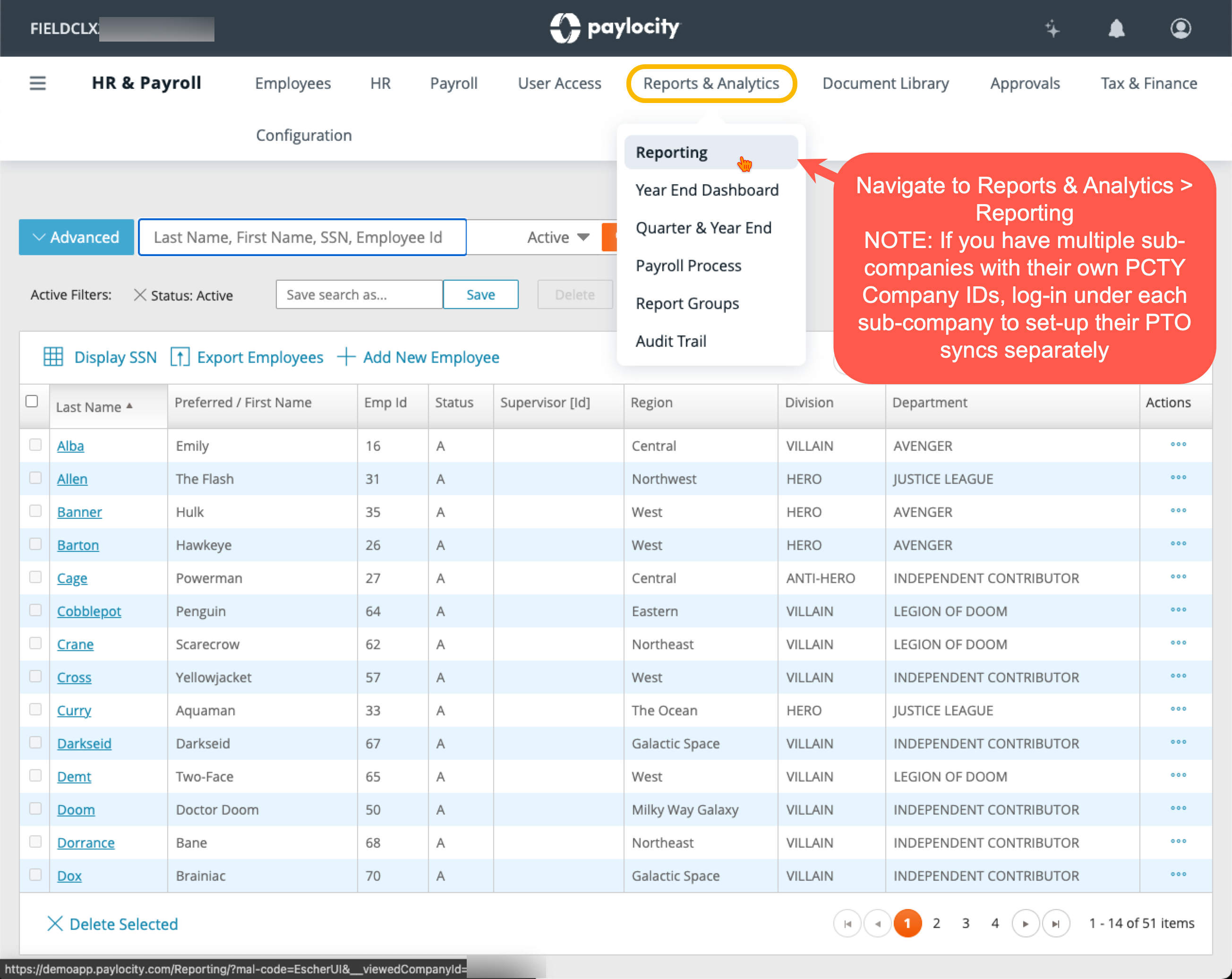
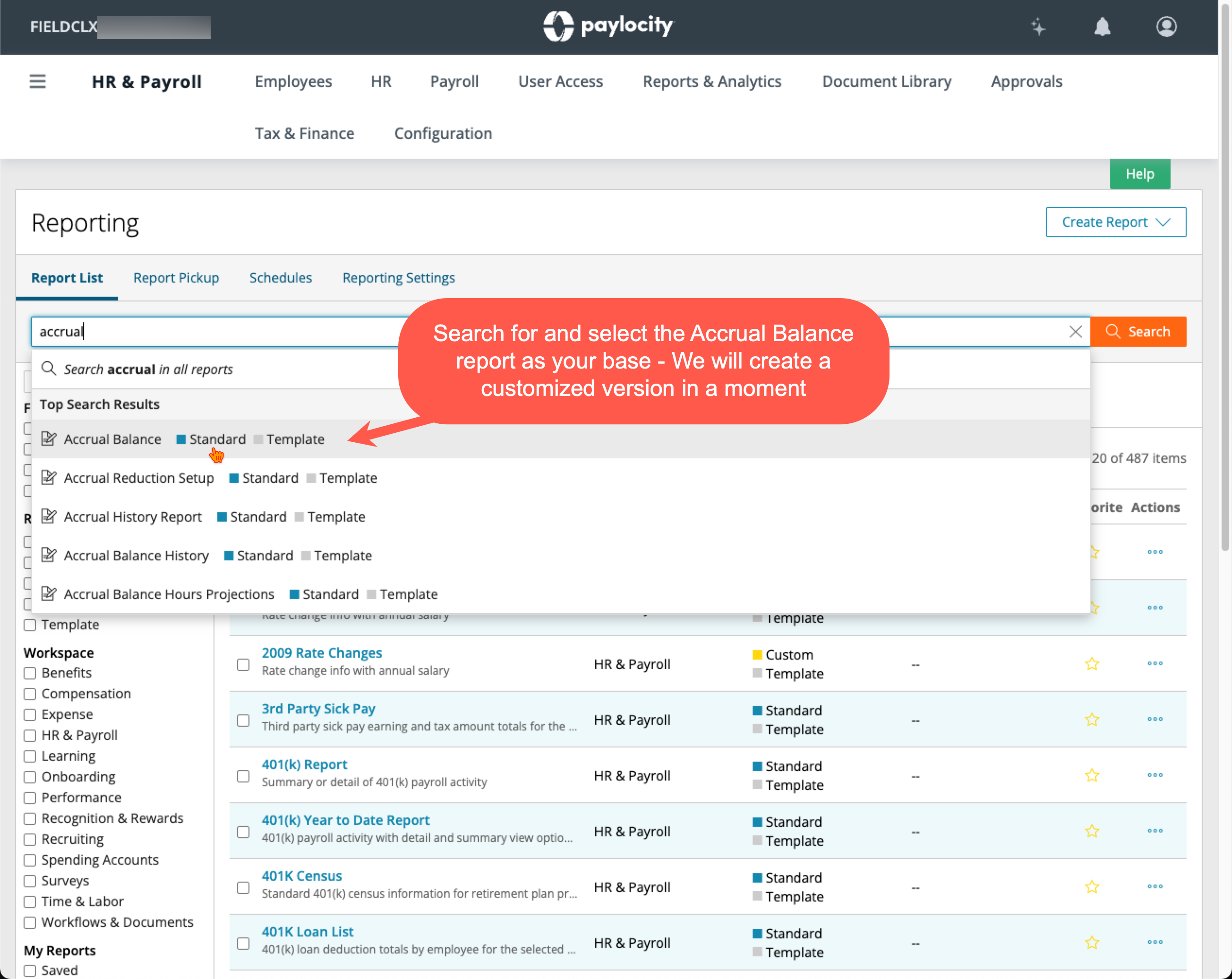
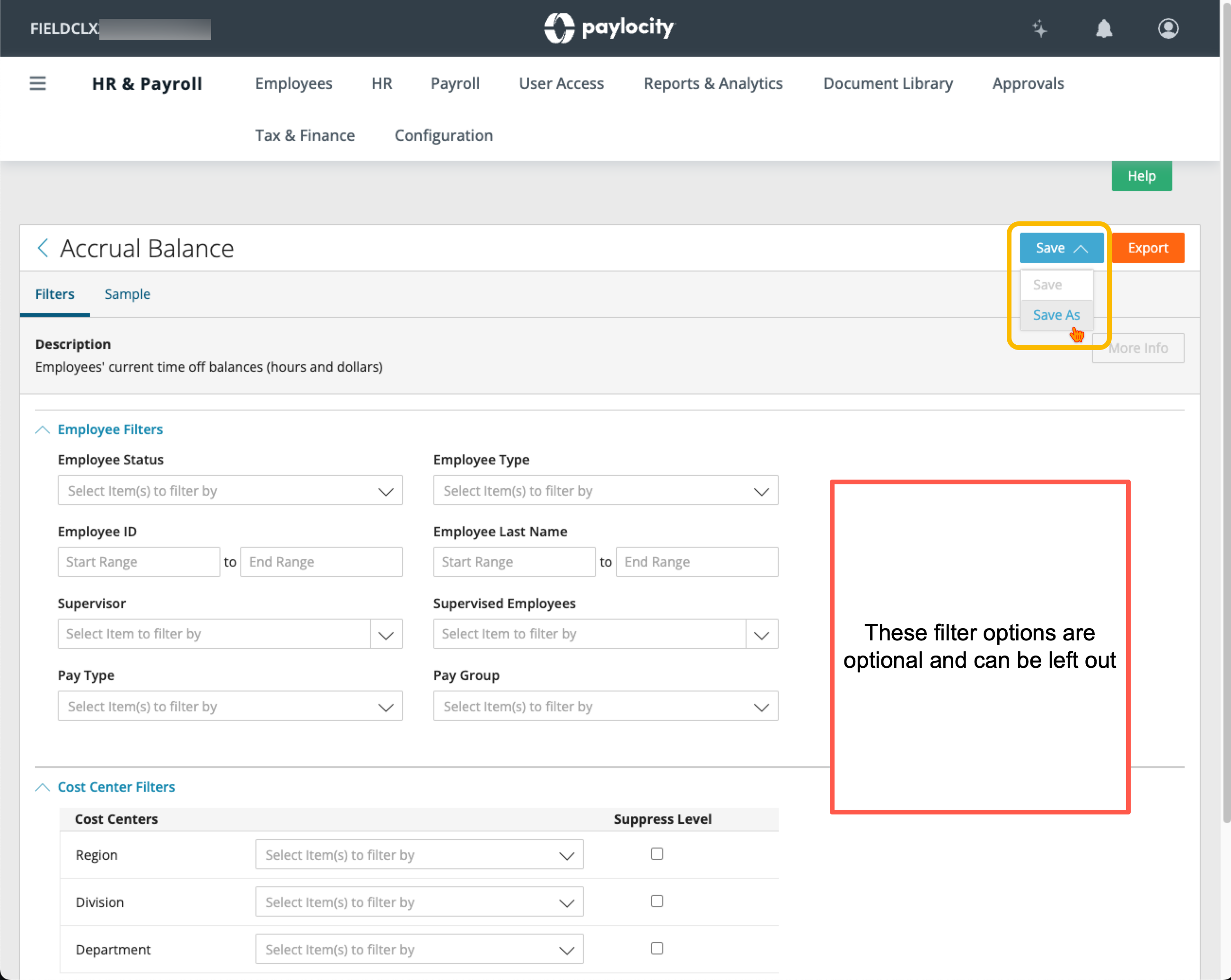
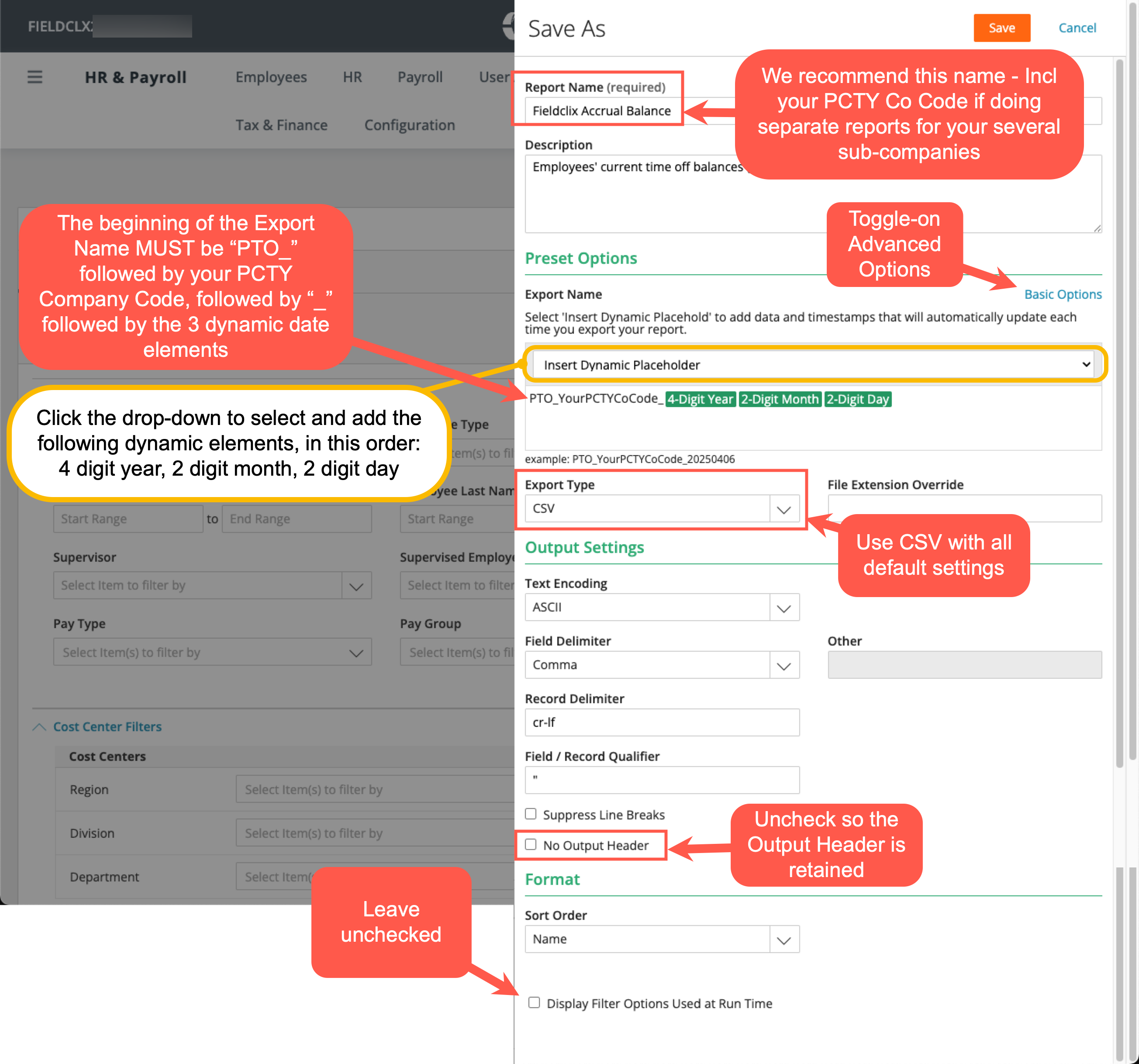
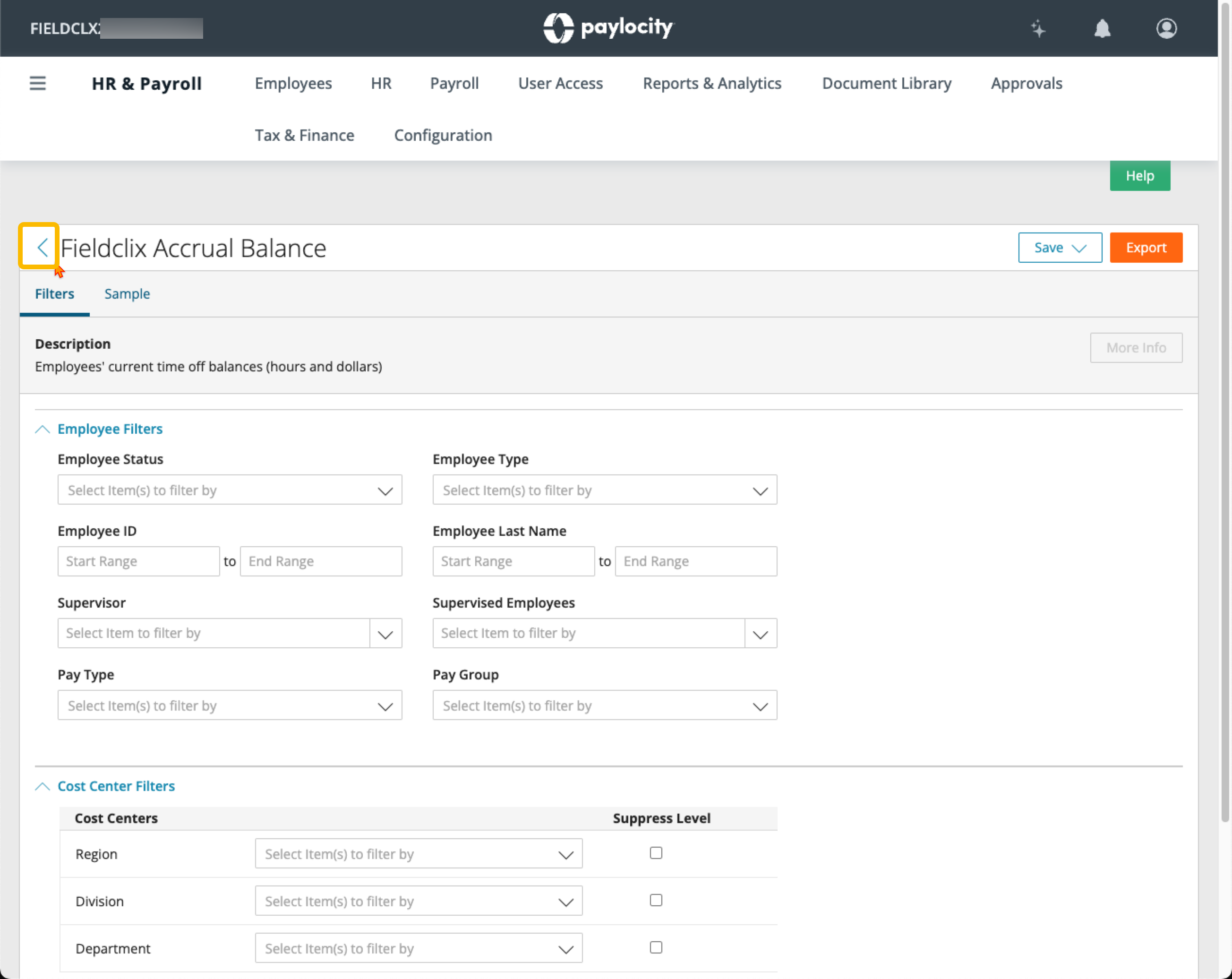
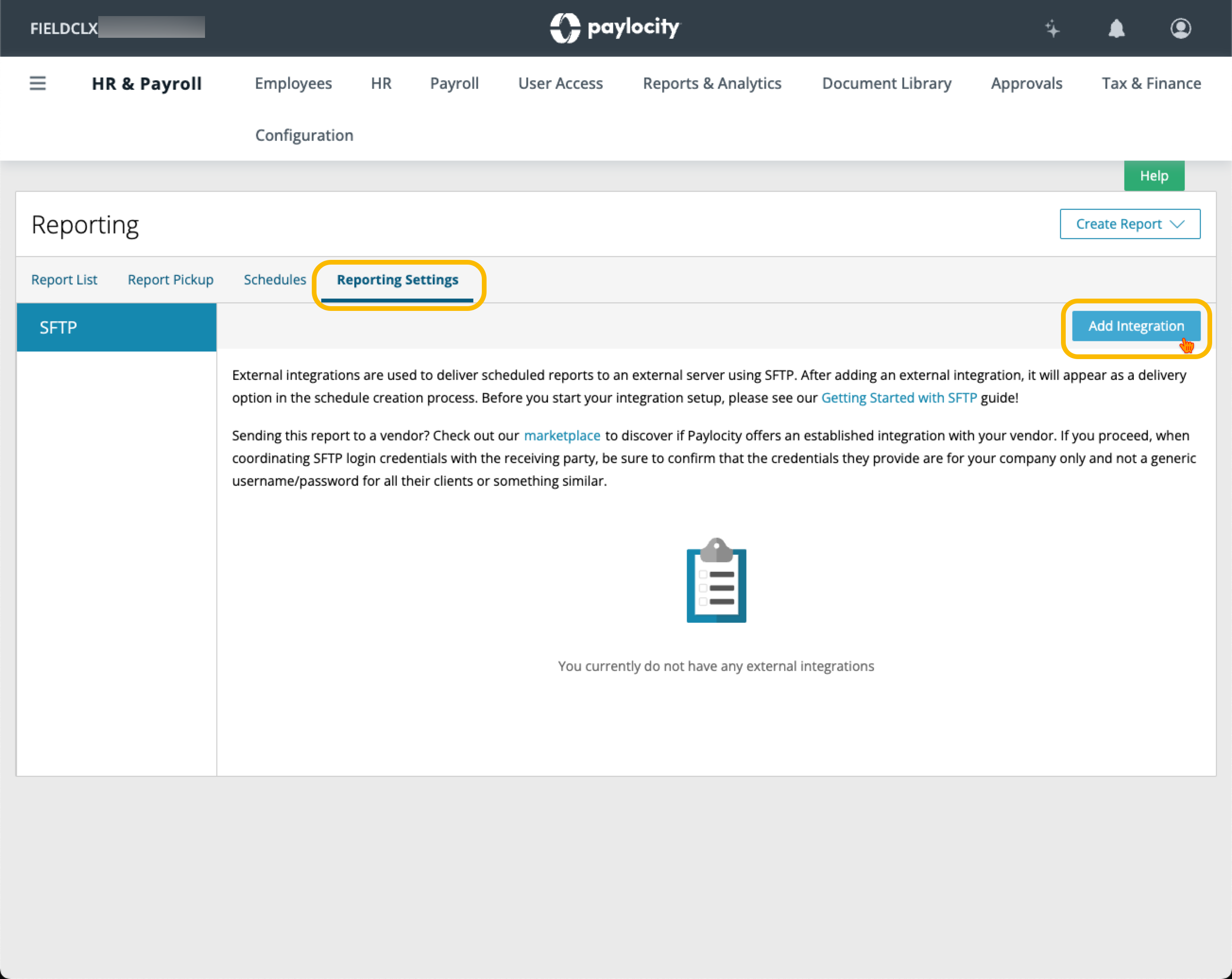
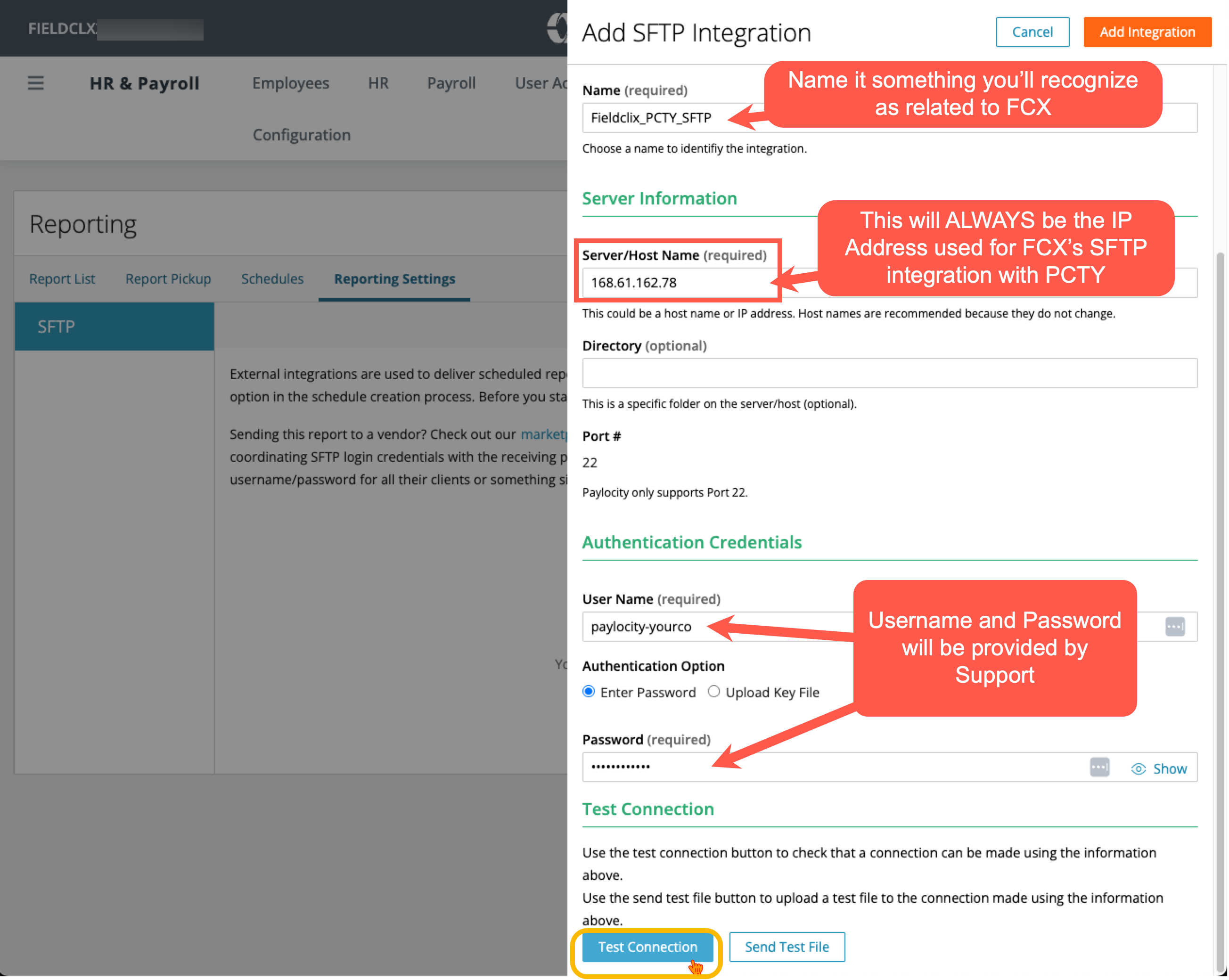
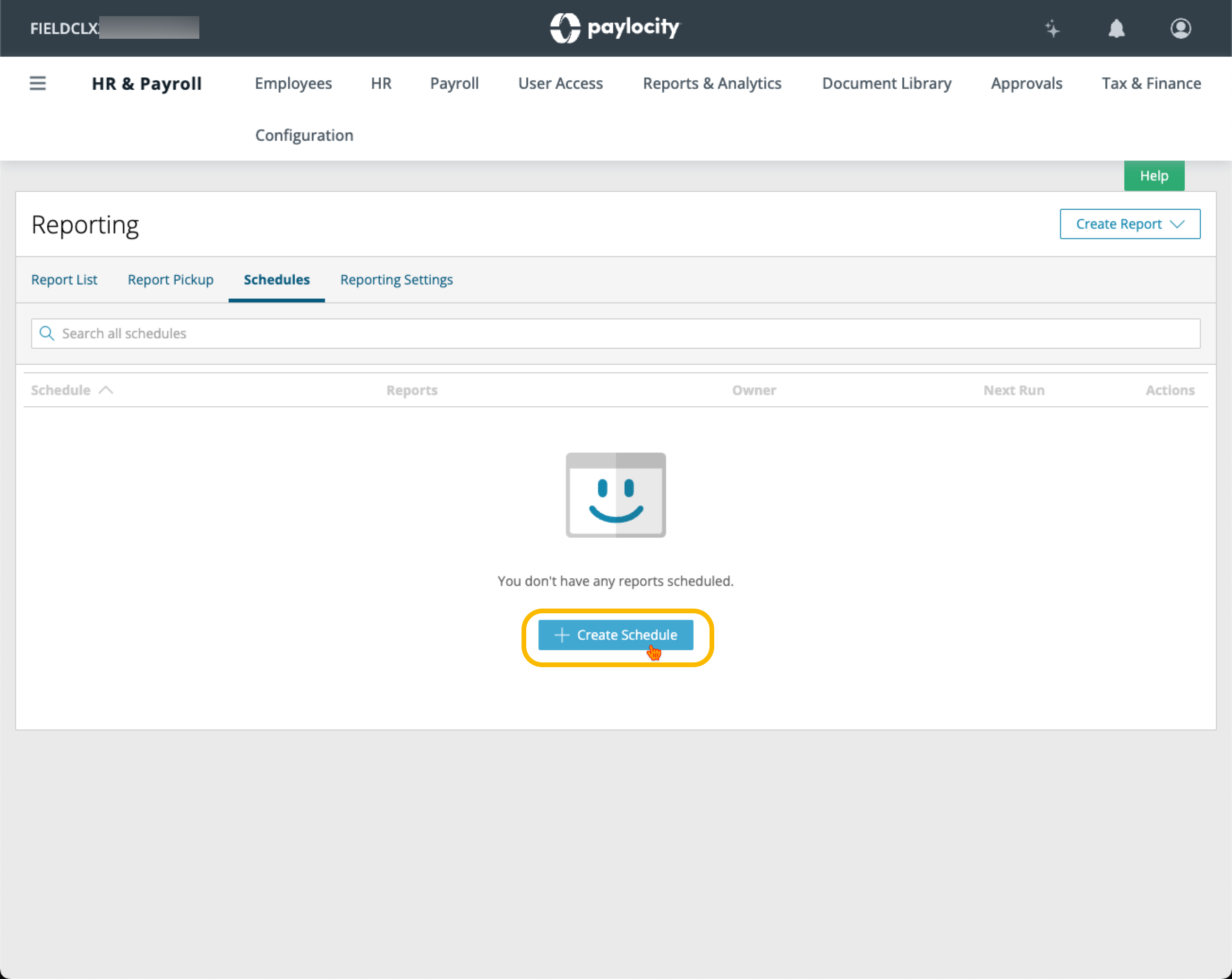
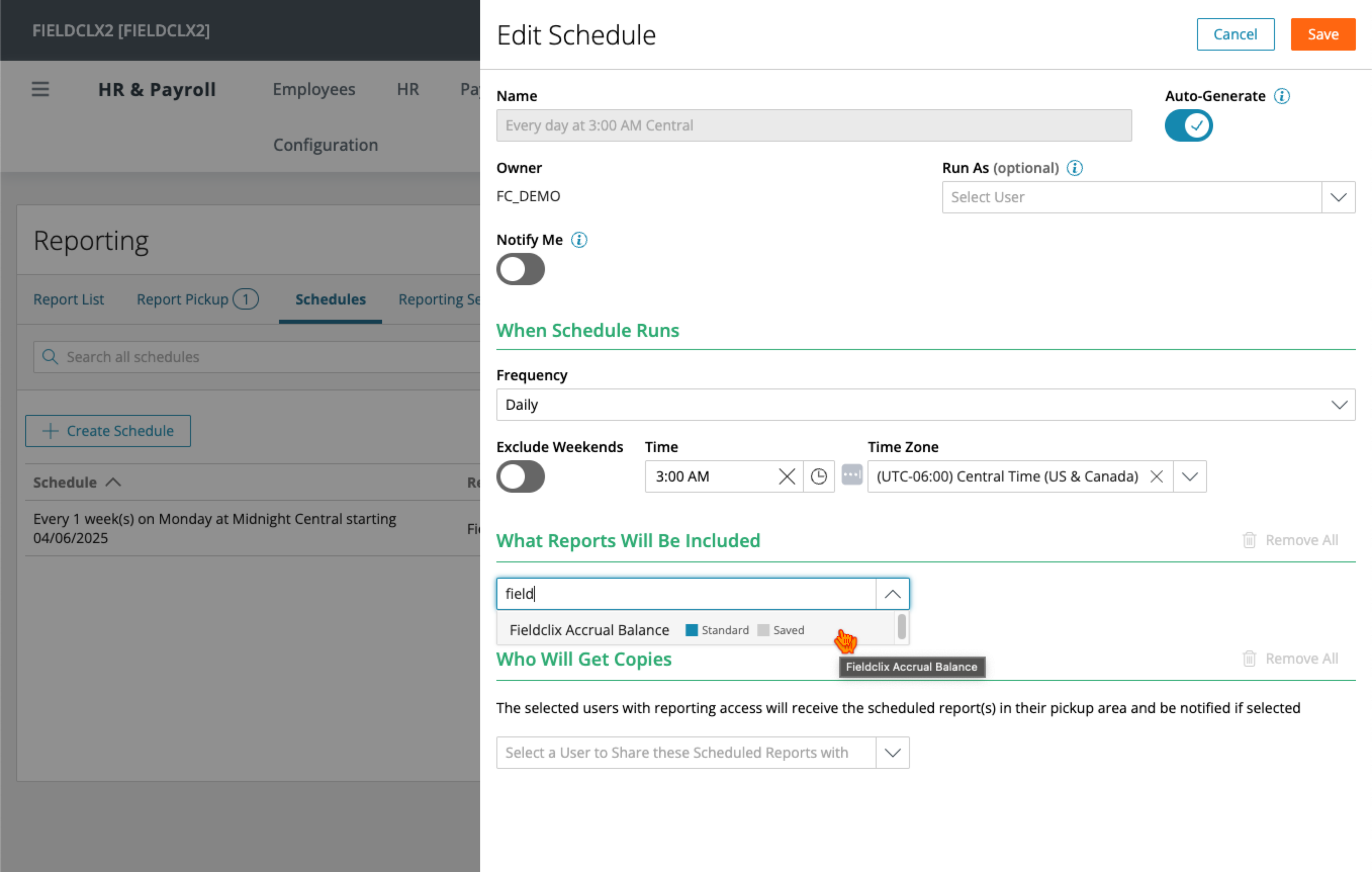
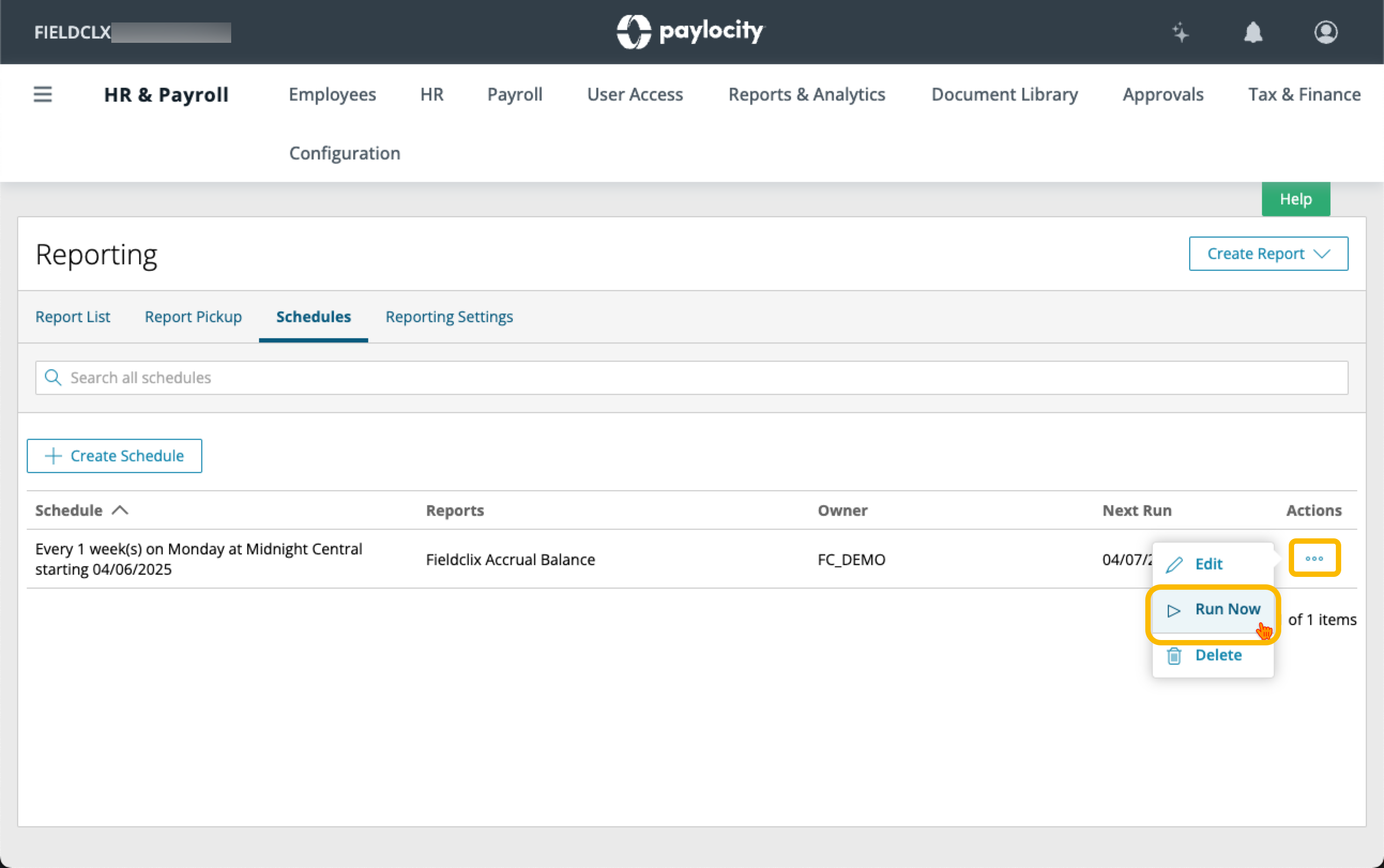
What this article covers: how to configure Paylocity to send a scheduled PTO / time-off bank balance report to an SFTP server so the CSV file lands in the folder Fieldclix uses for PTO import. The screenshots below walk through the Paylocity report and SFTP delivery setup.
See also — scheduled import in Fieldclix
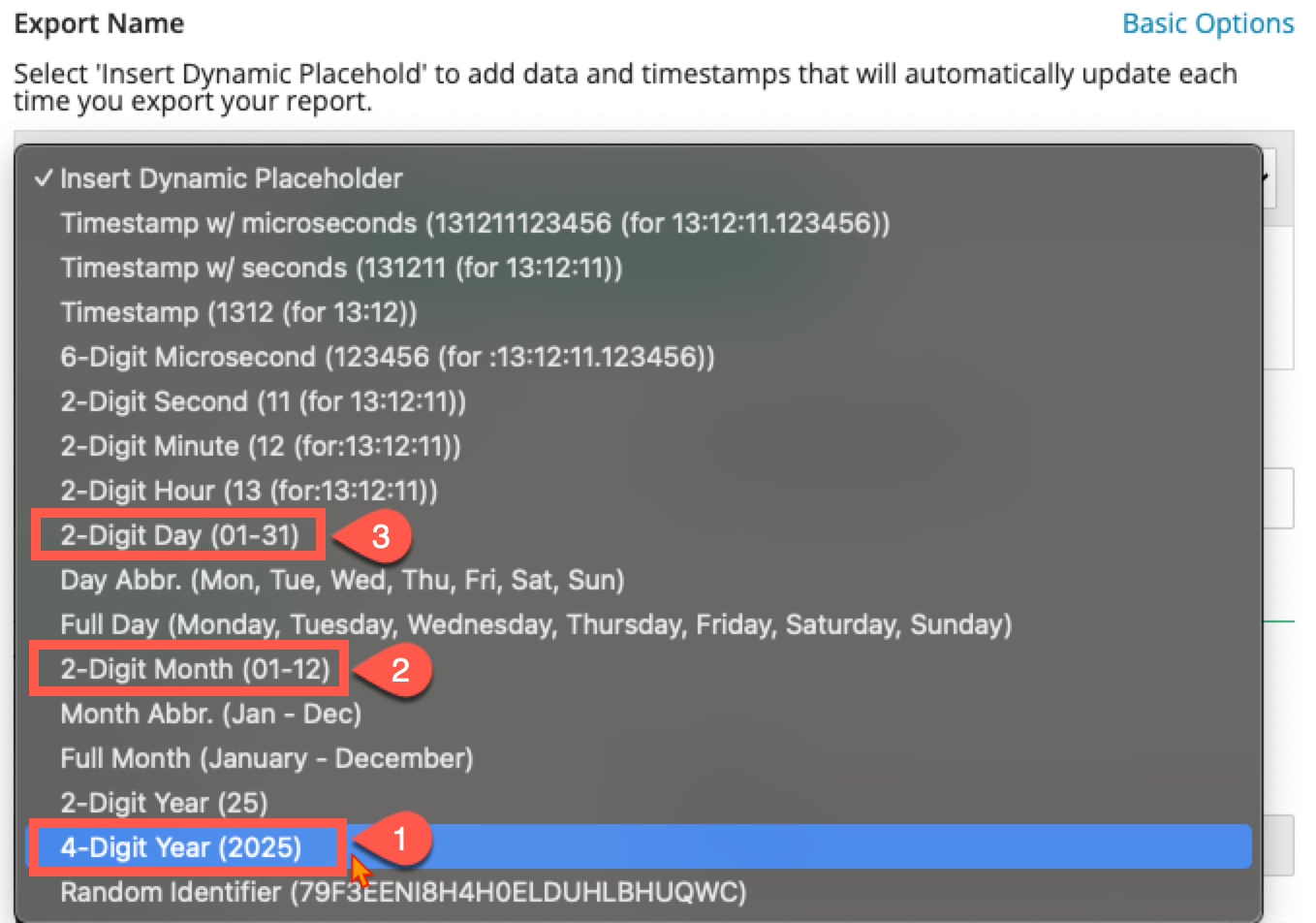
Once the CSV file is in the configured folder, Fieldclix processes it the same way as any other PTO file import. The scheduled import logic — PTO file processing, Load Employee Payroll Data, folder delivery, file naming (
PTO*<YYMMDD>.CSV), and how balances update on employee cards — is described in Paylocity sync additional tools (import from file).
Questions & Answers
Q: What happens after Paylocity sends the PTO report to SFTP?
A: Fieldclix picks up the CSV from the configured folder on its scheduled import run (or you can run Load Employee Payroll Data manually). See Paylocity sync additional tools (import from file) for how scheduled PTO file import works.
Q: Where do I see updated PTO balances in Fieldclix?
A: On each employee card, Payroll Info tab — Vacation and Sick Available and Used (Synced) hours. For how those fields work, see Payroll Info — Sick and Vacation / PTO Bank Balances.
Was this article helpful?
That’s Great!
Thank you for your feedback
Sorry! We couldn't be helpful
Thank you for your feedback
Feedback sent
We appreciate your effort and will try to fix the article