TABLE OF CONTENTS
- Payroll Info tab in Employee Card
- Where synced PTO balances come from
- Sick and Vacation Balances in TC Web and Mobile App
- Questions & Answers
Payroll Info tab in Employee Card
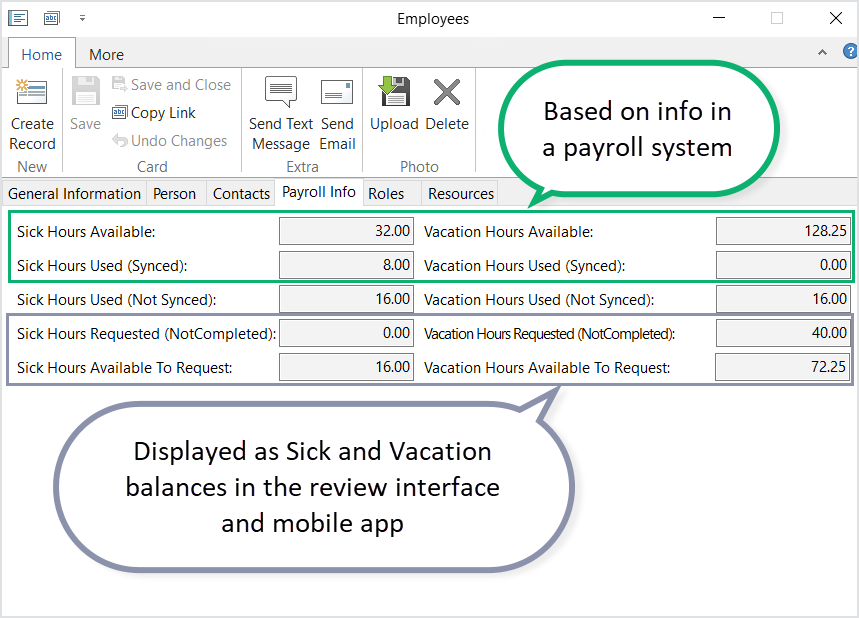
The Payroll Info tab displays PTO/Vacation and Sick Time balances. The tab is generally visible to all users who have access to the Employees reference.
Where synced PTO balances come from
The Payroll Info tab can show four synced fields: sick and vacation hours Available and Used (Synced). Whether those fields populate — and how often they refresh — depends on your payroll system.
| Payroll system | Synced PTO in Fieldclix? | How balances arrive | More detail |
|---|---|---|---|
| QuickBooks Desktop | Yes (when enabled) | With employee sync — sick and vacation hours from QuickBooks Payroll Info | Field Mapping QuickBooks and Fieldclix |
| QuickBooks Online | No | Not synced — only Fieldclix-calculated fields apply | — |
| Paylocity | Yes (if enabled) | File import — CSV report (optional SFTP delivery); not the standard Paylocity employee API | Paylocity sync additional tools, Paylocity SFTP PTO |
| Empower Prism | Yes (if enabled) | Automatic API PTO sync on a schedule — independent of FCX payroll closure | Field Mapping Empower Prism and Fieldclix — SICK/VAC registers (accrued and used YTD) |
| Paycom | Yes (if enabled) | File import — latest *PTOBalance.xlsx* in the configured capture folder (scheduled) | Field Mapping Paycom and Fieldclix — PTO column mapping and prerequisites |
| No integration | No synced fields | Only calculated fields from time cards and time-off requests | — |
Your implementation team enables PTO sync and schedules for your organization. End users do not turn PTO import on in the Fieldclix UI.
Data synced from a payroll system
Sick/Vacation Hours Available — sick or vacation hours available in the accrual period, as reported by your payroll system.
Sick/Vacation Hours Used (Synced) — sick or vacation hours used in the accrual period, as reported by your payroll system.
An accrual period may reset yearly, each paycheck, or per hours worked — that is controlled in your payroll system, not in Fieldclix.
What synced fields mean
Synced values are read-only in Fieldclix. They reflect the last successful update from payroll (or from a PTO file import). Fieldclix does not enforce time-off policy against these numbers — see Important behavior below.
When synced values update
There is no single payroll-closure workflow for every integration. How and when balances refresh depends on your payroll product:
| Integration style | Typical update trigger |
|---|---|
| QuickBooks Desktop | Next employee sync after QuickBooks payroll info changes — often after payroll is processed, but not tied to a fixed FCX closure checklist |
| Paylocity | Next PTO file import after Paylocity report is generated and delivered (manual upload or scheduled folder/SFTP) |
| Empower Prism | Scheduled API PTO sync — imports SICK and VAC accrued/used YTD for linked employees; independent of FCX payroll period closure |
| Paycom | Scheduled PTO file import when a new *PTOBalance.xlsx* file arrives in the capture folder; employee must already be linked |
General pattern: payroll records PTO usage → balances change in the payroll system → Fieldclix picks them up on the next employee sync, PTO API run, or file import for your company. That can take hours or until the next scheduled job.
Prism detail: PTO sync runs only for employees with an existing employee link and valid pay group mapping. If no sick or vacation balance is returned, that employee is skipped for the run.
Paycom detail: Rows match by Employee Code through the external link. Unlinked employee codes are skipped with an error.
Between updates, Fieldclix adjusts Available to Request using time card hours and pending time-off — see Data calculated in FCX and Typical update cycle in this article.
For Paylocity file setup and column mapping, see Paylocity sync additional tools. For Prism PTO registers and Paycom PTO file columns, see Field Mapping Empower Prism and Fieldclix and Field Mapping Paycom and Fieldclix. For onboarding new employees before balances appear, see On-Board an Employee in FCX HR.
Important behavior — read-only and no enforcement
Synced PTO fields are read-only. You cannot edit Sick/Vacation Hours Available or Used (Synced) on the Payroll Info tab. Correct balances in your payroll system (or wait for the next file import), then let sync refresh Fieldclix.
Fieldclix does not block time-off approval when synced or calculated balances look low. Balances are informational for employees and managers. Your company’s time-off policy is enforced outside these fields.
Between payroll updates, Fieldclix estimates remaining time using Used (Not Synced) and Requested (Not Completed) so Available to Request reflects recent activity before the next sync.
Typical update cycle
Scenario 1 — After payroll or file import updates synced balances
- An employee uses sick or vacation time; payroll processes it and updates accrual balances externally.
- Fieldclix receives new numbers through employee sync, PTO API sync, or a PTO file import (timing depends on your system — see table in When synced values update).
- Sick/Vacation Hours Available and Used (Synced) refresh on the Payroll Info tab.
- Available to Request recalculates using the new synced available hours minus FCX not-synced and requested hours.
Allow time after payroll runs — balances rarely update the instant a check is paid.
Scenario 2 — Between syncs (FCX local estimate)
- A reviewer completes sick or vacation time on a time card, or a time-off request is approved — before the next payroll sync or file import.
- Used (Not Synced) or Requested (Not Completed) increases.
- Available to Request drops immediately so employees see a realistic remaining balance.
- On the next sync, payroll’s Used (Synced) catches up and Used (Not Synced) typically clears for periods already exported to payroll.
The Example section later in this article walks through William’s sick balance using this pattern.
Data calculated in FCX
First, let's figure out what sick and vacation hours are in FCX.
- Sick hours — are Time Card hours under the cost type with the “Sick” marker in the cost type card.
- Vacation hours — are Time Card hours under the cost type with the “Vacation” marker in the cost type card.
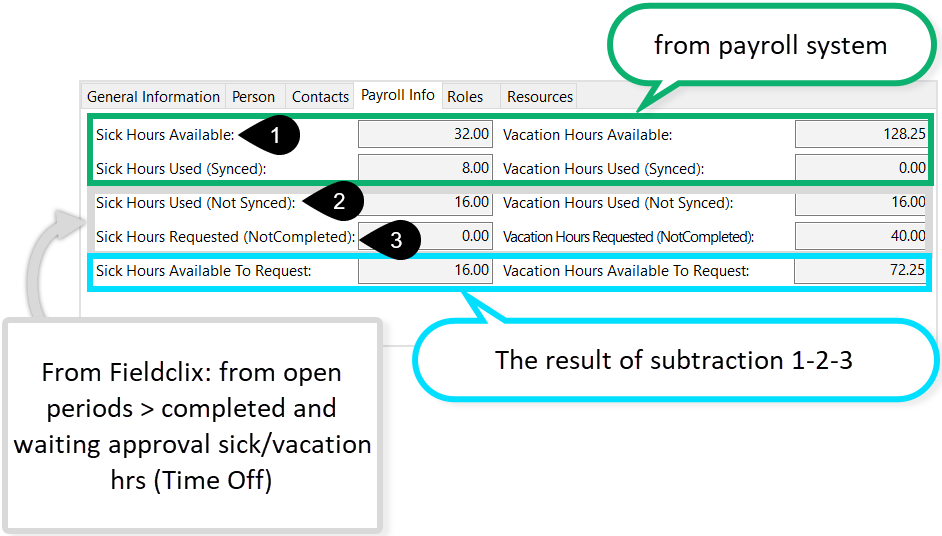
Sick Hours Used (Not Synced) — Time Card sick hours from payroll periods not synced to a payroll system: the “Synced to a Payroll” checkbox is empty in the Check card.
Sick Hours Requested (Not Completed) — the number of hours from pending and approved Time Off requests with a Reason by the cost type marked “Sick”.
Sick Hours Available to Request is difference between Sick Available - Sick Hrs Used Not Synced - Sick Hrs Requested Not Completed.
Vacation Hours Used (Not Synced) — Time Card vacation hours from payroll periods not synced to a payroll system: the “Synced to a Payroll” checkbox is empty in the Check card.
Vacation Hours Requested (Not Completed) — the number of hours from pending and approved Time Off requests with a Reason by the cost type marked “Vacation”.
Vacation Hours Available to Request is difference between Vacation Hrs Available - Vacation Hrs Used Not Synced - Vacation Hrs Requested Not Completed.
Note that it may take some time to update the available/synced sick/vacation hours after you have closed the payroll period and reconciled the timesheets with the payroll system.Example
In a payroll system, the total number of sick hours for the year 2024 is set to 40 hours.
An employee, William, has already taken 8 sick hours in 2024 and submitted a time off request in FCX.
These 8 hrs were synced to the payroll system and included in a paycheck.
The sick balance was then updated in the payroll system and after some time with another sync session or file export synced to the FCX employee card.
So the available sick hours are 32 hours.
After a while, William has taken another 16 sick hours, which have been completed by a Reviewer or TK Manager. This means that as soon as a time off request is completed, the reason hours appear in the Time Card payroll allocation table.
The payroll period hasn't been synced with a payroll yet.
That's why Sick Hours Used (Not Synced) = 16 hours.
Finally, there are 16 sick hours available to request: 32 hours available - 16 hours used, not yet synced to a payroll.
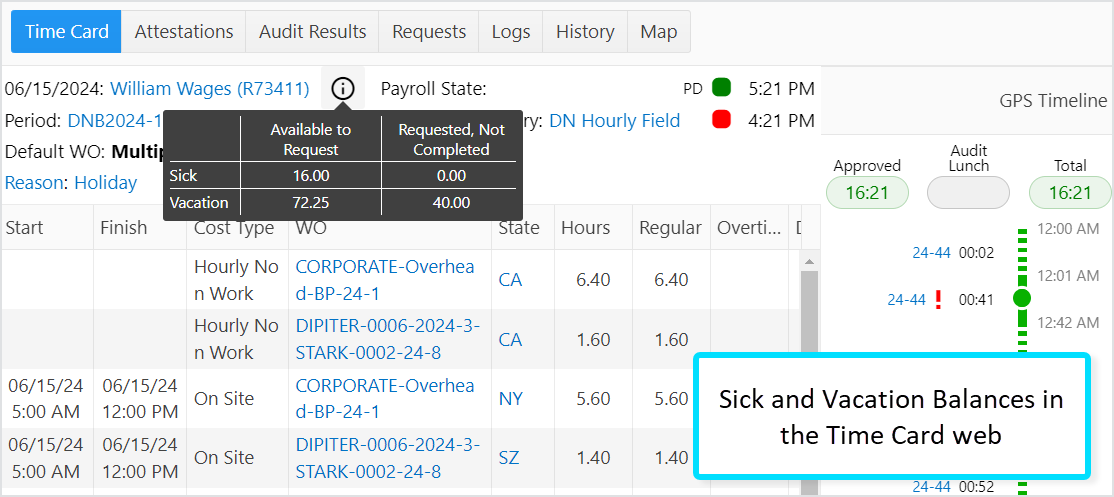
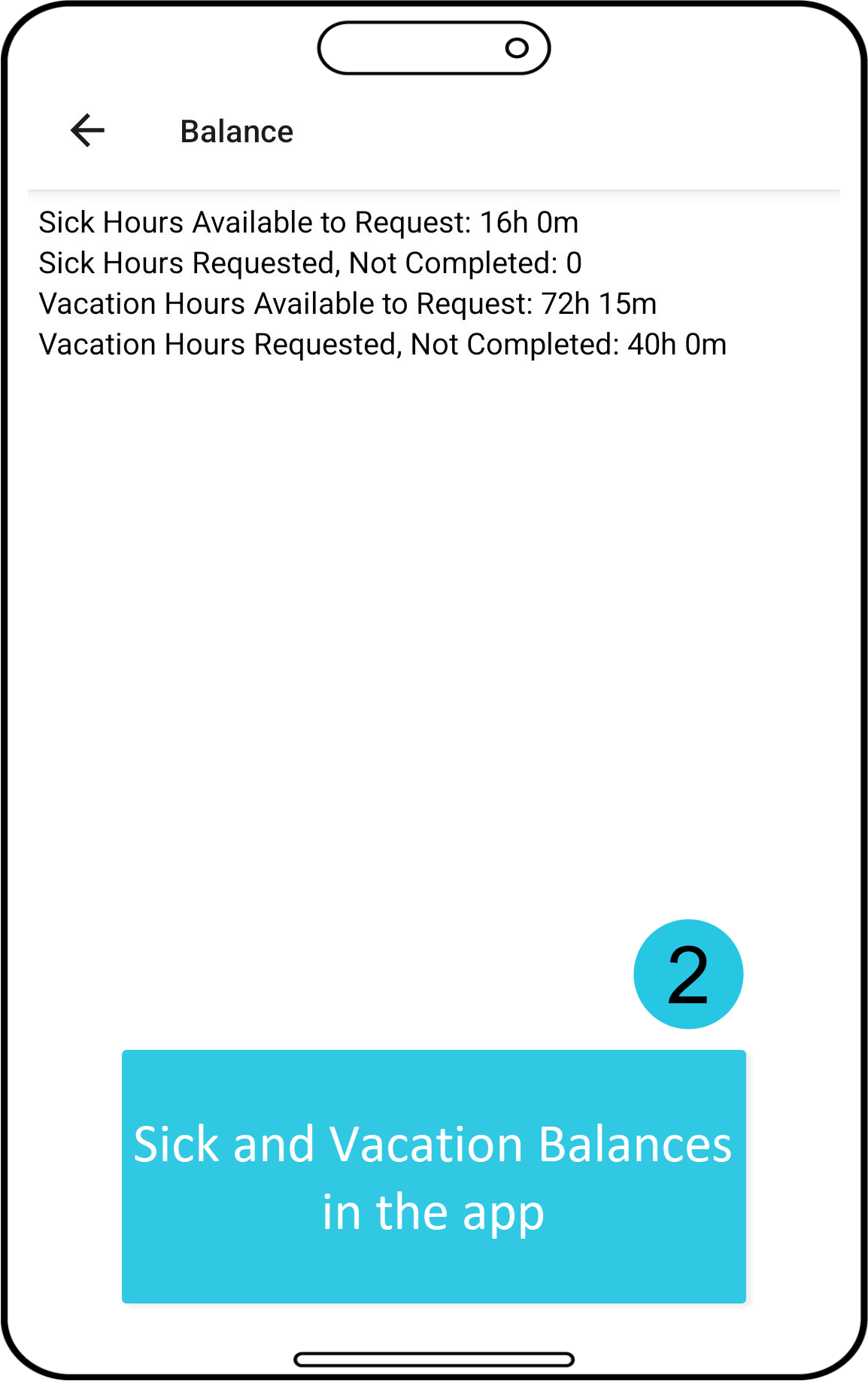
Sick and Vacation Balances in TC Web and Mobile App
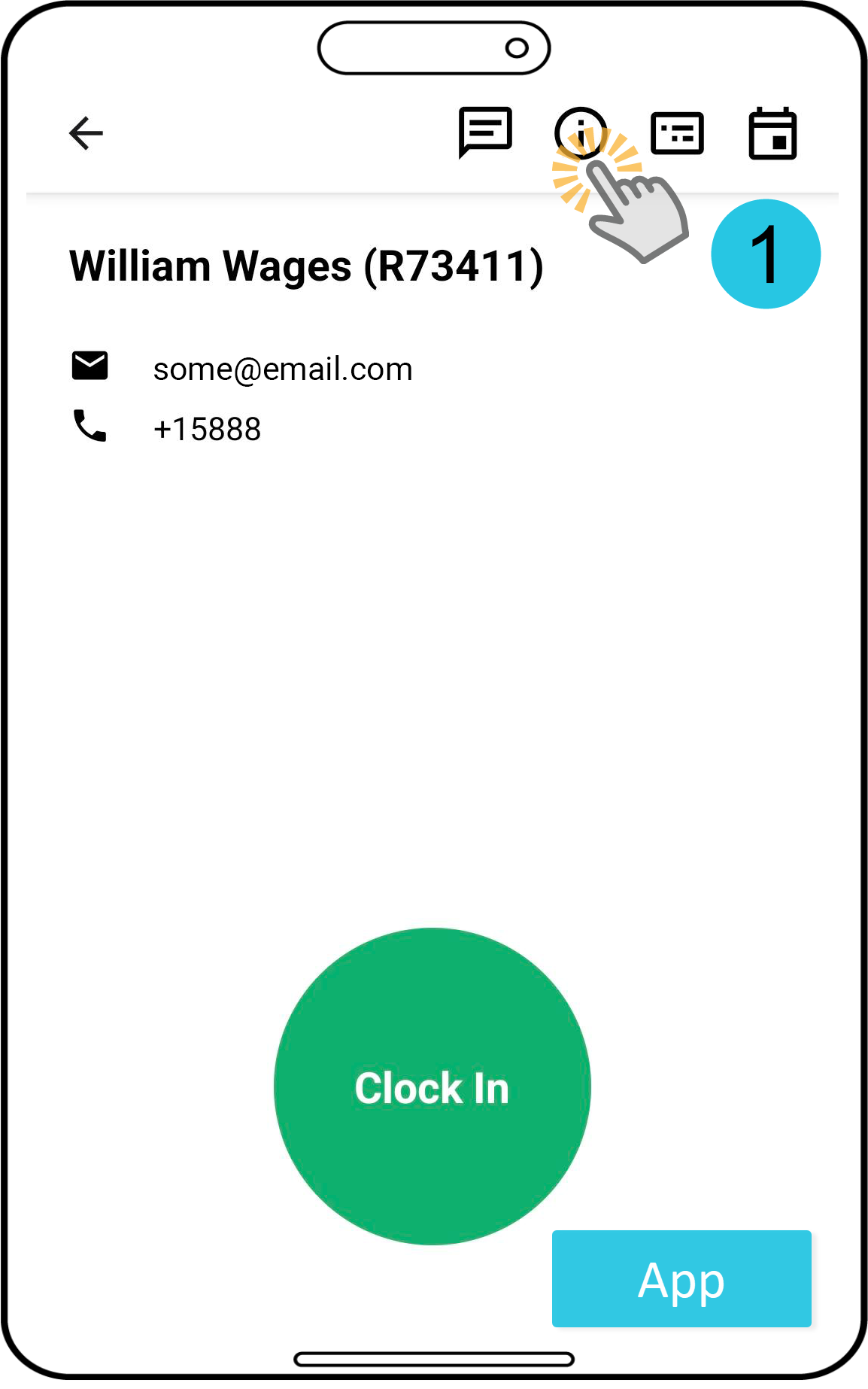
Displaying the balance in the mobile application is a configurable feature: it can be turned on or off at the client's request.
Questions & Answers
Q: What is the difference between synced Available hours and Available to Request?
A: Sick/Vacation Hours Available (synced) come from payroll and are read-only. Available to Request is calculated in Fieldclix: synced available minus Used (Not Synced) minus Requested (Not Completed). Employees usually see Available to Request in the mobile app when the feature is enabled.
Q: Why did Available to Request drop before payroll sync updated synced hours?
A: Fieldclix subtracts completed time card hours and pending or approved time-off before payroll sends new synced values. That keeps the balance realistic between syncs. After the next sync or file import, Used (Synced) should align with payroll.
Q: Why are synced PTO fields empty for our QuickBooks Online company?
A: QuickBooks Online does not sync sick or vacation bank balances to Fieldclix. Only calculated fields apply. QuickBooks Desktop can sync PTO with employee data when enabled. See Field Mapping QuickBooks and Fieldclix.
Q: We use Paylocity — why did balances not change after payroll?
A: Paylocity PTO balances typically arrive through a file import, not the standard employee API sync. Confirm your company uses the PTO report path described in Paylocity sync additional tools. The file must run after Paylocity updates balances, and the employee must already exist in Fieldclix with a matching Employee ID.
Q: We use Empower Prism — when do PTO balances update?
A: Prism PTO sync runs on a scheduled API job, separate from employee sync and payroll closure. It imports SICK and VAC accrued and used YTD for employees that are already linked. If balances are empty, confirm the employee link exists and PTO sync is enabled — see Field Mapping Empower Prism and Fieldclix.
Q: We use Paycom — why are PTO balances still empty?
A: Paycom PTO arrives through a file import of *PTOBalance.xlsx* in the capture folder, not with the employee file. The employee must already be linked (Employee Code). Confirm a new PTO file was delivered and the scheduled import ran — see Field Mapping Paycom and Fieldclix.
Q: Does Fieldclix stop me from approving time off when the balance is zero?
A: No. Synced and calculated balances are informational. Fieldclix does not enforce payroll PTO policy when approving requests. Manage policy through your company rules and payroll system.
Q: How does Fieldclix know sick time from vacation time?
A: Through Cost Types. Sick hours use a cost type with the Sick marker; vacation hours use a cost type with the Vacation marker. Configure markers in Cost Types.
Q: How long after payroll until synced hours update?
A: It depends on your integration — employee sync schedule, PTO API job, or file import timing. It is not always immediate when you close a payroll period in Fieldclix. Prism uses a dedicated API PTO sync; Paycom waits for a new PTO balance file in the capture folder. Allow until the next scheduled sync or import; see Field Mapping Empower Prism and Fieldclix or Field Mapping Paycom and Fieldclix for your company’s setup.
Q: Can I edit synced Available hours on the Payroll Info tab?
A: No. Synced fields are read-only. Update balances in your payroll system (or supply an updated PTO import file where applicable), then wait for the next sync.
Was this article helpful?
That’s Great!
Thank you for your feedback
Sorry! We couldn't be helpful
Thank you for your feedback
Feedback sent
We appreciate your effort and will try to fix the article