TABLE OF CONTENTS
- What is Manual Work Order?
- Who can use it
- When to assign which role
- When is it available
- How to start, switch, and finish a Manual Work Order
- Which Work Orders you can select
- How Manual Work Order affects your Time Card
- Questions & Answers
- Related articles
What this article covers: how to record time on a specific Work Order during your active shift in the Fieldclix mobile app — including Start WO, Switch WO, and Finish WO.
What is Manual Work Order?
Most Fieldclix Time Keeping runs in the background: you clock in once, and the system assigns hours to Work Orders from GPS, schedules, and defaults.
Manual Work Order is for moments when you need to tell the app right now which job you are working on. You pick a Work Order, work on it, then switch to another job or finish when you stop. Fieldclix stores each interval and uses it when your Time Card is processed.
Think of it as a live bookmark on your shift — not a full day’s allocation at the next clock-in.
Who can use it
Roles are assigned on the Employee card → Roles tab (or via Employee Category). Your HR team or administrator manages them.
| Role | What it does |
|---|---|
| Mobile. Time Keeping | Lets you clock in or check in and use Time Keeping in the app. |
| Mobile. Manual Time Entry Allowed | Shows the Work Order tab. Lets you Start WO, Switch WO, and Finish WO during a shift. |
| Mobile. Requires Manual Work Order | Used together with Manual Time Entry Allowed. After clock-in, you must select a Work Order. During the shift you can only Switch WO — Finish WO is hidden. Does not block clock-out. |
If you do not see the Work Order tab after clocking in, ask your admin to confirm Mobile. Manual Time Entry Allowed is on your profile.
This is not the same as Requires WO Allocation. That role drives a different flow — splitting unallocated time from a previous day when you clock in again (percentage allocation). Manual Work Order runs during your current shift.
When to assign which role
Use these scenarios when deciding which roles to put on an employee’s login.
Start recording time on a Work Order and finish when needed
Business need: The crew works mostly with normal GPS and schedule allocation, but sometimes must mark time on a specific Work Order for accurate job costing — then stop Manual recording when that need ends.
Example: Two jobs of different types are scheduled to the same Site. GPS cannot tell which job the crew is on. They open the Work Order tab, Start WO on the correct job, work, then Finish WO (or Switch WO to the other job) so hours land on the right Work Order.
What happens in the app: The Work Order tab is available. The employee can Start WO, Switch WO, and Finish WO. Manual periods are optional. Time outside those periods can still follow GPS and schedule allocation.
Assign: Mobile. Time Keeping + Mobile. Manual Time Entry Allowed.
Do not assign Mobile. Requires Manual Work Order unless you need continuous coverage (see the next scenario).
Continuous Work Orders for the whole shift
Business need: Almost every minute of the shift must be tagged to a Work Order while the employee is still working — not later as percentages. Typical for indoor crews, non-GPS roles, or a policy of “you are always on a WO.”
Example: A technician clocks in and immediately picks the first job. Each time they change tasks, they Switch WO. They never leave a gap without a Work Order until clock-out.
What happens in the app:
- After clock-in, the app asks for a Work Order right away (selection is required).
- During the shift, only Switch WO is available — Finish WO is hidden, so the employee stays on a Manual Work Order until they switch or clock out.
- Clock-out is still allowed. If a Manual period is still open at clock-out, processing closes it at the end of the shift.
Assign both: Mobile. Manual Time Entry Allowed and Mobile. Requires Manual Work Order (plus Mobile. Time Keeping).
- Requires Manual Work Order alone does nothing useful — without Manual Time Entry Allowed, the Work Order tab does not appear.
Split yesterday’s hours as percentages (different feature)
Business need: At the next clock-in or check-in, the employee should allocate unallocated hours from the previous day as percentages — not run a live Manual timer today.
What happens in the app: Allocation prompts at clock-in; no Work Order tab from this role alone.
Assign: Requires WO Allocation (also shown as Mobile. Requires WO Allocation).
You can combine it with Manual Time Entry Allowed if the same person needs both end-of-day percentage allocation and live Manual Work Order during the shift. Keep the two flows mentally separate for training.
Standard GPS and schedule allocation only
Business need: Field employees whose time should allocate from GPS, schedule, and defaults — without live Manual tagging on the Work Order tab.
What happens in the app: No Work Order tab. No Start / Switch / Finish WO.
Assign: Mobile. Time Keeping only (plus other roles as needed). Do not assign Manual Time Entry Allowed or Requires Manual Work Order.
When is it available
The Work Order tab appears only when all of the following are true:
- You are clocked in or checked in — you have an active work shift.
- You have the Mobile. Manual Time Entry Allowed role.
- At least one Work Order is available for selection (see below). If none are available, the tab shows There is no available Work Order.
The tab sits in the bottom bar next to Workshift, Lunch, and (if enabled for your company) Driver.
While a Manual Work Order is active, the Workshift tab also shows Active Work Order with the job name.
How to start, switch, and finish a Manual Work Order
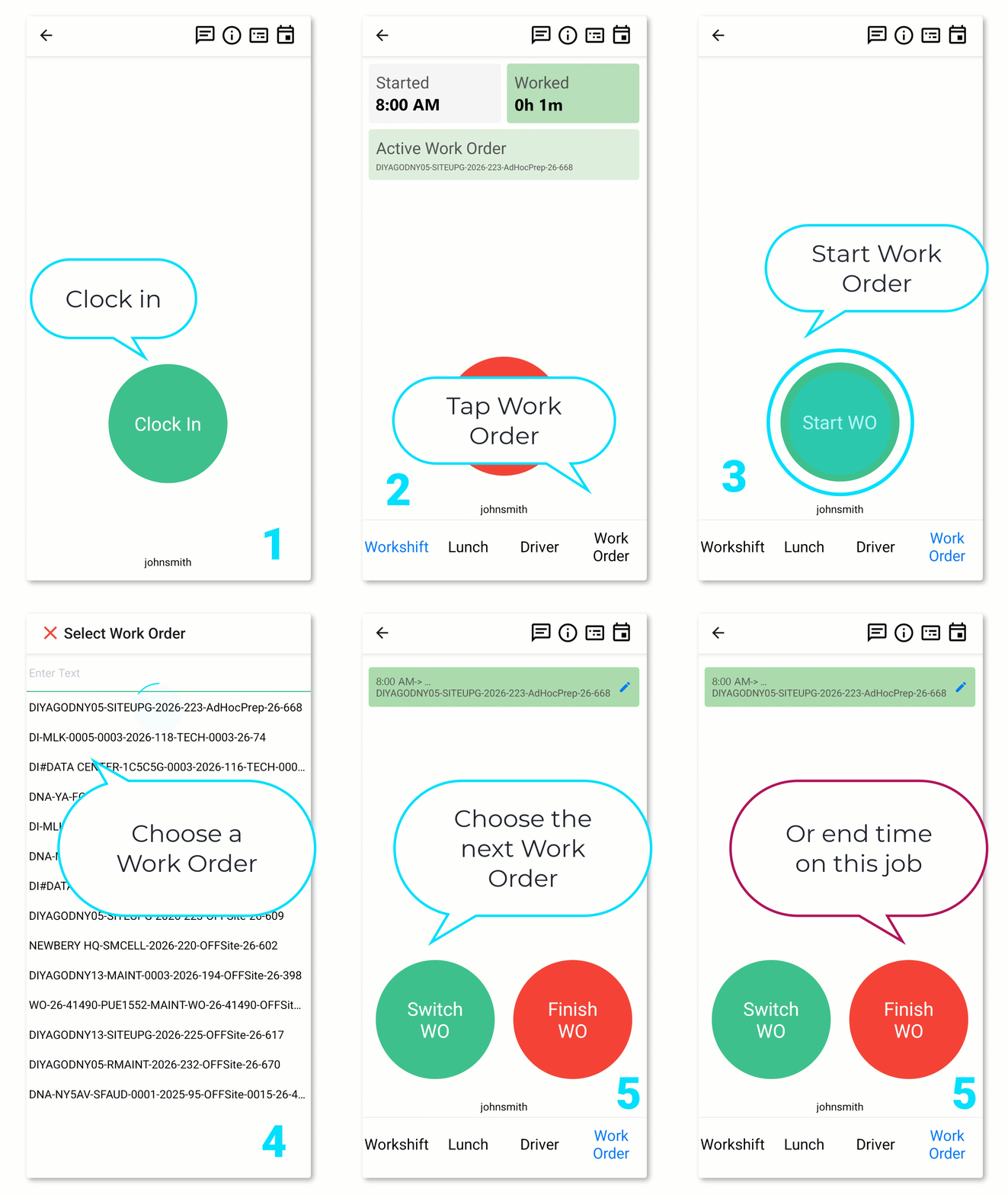
Start
- Open Time Keeping in the mobile app and clock in (or check in).
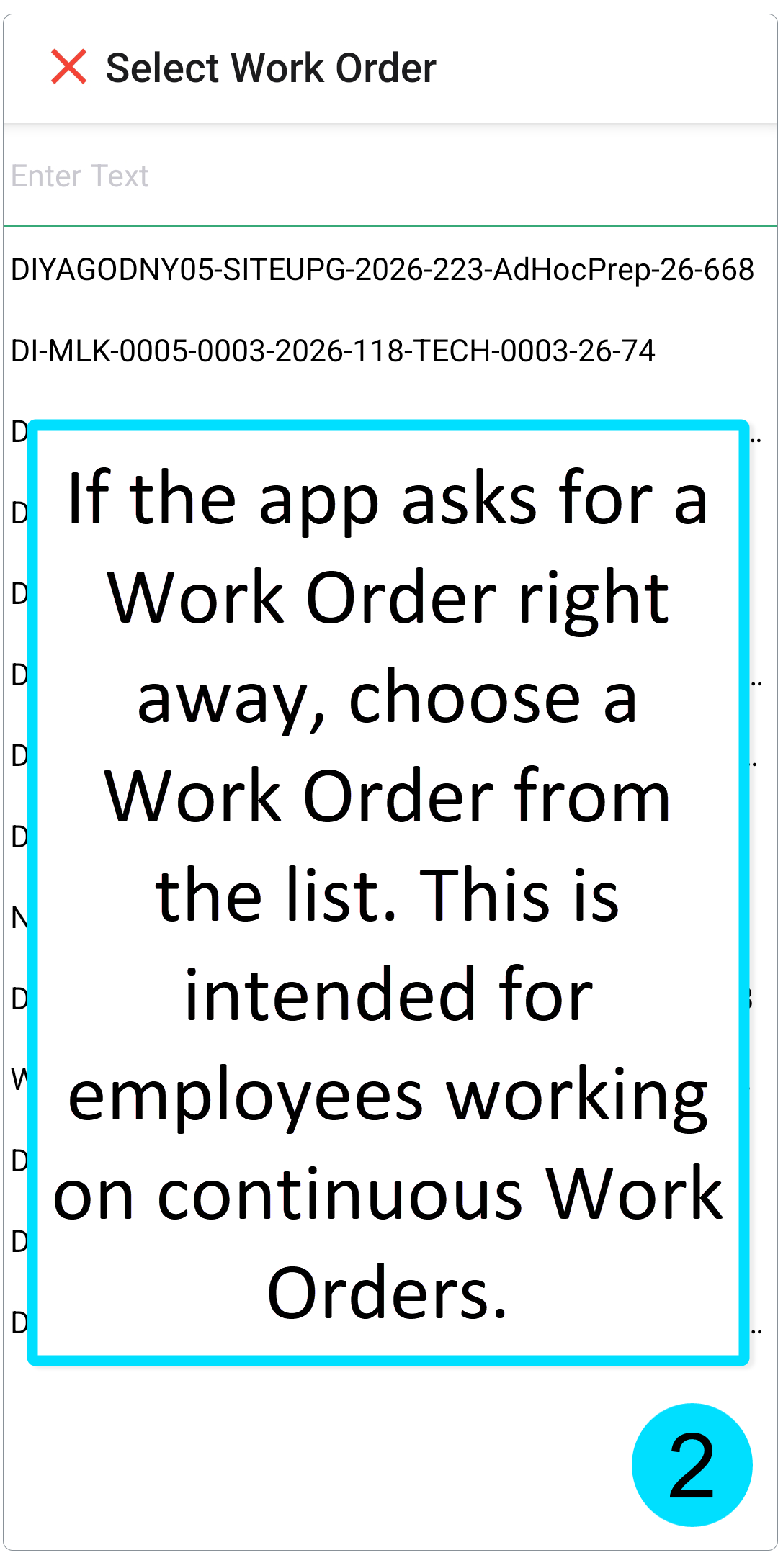
- If the app asks for a Work Order right away, choose a Work Order from the list. This is intended for employees working on continuous Work Orders.
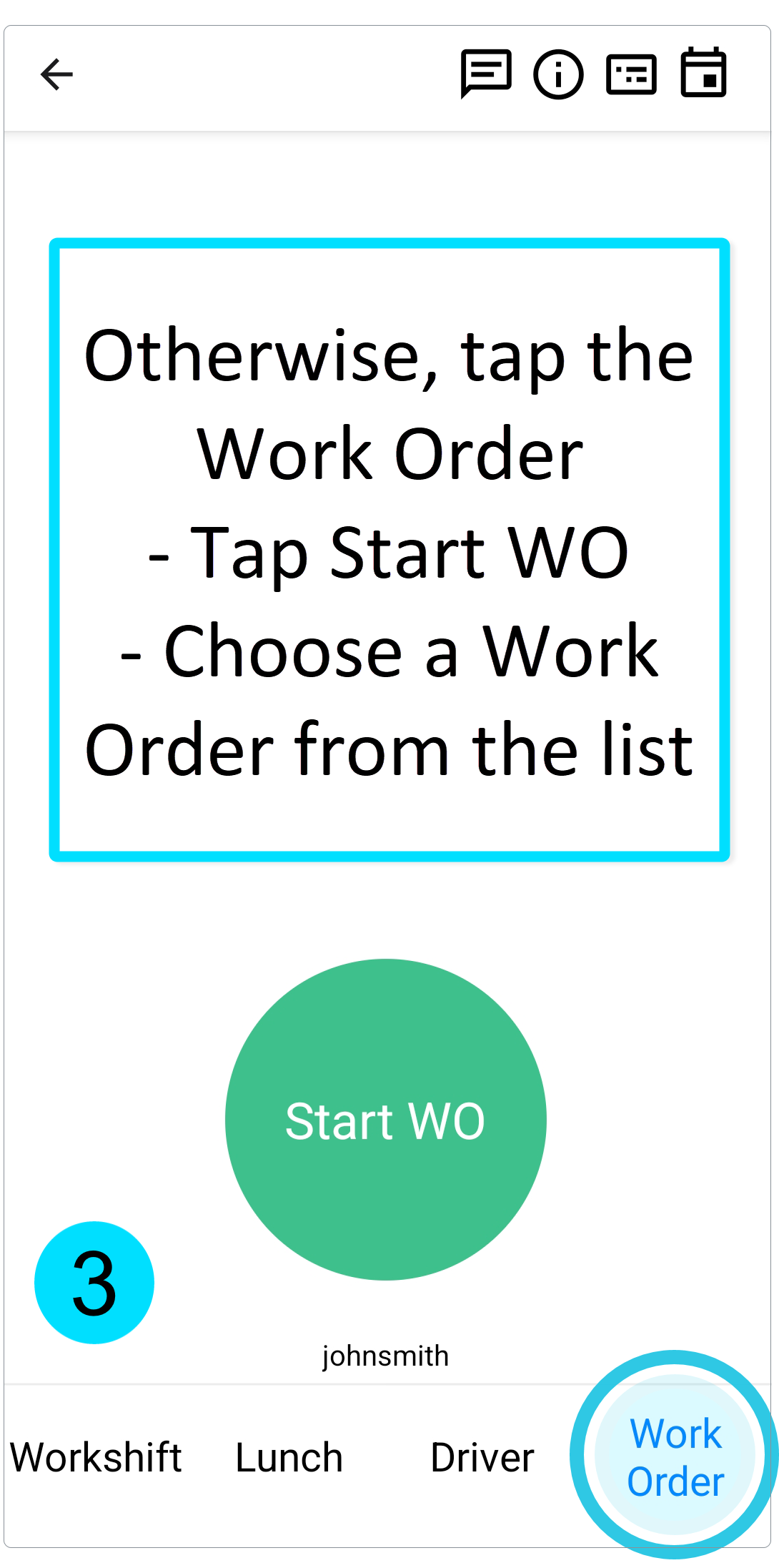
- Otherwise, tap the Work Order tab at the bottom.
- Tap Start WO.
- Choose a Work Order from the list.
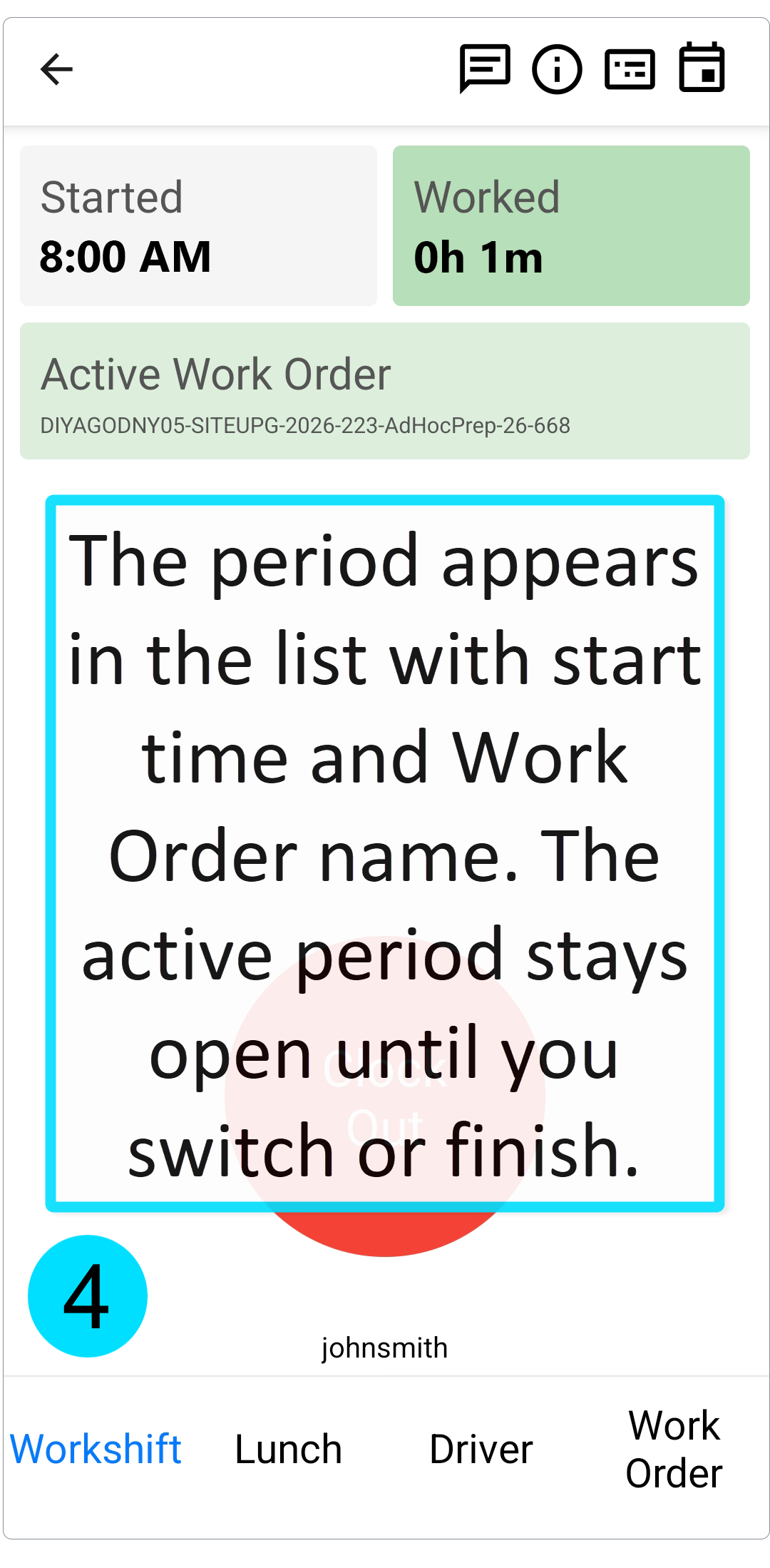
- The period appears in the list with start time and Work Order name. The active period stays open until you switch or finish.
If this is the first Manual period of the shift, its start aligns with your clock-in time. Later starts use the current time.
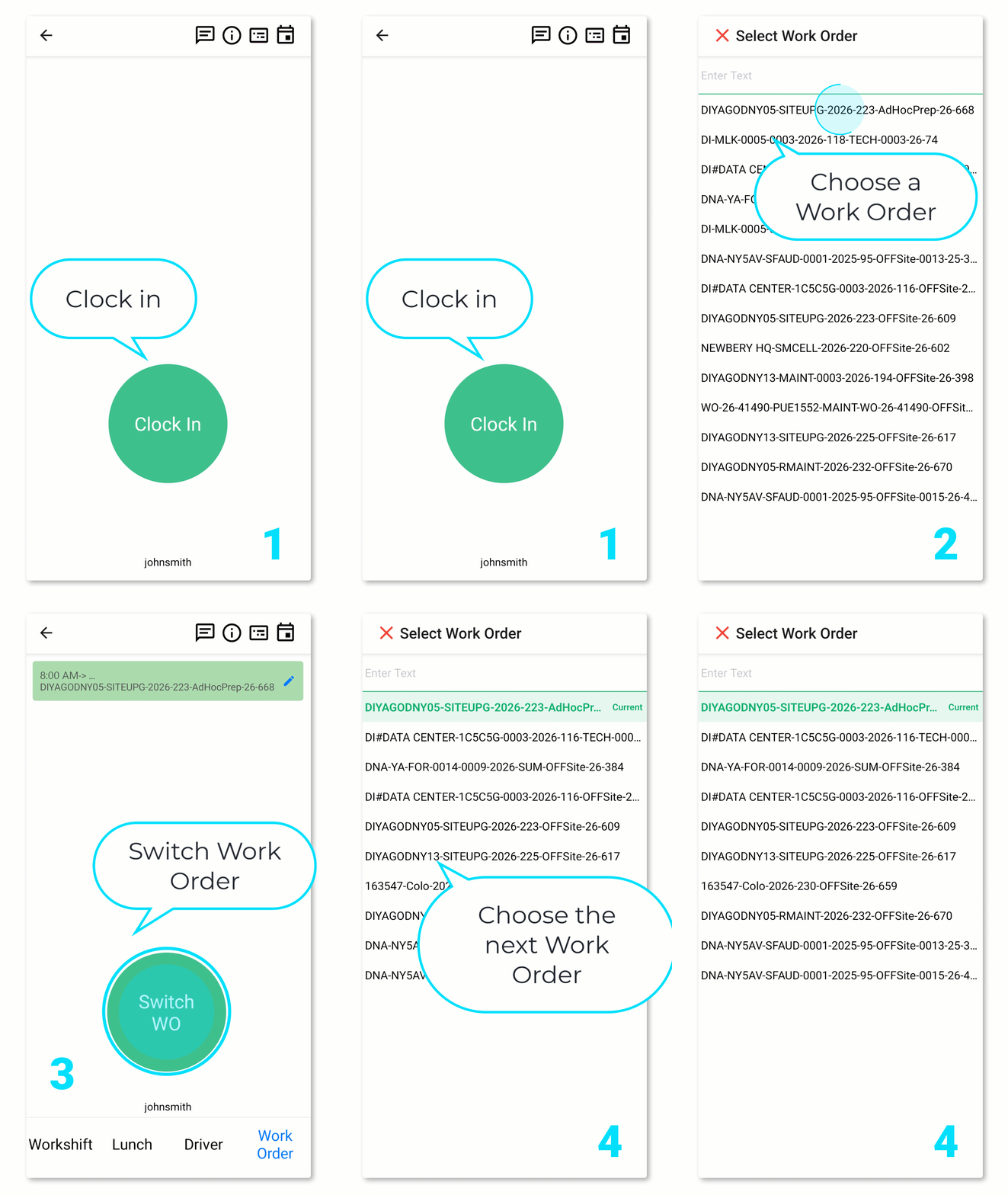
Switch WO
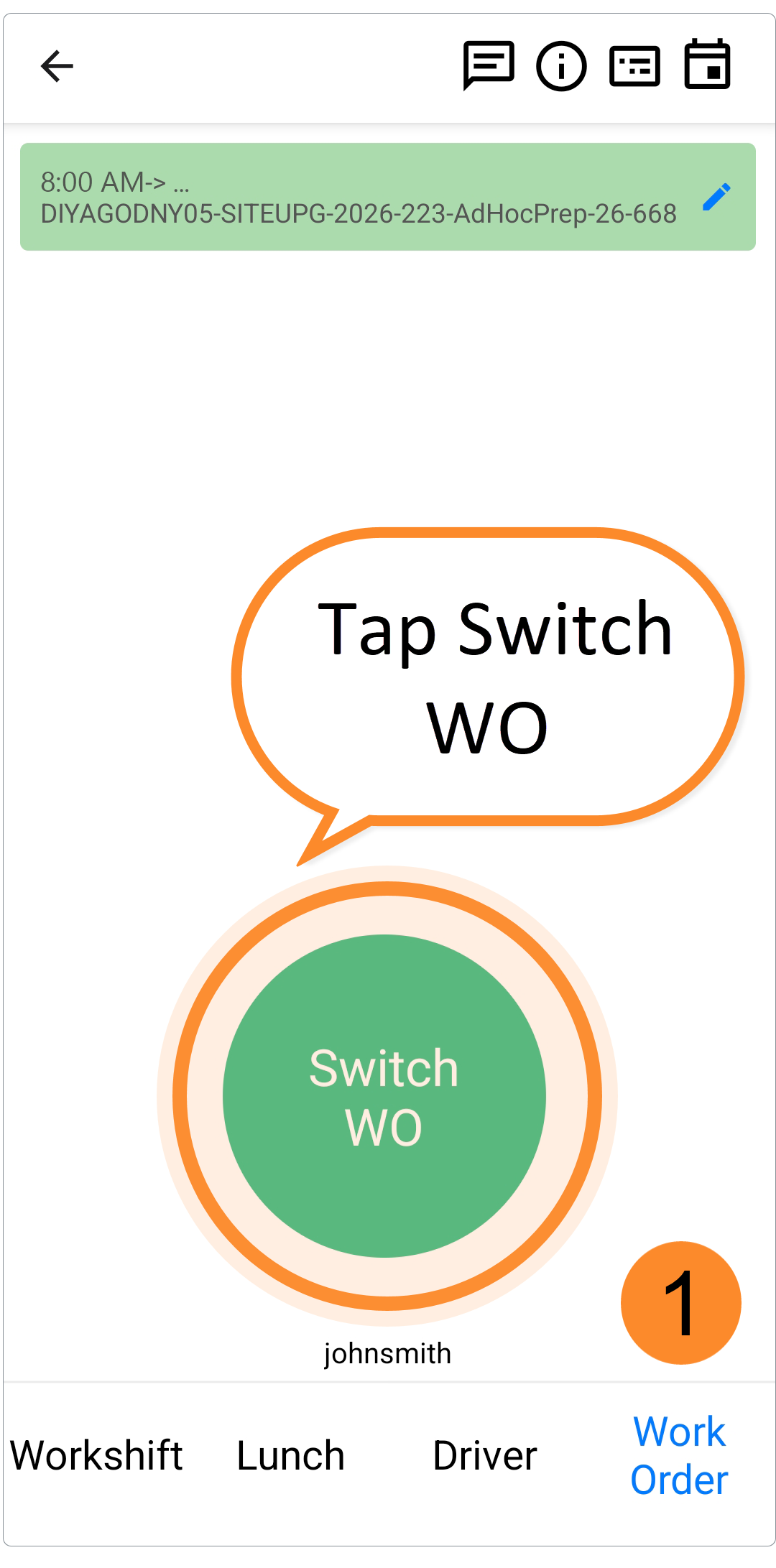
Use Switch WO when you move from one job to another without leaving a gap.
- On the Work Order tab, while a Work Order is active, tap Switch WO.
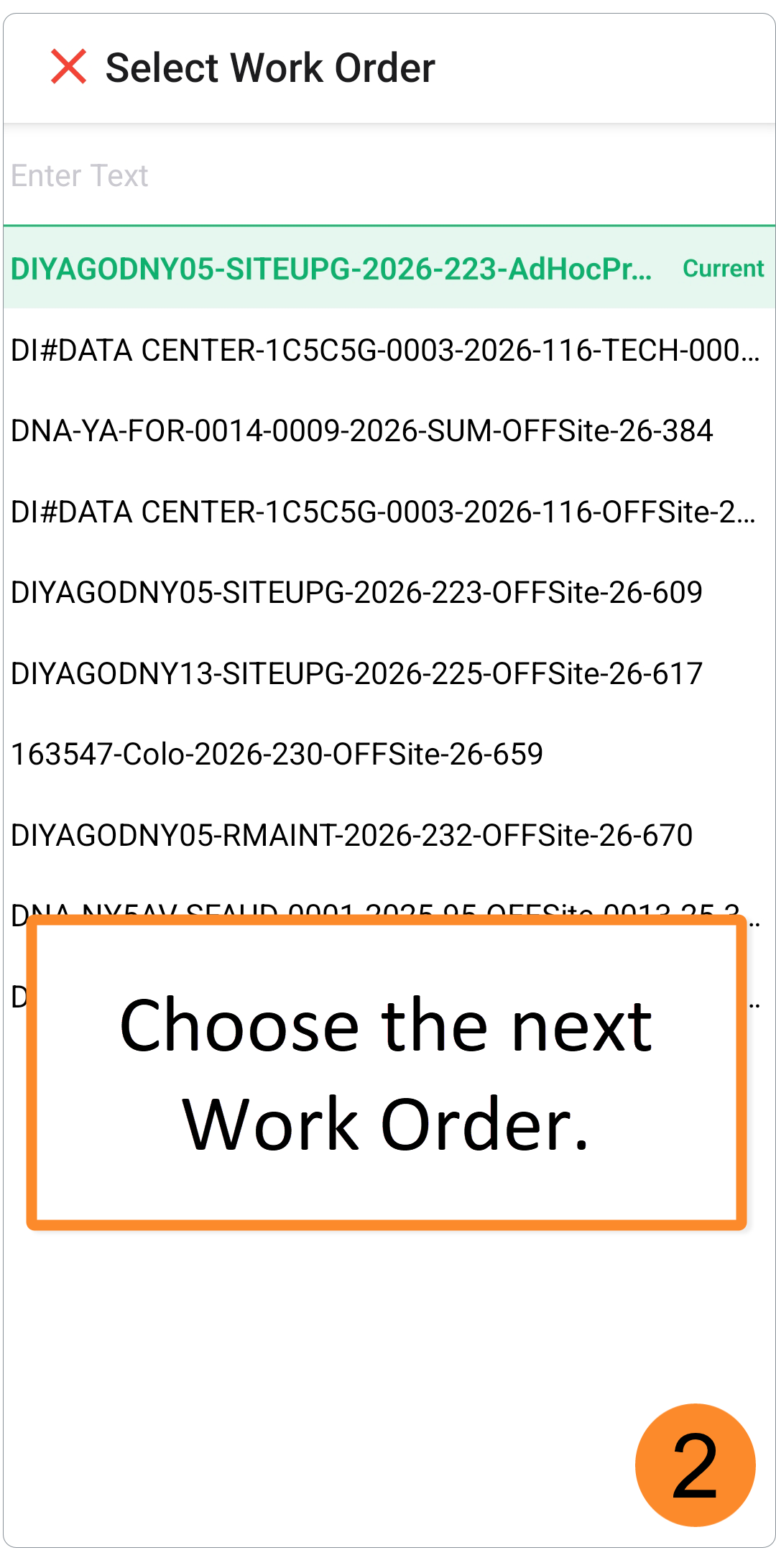
- Choose the next Work Order.
- The app finishes the current period and starts the new one at the same minute — continuous coverage, one action.
Prefer Switch WO over Finish + Start when you go straight from Job A to Job B.
Finish WO
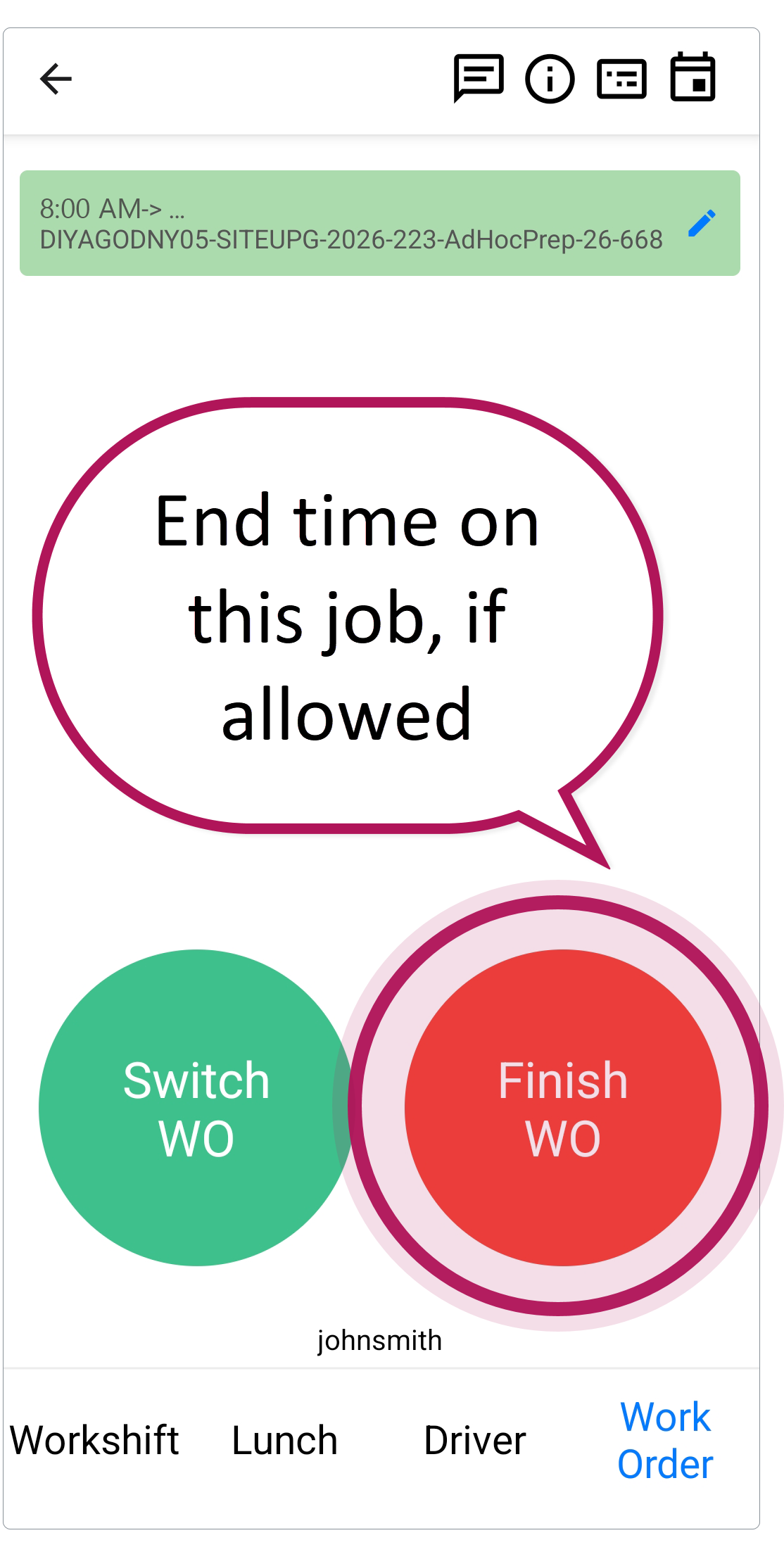
- When you stop working on that Manual job (and you are allowed to leave Manual time empty), open the Work Order tab.
- Tap Finish WO.
Finish WO is available only if you do not have Mobile. Requires Manual Work Order. With that role, use Switch WO only.
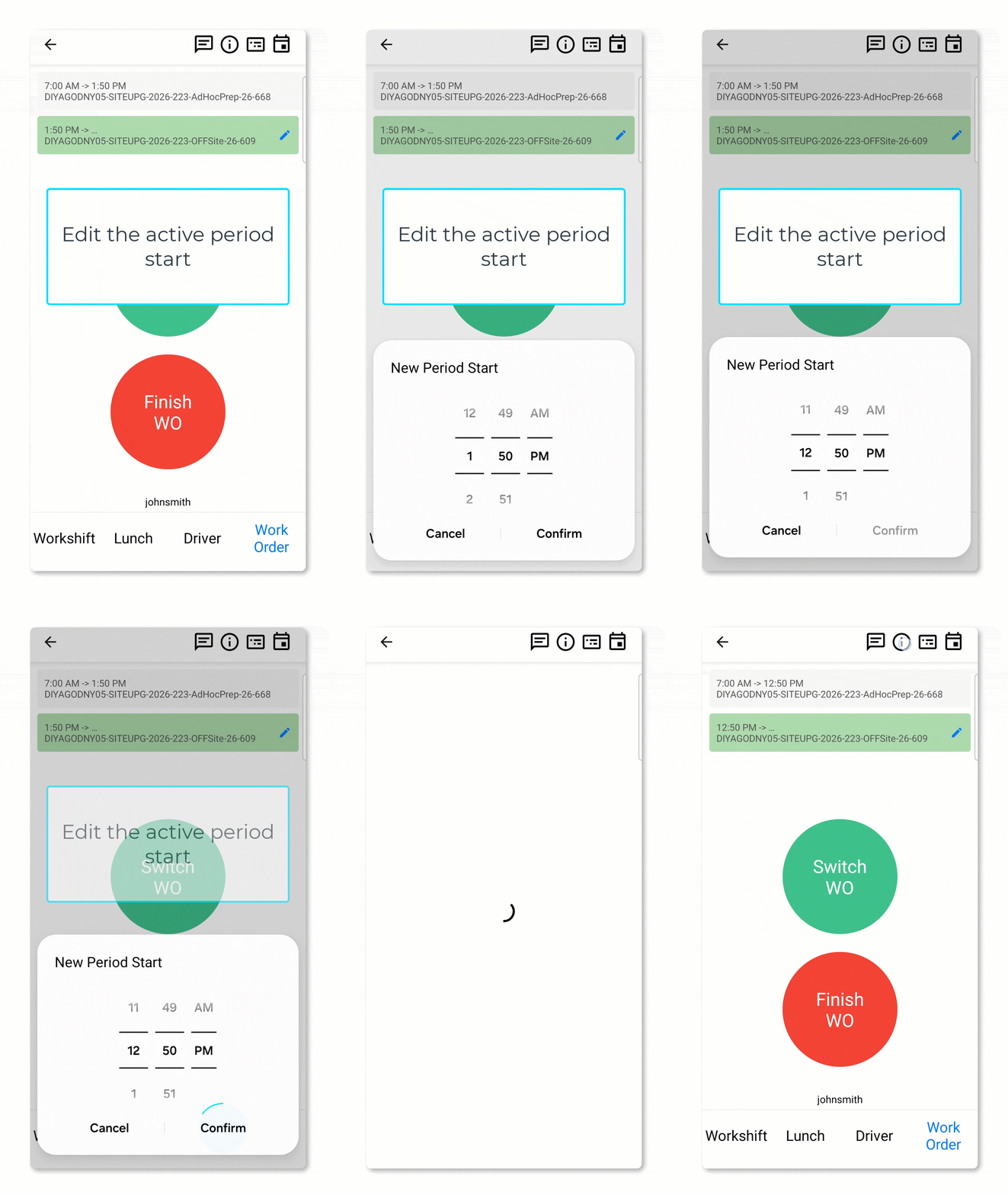
Edit the active period start
You can adjust when the current Manual period started (pencil / time picker on the active row). The new start cannot be before clock-in, before the previous period’s start, or in the future. If you came from a Switch, the previous period’s end moves with the edited start so the timeline stays continuous.
Rules to keep in mind
- One active Manual Work Order at a time. Use Switch WO to change jobs, or Finish WO (when available) before starting another.
- Cancel selection. If you close the Work Order picker without choosing, nothing changes.
- Very short sessions. If start and finish fall in the same minute, the system removes that record instead of saving zero-length time.
- Clock-out. Best practice is to finish or switch so intervals are clear. If a Manual period is still open, processing typically extends it to the end of the shift. With Requires Manual Work Order, clock-out is not blocked by an open Manual period.
Work offline
You can keep tagging Manual Work Orders when the network drops — as long as you stay on the same phone you used to clock in.
What you see
- An Offline Mode banner on the Work Order tab.
- You can still Start WO, Switch WO, Finish WO, and edit the active period start.
- Other Time Keeping tabs (Workshift, Lunch, Driver) may be unavailable until the shift status loads again.
What happens to your time
- Manual periods are saved on the phone.
- When the connection returns, the app sends them to Fieldclix.
- Before Clock Out, the app also syncs Manual Work Orders (you may briefly see a syncing status).
Limits
- Offline works on the clock-in device after the Work Order list has loaded at least once during the shift.
- On another phone, or if the list never loaded — wait for network or use the original device.
- Empty list still shows There is no available Work Order.
Which Work Orders you can select
The picker uses the same eligible list as manual time allocation. In general, you will see:
- Scheduled Work Orders for you on the current day whose Work Order Type allows manual allocation (Allow for Manual Allocation on the WO Type card).
- Work Orders with the same WO Type abbreviation as any scheduled Work Order on that day — even if that specific Work Order was not dispatched to you.
- Unscheduled Visit Work Orders for Sites you have already visited during this shift — only when your company has this option turned on in system settings.
- Shadow Work Orders (Work Order Types with Allow Dispatch = NO) — only if you have the Mobile. Non Dispatch role and you are linked to the Build Plan as an owner, project role member, or allowed allocation employee. Those Work Order Types must also allow manual allocation.
If the list is empty, you cannot start a Manual Work Order. Common reasons:
- Nothing is scheduled for you today.
- Work Order Types are not marked Allow for Manual Allocation.
- For unscheduled visits, the setting to include them is off, or you have not yet visited a Site during this shift.
- For Shadow Work Orders, you lack the Non Dispatch role or Build Plan access.
How Manual Work Order affects your Time Card
While a Manual Work Order is active, Fieldclix tags that part of your shift with the Work Order you selected. When Time Keeping processing runs, those minutes are allocated to that Work Order on your Time Card timeline.
Manual Work Order does not replace GPS-based allocation for the rest of your shift (unless your company requires continuous Manual coverage). It adds a clear signal for the periods you marked manually — useful when GPS alone cannot tell which job you were on.
Several Manual periods in one shift
If you start, switch, and start again — even several times in a row — each period counts. Hours land on the Work Orders you marked. You do not lose later Manual segments because they followed each other closely in the same shift.
Questions & Answers
Q: I see allocation prompts at clock-in but no Work Order tab. Why?
A: Those are separate features. Percentage allocation at clock-in needs Requires WO Allocation. The Work Order tab needs Mobile. Manual Time Entry Allowed.
Q: Why don’t I see Finish WO — only Switch WO?
A: You have Mobile. Requires Manual Work Order. That role keeps you on a Manual Work Order for the shift. Use Switch WO to change jobs. Clock-out is still allowed.
Q: Why does the app force me to pick a Work Order right after clock-in?
A: Mobile. Requires Manual Work Order (together with Manual Time Entry Allowed) requires a Manual Work Order as soon as the shift starts.
Q: Can I run two Manual Work Orders at the same time?
A: No. Use Switch WO to move to the next job, or finish the current one (when Finish is available) before starting another.
Q: What is the difference between Switch WO and Finish + Start?
A: Switch WO closes the current period and opens the next at the same minute — no gap. Finish WO then Start WO lets you leave a gap without a Manual Work Order; that gap can follow normal GPS or schedule allocation.
Q: Do I need to finish Manual Work Order before clocking out?
A: Best practice is to finish or switch so the day is clear. If you leave a period open, processing usually closes it at the end of the shift. With Requires Manual Work Order, the app does not block clock-out for an open Manual period.
Q: Why is my Work Order missing from the list?
A: Check that you are dispatched (or eligible as Non-Dispatch), that the WO Type allows manual allocation, and that the job is active. If you still need that Work Order, contact your supervisor or submit a Time Adjustment Request.
Q: Is Manual Work Order the same as manually allocating time as a percentage between Work Orders?
A: No. Percentage allocation splits unallocated hours after the shift, usually at the next clock-in (Requires WO Allocation). Manual Work Order records live work on one Work Order while you are still on the clock (Manual Time Entry Allowed, optionally with Requires Manual Work Order).
Q: What if the app says There is no available Work Order?
A: No eligible Work Orders were found for your current shift. You cannot start or switch until at least one appears — typically after dispatch or after visiting a Site (when unscheduled visits are enabled).
Related articles
- Employee Roles — role definitions including Mobile. Manual Time Entry Allowed and Mobile. Requires Manual Work Order
- Work Order Types — Allow for Manual Allocation and Shadow Work Orders
- Manually Allocate Time Among Work Orders — end-of-day percentage allocation (different from Manual Work Order)
- TK Automatic and Manual Work Order Allocation Rules — when auto allocation fails and manual allocation is required
- Time Keeping Processing. How does it works? — how shifts become time card entries
- Time Card Review — how allocated time appears on the timeline
Was this article helpful?
That’s Great!
Thank you for your feedback
Sorry! We couldn't be helpful
Thank you for your feedback
Feedback sent
We appreciate your effort and will try to fix the article