TABLE OF CONTENTS
- Access to Requirements and Kits
- Create a Certificate Requirement
- Edit or Delete Requirements
- Create Certificate from Requirement
- Status View
- Employee Card Integration
- Certificate Kits
Purpose: Audit employee certificates against job requirements—easily see if current certificates meet standards, spot gaps, and ensure compliance.
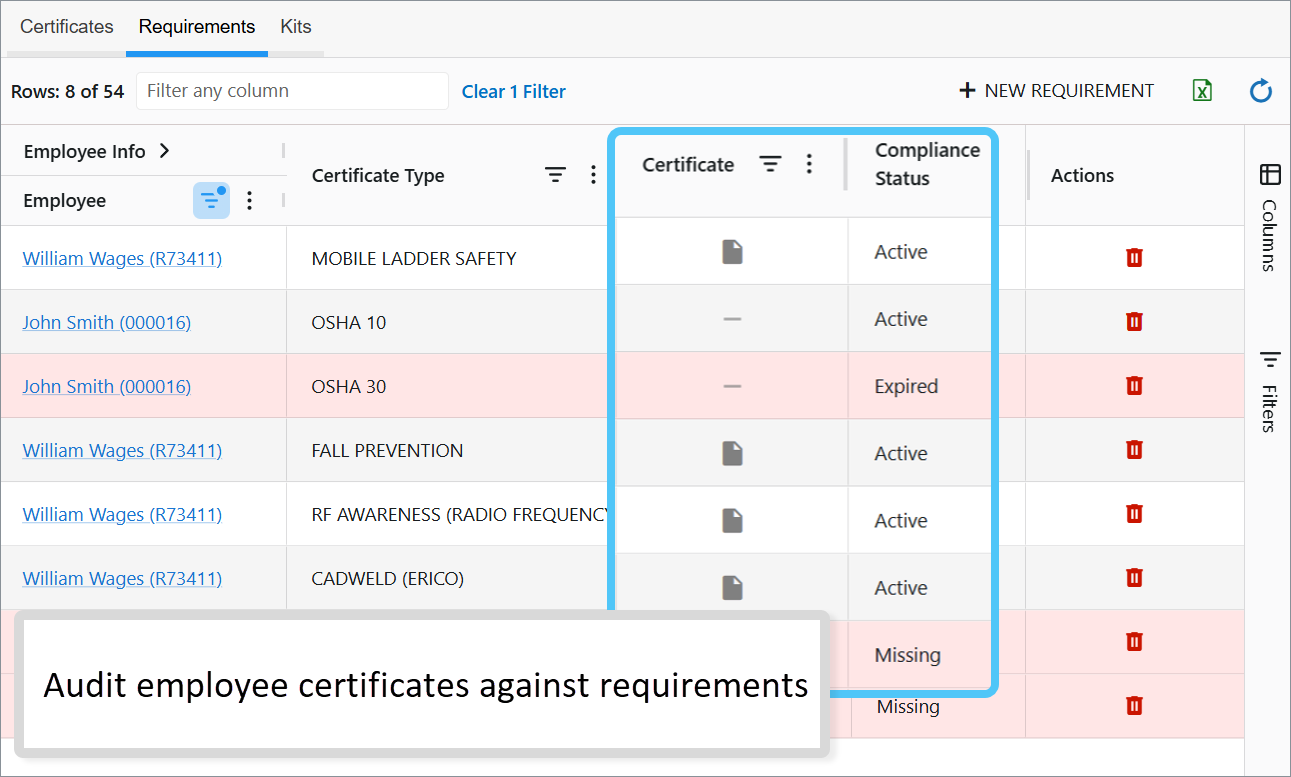
Access to Requirements and Kits
HR Managers only.
Create a Certificate Requirement
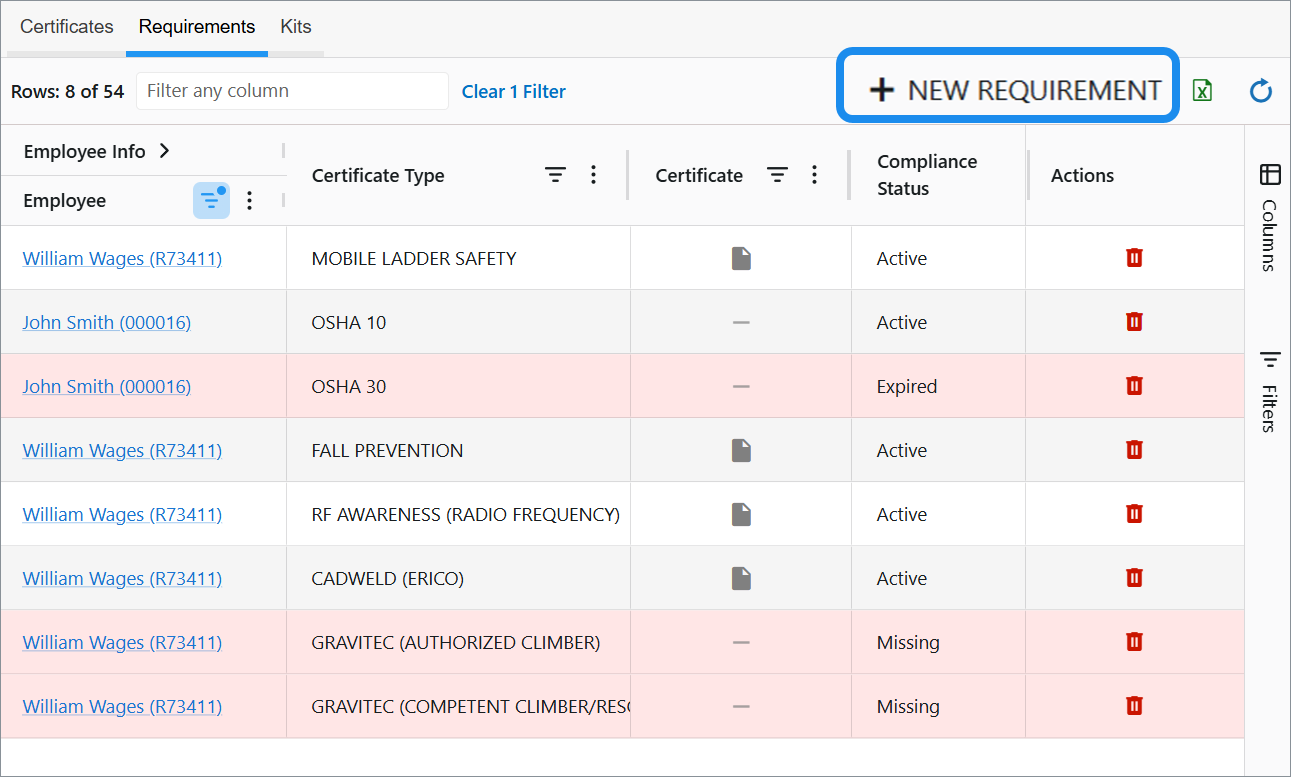
- Click + NEW REQUIREMENT.
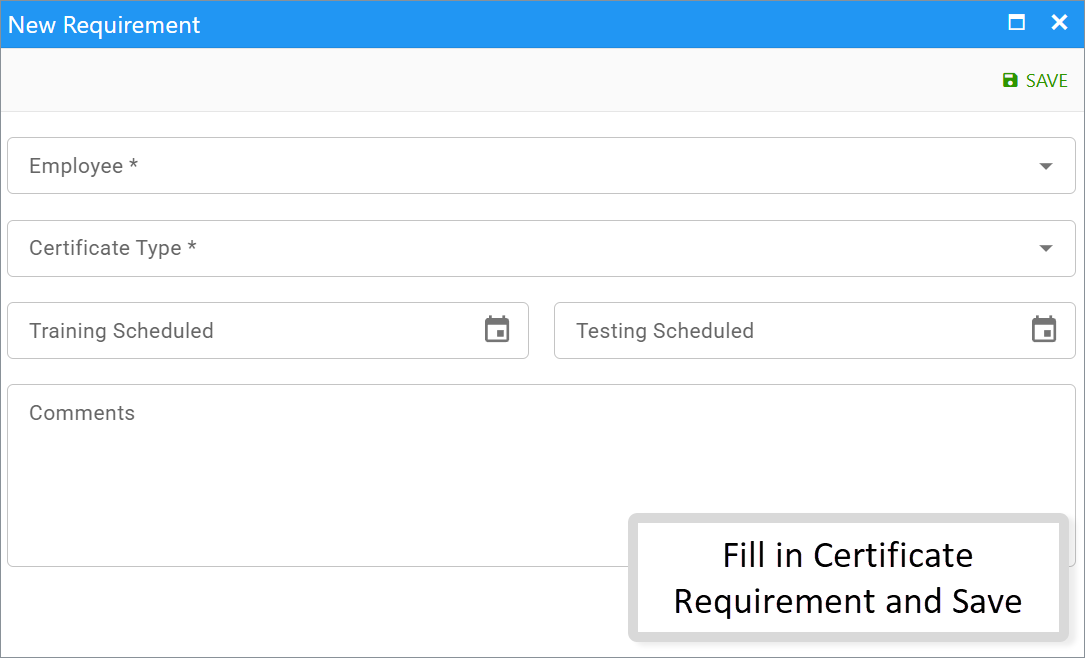
- Fill in details:
- Employee: Select an employee.
- Certificate Type: Choose the certificate type.
- Optional: Add milestone dates (Training Scheduled, Testing Scheduled) or Comments.
- Click Save.
Note: Only one certificate requirement with an active certificate is allowed per certificate type and employee.
Edit or Delete Requirements
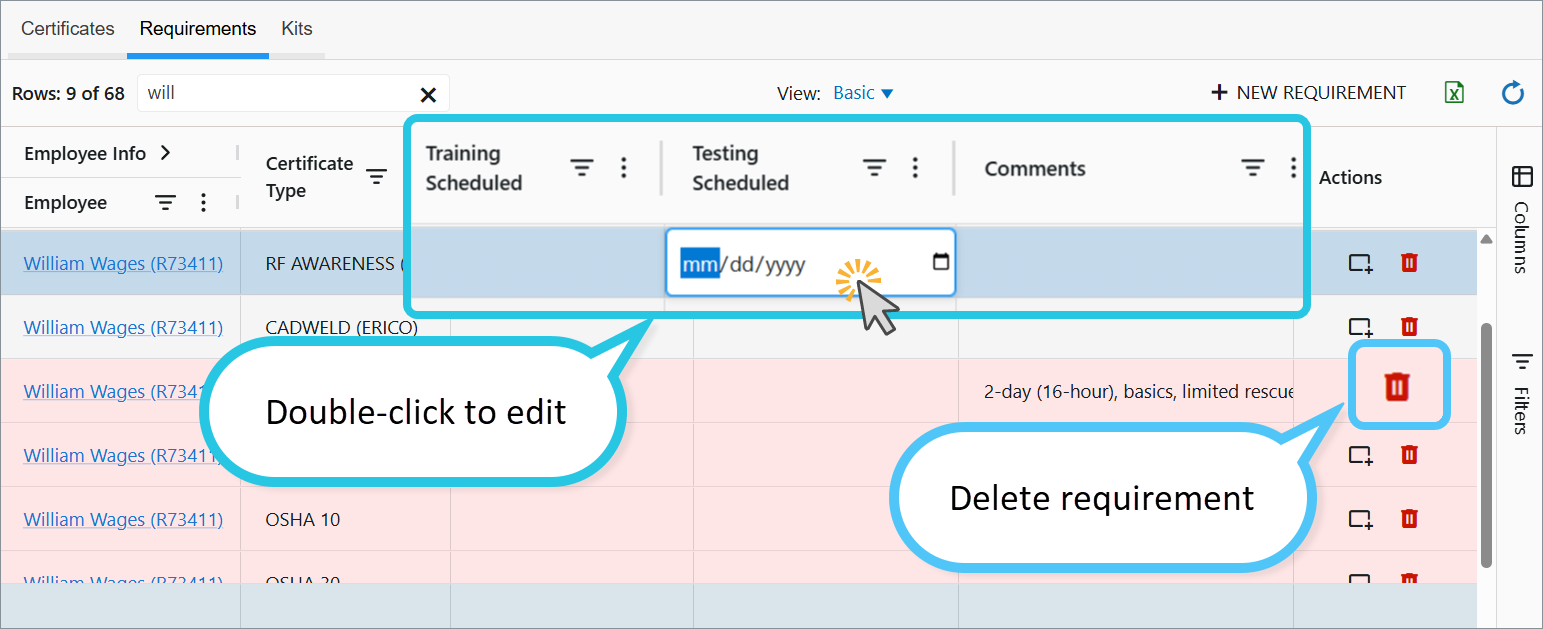
- Edit inline: Double-click any editable column (e.g., Comments, Training Scheduled, Testing Scheduled) in the dashboard row.
- Delete: Click the Trash icon for that requirement.
Create Certificate from Requirement
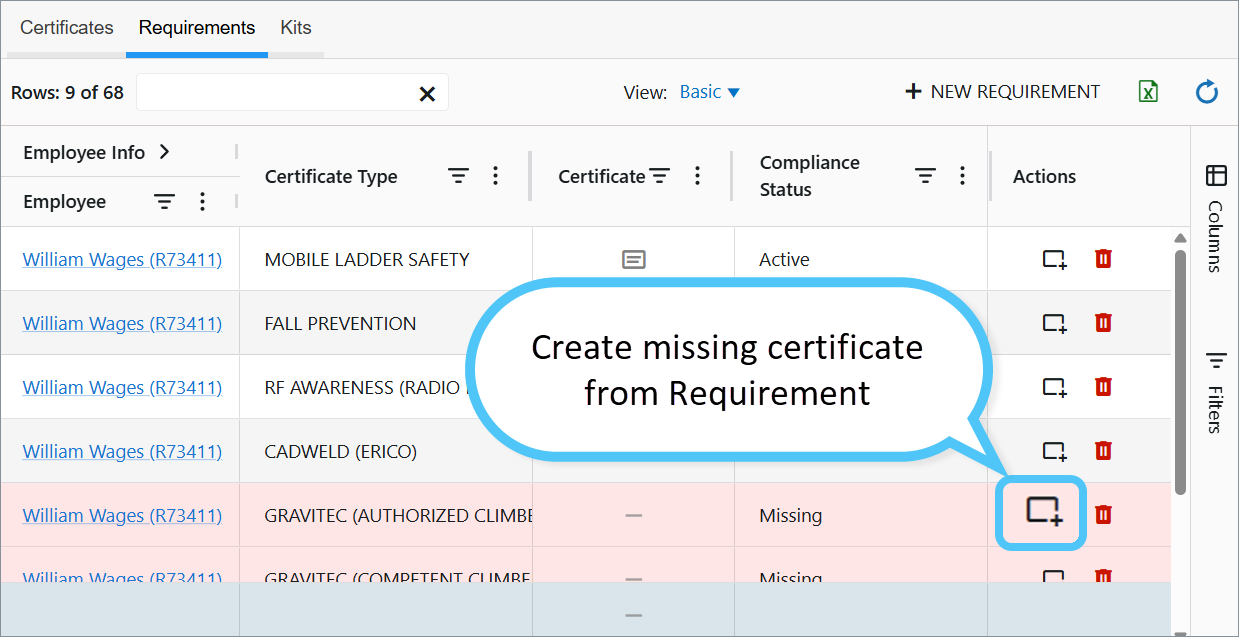
If compliance shows Missing, create a certificate directly:
- In the requirement row, click Add Certificate (Actions column).
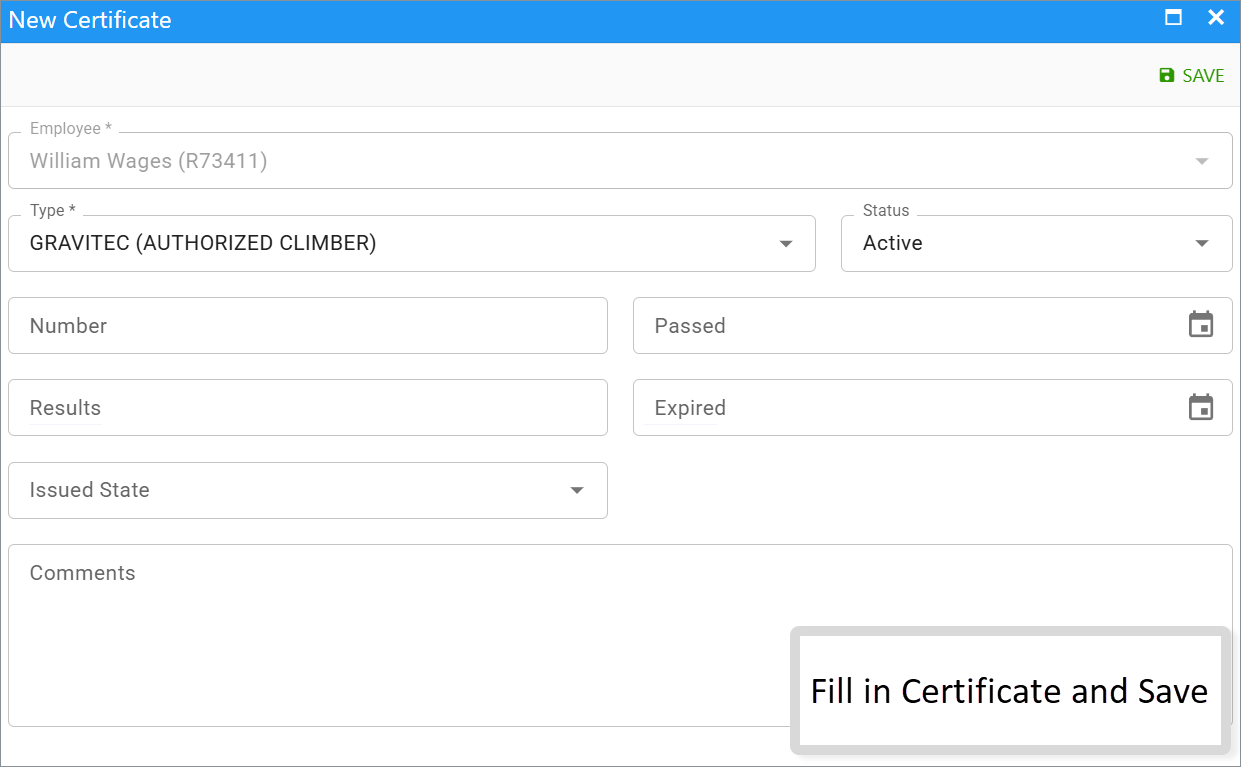
- Fill in certificate details.
- Click Save—status updates to Active instantly.
Status View
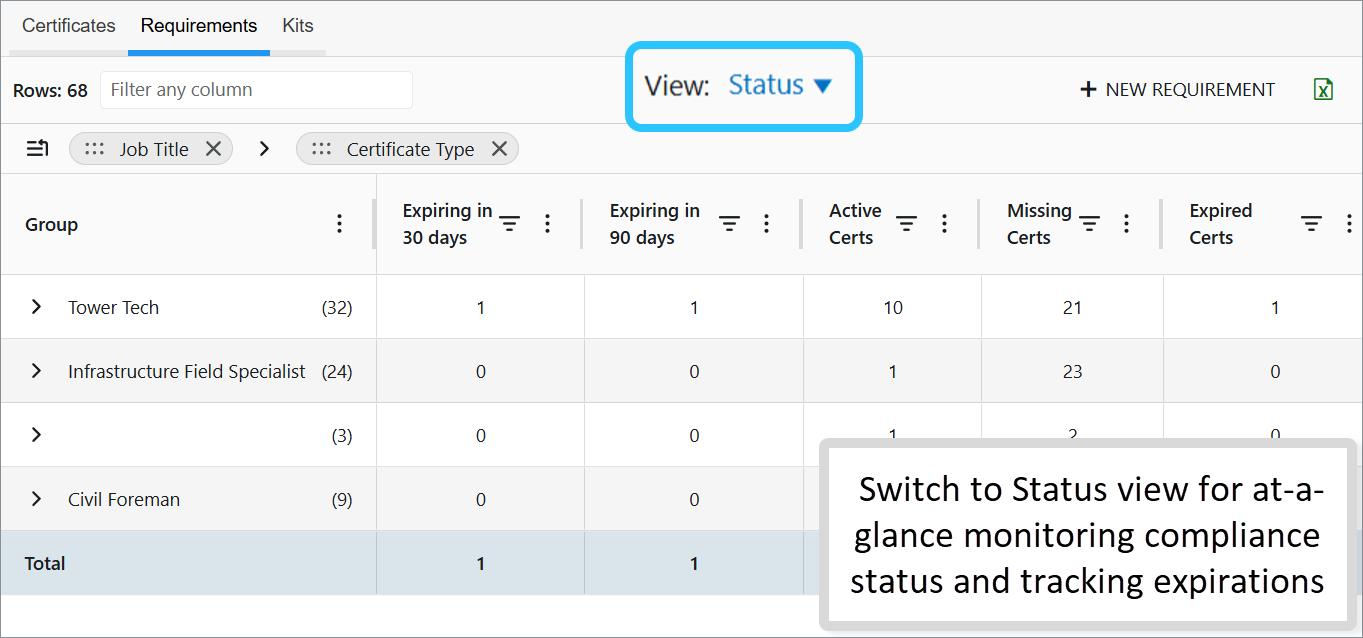
Switch to Status view for at-a-glance monitoring:
- Compliance status → Missing × Active ✓ Expired ⚠️
- Track expirations (30/90 days), active/expired counts, and missing requirements.
Employee Card Integration
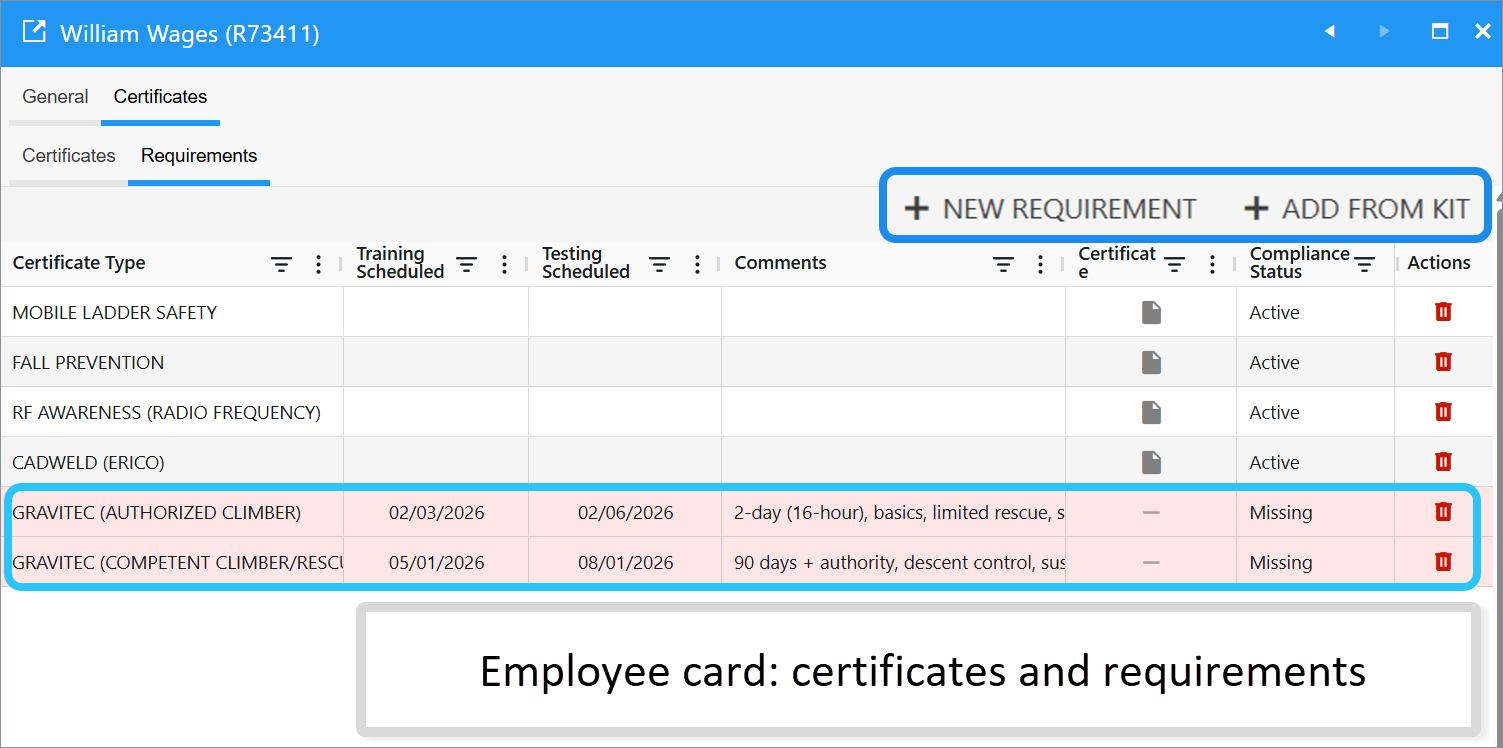
Access requirements in the Employee card > Requirements tab:
- Create new ones.
- Add from a Certificate Kit.
Certificate Kits
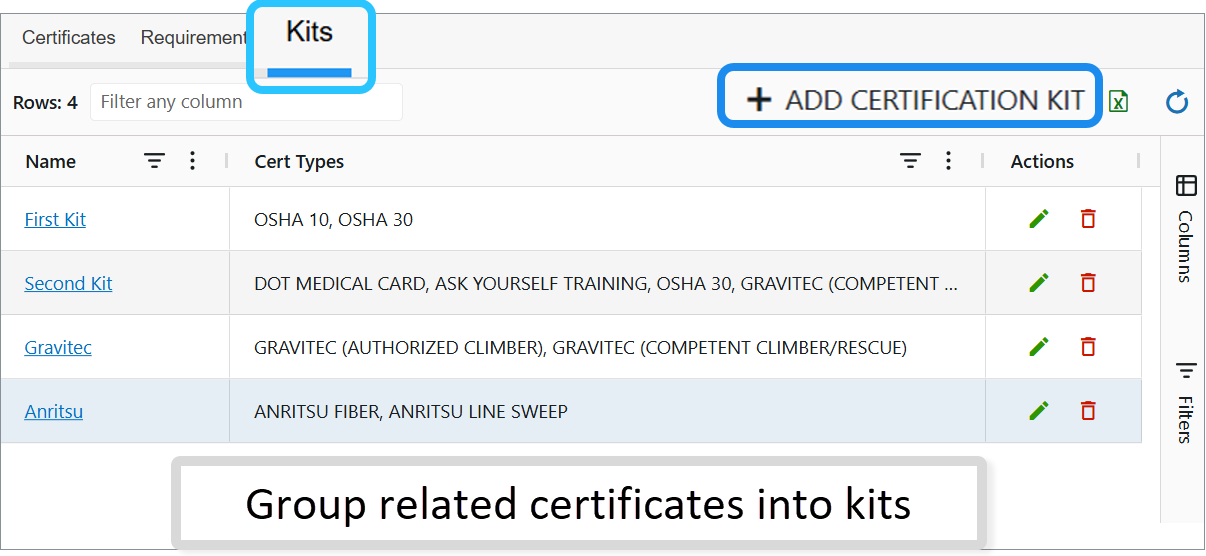
Group related certificates into reusable kits. Apply them in one go to streamline onboarding or updates for employees.
Was this article helpful?
That’s Great!
Thank you for your feedback
Sorry! We couldn't be helpful
Thank you for your feedback
Feedback sent
We appreciate your effort and will try to fix the article