TABLE OF CONTENTS
- Why import payroll costs
- How costs get into FCX — by payroll system
- Automatic cost import
- Manual import from a spreadsheet
- Setup before you import
- How to tell the import worked
- Questions & Answers
What this article covers: how Fieldclix (FCX) brings payroll cost actuals into a payroll check so FCX can calculate accurate Cost Rates (hourly burden per pay code). Most organizations get this data automatically on a schedule. This article also explains the manual CSV import on the Payroll Check desktop card — when you need it, how to prepare the file, and how it differs from automatic imports.
Why import payroll costs
Payroll cost actuals are the real dollars from a processed paycheck: wages, allowances, employer taxes, benefit contributions, and similar items. When FCX has these amounts per employee and pay code, it can compute a true cost to the company for job costing.
Your import should include all company payroll costs you want reflected in labor costing — not only base wages. If the file includes employee-paid deductions, set the matching Payroll Items in FCX to Ignore Addition Type so they do not distort burden.
For how FCX uses these numbers after import, see:
How costs get into FCX — by payroll system
Payroll system | Typical method | Who runs it |
|---|---|---|
Paylocity | API sync after payroll is processed | Automatic (scheduled) |
QuickBooks Desktop | Payroll Summary Report via Web Connector | Automatic (scheduled) |
Empower Prism | Payroll voucher data via API | Automatic (scheduled) |
Paycom | Excel file in a configured folder | Automatic (scheduled) |
Other / no integration | CSV via Import Cost Rates on Payroll Check | User on desktop |
Ad hoc Excel (admin) | Import Payroll Totals tool on a check | Administrator |
Important timing difference:
Integrated systems (Paylocity, QB Desktop, Prism, Paycom): Cost actuals are usually pulled after payroll is processed in the external system. The payroll check must be marked ready to sync from payroll (for example via Sync Cost Rates on the check or through payroll closure).
Manual CSV import: Run the import before you complete the Confirming Payment step in payroll closure. The payroll period should still be unpaid when you upload cost rates manually.
Field mapping and sync rules per system are described in the Field Mapping articles.
Automatic cost import
For Paylocity, QuickBooks Desktop, Empower Prism, and Paycom, FCX can import payroll costs without a user picking a CSV file. FCX reads cost data from your payroll system (or from files your payroll team drops in a folder) and writes cost lines to the payroll check. The result is the same as manual import — updated Cost Rates for the period — but it runs on a schedule set up during implementation.
Your implementation team enables the right connections and schedules for your organization. End users do not turn automatic cost import on in the FCX UI.
Paylocity, QuickBooks Desktop, and Empower Prism
System | When it runs | Source of cost data |
|---|---|---|
Paylocity | After payroll batch is processed in Paylocity | Pay statement details |
QuickBooks Desktop | After payroll is processed in QuickBooks | Payroll Summary Report |
Empower Prism | After Prism batch / voucher is available | Payroll voucher lines |
Common requirements:
Employees and Payroll Items are already synced and linked between systems.
The FCX payroll check is ready to sync from payroll.
For Paylocity and Prism, cost-rate import must be enabled in your integration settings.
After a successful import, FCX marks the check as synced from payroll and recalculates Cost Rates for the payroll period.
Paycom (file-based automatic import)
Paycom does not send cost actuals through a live API in this setup. Instead, FCX watches a configured folder for Excel files that Paycom (or your payroll team) places there, then imports costs into the matching FCX payroll check.
What happens on each scheduled run:
Find checks to process — FCX looks for payroll checks that are ready to pull costs from payroll.
Match files by pay date — for each check, FCX looks in the folder for Excel files whose names match:
{PayDate as YYYYMMDD}*{keyword}*.xlsx
Default keyword:Cost_Rates(your team can configure a different keyword).Read the Excel file — expected columns:
EE Code — Paycom employee code (must match synced employee links)
Typecode — Paycom pay code (must match synced Payroll Item links)
Amount — dollar amount
Hours/Units — hours or units (optional for rate calculation)
Map to FCX records — employees and payroll items are matched through links created when employee and pay-code data was synced from Paycom.
Import costs — FCX loads cost lines on the check, marks the check synced from payroll, and recalculates period Cost Rates.
If something is missing:
No file for the check pay date → FCX logs a warning and skips that check until a file appears.
Employee on the check but not in the file → warning; other employees still import.
Pay code in the file with no linked Payroll Item → import fails for that check until mapping is fixed.
Prerequisites for Paycom cost import:
Employee and pay-code sync has already run so employees and pay codes are linked.
Payroll check has a Pay Date and is marked ready to sync from payroll.
Cost report Excel is in the configured folder with the correct date and naming pattern before the next scheduled import run.
Your implementation team configures the folder path and file keyword. How files arrive in that folder (for example a scheduled export from Paycom) is set up per client during onboarding.
Manual import from a spreadsheet
When to use manual import
Use Import Cost Rates on the Payroll Check desktop card when:
Your company has no automatic payroll cost sync, or
You need a one-off correction or import from a payroll system that is not integrated for cost rates, or
Support directs you to load costs from a spreadsheet export.
Do not use manual CSV import if automatic cost import is already loading the same check for your payroll system — you would duplicate or overwrite data.
Prepare your import file
The import spreadsheet must follow this format exactly:
Headers titled and ordered exactly as shown below
No extra columns before or after those shown
EmployeeId must match the employee ID in FCX exactly
PayrollItem must match the Name field on the Payroll Item card in FCX exactly
Numeric columns: decimal values, no commas
File saved as CSV
EmployeeId | PayrollItem | Hours | Rates | Amount |
|---|---|---|---|---|
14 | REG | 10.5 | 20.5 | 215.25 |
10015 | PWOT | 8 | 45 | 360 |
16A | PTO | 2.36 | 10.55 | 24.90 |
123 | MEDER | 100 | 100 | |
456 | MEDEE | 500 | 500 | |
789 | PDIEM | 234 | 234 |
If Rates is empty but Hours and Amount are present, FCX derives the rate as Amount ÷ Hours (when hours are not zero).
Run Import Cost Rates
Before you start: The payroll period should still be unpaid. Finish cost import before the Confirming Payment closure step.
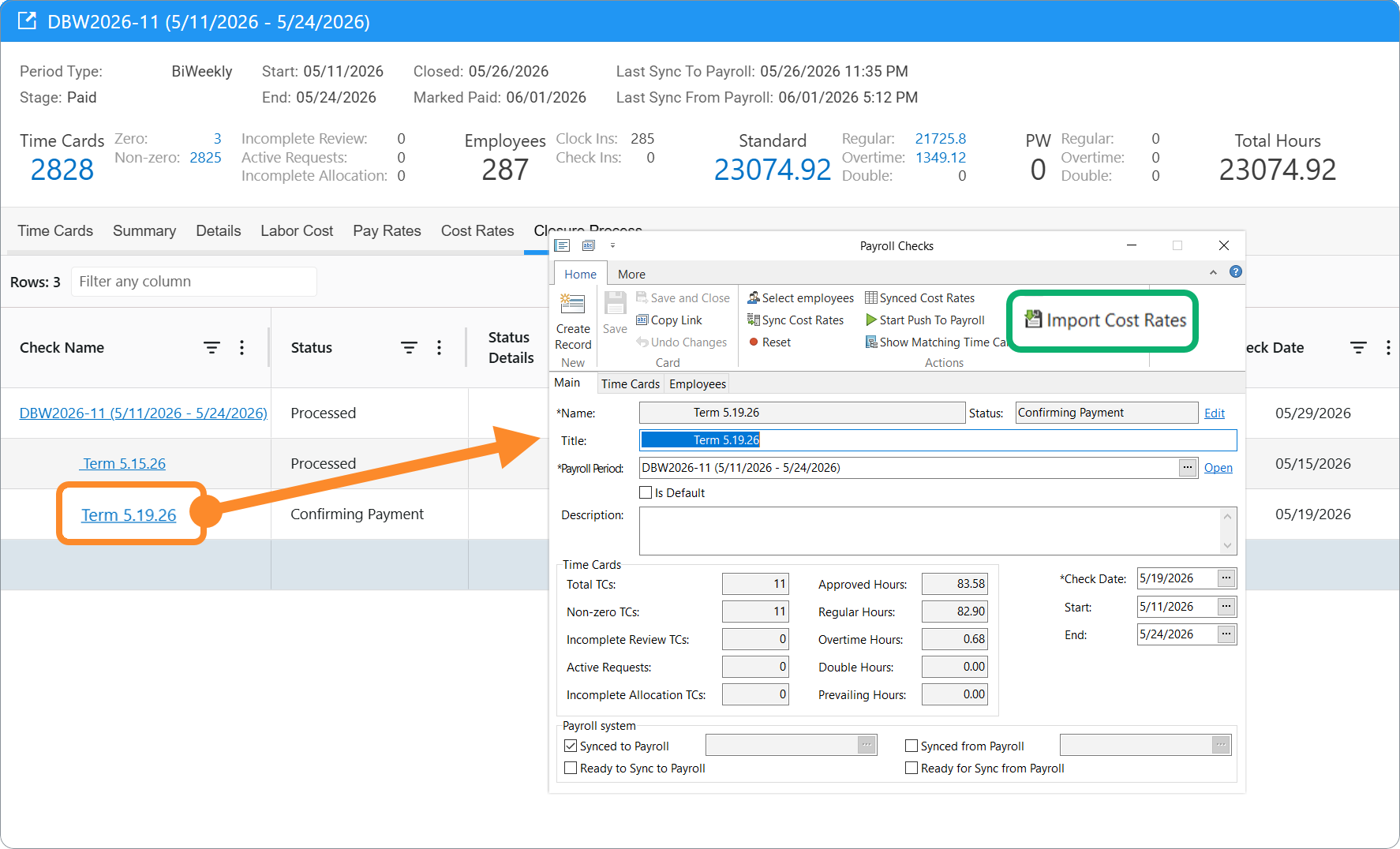
Open the Payroll Check desktop card for the period you are importing:
Go to Time Keeping Reports > Payroll Periods dashboard
Double-click on the required row to open certain payroll period card.
On the Closure Process tab, click the blue Payroll Check name
Run Import Cost Rates and select your prepared CSV file.
FCX validates each row (employee and payroll item must exist). Errors are shown in a list after processing.
On success, FCX saves cost lines on the check and recalculates Cost Rates for the payroll period.
Setup before you import
Whether costs arrive automatically or via manual import, setup is required:
Every Payroll Item that can appear in an import must exist in FCX and be configured as either a wages item or an item with an Addition Type (N/A, Proportional, Fixed, AdHoc BP, AdHoc Overhead, or Ignore).
For integrated imports, employees (and for Paycom, pay codes) must be synced and linked before cost import runs.
Contact your FCX implementation team for tenant-specific options (which automatic imports are enabled, folder location, file naming, Paylocity/Prism cost-rate settings).
How to tell the import worked
After import (manual or automatic):
On the payroll period report Labor Cost tab, rows should show Reconciled Rate under Cost Rates Source.
The Cost Rates tab on the period report may not show data immediately after import — that is expected. Use Labor Cost and Cost Rates Source to confirm.
If costs look wrong or misallocated to overhead, see How to Fix Payroll Cost Misallocated to AdHoc OH? and Use Ad Hoc Expense Card for Payroll Costs that Cannot be Synced.
Questions & Answers
Q: What are payroll cost actuals, and why does Fieldclix need them?
A: Payroll cost actuals are the real dollars from processed paychecks — wages, employer taxes, benefits, allowances, and similar items. Fieldclix uses them to calculate accurate Cost Rates (hourly burden per pay code) so job costing reflects the true cost to the company.
Q: How do payroll costs get into Fieldclix automatically?
A: For Paylocity, QuickBooks Desktop, and Empower Prism, costs are pulled on a schedule after payroll is processed in the external system. For Paycom, Fieldclix watches a configured folder for Excel cost reports and imports them automatically. Your implementation team enables the right connection and schedule for your organization — end users do not turn this on in the UI.
Q: When should I use manual Import Cost Rates instead of automatic sync?
A: Use manual CSV import when your company has no automatic payroll cost sync, when support directs you to load a one-off correction, or when your payroll system is not integrated for cost rates. Do not use manual import if automatic cost import already loads the same check — you would duplicate or overwrite data.
Q: When should I run cost import relative to payroll closure?
A: Timing differs by method. Integrated systems pull costs after payroll is processed externally; the check must be marked ready to sync from payroll. Manual CSV import must run before the Confirming Payment step while the payroll period is still unpaid.
Q: What format does the manual import CSV file need?
A: Save a CSV with headers exactly: EmployeeId, PayrollItem, Hours, Rates, Amount — in that order, with no extra columns. EmployeeId must match the employee ID in Fieldclix; PayrollItem must match the Name on the Payroll Item card. Use decimal numbers without commas.
Q: How does Paycom automatic cost import work?
A: Paycom does not send cost actuals through a live API in this setup. Fieldclix looks in a configured folder for Excel files named like {PayDate YYYYMMDD}*{keyword}*.xlsx (default keyword Cost_Rates), reads columns EE Code, Typecode, Amount, and Hours/Units, matches employees and pay codes through existing sync links, and loads cost lines on the payroll check.
Q: What setup is required before any cost import?
A: Every Payroll Item that can appear in an import must exist in Fieldclix with the correct type (wages or Addition Type). For integrated imports, employees (and for Paycom, pay codes) must be synced and linked first. Contact your Fieldclix implementation team for tenant-specific options such as folder paths, file naming, and which automatic imports are enabled.
Q: How do I know the import worked?
A: On the payroll period report Labor Cost tab, rows should show Reconciled Rate under Cost Rates Source. The Cost Rates tab may not update immediately — use Labor Cost and Cost Rates Source to confirm. After automatic import, the check is also marked as synced from payroll.
Was this article helpful?
That’s Great!
Thank you for your feedback
Sorry! We couldn't be helpful
Thank you for your feedback
Feedback sent
We appreciate your effort and will try to fix the article