TABLE OF CONTENTS
- Payroll Check Closure Process
- Quick rules
Payroll Check Closure Process
Payroll Period Closure is how Fieldclix checks that time data is complete, correct, and (if configured) sent to Your payroll system before the period is marked Closed and then Paid.
Think of it as a checklist with gates: each step must pass before the next one opens.
When Does It Start?
- The default payroll check for a period starts closing the day after the period end date, as part of nightly Time Keeping processing.
- You can also start closure manually for an off-cycle check.
If the period has ended → the next day → closure can begin.
Where to Work?
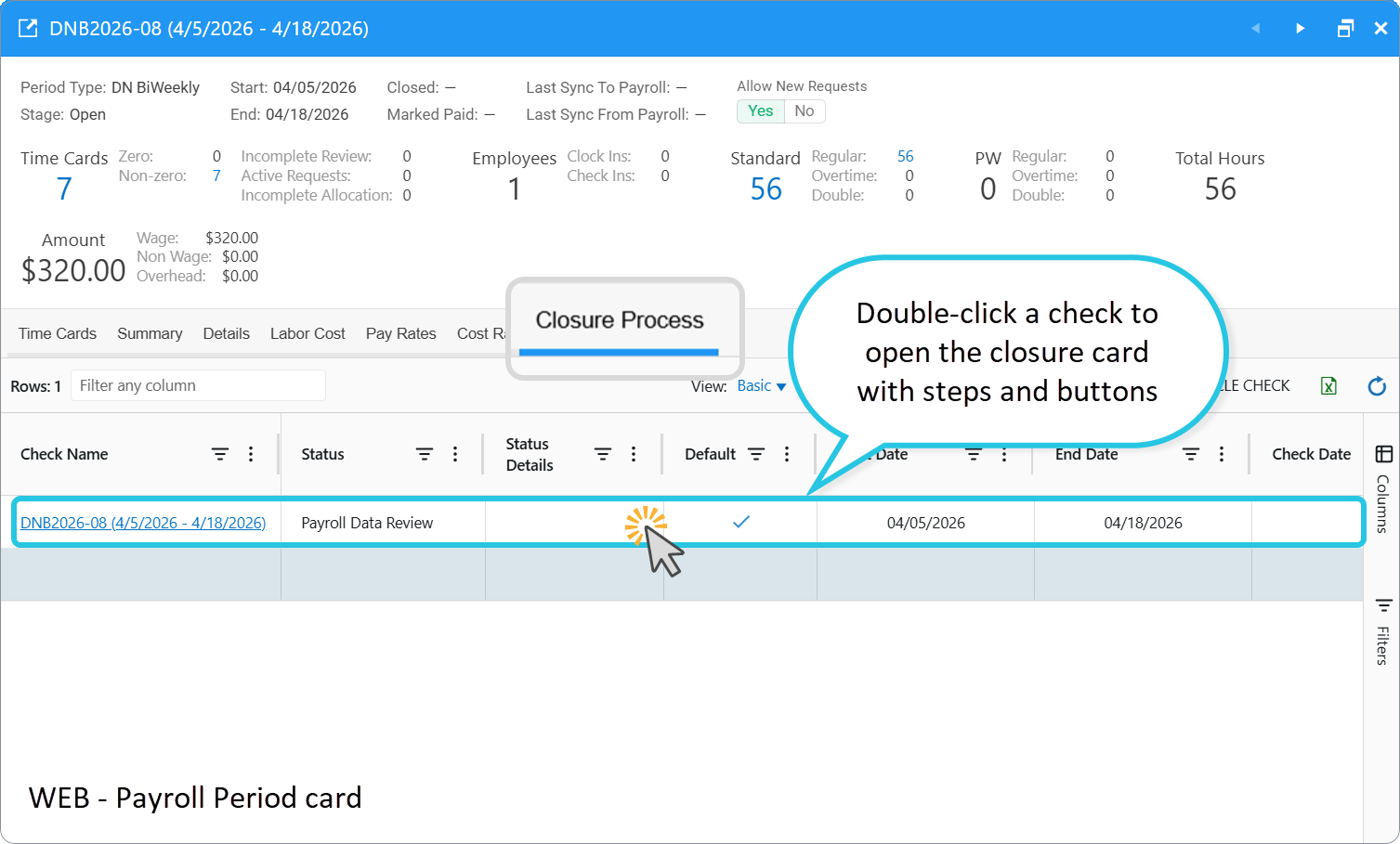
- Open Payroll Periods dashboard.
- Open the period.
- Go to Closure Process tab.
- Double-click a check to open the closure card with steps and buttons.
Desktop: the same jobs appear in your Inbox.
Who Can Close a Period?
You can run closure if you are:
- The Payroll Administrator for that period type (set in Payroll Period Type), or
- A substitute for that administrator.
What you can do:
- Complete closure for the default check (created automatically).
- Create an off-cycle check and run it through the same steps.
Tip: Finish all closure jobs for the period. That keeps Sick / Vacation “Not Synced” hours correct (they depend on whether the check is marked Synced to Payroll).
What You See (7 Steps)
These are the statuses you see on the Closure Process tab.
| # | Stage | What it means for you |
| 1 | Pending | The period is still open or just ended. Wait until closure starts. |
| 2 | Payroll Data Review | You main review job — Confirm every Time Card is reviewed and no open time-off / adjustment requests remain. |
| 3 | Review Synced Data | Compare hours in the payroll system (skipped if sync is off). |
| 4 | Payroll Revision | You chose to revise; fix data, then continue. |
| 5 | Waiting for Payment | System waits until the Check Date (may move on immediately if no date is set). |
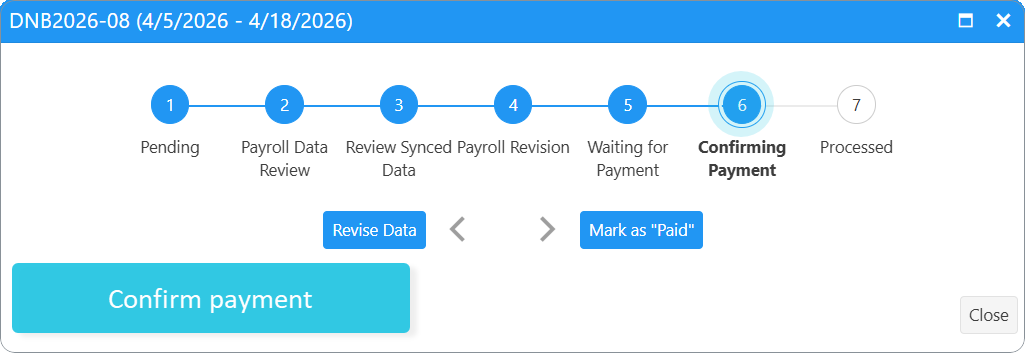
| 6 | Confirming Payment | Confirm the check is paid in payroll. |
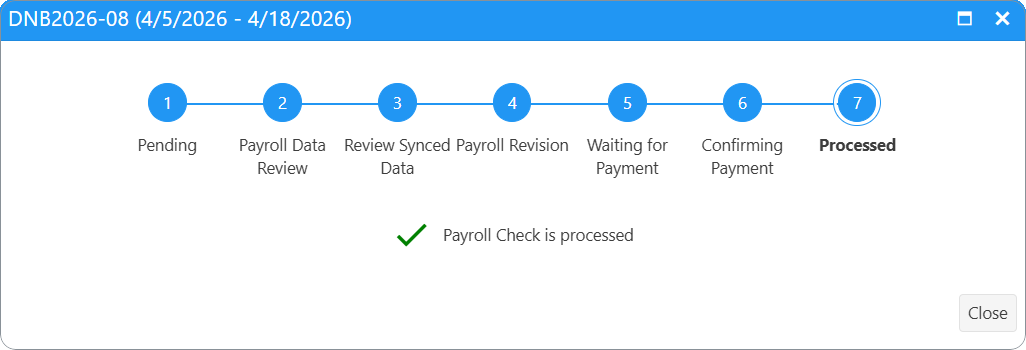
| 7 | Processed | This check’s closure is finished. |
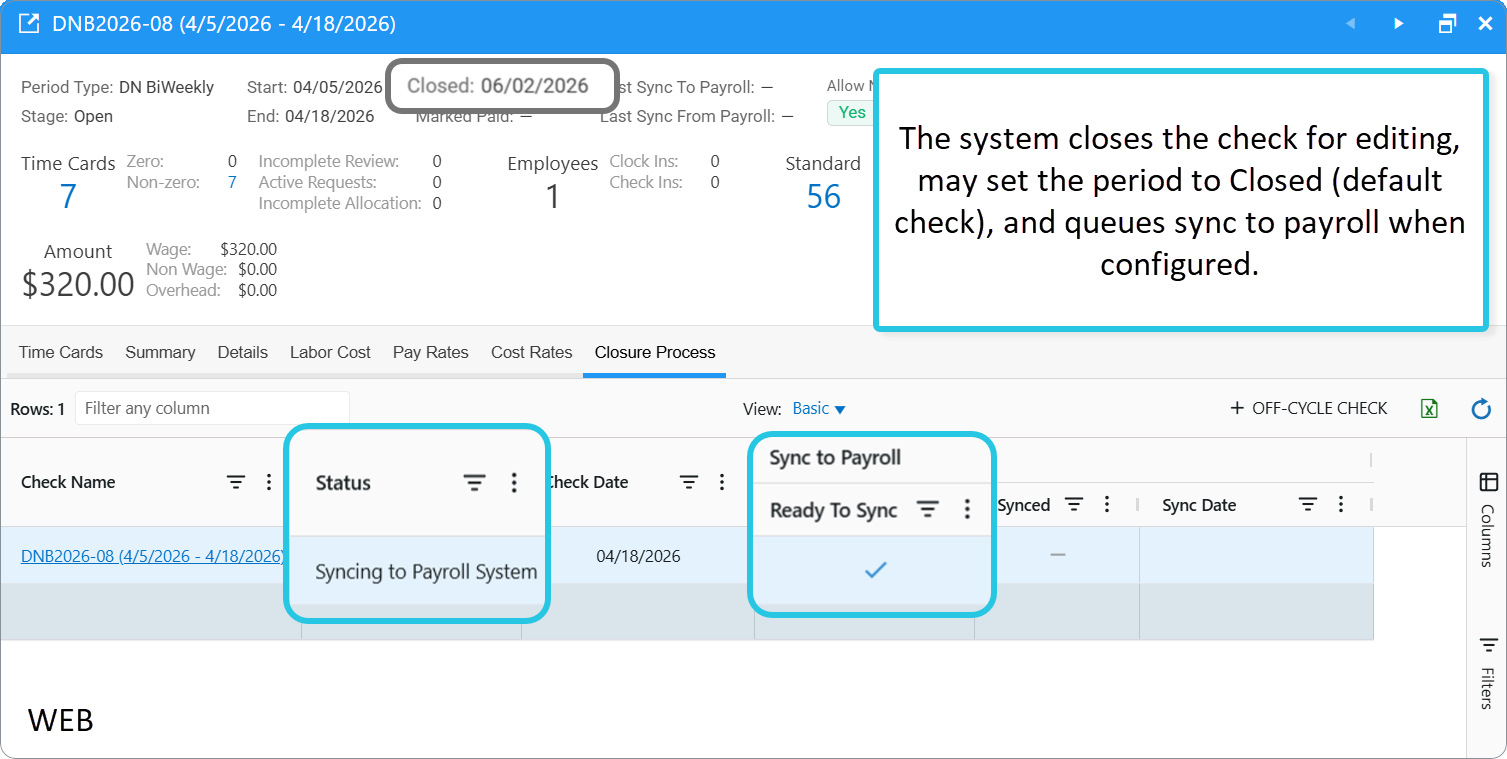
While the system works, the check may briefly show Recalculating or Syncing to Payroll System — no action from you.
Without payroll sync, you skip sync-related stages but still go through review — that keeps your data reliable even if nothing is exported.
Pending
The period is still open or just ended. Wait until closure starts.
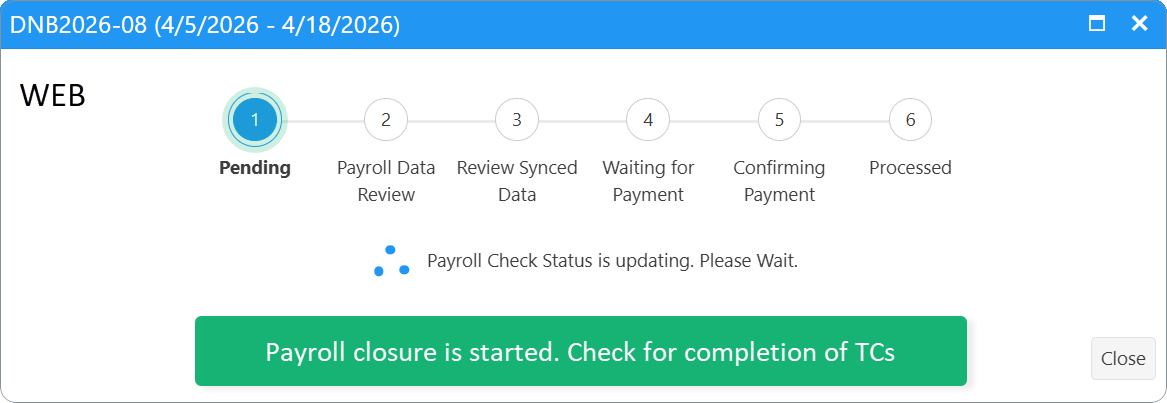
Job 1 — Review Payroll Data
Open the job from Closure Process or your Inbox.
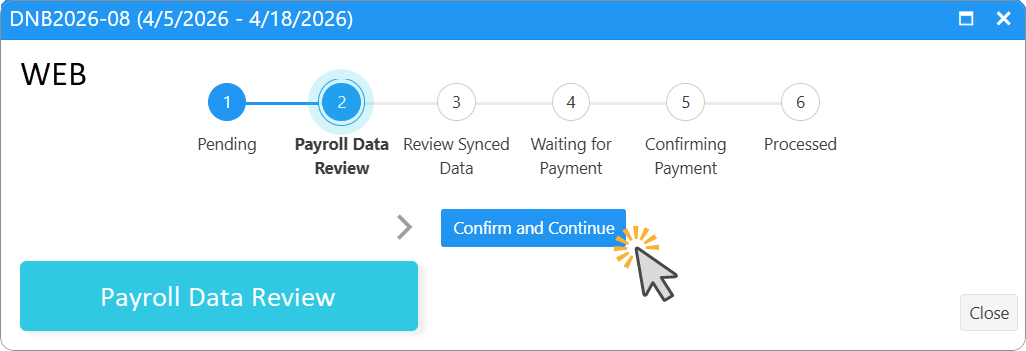
Before you confirm, the system may warn you about:
- Time cards not in review Completed
- Open time keeping requests
- Work shifts not synced
- Missing Check Date (if required for your period type)
You should:
- Open incomplete Time Cards and finish review / close requests.
- On the period Time Cards tab (Status view), fix allocation issues (cost type, work order, payroll item, cost rate).
- Set Check Date if the button is shown.
- Click Confirm and Continue.
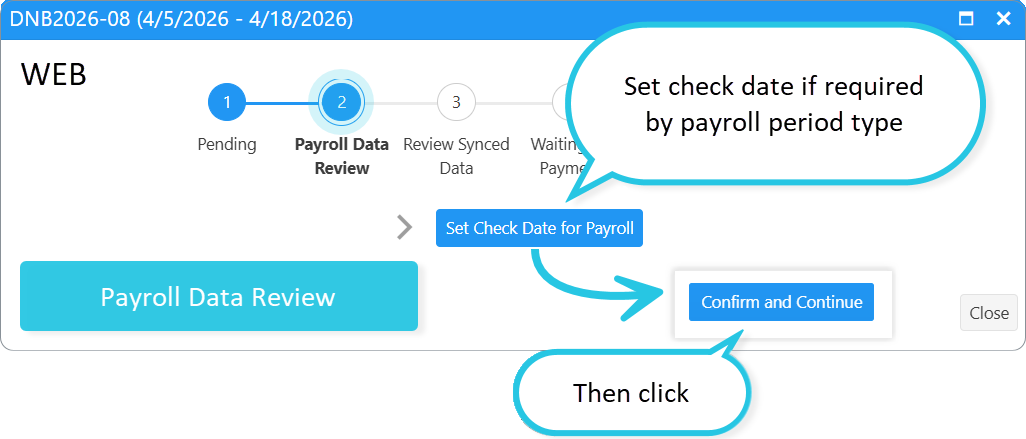
Then the system:
- Recalculates payroll allocation (in batches).
- Runs closure checks (including that employees are linked to the payroll system, if sync is on).
- If audits fail → the same job returns with errors.
- If OK → closes the check for editing, may set the period to Closed (default check), and queues sync to payroll when configured.
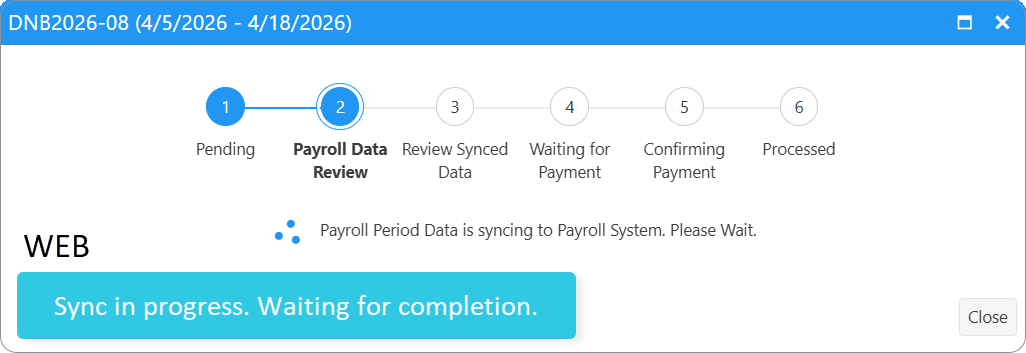
Sync to Payroll (if Enabled)
- Runs on a schedule (about every 15 minutes).
- Waits up to 2 days.
- On success, Synced to Payroll is set.
- If sync fails, details may appear on the check.
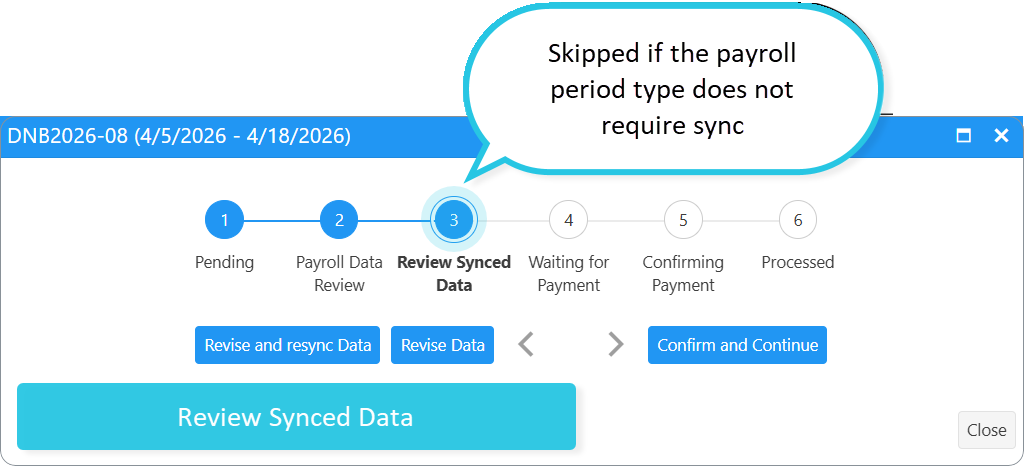
Job 2 — Review Data in the Payroll System
Skipped if your period type does not sync to payroll.
| Button | Result |
| Confirm and continue | Data OK → wait for check date → final confirmation. |
| Revise and resync Data | Period reopens; fix Time Cards; sync runs again. |
| Revise Data | Fix without a new sync. |
| Cancel Payroll | Desktop only (hidden on Web). Stops closure and clears Time Cards from the check. |
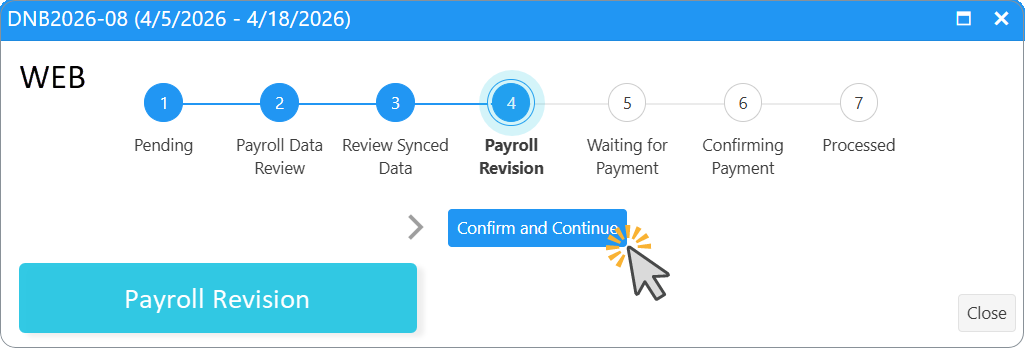
Job 3 — Revise Payroll Period Data (only after Revise)
- Fix Time Cards and allocation.
- Confirm and Continue.
- You return to review/sync or payment steps depending on how you revised.
Waiting for Payment
- The process pauses until the Check Date has passed (or continues if no date is required/set).
- When period type does not require check date, default checks usually does not stay in Waiting for Payment.
So practically: no required check date → no real waiting (maybe only a brief technical transition).
Job 4 — Confirm the Check is Paid
- Verify payment in your payroll system.
- Click Mark as "Paid" (or Confirm and Continue).
Then the system:
- Records paid date on the default period when applicable.
- May pull cost rates from payroll (if the period type allows sync from payroll).
- Sets the check to Processed and the default period to Paid when that chain completes.
If something is still wrong → Revise Data (returns to job 3).
Check is Processed
It usually takes up to 15 minutes after cost rates are synced from the payroll system for the check to become Processed and for the default payroll period to be marked as Paid.
Off-Cycle Checks
- On Closure Process, create an off-cycle check (employees, dates, title, check date).
- Choose whether to sync to payroll.
- Complete closure before the default check when the period is still open.
You can Reset and Delete an off-cycle check while the period is open and the check was never synced.
Learn more about off-cycle checks in the separate article.
Quick Rules
- Finish off-cycle checks before the default check when possible.
- Complete all closure jobs so sick/vacation “not synced” hours stay correct.
- Cancel and full reset of an active check: use Desktop for cancel; Web supports reset/delete for eligible off-cycle checks.
- Use the Refresh button on the Closure Process tab to load the latest data and show the actual closure status.
Was this article helpful?
That’s Great!
Thank you for your feedback
Sorry! We couldn't be helpful
Thank you for your feedback
Feedback sent
We appreciate your effort and will try to fix the article