TABLE OF CONTENTS
- Summary
- Feature Availability
- Create Employee Certificate - Web
- Download certificate files (bulk)
- Employee Certificate Requirements
- Create Employee Certificate - Desktop
- Access to Certificate Documents
- Auto-Close Certificates When Expired
- Watch a video
Summary
- Employee Certificates and Certificate Types are very straightforward database tables.
- You can create any Certificate Type you like and add Certificates under those Types for each Employee.
- A file (image or PDF, usually) can be attached to the Certificate card.
- In the future, if a Certificate expires, it can trigger a Notification (configured in Notification Events Reference).
- You can update the Certificate and keep the old document but upload a new one. The fields on the record, though, have to be changed to match the reissued cert.
Feature Availability
Certificate Management is optional and can be turned off at your company's request. If disabled, all certificate related tools, tabs, and data will be completely hidden throughout the system. This includes the Employee Certificates dashboard, the Certificates tab in Work Orders, Employees, and certificate requirements on the Dispatch Card.
Create Employee Certificate - Web
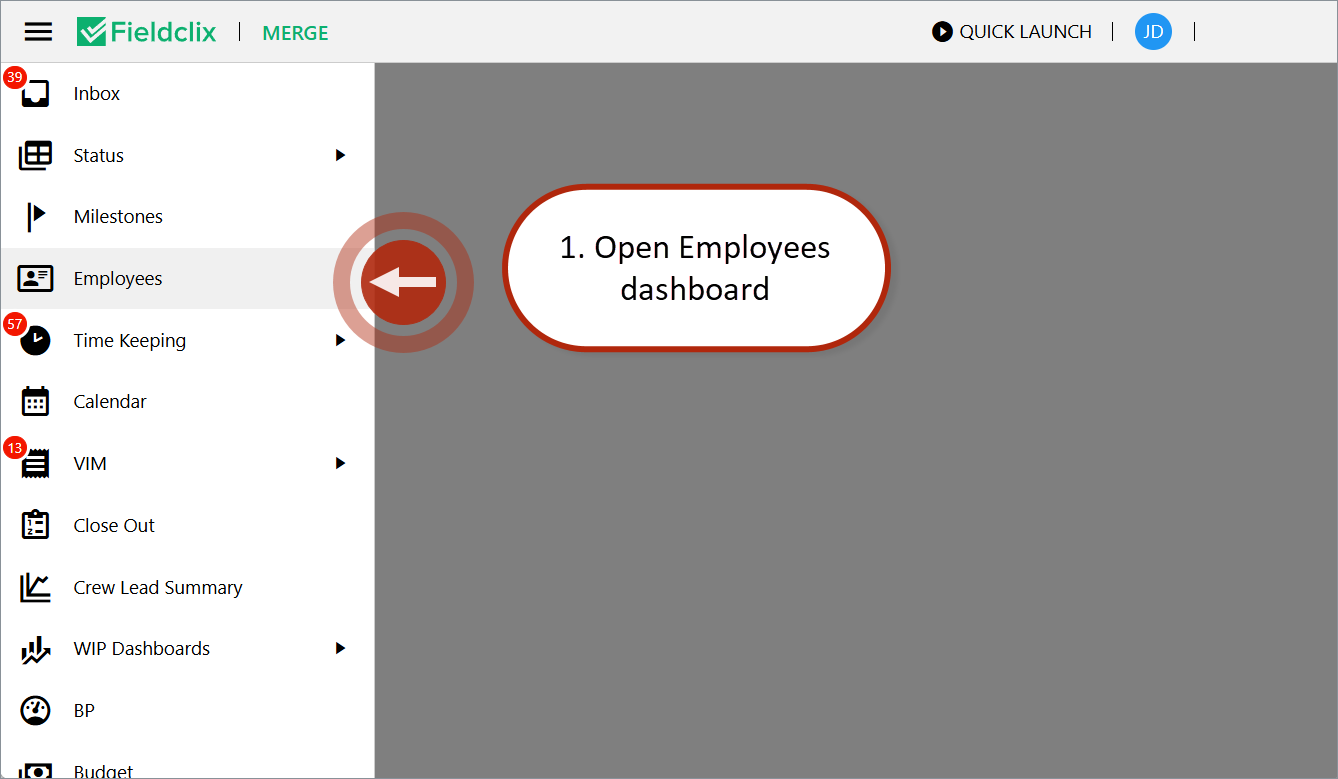
- Open the Employees dashboard.
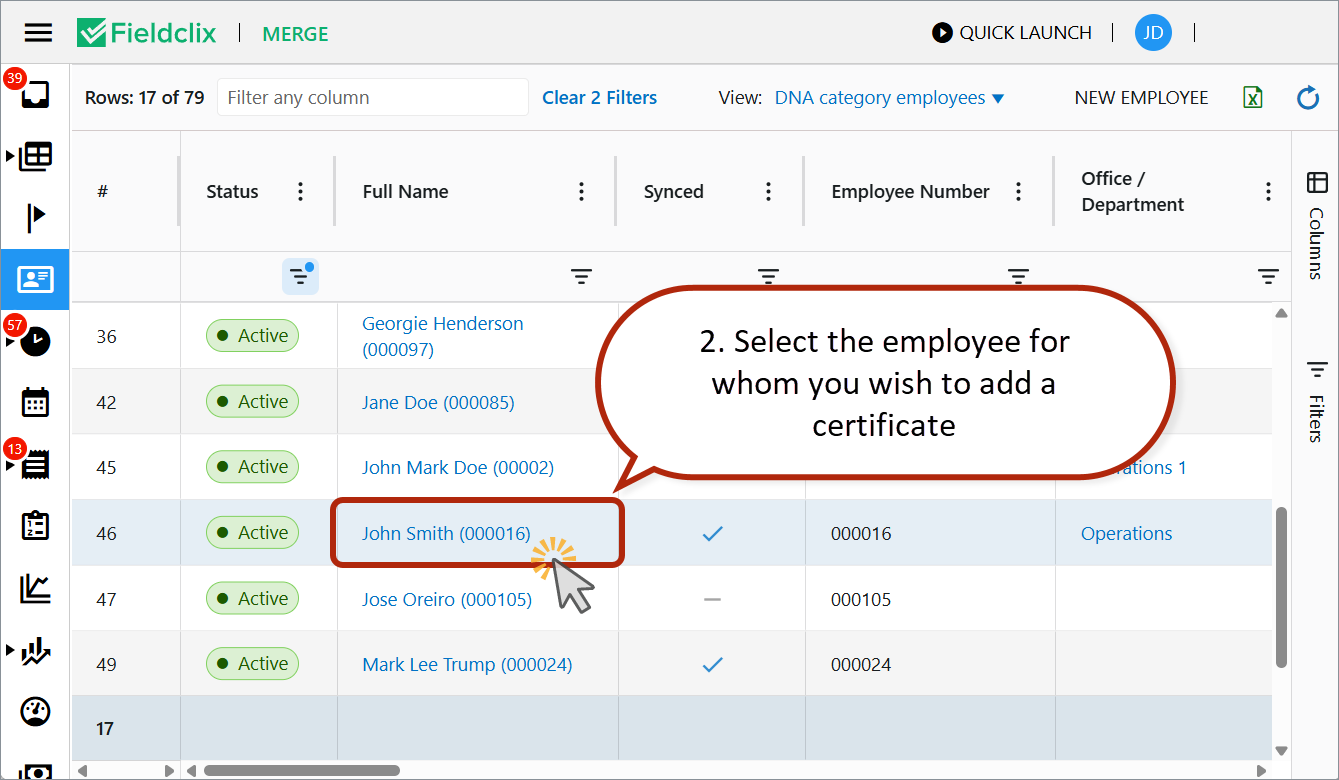
- Select the employee for whom you wish to add a certificate.
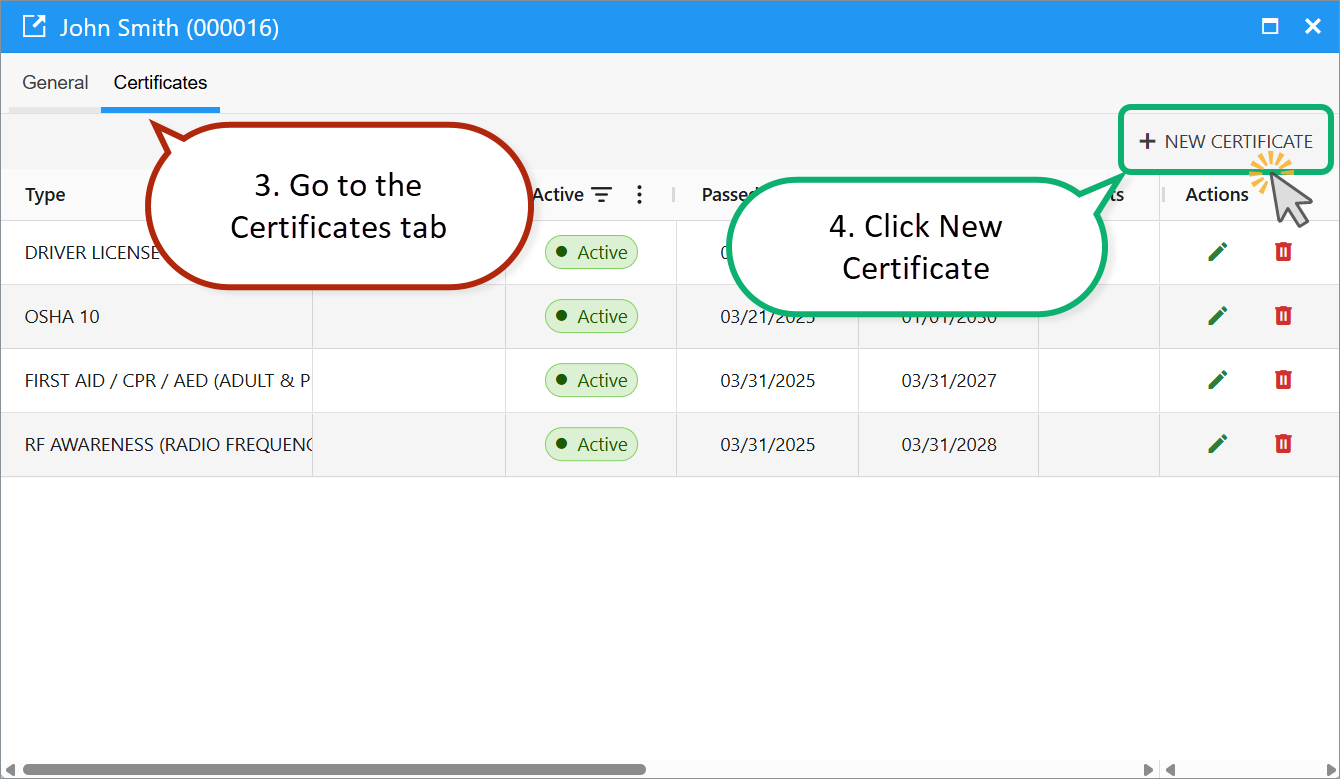
- Go to the Certificates tab.
- Click New Certificate (top-right corner).
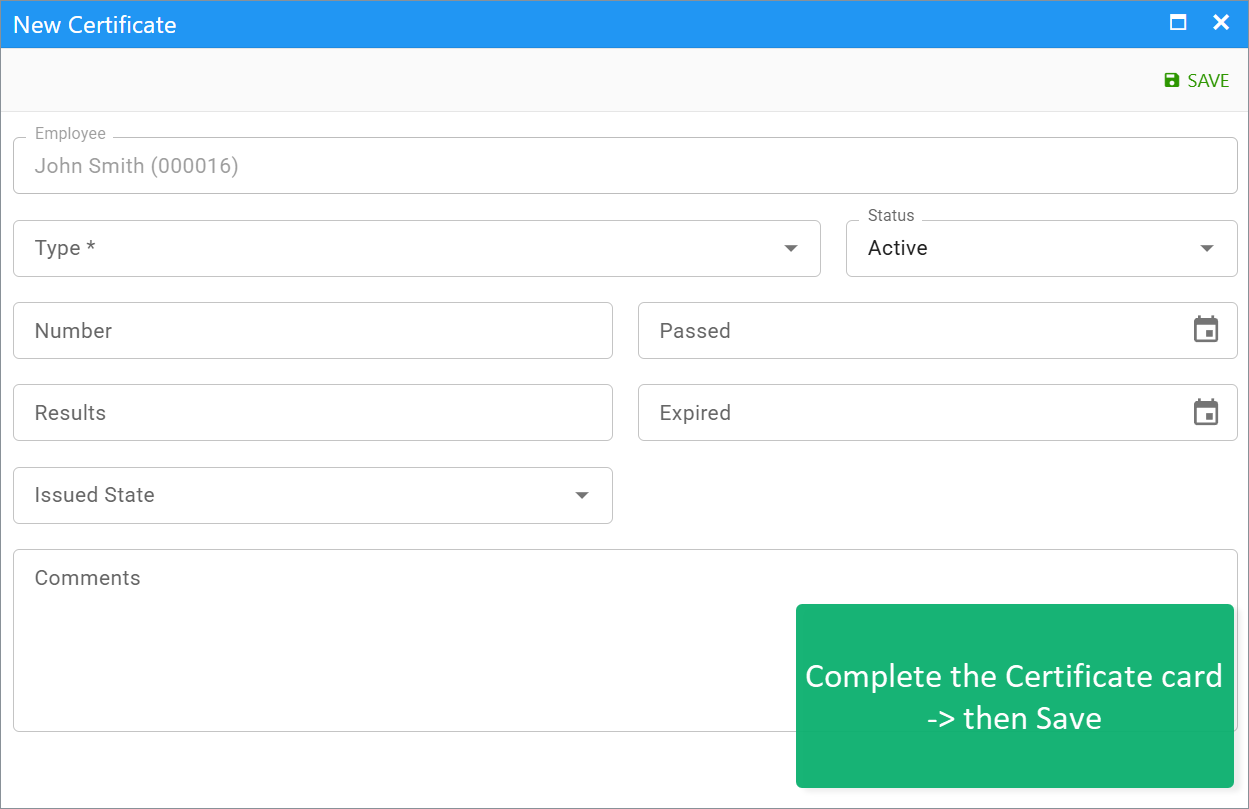
Complete the Certificate card
- Type – required field.
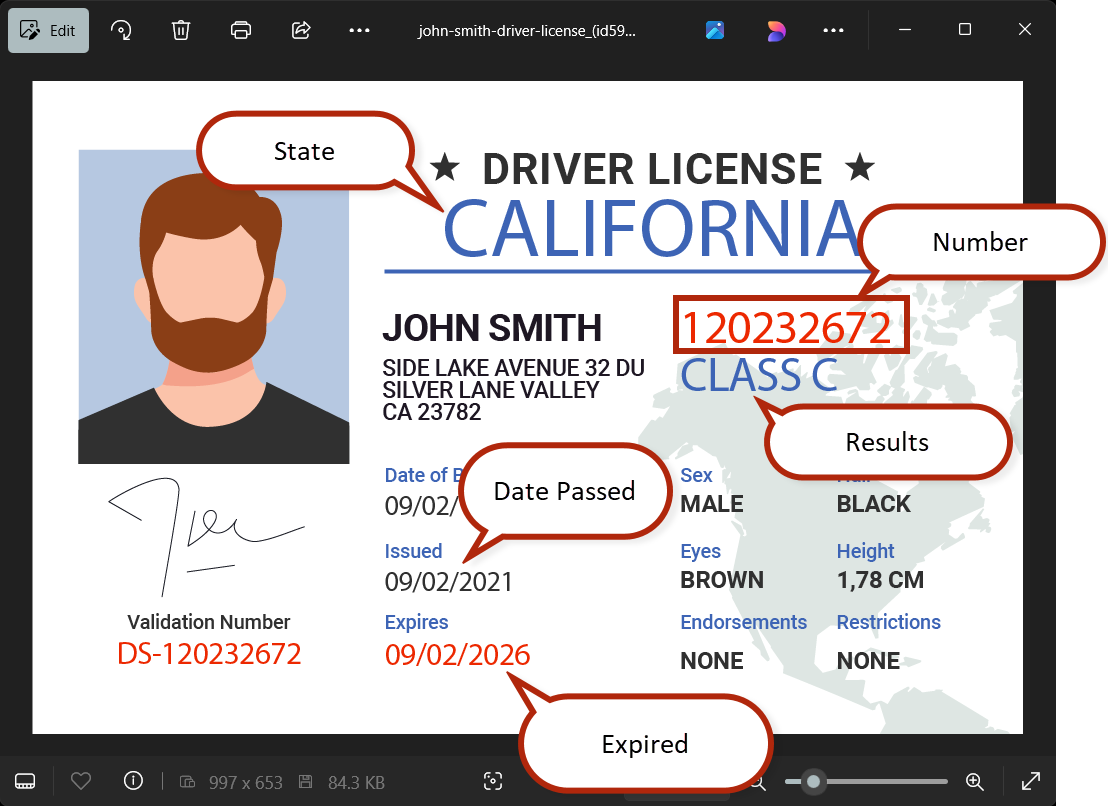
- Add the remaining details. You can use the Certificate file preview to help you fill-out the other fields on the Certificate card, including:
- Number: document reference number.
- Date passed: date the certificate was issued/approved.
- Results: class, group or grade achieved.
- Expired: date when the certificate becomes invalid.
- State: US state or equivalent region in another country.
5. Click Save.
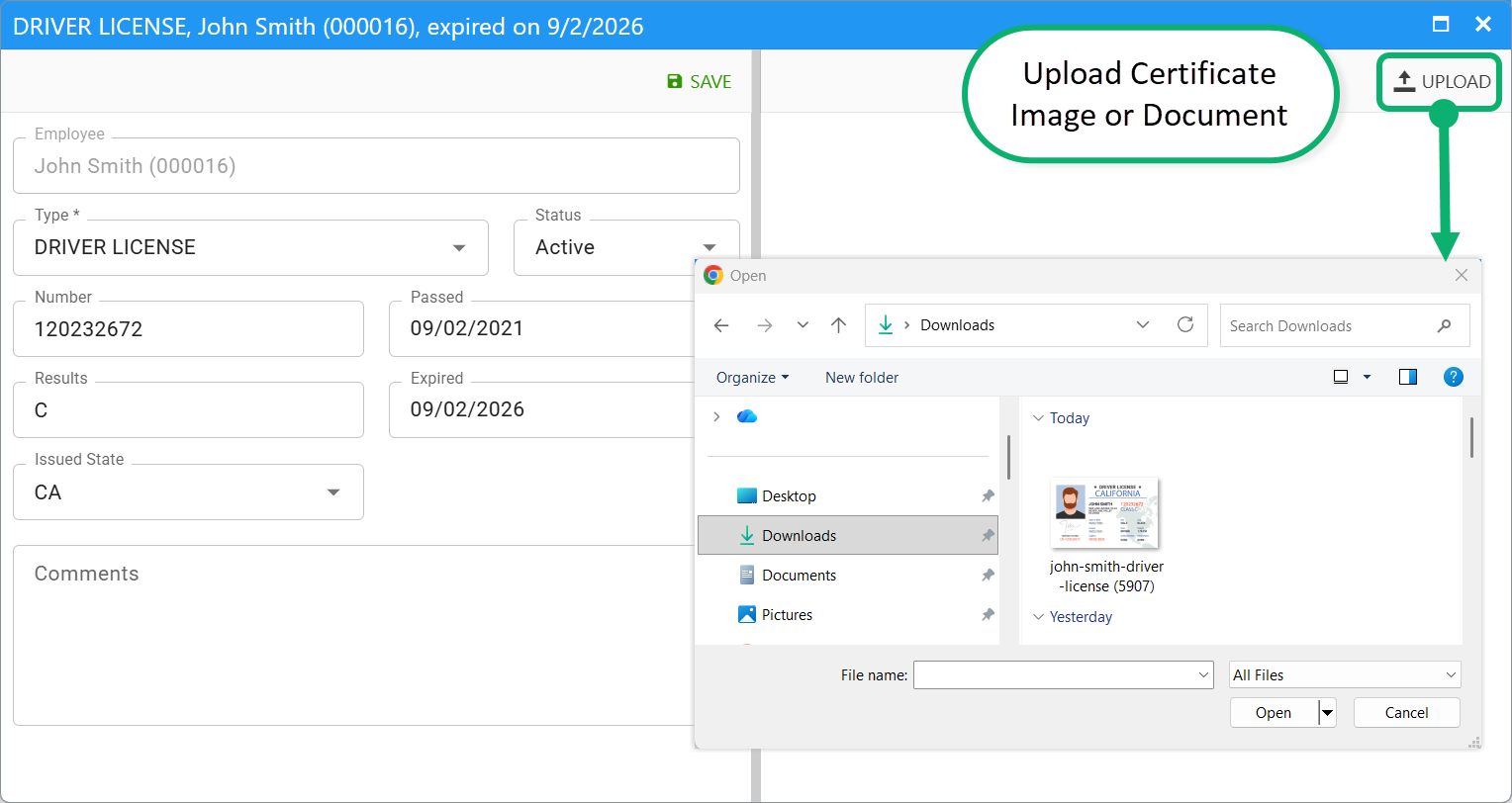
Upload Certificate Image or Document
- In the Certificate card, click Upload (right-hand side).
- Supported formats: images, PDF, Word, Excel.
- Note: only one file per certificate.
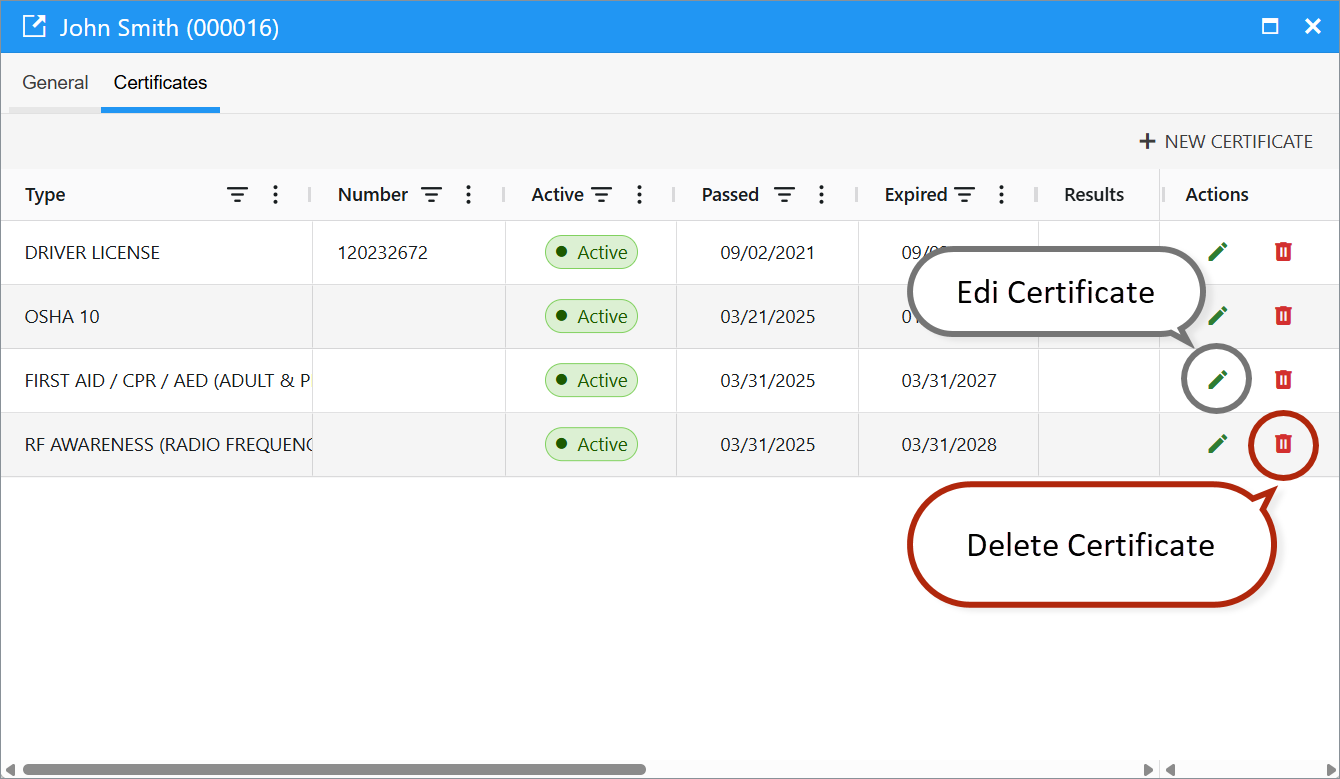
Edit/Delete a Certificate
- Edit: click the pencil icon.
- Delete: click the bin icon.
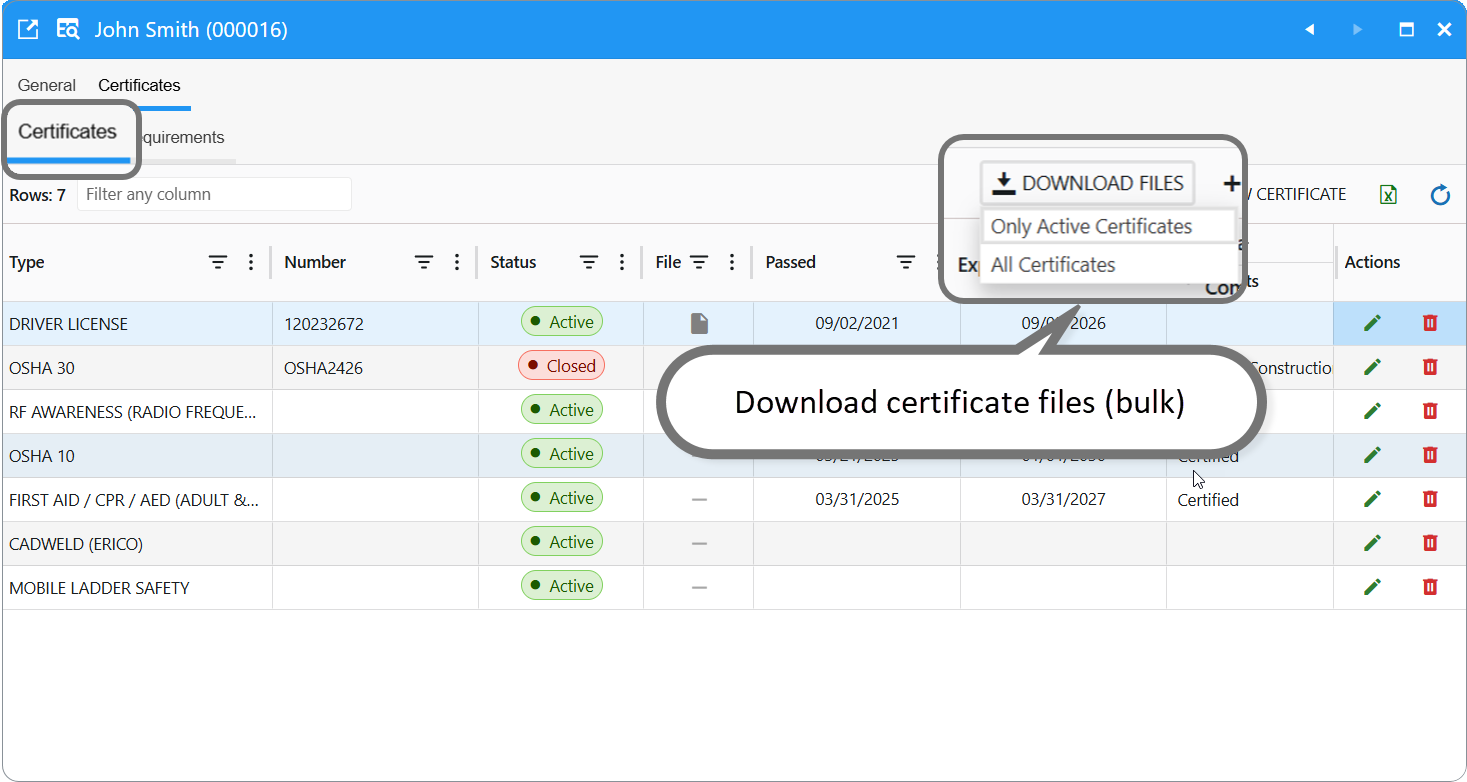
Download certificate files (bulk)
On an Employee card → Certificates tab, you can download attached certificate documents in one step.
- Open the Employee card.
- Go to Certificates.
- In the grid toolbar, open Download.
- Choose:
- Only Active Certificates — files for active certs only
- All Certificates — every cert that has an attached file
- Confirm download — Fieldclix packages files (ZIP when multiple) using the employee name in the file name.
If download is unavailable
- Selected certificates have no attached document.
- You lack access to the employee or certificate records.
Employee Certificate Requirements
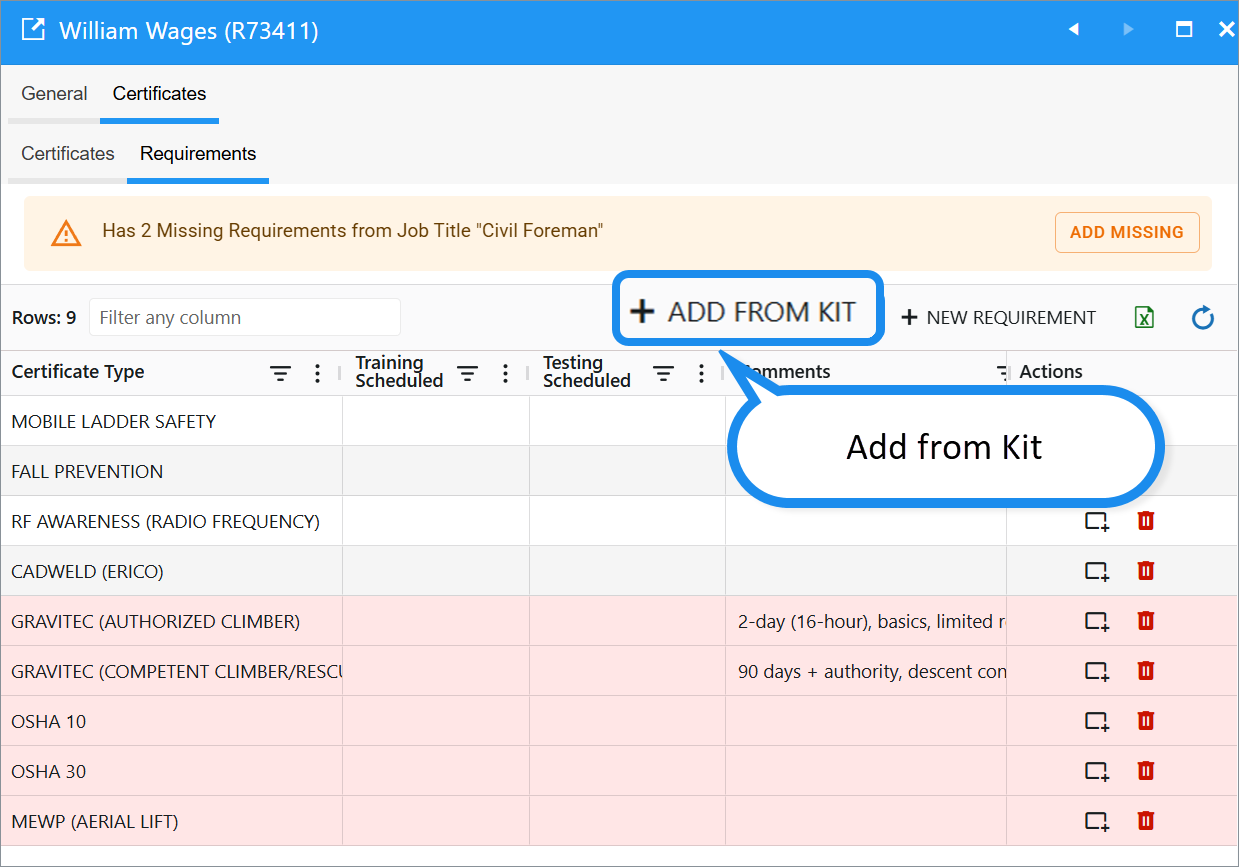
Access certificate requirements directly in the Employee card > Requirements tab:
- Create new requirements.
- Add Missing based on job title certificates.
- Add from a Certificate Kit.
More about Certificate Requirements: Read the separate article Certificate Requirements and Kits.
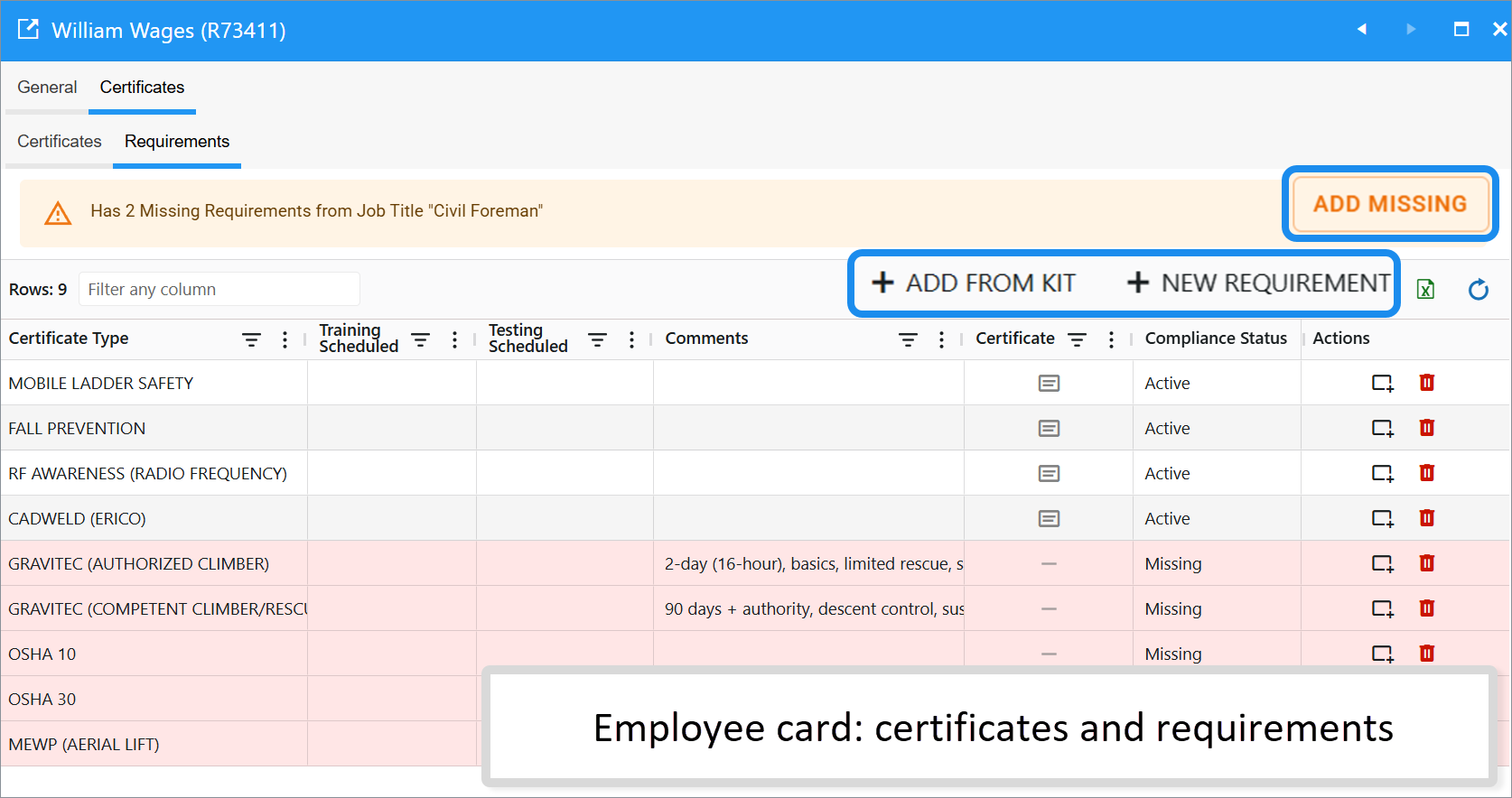
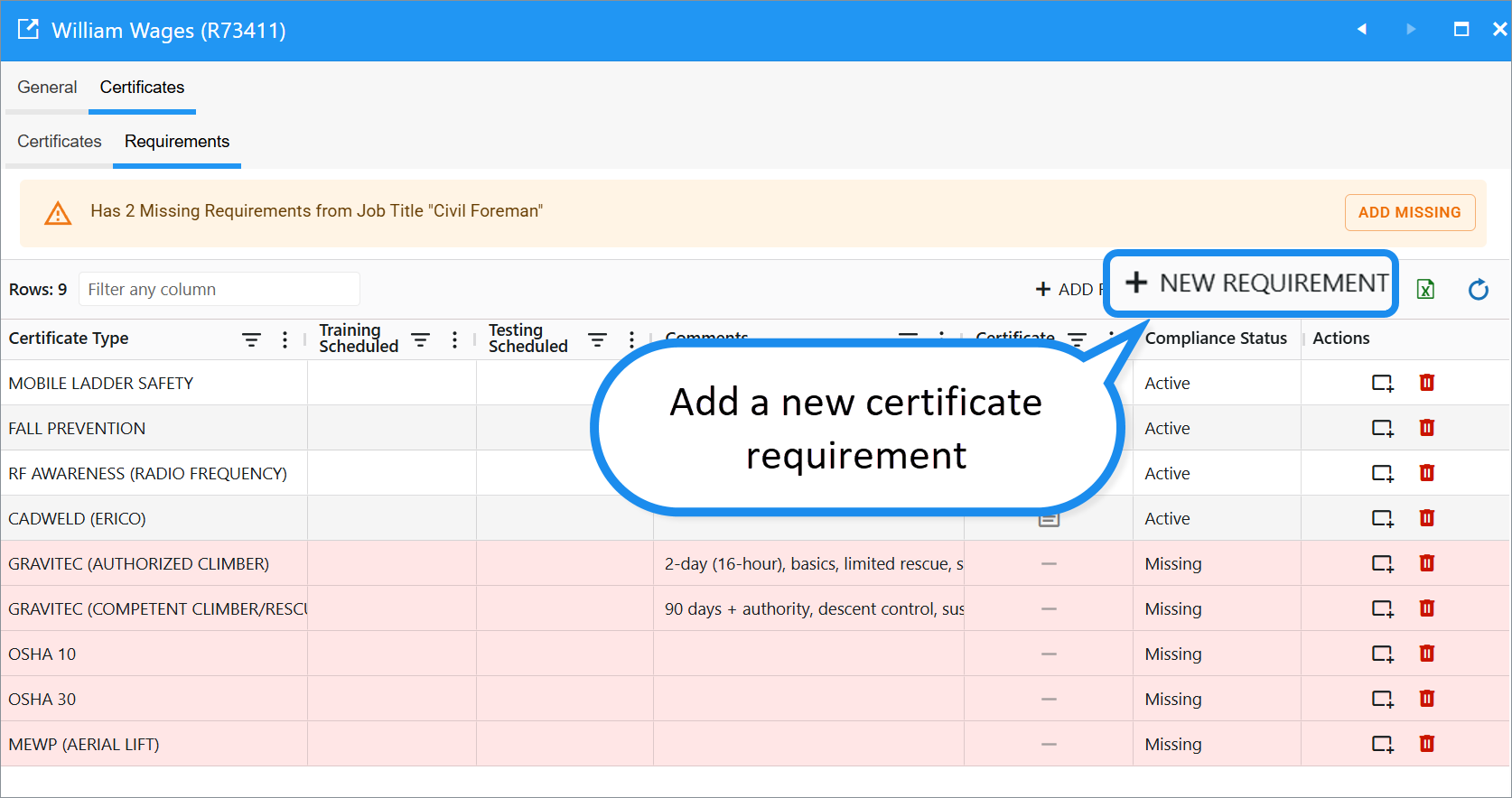
Create a New Requirement
- Click + NEW REQUIREMENT.
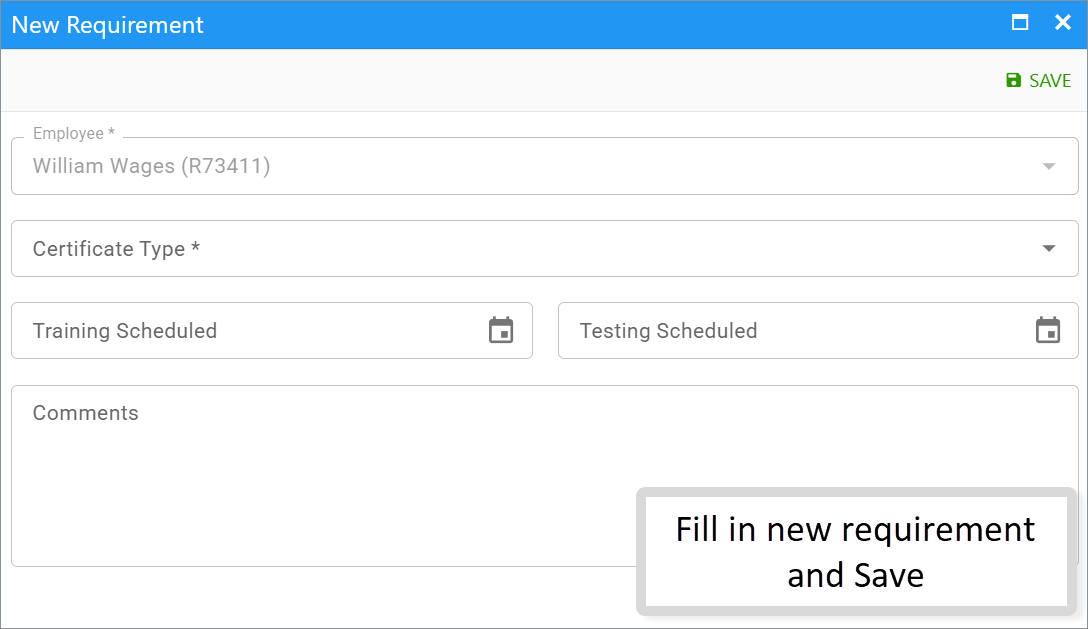
- Fill in details:
- Certificate Type: Choose the certificate type.
- Optional: Add milestone dates (Training Scheduled, Testing Scheduled) or Comments.
- Click Save.
Note: Only one certificate requirement with an active certificate is allowed per certificate type and employee.
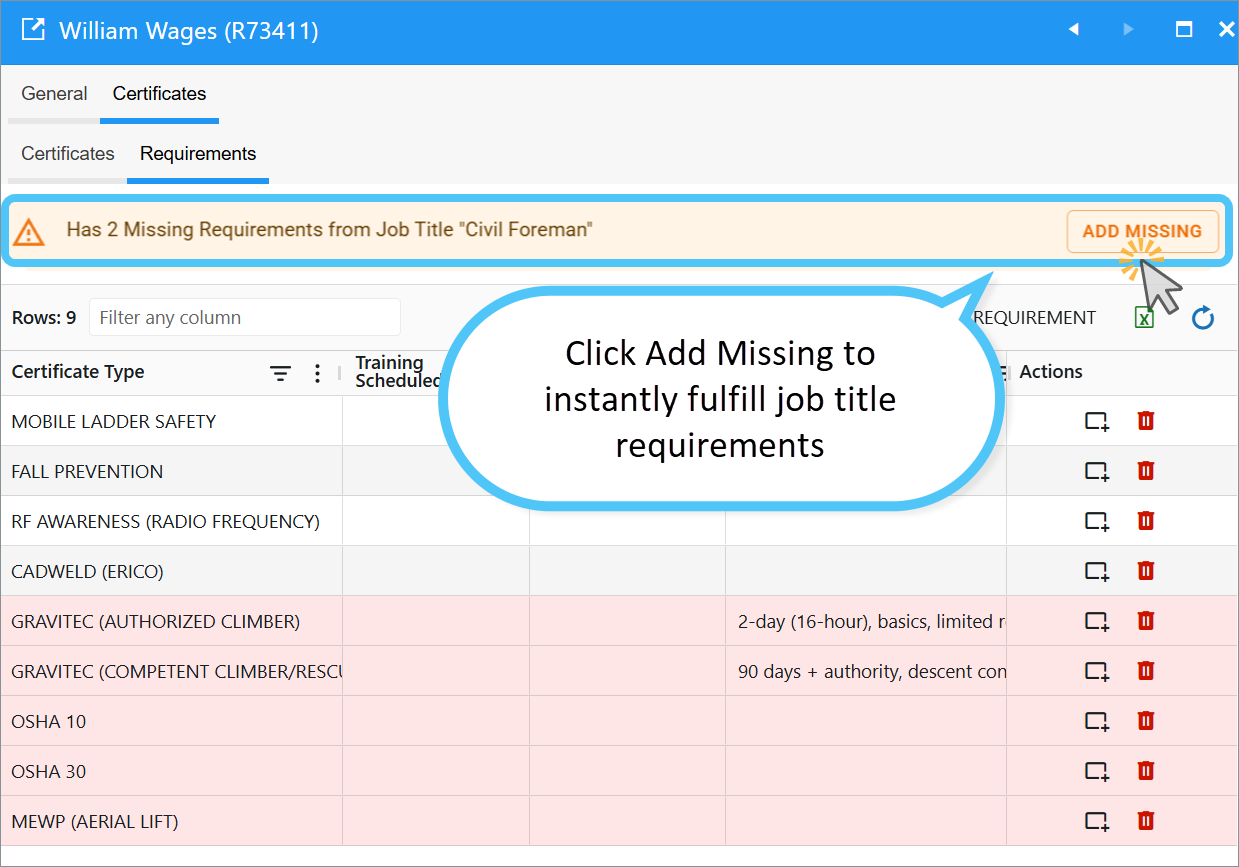
Add Missing Requirement
Click Add Missing to instantly fulfill job title requirements.
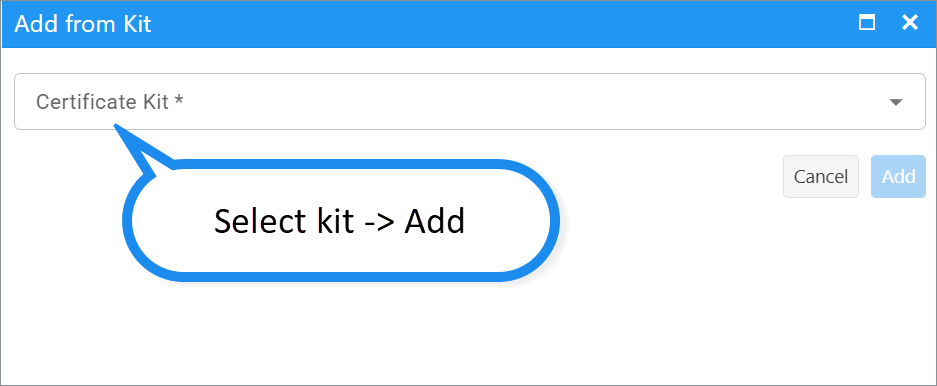
Add from Kit
- Click ADD FROM KIT.
- Select a kit.
- Review certificates to add.
- Click Add.
Create Employee Certificate - Desktop
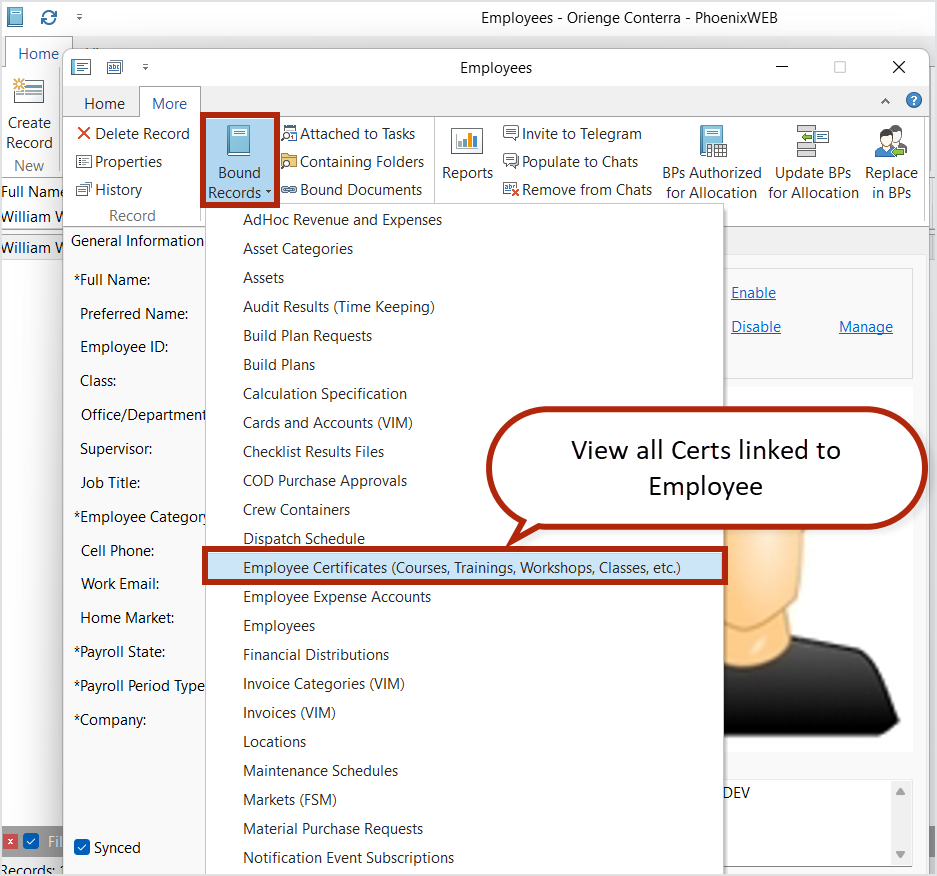
Open Employees reference, switch to the “More” tab of the ribbon on the Employee card. Click “Bound records” and find and select “Employee certificates...” to view Cers linked to this Employee.
Or open the Employee Certificates reference via Quick Launch.
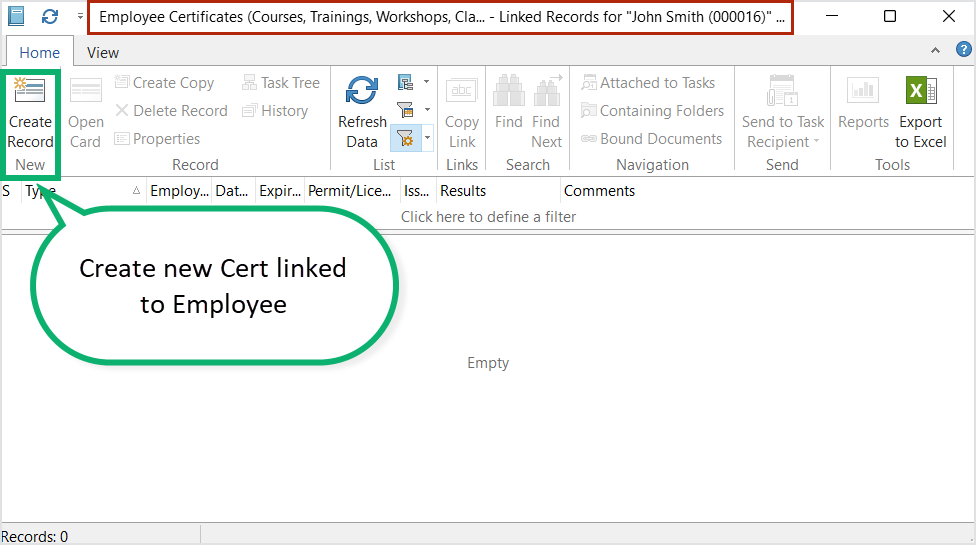
While viewing Employee Certificates linked records for the Employee, add a new Certificate by clicking “Create Record”.
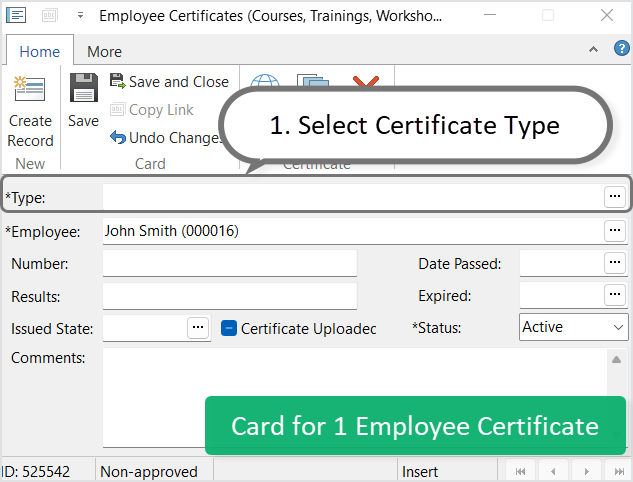
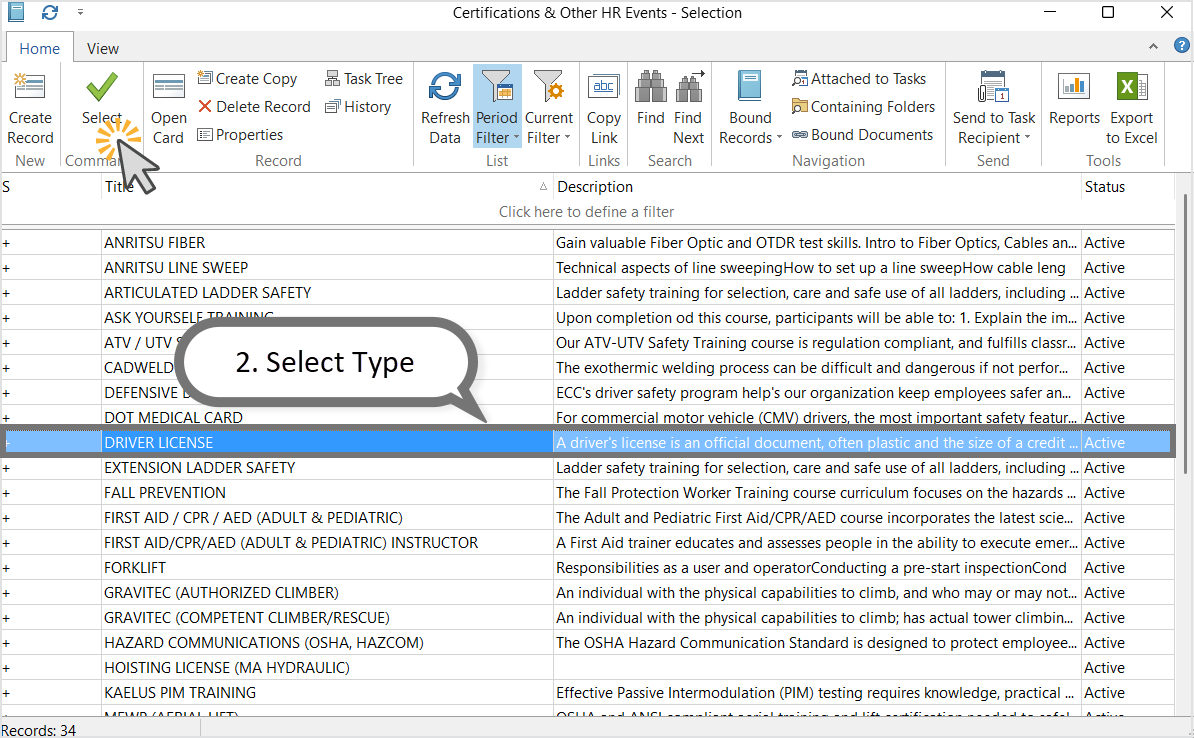
Select a Certificate Type
- “Type” is the only required requisite besides “Employee”.
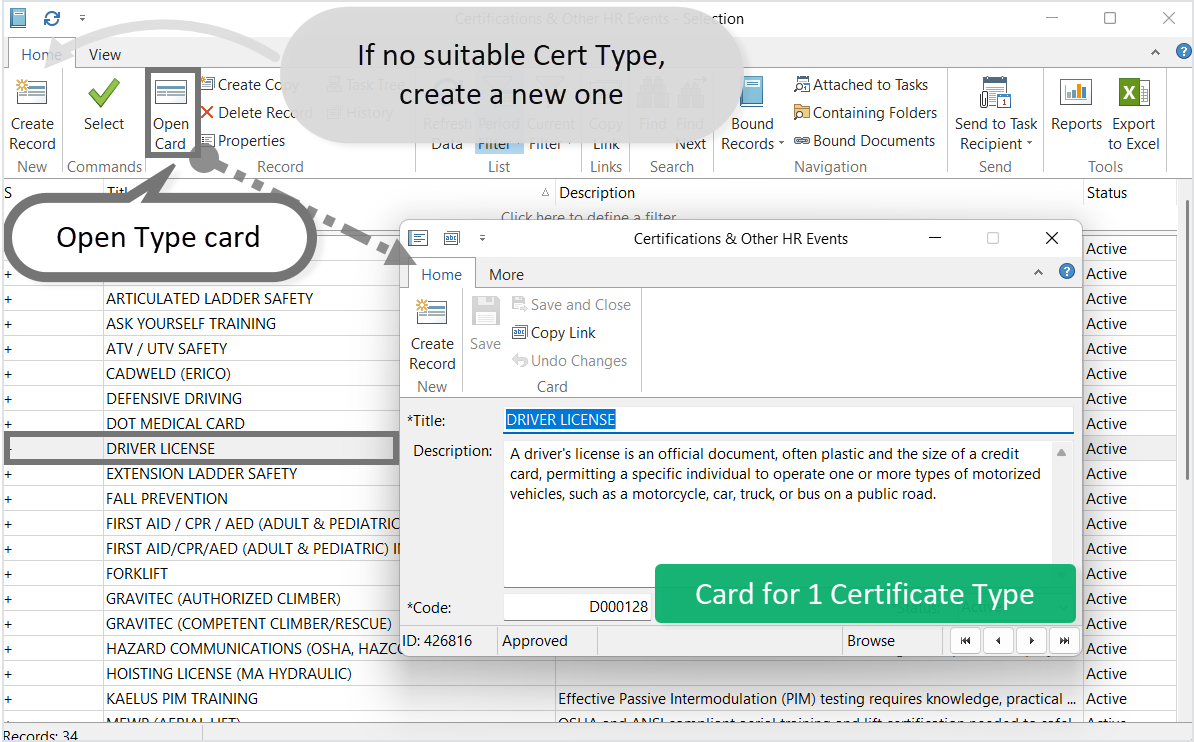
- To select a Certificate Type, select “...” next to the Type filed.
- You can “Open Card” for the one of the Certificate Types to review it.
- You can create a new Certificate Type if needed.
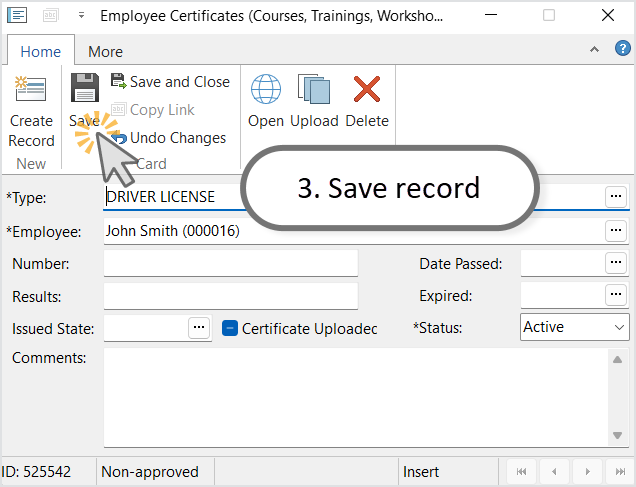
Save after selecting a Certificate Type.
Upload Certificate Image or Document
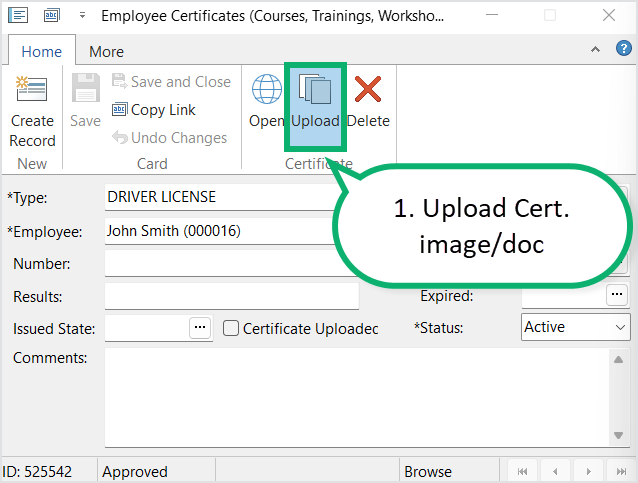
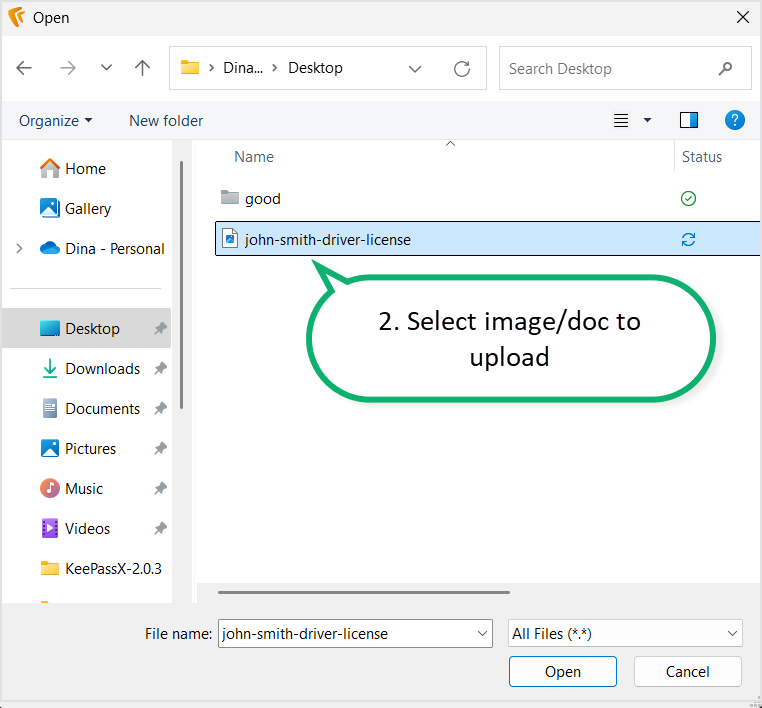
On the Certificate card ribbon, “Certificate” group, click “Upload” to upload a document copy of the Certificate.
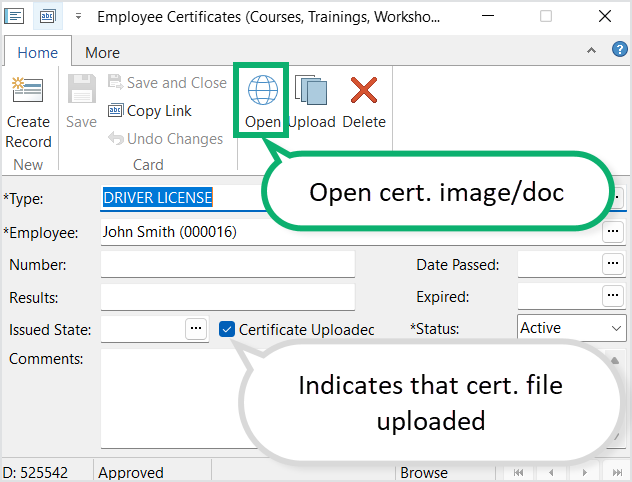
Click “Open” to view the image/doc.
- Note: only one file per certificate.
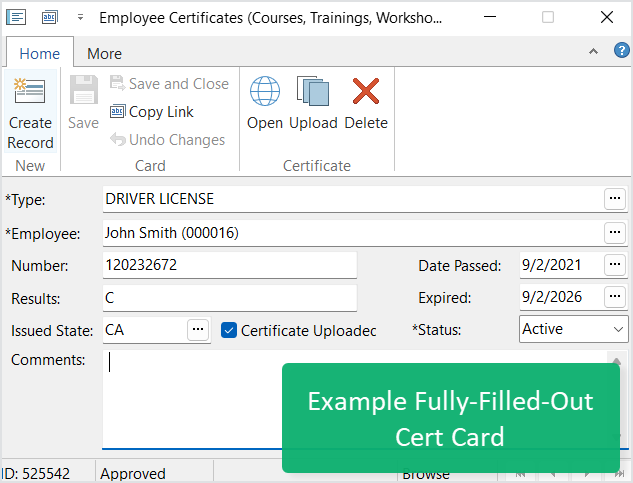
Fill-Out Other Certificate Fields
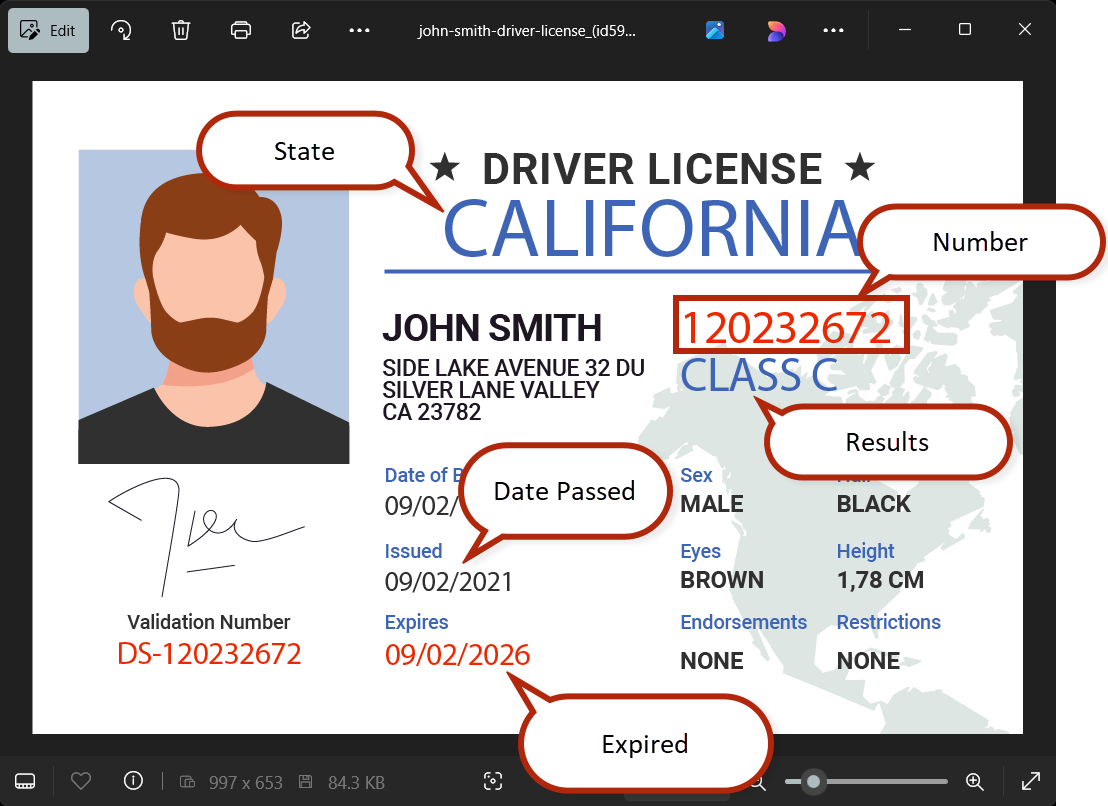
You can use the Certificate file preview to help you fill-out the other fields on the Certificate card, including:
- Number: Key document #
- Date passed: Date certificate approved.
- Results: Class/group/grade
- Expired: Date on which certificate will no longer be valid.
- State: US or other country state.
Access to Certificate Documents
Access to certificate documents is granted as follows:
- All documents are accessible to the Administrator user group and employees with the HR Manager role.
- The certificate holder (the user specified in the Employee field on the certificate card) has access only to their own certificates.
Auto-Close Certificates When Expired
Once a certificate's expiration date has passed, it is automatically closed. The status changes from Active to Closed.
Upcoming Expiration Notifications
Our platform provides configurable alerts to notify you before certificates expire.
- Choose: Email notifications or Inbox messages inside the platform.
Want this turned on for your team?
Just contact the Fieldclix support team — we’ll set it up for you.
Watch a video
You can watch a video to learn about the features of Employee Certificates in Fieldclix.
Read next:
Certificate Requirements and Kits
Apply Certificates to Work Orders
My Certificates in the FCX Mobile App
Was this article helpful?
That’s Great!
Thank you for your feedback
Sorry! We couldn't be helpful
Thank you for your feedback
Feedback sent
We appreciate your effort and will try to fix the article