TABLE OF CONTENTS
- How Fieldclix Usually Captures Labor-Related Payroll Costs
- Use Case Explanation: When Payroll Sync May Not Capture a Payroll Cost Correctly
- Best Practices for Using Ad Hoc Expenses to Capture Costs Not Correctly Captured via Sync
- Suggested Process for Entering Payroll Cost Via Ad Hoc Expense
How Fieldclix Usually Captures Labor-Related Payroll Costs
Companies that sync cost-actuals back from their payroll system to Fieldclix enjoy the benefit of capturing an accurate “burdened rate” that represents an employee's “true cost to the company” per hour, which is used to calculate precise Job Costing.
FCX payroll costs sync also captures labor-related costs that are not part of the burdened-rate. These other costs tend to include things like bonuses, commissions, and employee allowances. FCX takes these sums and charges them to OH, based on how the relevant Payroll Items are configured.
Use Case Explanation: When Payroll Sync May Not Capture a Payroll Cost Correctly
Sometimes, however, an employee allowance cost (or similar) cannot be captured automatically by FCX payroll costs sync. One example of this might be if the company reimburses the employee for something (like a phone plan) and has to record the cost as a “negative deduction” in the payroll system.
FCX cannot import negative amounts into the Payroll Check Cost Rates table during payroll cost sync. For Paylocity, only positive amounts are imported; there is no setting to allow negative cost rate lines. If a line is skipped, it will not appear on the payroll check Cost Rates tab even though it is on the pay statement in Paylocity. See Field Mapping Paylocity and Fieldclix for sign rules and NegateDetCodes.
For problem costs, like negative employee allowances, FCX still strongly recommends you capture these, as well as ALL other costs inside FCX, and not just in your payroll/accounting systems: Accurate OH cost data is important to your P&L.
Best Practices for Using Ad Hoc Expenses to Capture Costs Not Correctly Captured via Sync
One way to capture costs in FCX which cannot otherwise be captured is by creating an Ad Hoc Revenue and Expense Reference Record.
When entering a payroll cost via Ad Hoc Expenses, it is recommended, where possible, that you bundle costs into a single entry. For instance, a single entry per month to represent all employee phone plan reimbursements.
Suggested Process for Entering Payroll Cost Via Ad Hoc Expense
The below screenshots illustrate how you might enter the above via FCX Ad Hoc Expenses.
The process:
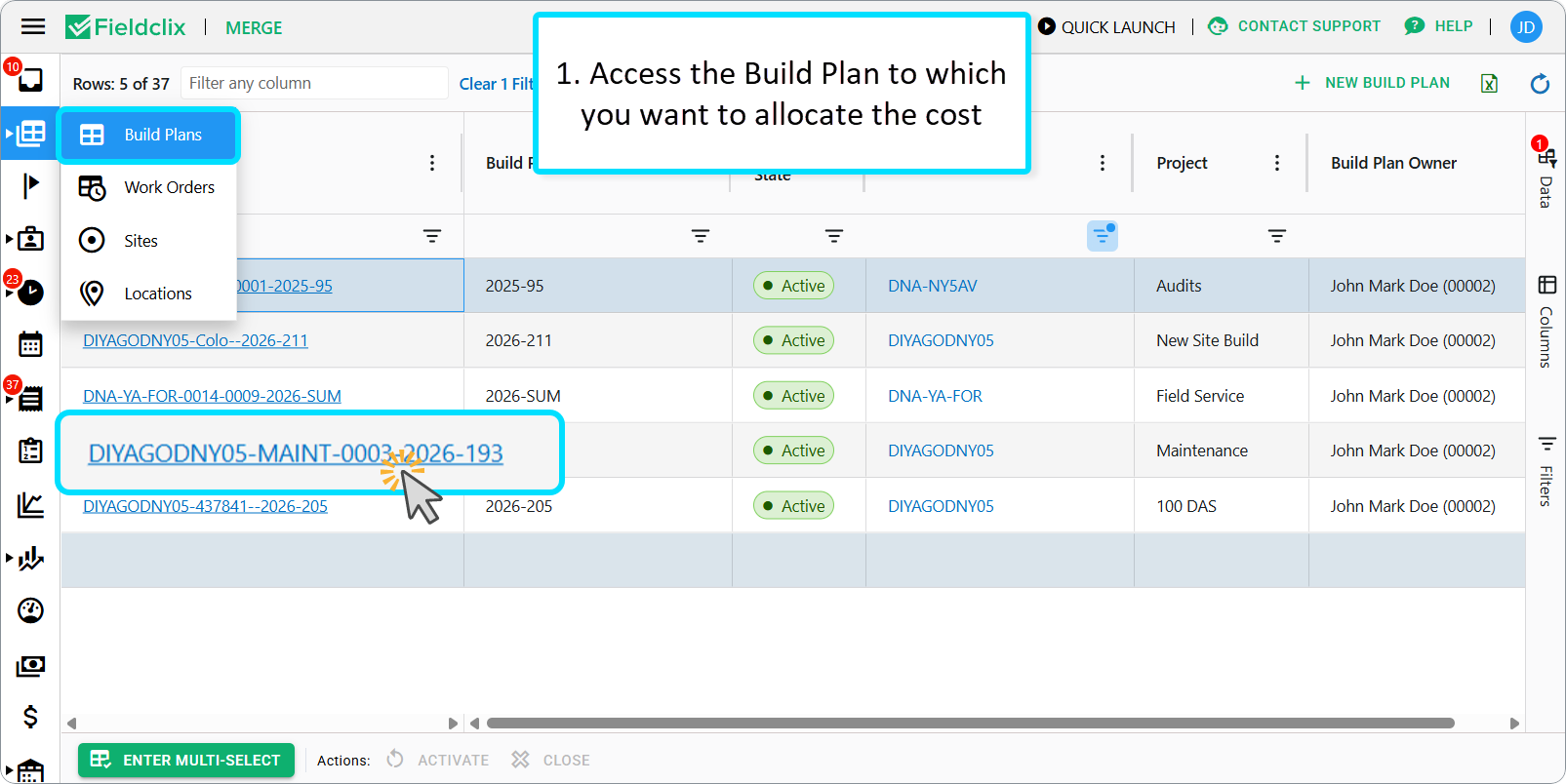
- In the Build Plans Dashboard find and open the BP to which you want to allocate this cost
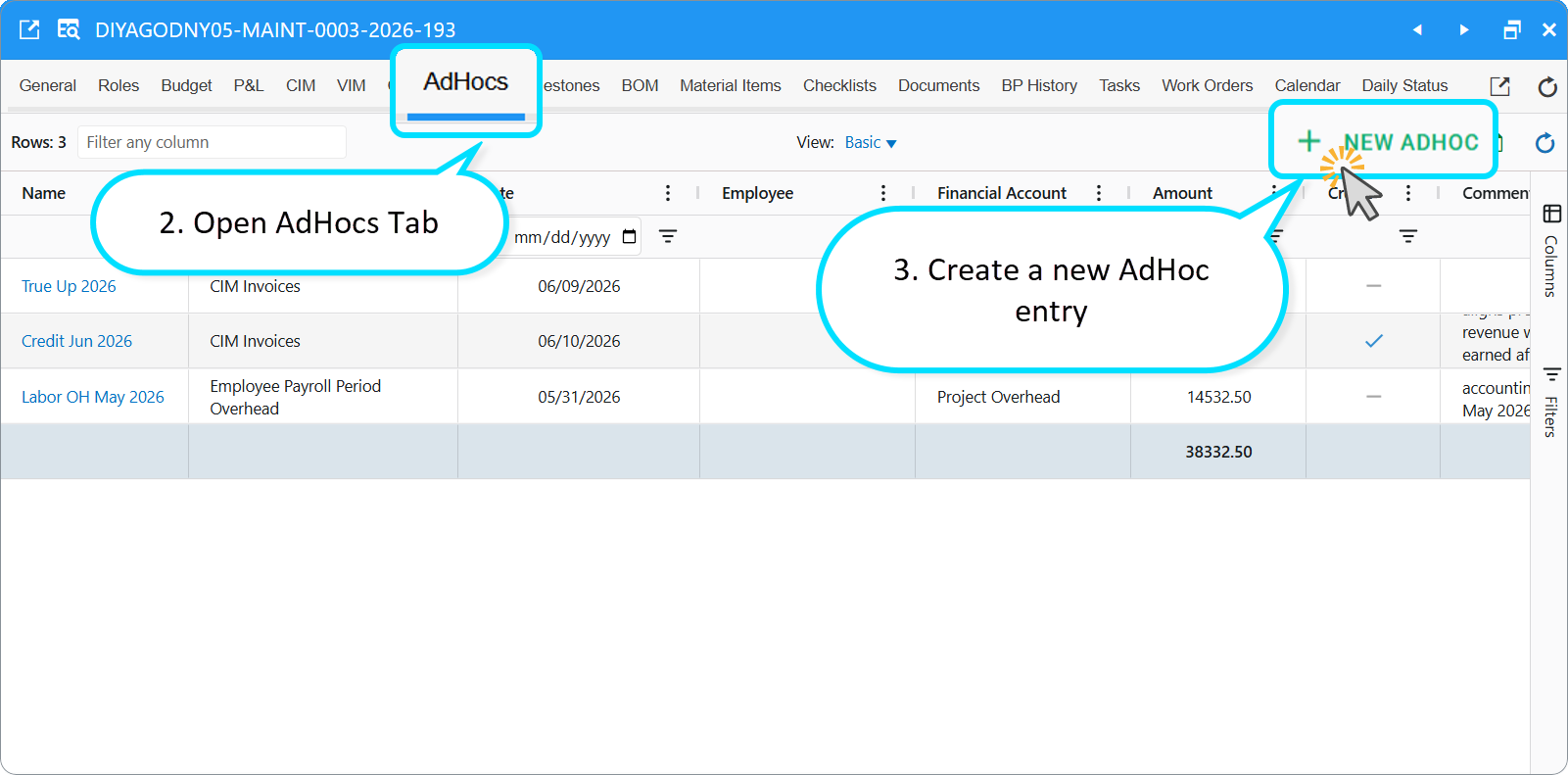
- On the BP card, find the tab “AdHocs” and click the “NEW ADHOC” button to add a new AdHoc Expense record
- Fill-out the AdHoc Revenue and Expenses card
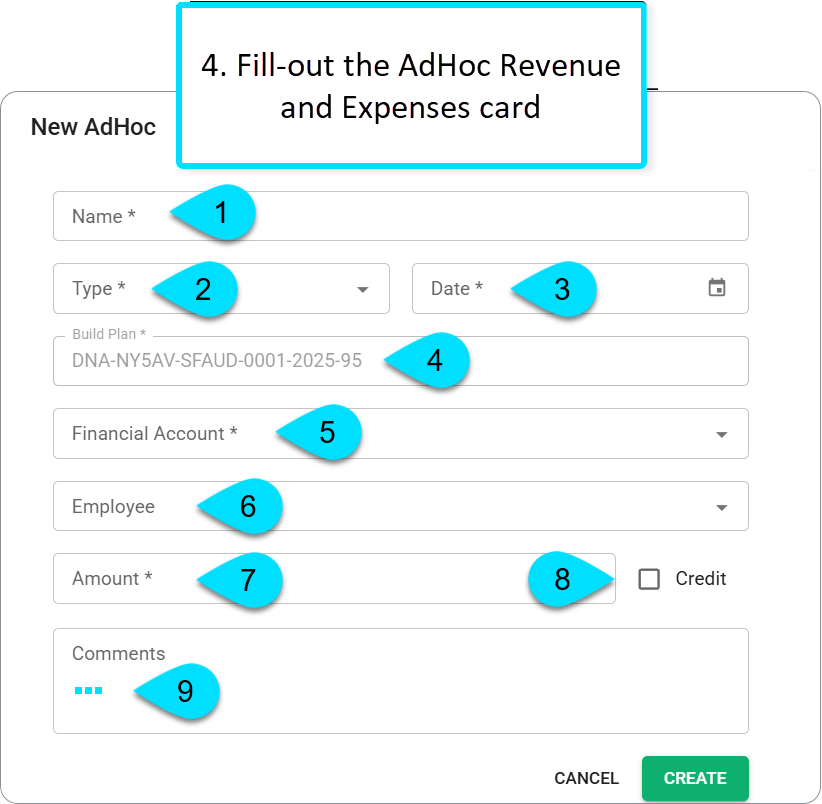
- Name: Give the record a unique name that will help you find it in a big list in the future if you need to look it up.
- Type: Choose Type so it matches the nature of the transaction (e.g. revenue vs expense). If you are entering cost that represents hours or units (like of Per Diem) select “Time Keeping,” for anything else, like Employee Allowances, select “Employee Payroll Period Overhead.”
- Date: determines which financial period the entry falls into.
- Build Plan: The BP from which you created this record is auto-selected.
- Employee: If you were entering a cost for a single employee, you could specify them here.
- Financial Account:
- For most labor-related, but not burden-rate items, the account would be Employee Allowance
- Try to only use “labor-related accounts” for labor-related costs and vice-versa
- Amount: Enter the transaction value. This is the dollar amount allocated to the selected Build Plan and Financial Account; it feeds into financial distributions and affects actual revenue/expense reporting (P&L, budget dashboards).
- Credit: Use Credit when the entry reverses a normal charge — for example, a reimbursement to the company, a write-off, or payroll-related costs that should reduce expenses rather than add them. The checkbox is optional and unchecked by default.
- Comment: enter any extra information.
- Then click Create.
Was this article helpful?
That’s Great!
Thank you for your feedback
Sorry! We couldn't be helpful
Thank you for your feedback
Feedback sent
We appreciate your effort and will try to fix the article