TABLE OF CONTENTS
- Access to Time Cards Reasons reference
- Reason Card
- Non-Work Work Order
- Add Reason Hrs to Future Dates (e.g. Holdays)
- Add Reason to a Single Time Card
- Automatically create Holiday Time Cards
Access to Time Cards Reasons reference
HR Managers and Time Keeping Managers have full access to the reference.
All Users can view the reference content. For example, a TC Reviewer who is a member of the All Users group can view reason records and add them to uncompleted Time Cards assigned to him/her.
Reason Card
The Reason card captures:
- Hours: Time-Off hours.
- Cost Type: Allocates time-off to a specific cost type.
Managing Reasons
- Configure reasons to let employees submit time-off requests via the mobile app.
- Time cards with reasons (e.g., PTO, Holiday) mark employees as unavailable in the Dispatch Calendar.
Exception: Use "Don't show unavailability" on a Reason card to keep employees dispatchable (not to show in the Not Available group of resources in the Dispatch Calendar).
Note: Changes to Hours or Cost Type affect only future time cards. Recalculate existing ones manually.

Non-Work Work Order
In TK Employee Configuration:
- Set Non Work Build Plan to allocate non-work hours to a specific Work Order (with "NONWORK" abbreviation).
- Without it, hours default to the system's Non-Work Work Order setting.

Add Reason Hrs to Future Dates (e.g. Holdays)
How it works
Holiday hours (like other time-off) are tracked in FCX two ways:
- Holiday Reason on the Time Card.
- Holiday Cost Type on time periods for correct payroll routing.
Add a Holiday Reason to future time cards, and paid hours auto-populate with the right Cost Type and allocation when the date arrives. For details, see TK Requests.
Easier than manual Time Cards: Use the Reason Reference to add a holiday to all employees at once (steps below).
Best Practice
Avoid pre-adding all holidays at year-start:
- Departing employees leave future holidays to clean up.
- New hires need holidays added individually.
Recommended: Enter holidays ~1 week before the date to minimize edits.
Process Summary
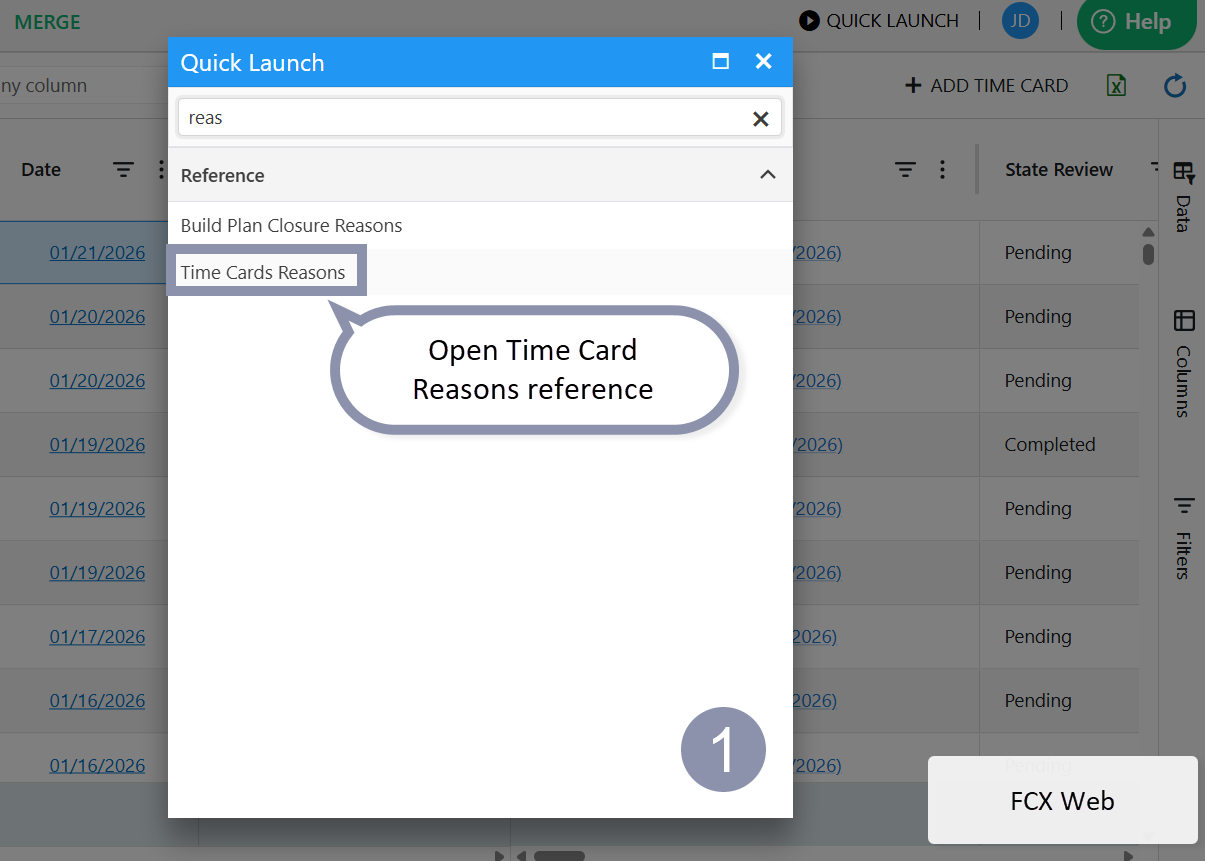
- Open Time Card Reasons Reference using Quick Launch in FCX Web or Desktop.
- Select the Reason (e.g., Holiday). On the Home tab (Actions group), click Create Time Cards.
- Enter date range (same date for single-day) and click OK.
- In the employee list:
- Multi-select: Hold Ctrl + click records > Select (ribbon).
- Or filter columns > Ctrl+A > Select.


Add Reason to a Single Time Card
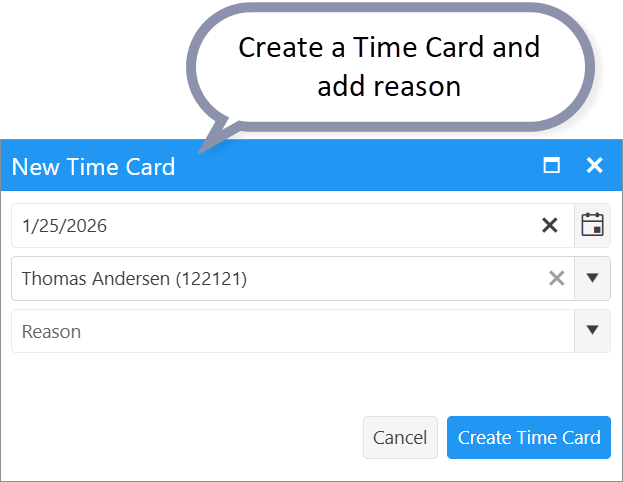
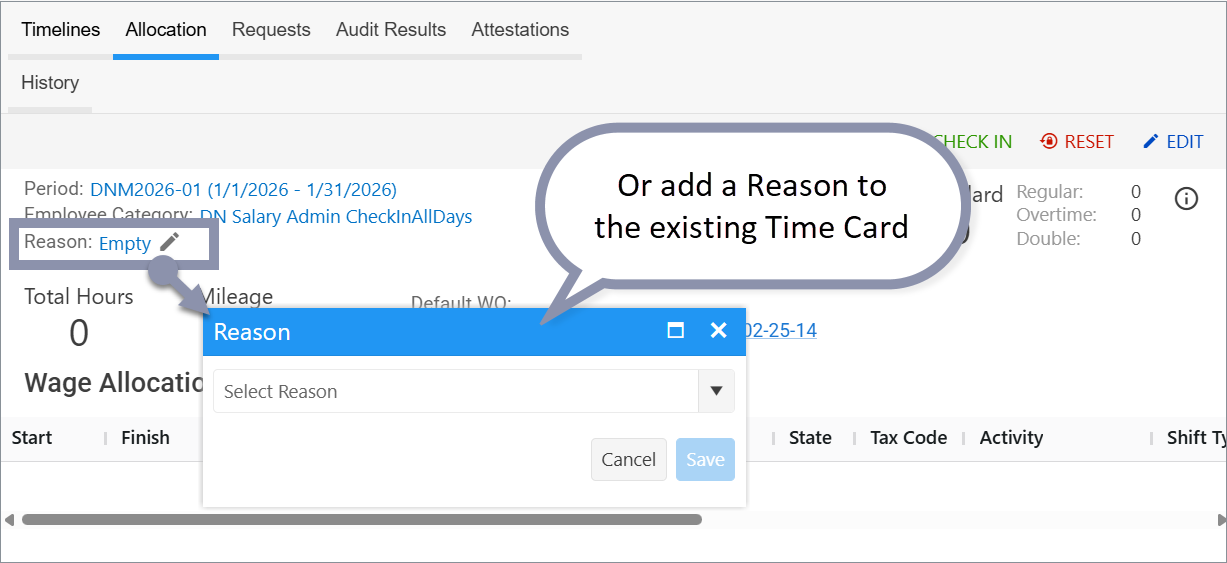
- Open (or create) the Time Card:
- Via Time Cards Dashboard (+ Time Card if missing) or TCR Interface.
- Or in FCX Desktop.
- (For uncompleted time cards only) Fill the Reason field.
- Hours auto-apply to the Payroll Allocation table.
Automatically create Holiday Time Cards
You can set the automatic creation of Holiday Time Cards.
To do this:
- For the required employees, activate the checkbox “Automatically create Holidays” in the employee's TK configuration.
- Fill in the holidays in the Working Time Calendar. Contact FCX Support, if you require a help.
During daily TK processing, the system checks the Working Time Calendar for holidays within the next 5 days (current processing date plus 5 days), creates Time Cards for affected employees, and assigns a reason (PTO or Holiday) as specified by a system constant.
If a Time Card already exists for a holiday, the system simply adds the reason hours to the existing Time Card.
FAQ
Q: What happens if Employee Category auto-generates Check-Ins for the TC Employee? Will they have double hours?
A: No. FCX TK checks a TC for Reason hrs before adding an auto-generated Check-In to it.
Note: If a user is set up to manually Check-In, they can still manually Check-In on days with Reason hrs.
Was this article helpful?
That’s Great!
Thank you for your feedback
Sorry! We couldn't be helpful
Thank you for your feedback
Feedback sent
We appreciate your effort and will try to fix the article